Vehicle Management
Users can query, create, edit, and delete vehicle information by license plate number, VIN, or unique ID.
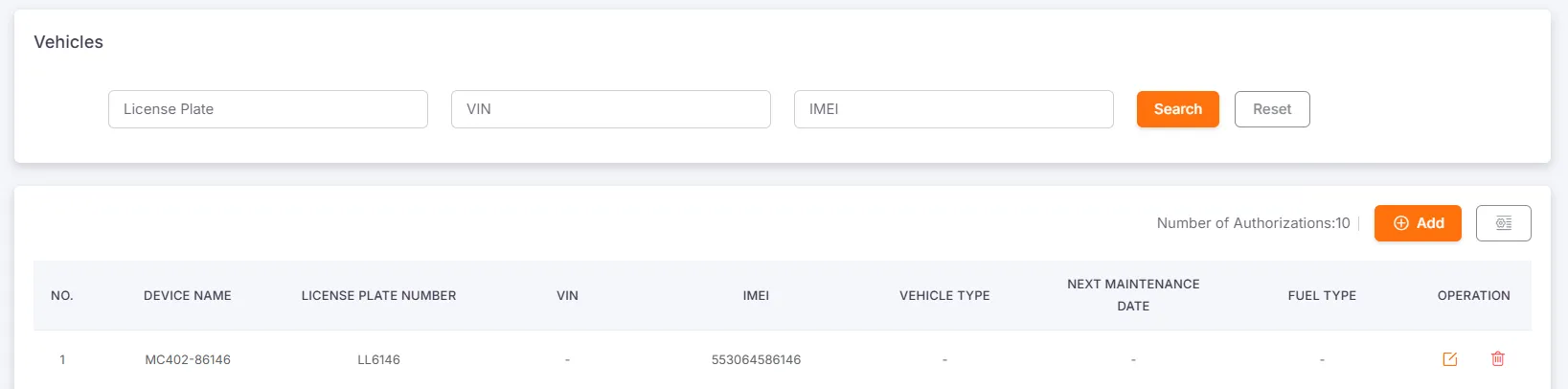
Authorized Vehicle Count
Section titled “Authorized Vehicle Count”This shows the maximum number of vehicles that can be bound to the current fleet, with a default of 10. This number can be configured in the BOSS management backend. If you need to adjust it, please contact your project manager or field application engineer.
Create Vehicle
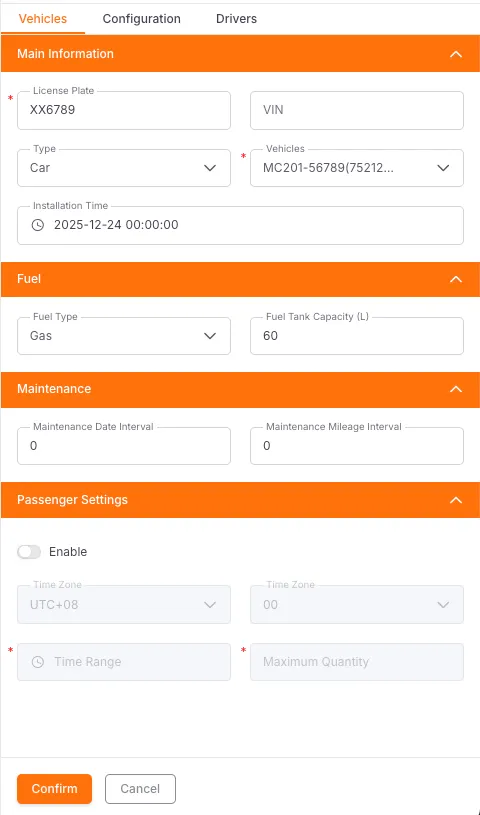
Section titled “Create Vehicle”Main Information: License Plate (required), VIN, Type, Associated Device (required), Installation Date
Fuel Information: Fuel Type, Fuel Tank Capacity
Maintenance Records: The system will fixedly display the maintenance time interval and mileage interval. If there are maintenance records, the last maintenance date, mileage, and the suggested date and mileage for the next maintenance will be displayed; otherwise, it will not be displayed.
Insurance Records: If there are insurance records, the insurance name, effective date, and expiration date will be displayed; otherwise, it will not be displayed.
Passenger Settings:
- When enabled, the system will start recording the number of passengers from the specified time. If the actual number of passengers exceeds the set limit before the specified time ends, an overload alert will be triggered in the IoT project, and the relevant information can be viewed in the alert report. This alert will not be triggered when the number of passengers is zero.
- When disabled, the related settings are not editable, and the overload alert will not be triggered.
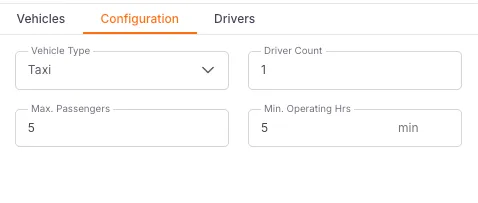
Vehicle Configuration: Vehicle Type, Number of Drivers, Maximum Passenger Capacity, Minimum Operation Time. If the transport time is less than the configured minimum operation time, the transport status will be considered invalid transport; otherwise, it will be considered normal transport. If the number of passengers exceeds the maximum passenger capacity, the transport status will be considered overloaded transport, which will generate an overload alert that can be viewed in the corresponding report.
One vehicle can only be associated with one device.
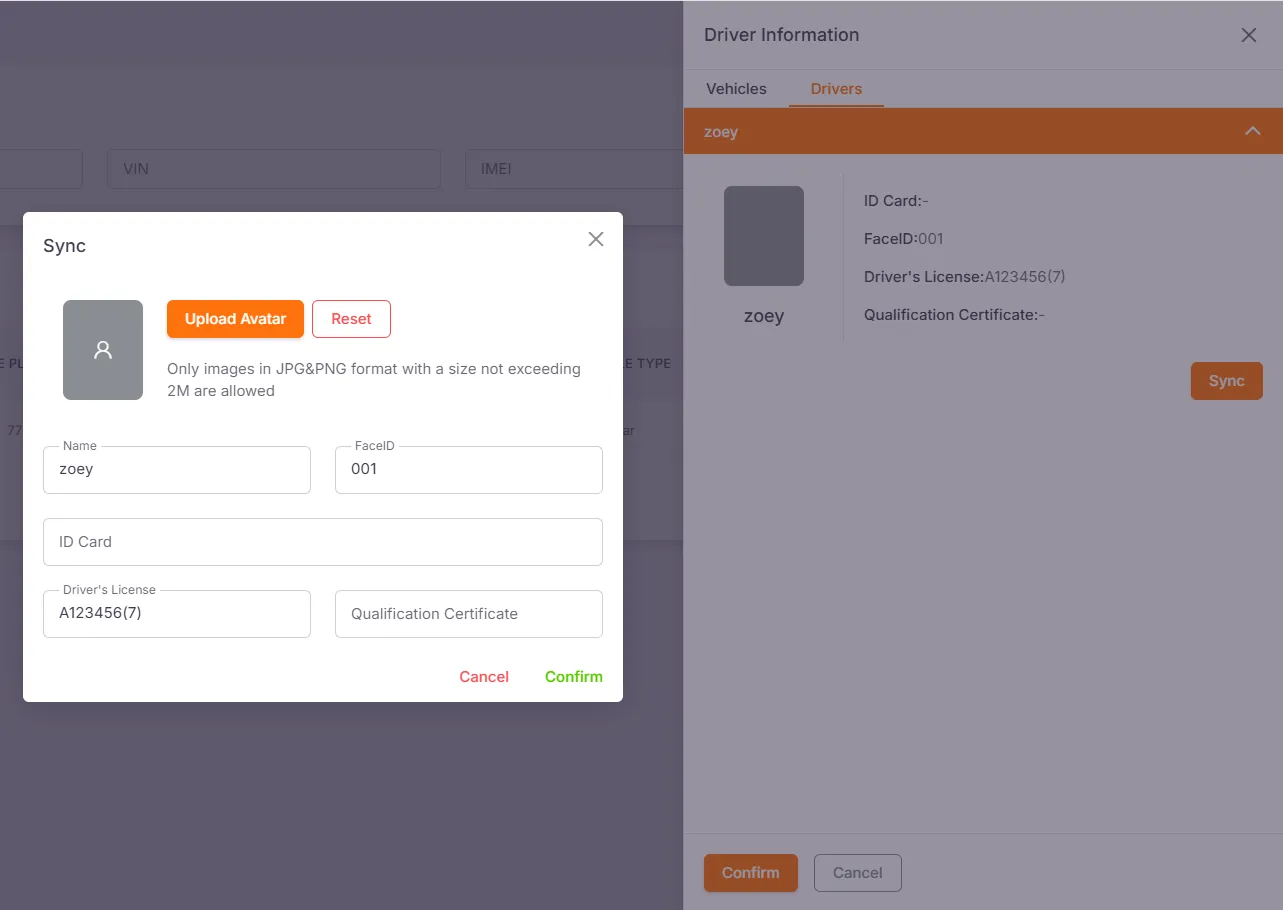
Sync Driver Info to Vehicle
Section titled “Sync Driver Info to Vehicle”Main Information: Name, Profile Picture, ID Card Number, FaceID, Driver’s License, Qualification Certificate.
Sync Button: This button is only displayed when an ST device is associated. Clicking it will open a window where you can edit the current driver’s information. After submission, the information will be synchronized to the device (the synchronization process may fail, and failure information will be prompted in red text).