Route Management
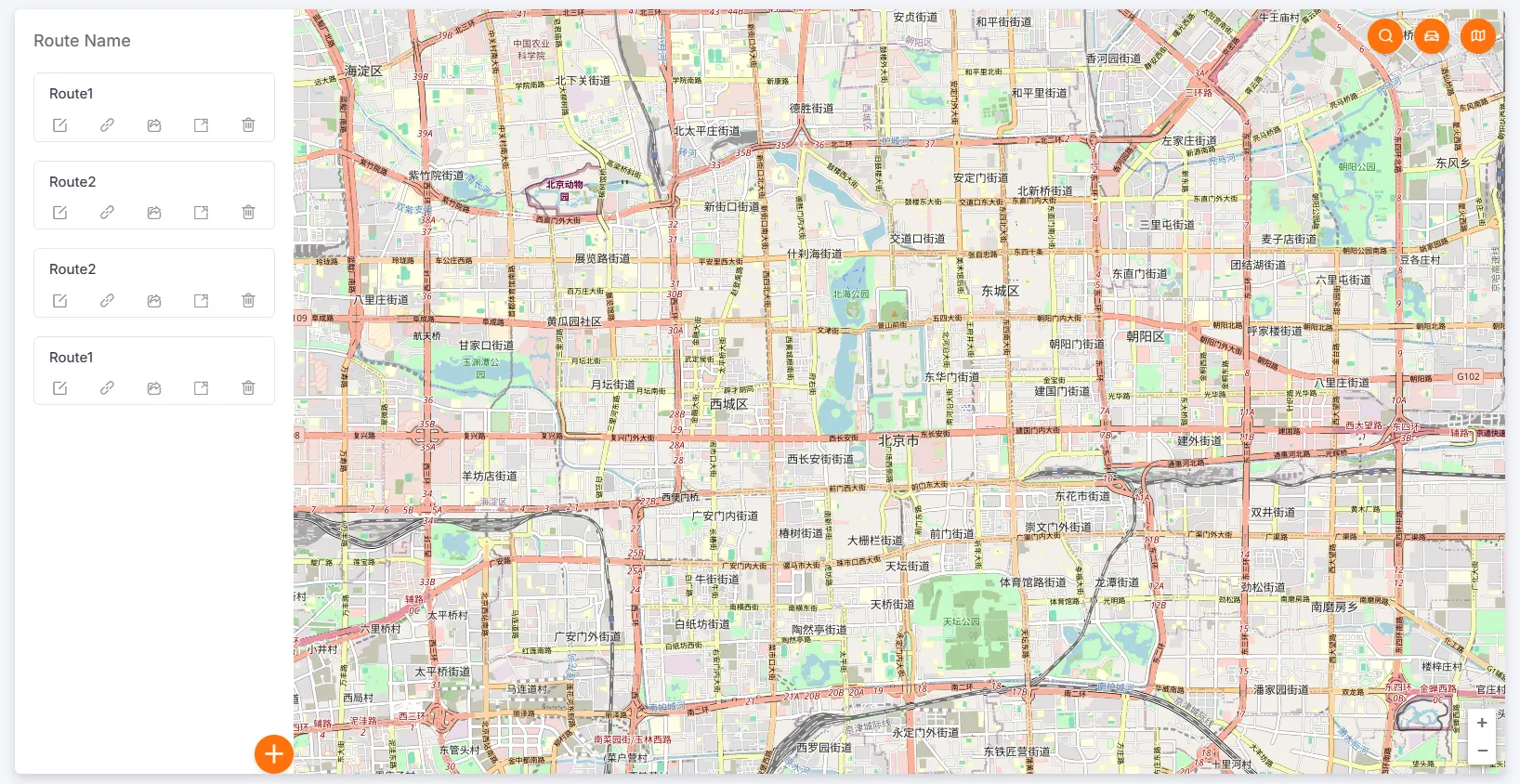
Create Route Plan
Section titled “Create Route Plan”When creating a route, you must first fill in the route name and can choose whether to enable the Sequential Driving switch (if enabled, the driver must follow the planned checkpoints in order).
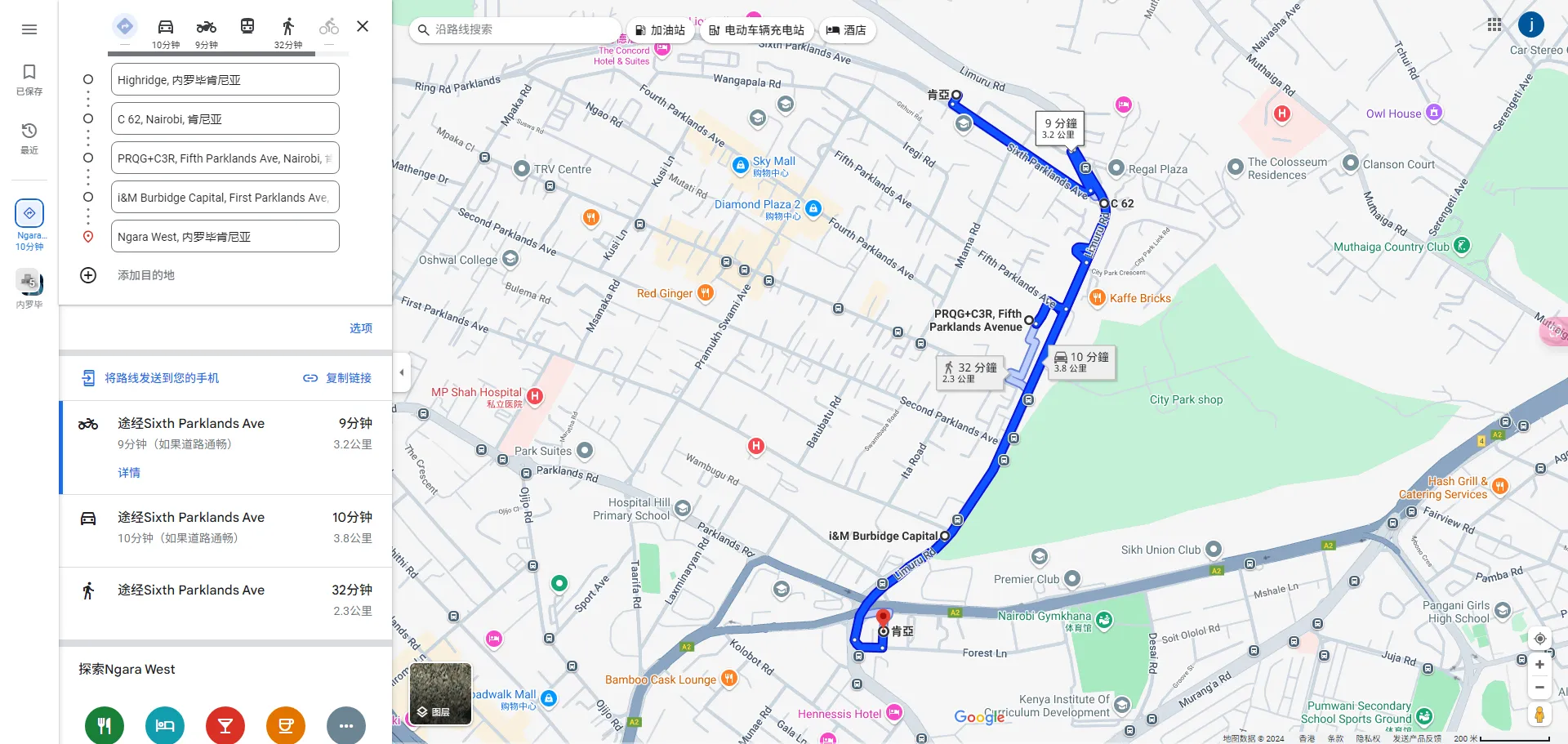
Next, add waypoints by long-pressing and dragging the mouse on the map. The system will default to planning the route between the waypoints. Please note that the coverage areas of the waypoints cannot overlap.
After adding, click Close to enter edit mode to adjust the route and waypoints.
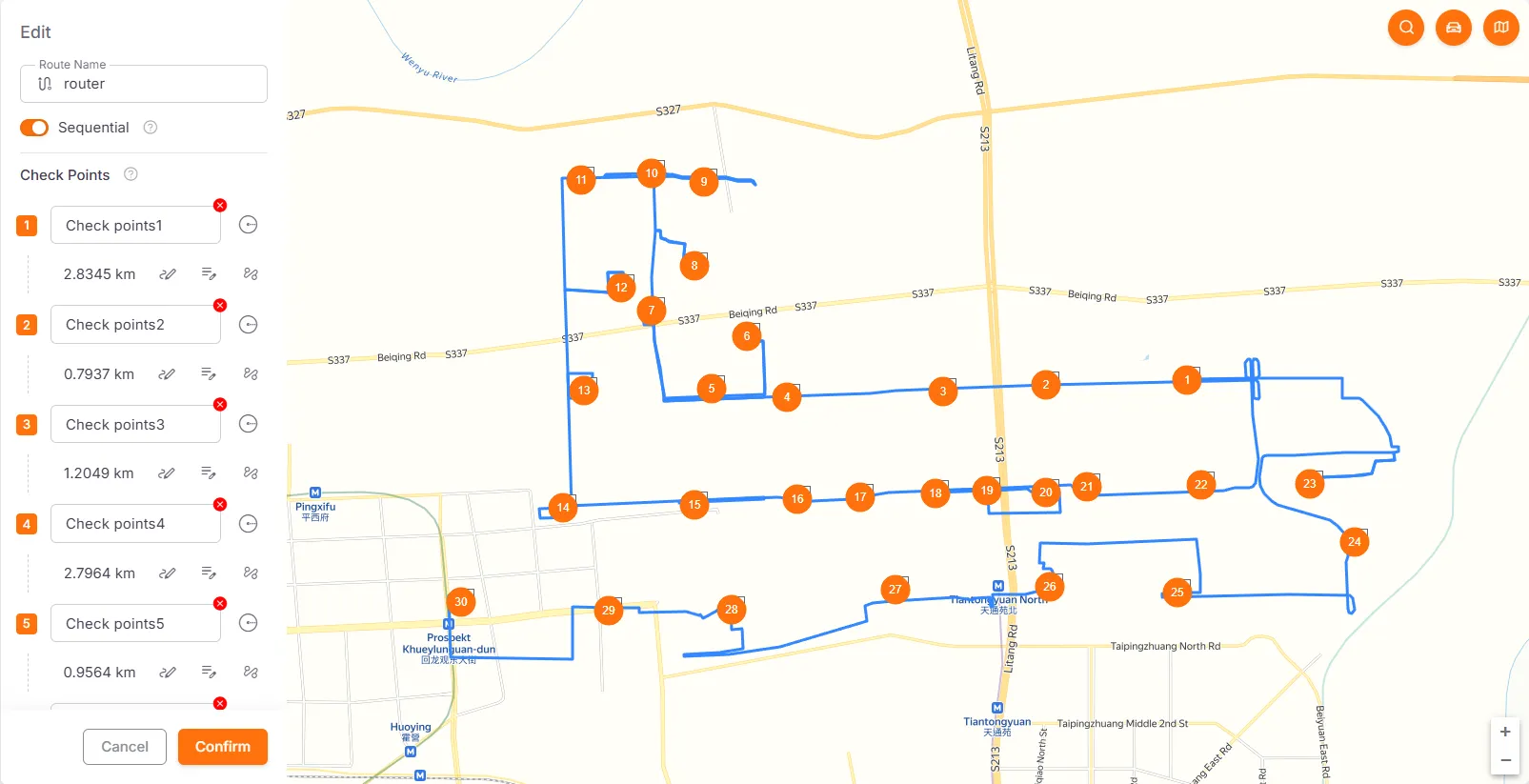
Users can modify waypoint names, delete waypoints, or adjust their radius. The radius can be adjusted by clicking and dragging the square on the waypoint to scale it, or by dragging the slider in the left-side edit bar for precise adjustment.
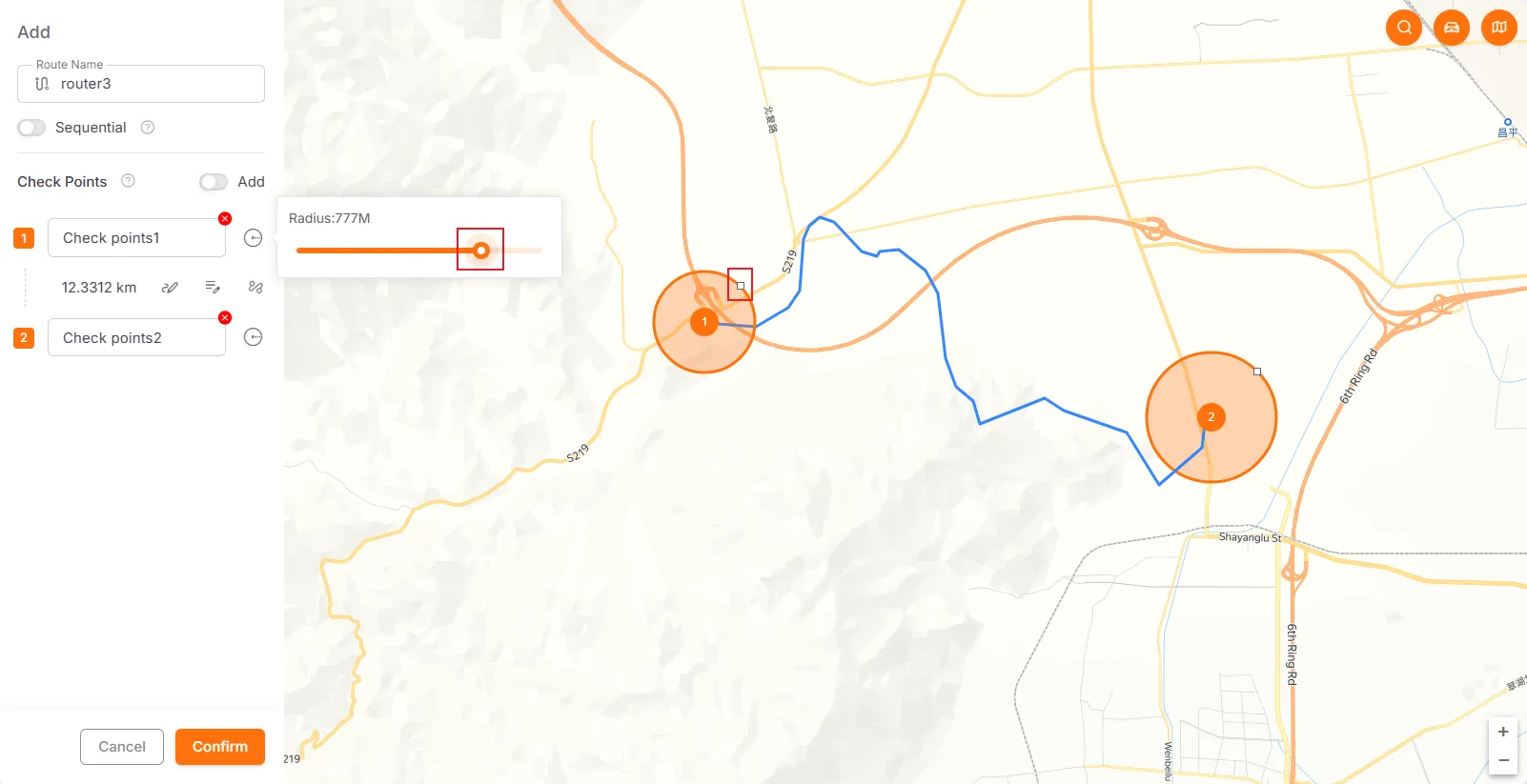
To modify the route between waypoints, click the Reset button in the left-side edit bar. Select Manual mode to draw the route on the map by clicking, and double-clicking to finish; select Automatic mode, and the system will automatically generate the route.
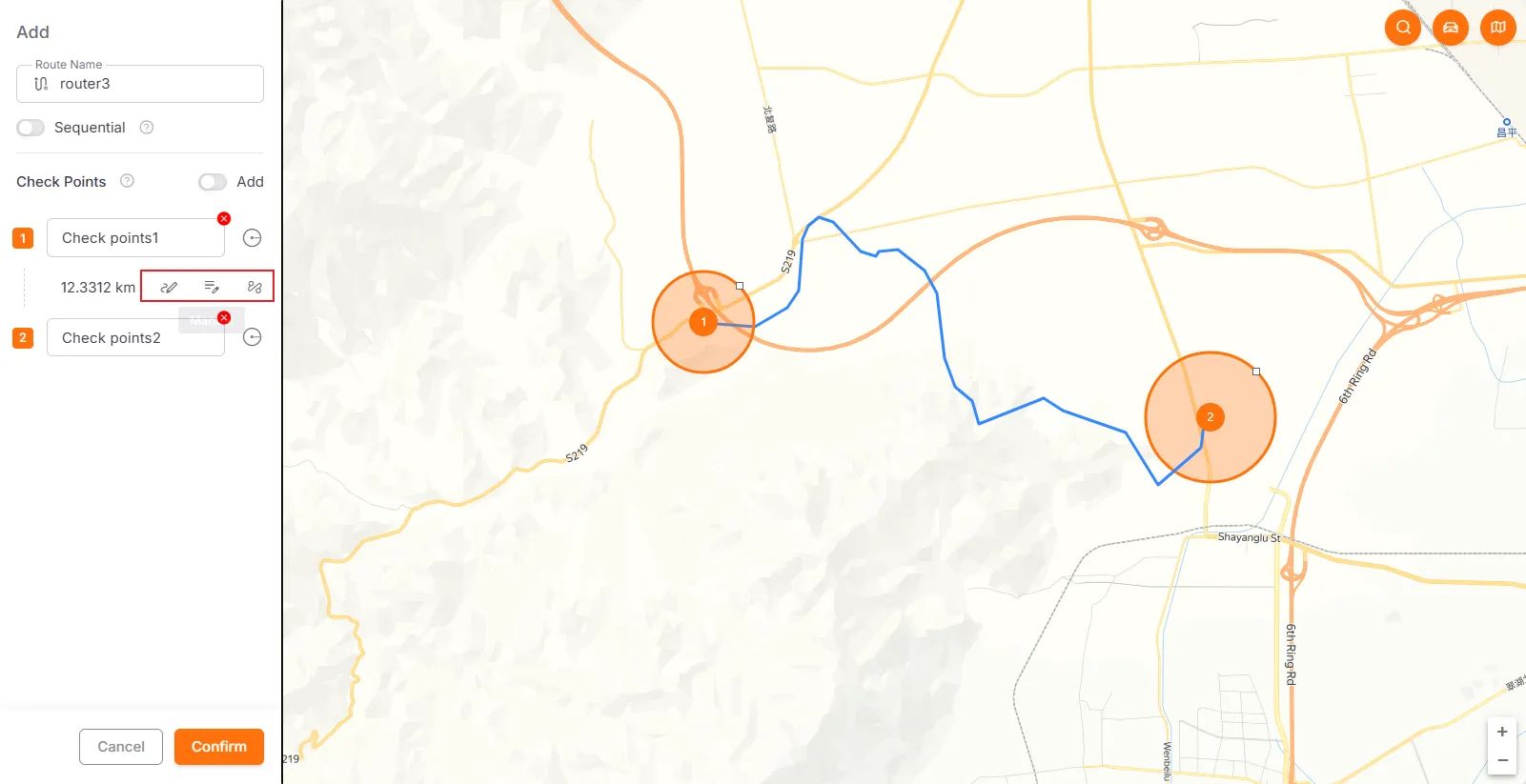
Drag a waypoint in the left-side waypoint list to adjust its order. The route will be automatically replanned after the order changes.
A route can contain up to 30 waypoints, and each waypoint can have its own coverage area set (maximum radius of 1 km).
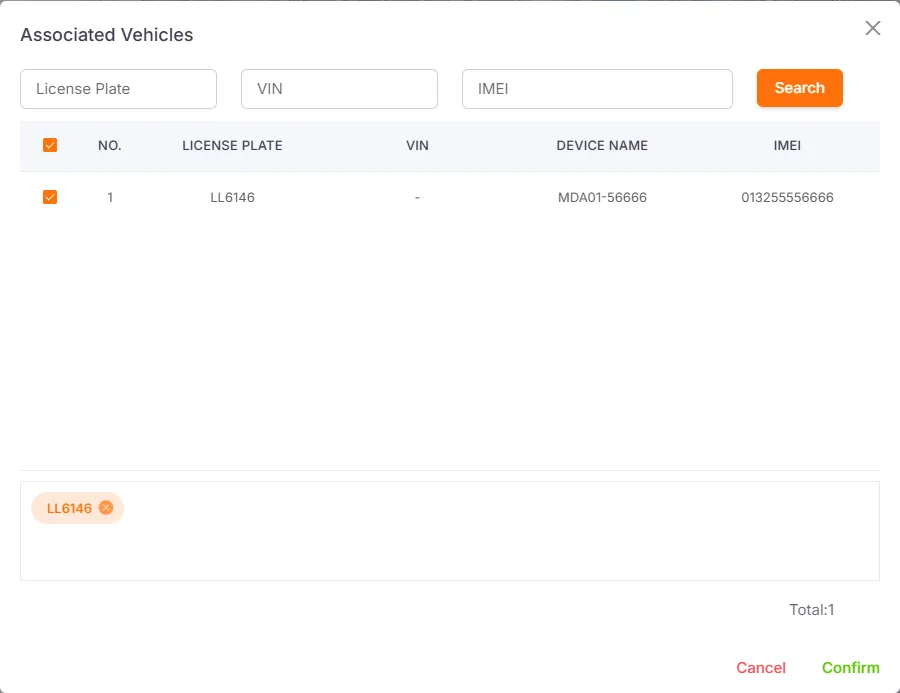
After completing the route plan, click Save and bind the vehicles. One route can be bound to multiple vehicles.
Edit Route Plan
Section titled “Edit Route Plan”You can edit the route. The operation is the same as creating a route plan.
Associate Vehicles
Section titled “Associate Vehicles”Here you can modify or add associated vehicles.
Share Route
Section titled “Share Route”Copy the route’s sharing link and open it in a browser to view the corresponding route information.
Route Record
Section titled “Route Record”Query Conditions: Route, Vehicle, Date
This function is used to query the situation of vehicles passing through waypoints on a specified route and displays the number of passes reported by the device.
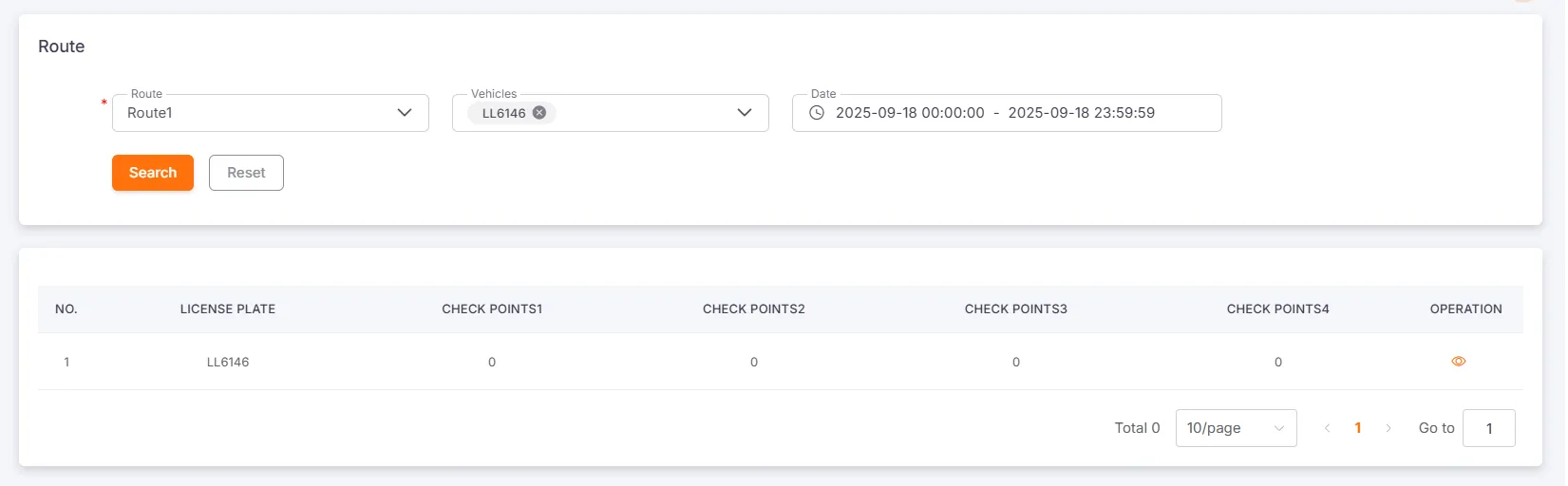
Click Details to view the detailed records of the vehicle entering and exiting each waypoint, including License Plate Number, Waypoint Name, Waypoint Number, Entry Time, Exit Time, and Dwell Time.
