Platform Settings
Click on the nickname in the upper right corner of the platform to enter the platform settings from the opened menu.
Node Settings
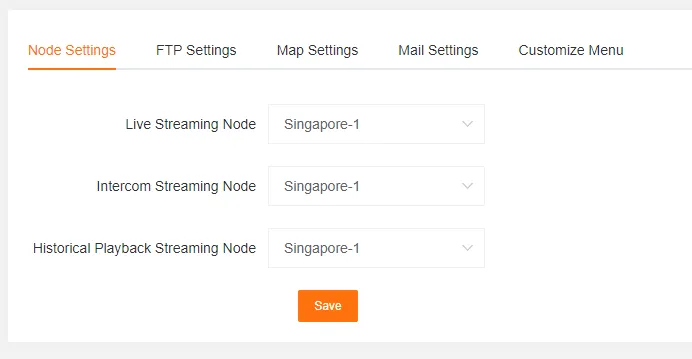
Section titled “Node Settings”Supports setting customer-level default multimedia nodes, including default nodes for Live Stream, Two-way Talk, and Video Playback.
FTP Settings
Section titled “FTP Settings”If you need to enable custom FTP, you must set the FTP Account and FTP Password.

Map Settings
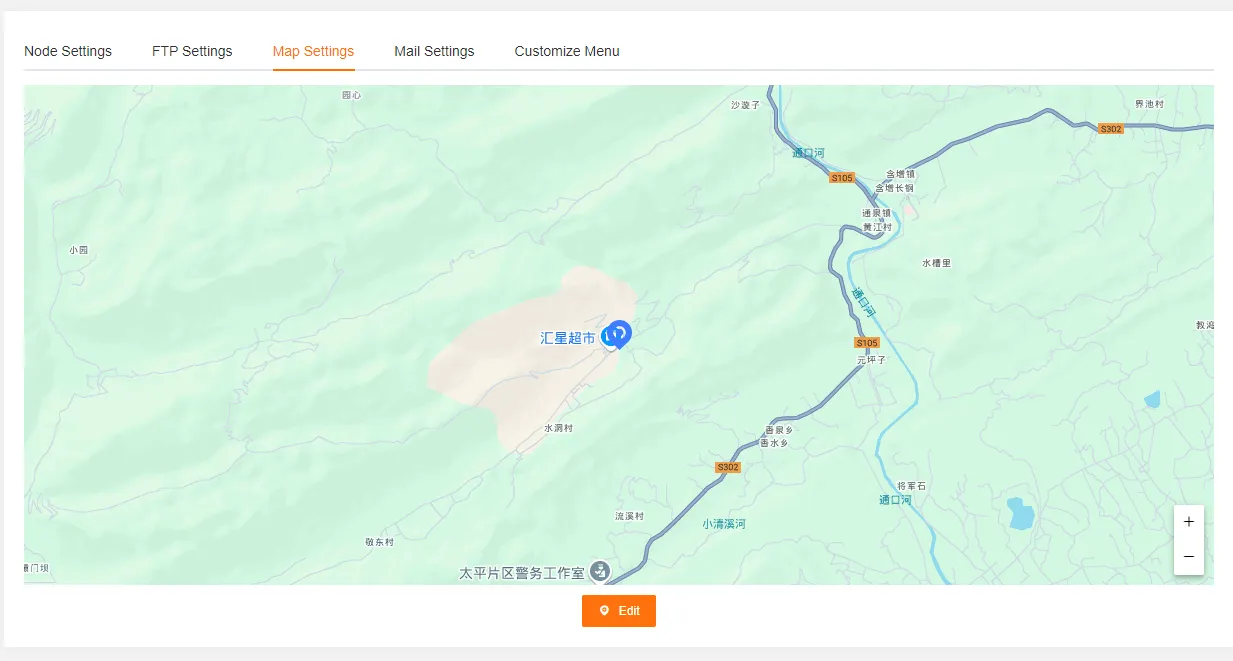
Section titled “Map Settings”- Default Map Latitude and Longitude You can set a default center latitude and longitude for all map functions on the platform. If not set, the map will default to locating in Singapore.
- Click the Edit button, click any position on the map to set the coordinates, and then click Save to update.
Email Settings
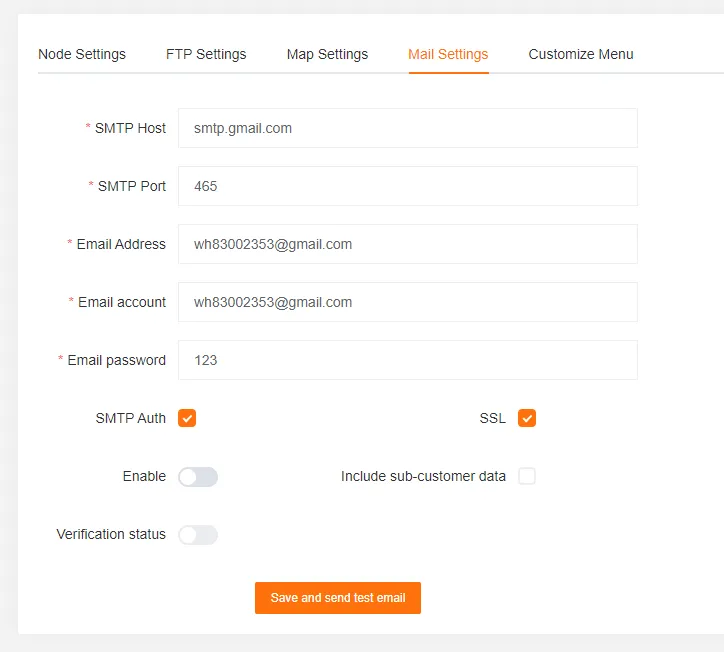
Section titled “Email Settings”Customers can use their own email address (instead of the system email) to send emails. Their sub-customers can also choose to use this email or specify another one.
Custom Menu
Section titled “Custom Menu”Customers can customize exclusive function menus according to their actual needs. This function is limited to the customer themselves and their authorized sub-customers.

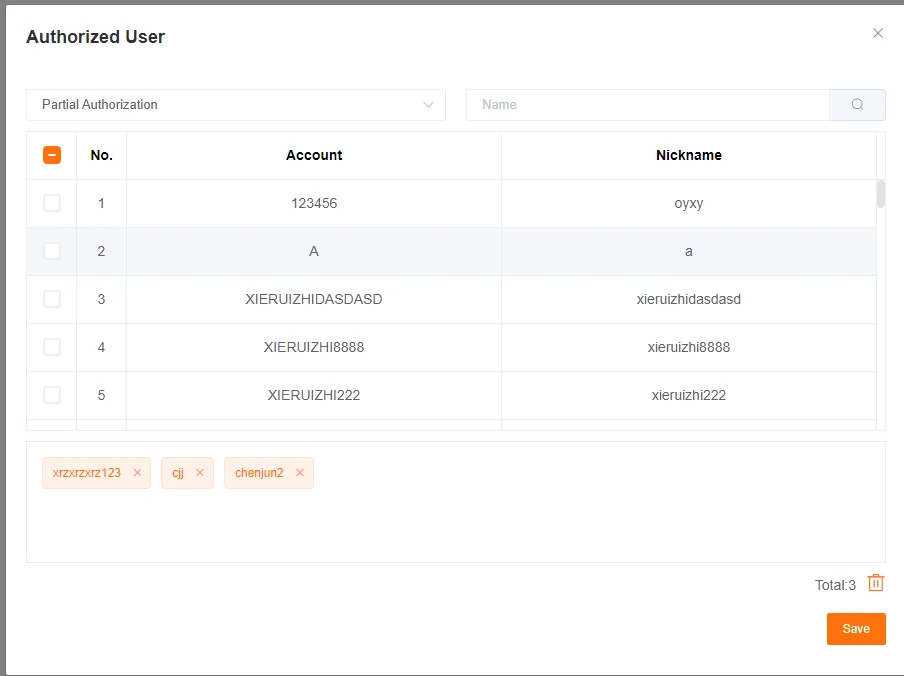
- Authorize Users: In the pop-up box, set permissions by checking Authorize All, Disable All, or making partial selections.
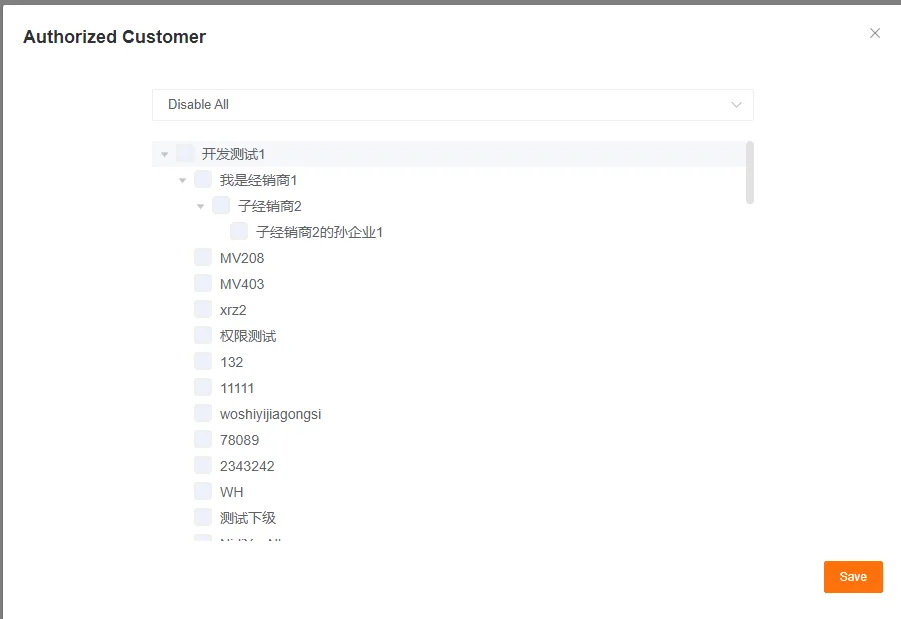
- Authorize Customers: In the pop-up box, set permissions by checking Authorize All, Disable All, or making partial selections.
I/O Name Template
Section titled “I/O Name Template”Customers can create their own I/O name templates.
- During the device management process, you can quickly edit existing I/O ports by selecting an I/O name template.
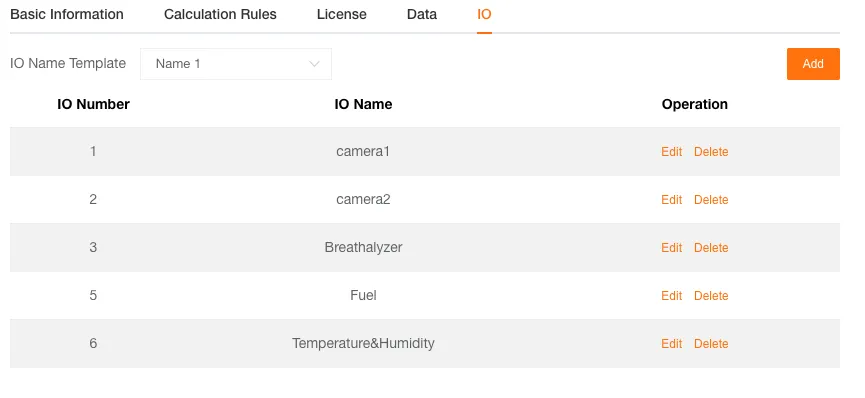
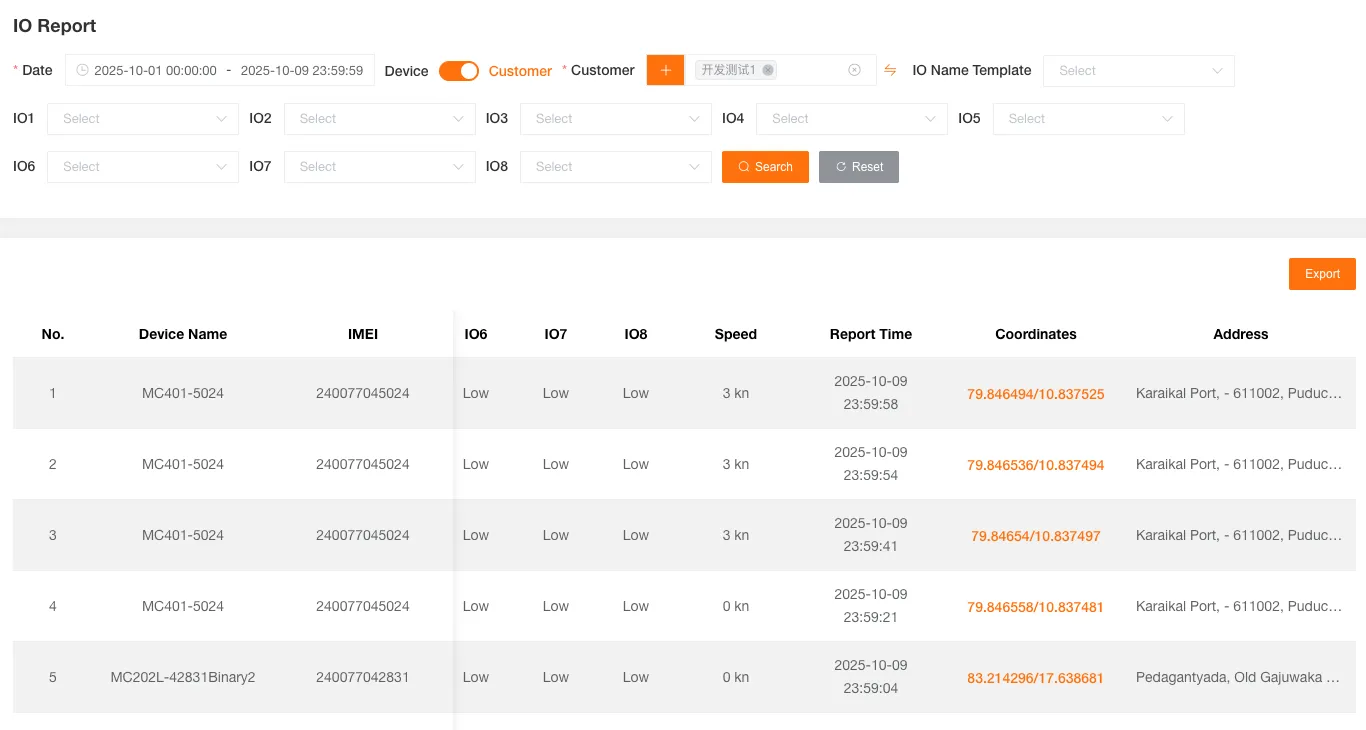
- When generating I/O reports, you can also select the required template. The names displayed in the report table headers will correspond to the names set in this template, making it easier for customers to view and manage related data.