Other Features
Time Zone Settings
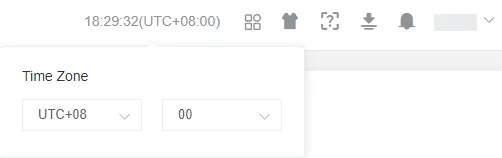
Section titled “Time Zone Settings”Click the time in the upper-right corner of the page to change the current account’s time zone.
Application Center
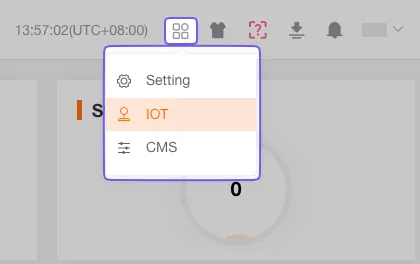
Section titled “Application Center”Click the Application Center icon to quickly access modules such as Internet of Things (IoT), Customer Management System (CMS), Fleet, or Developer tools.
Settings
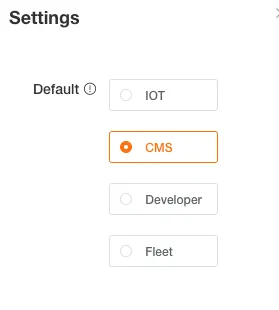
Section titled “Settings”Open the settings window to choose the system you want to enter automatically after login.
System Style
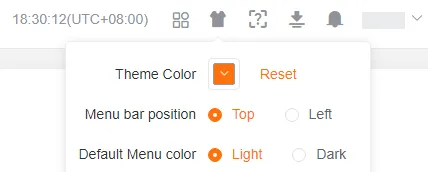
Section titled “System Style”Customize the platform’s theme color and menu layout based on your preferences.
Theme Color
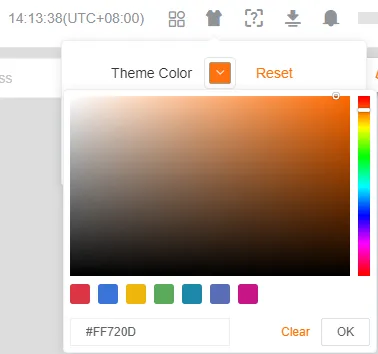
Section titled “Theme Color”Select a theme color. You can pick from preset schemes or define a custom color.
Menu Layout
Section titled “Menu Layout”Choose the display mode of the system menu: left sidebar or top navigation.
Menu Color
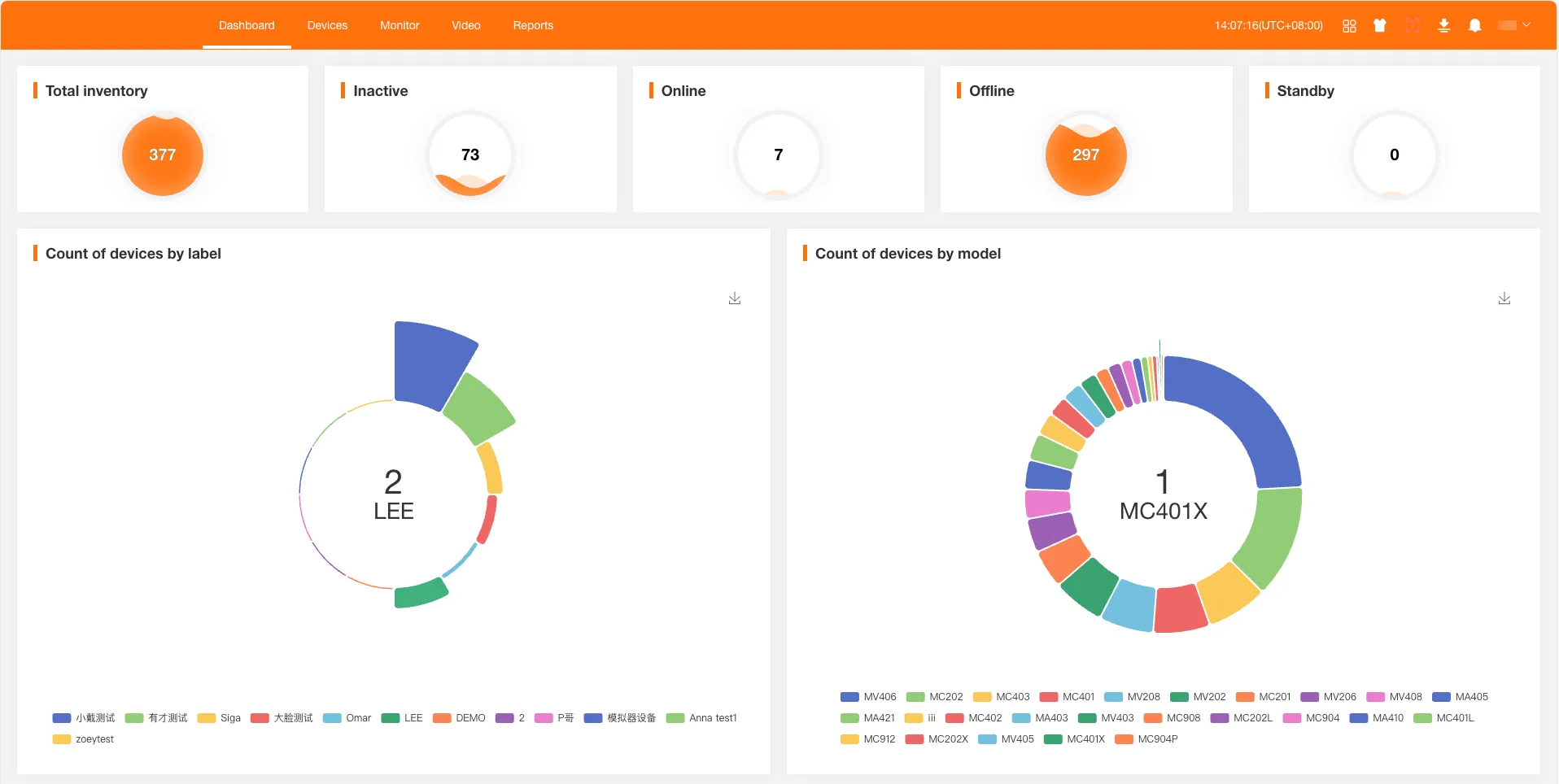
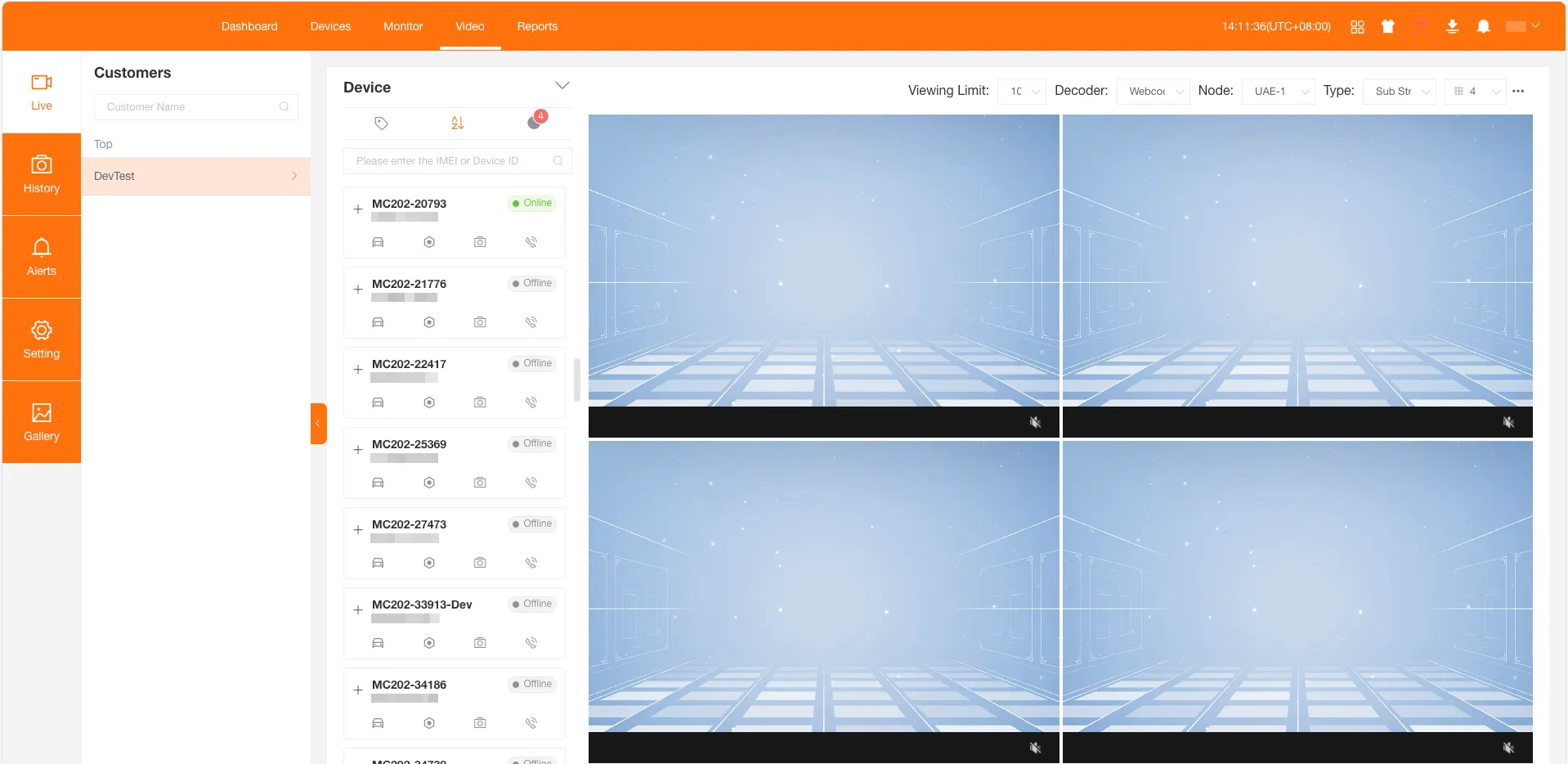
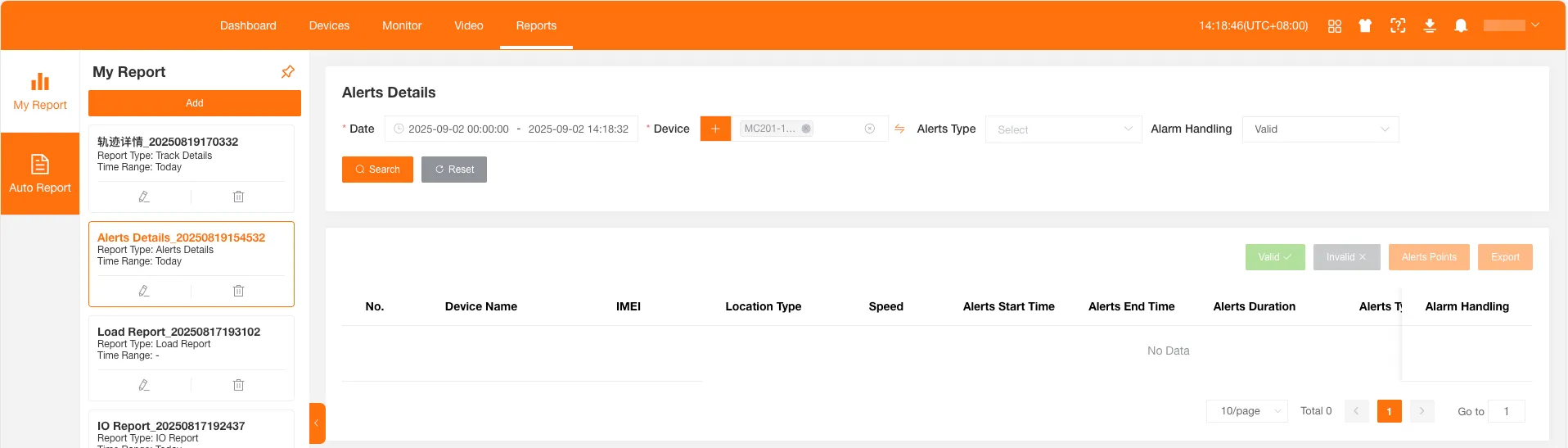
Section titled “Menu Color”Set the menu color scheme. You can choose Light or Dark. The default is Light; below are Dark theme effects:
Help Center
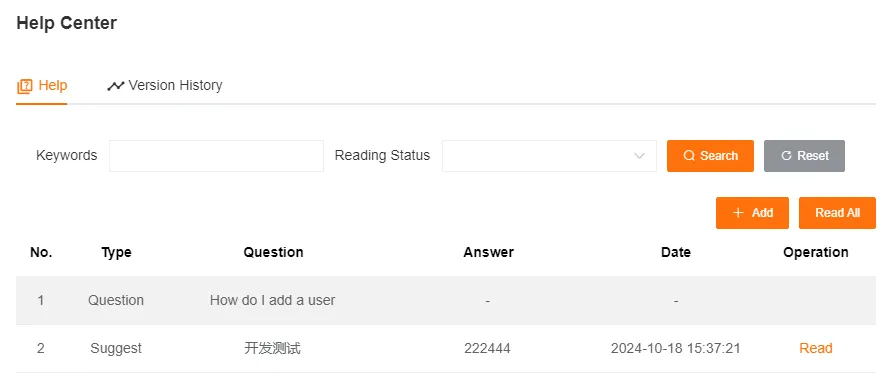
Section titled “Help Center”In the Help Center you can ask questions, submit suggestions, and view platform version history. When you receive a reply or a new version is released, the Help Center icon shows a notification badge.

Create questions, suggestions, or other feedback items here. After reading a new reply, the notification badge is automatically cleared.
Version History
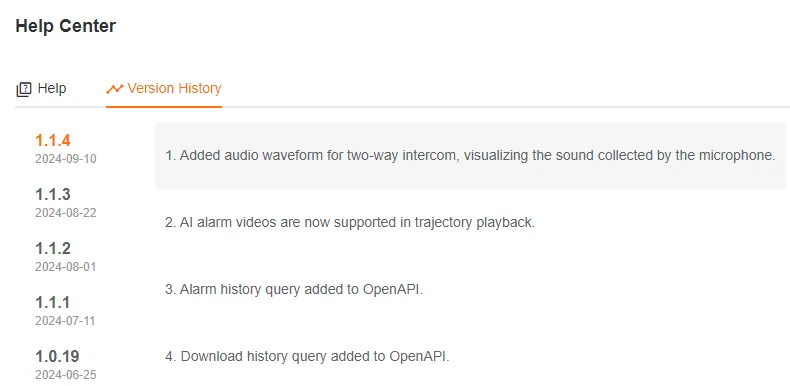
Section titled “Version History”View detailed version change records.
Download Tasks
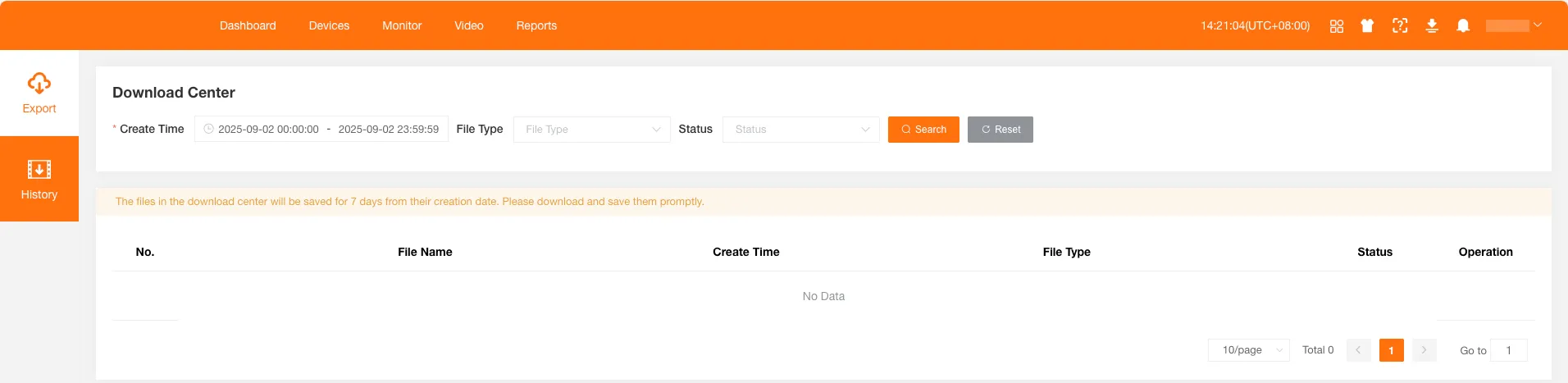
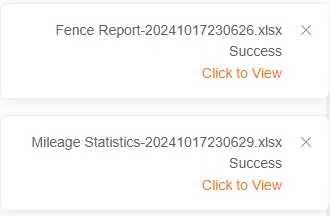
Section titled “Download Tasks”View exported files and historical videos uploaded from devices here. After a task is completed, the download task icon will display a notification, and a success message will also pop up in the upper right corner of the page. You can click to quickly enter the download center.

Exported Files
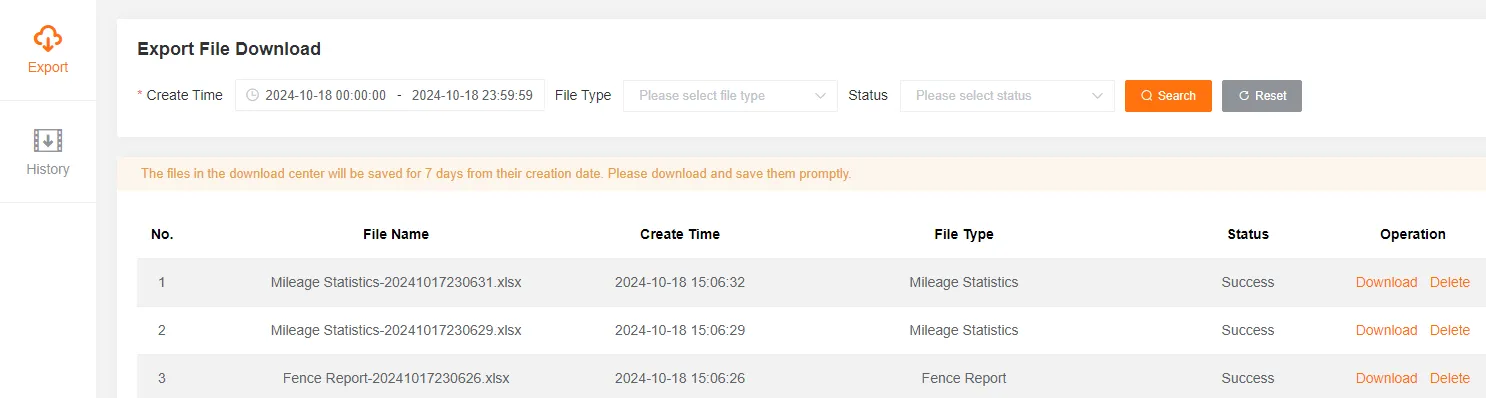
Section titled “Exported Files”View records of various files you have exported, such as device lists, reports, or logs.
You can filter files by creation time, file type, and status.
The file list includes file name, creation time, file type, status, and other information.
Historical Videos
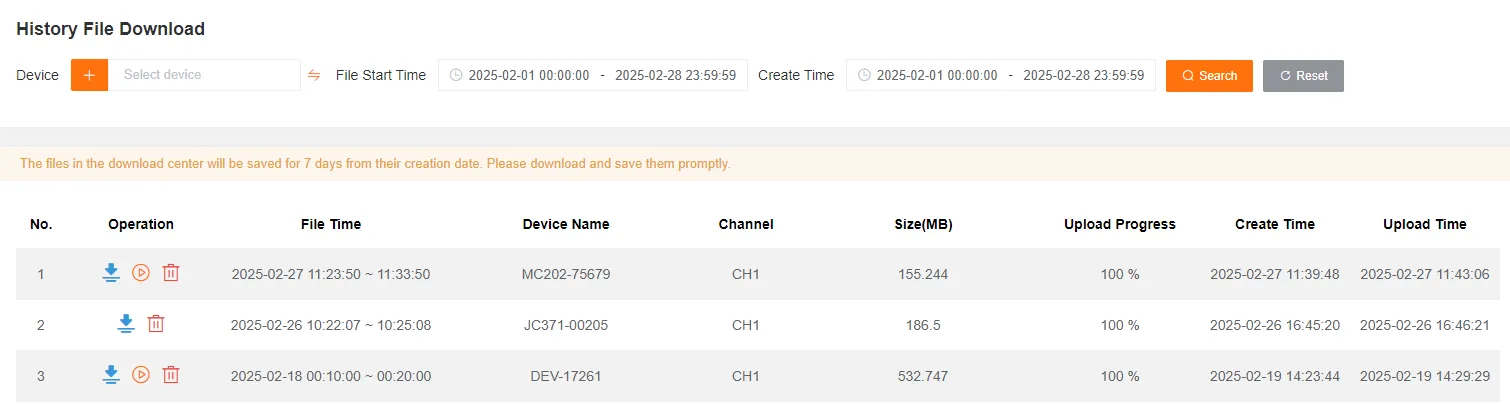
Section titled “Historical Videos”Preview or download historical videos uploaded to cloud storage.
You can filter historical videos by device, file start time, and creation time.
The historical video list includes file time, device name, channel number, size, upload progress, creation time, upload time, and other information.
Download Historical Videos
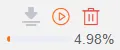
Section titled “Download Historical Videos”When downloading videos, please stay on the current page until the progress is complete to ensure the file is successfully saved locally.
Preview Historical Videos
Section titled “Preview Historical Videos”Watch cloud historical videos online.