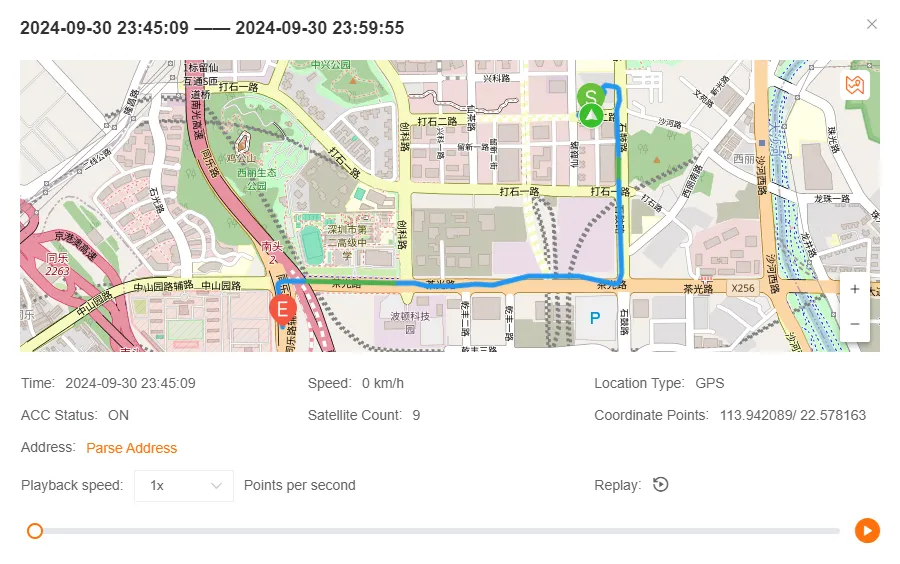
Track Playback
The track playback feature allows you to visualize the historical route of a device on the map.
Select a device, time range, and positioning type (e.g., view only GPS data) to query the historical track.
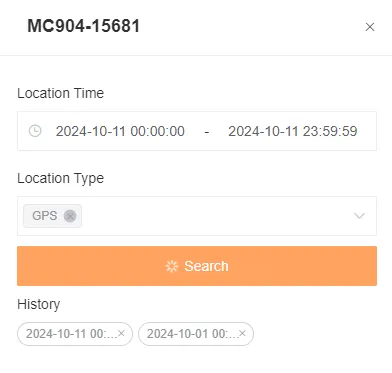
Track Overview
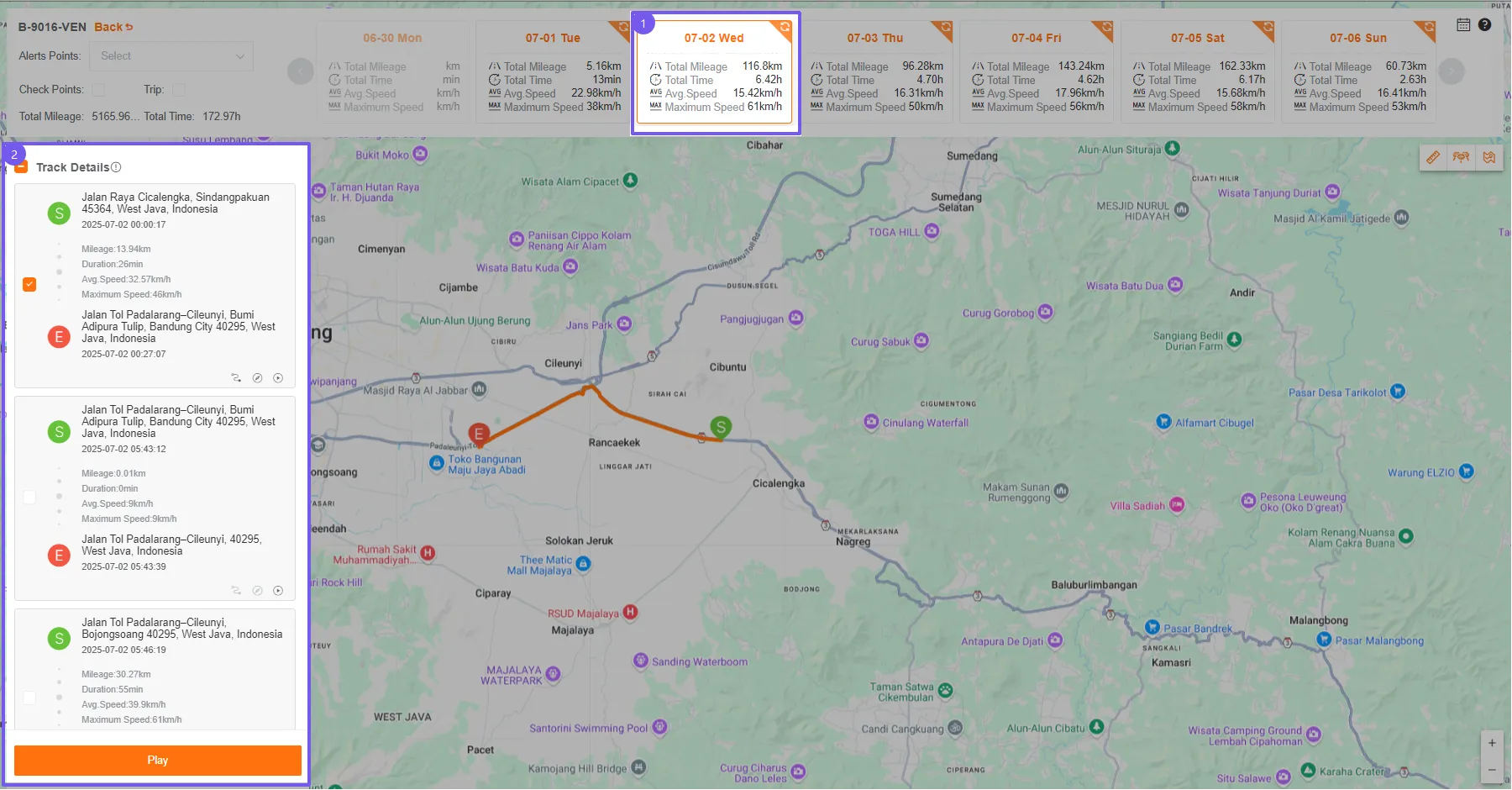
Section titled “Track Overview”The top section displays the Total Mileage and Total Duration. The cards on the right show the daily Total Mileage, Total Duration, Average Speed, and Maximum Speed.
Click a day to view the track list for that day on the left side of the map. You can also re-fetch the track statistics for a specific day.
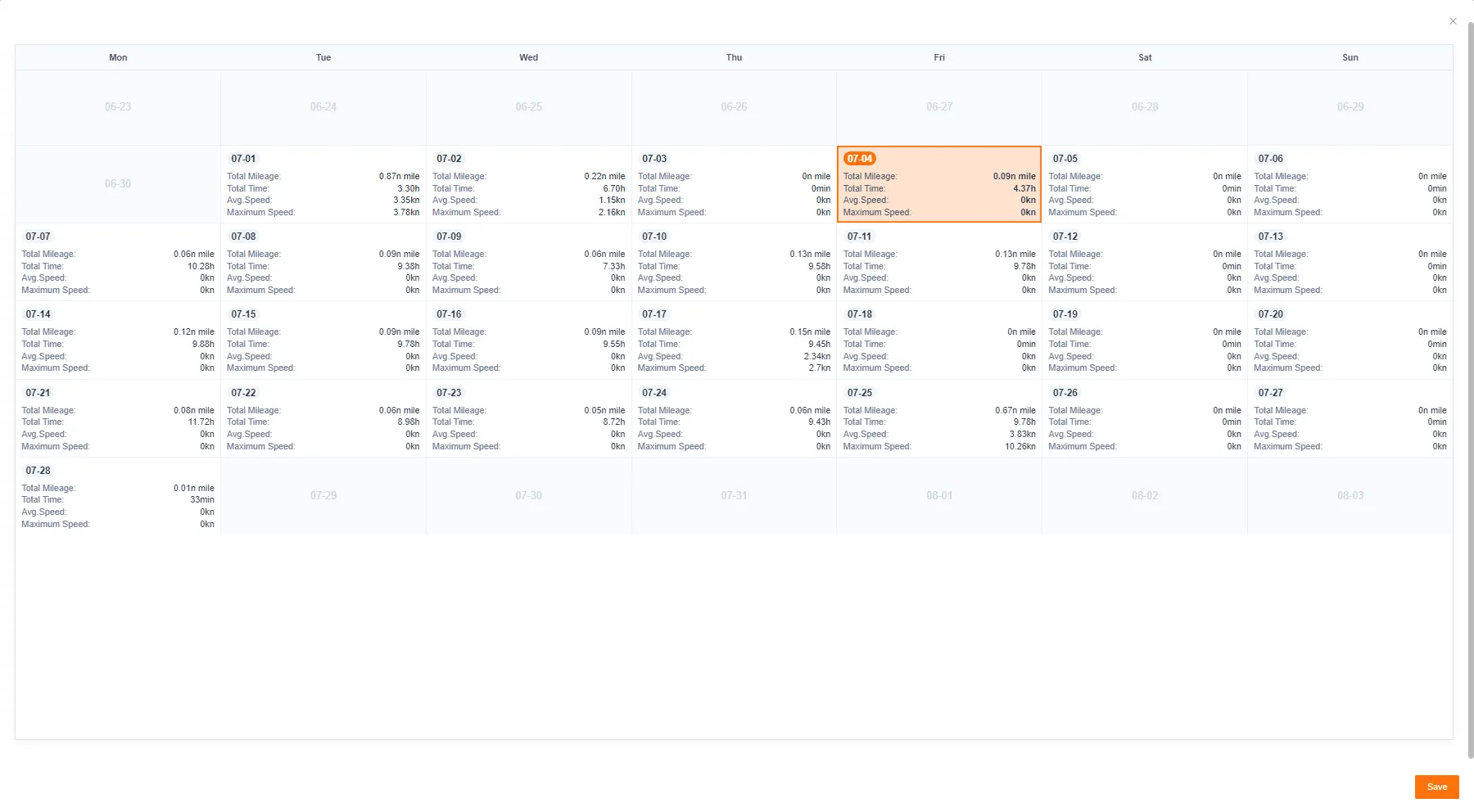
Click the calendar button on the right to view track statistics by week on the calendar.
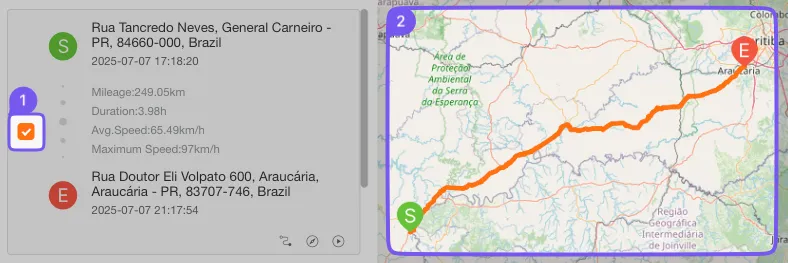
Check the box in front of any track to draw its route and positioning points on the map.
Track Analysis
Section titled “Track Analysis”You can further analyze specific point information on the map.
Alert Point Analysis
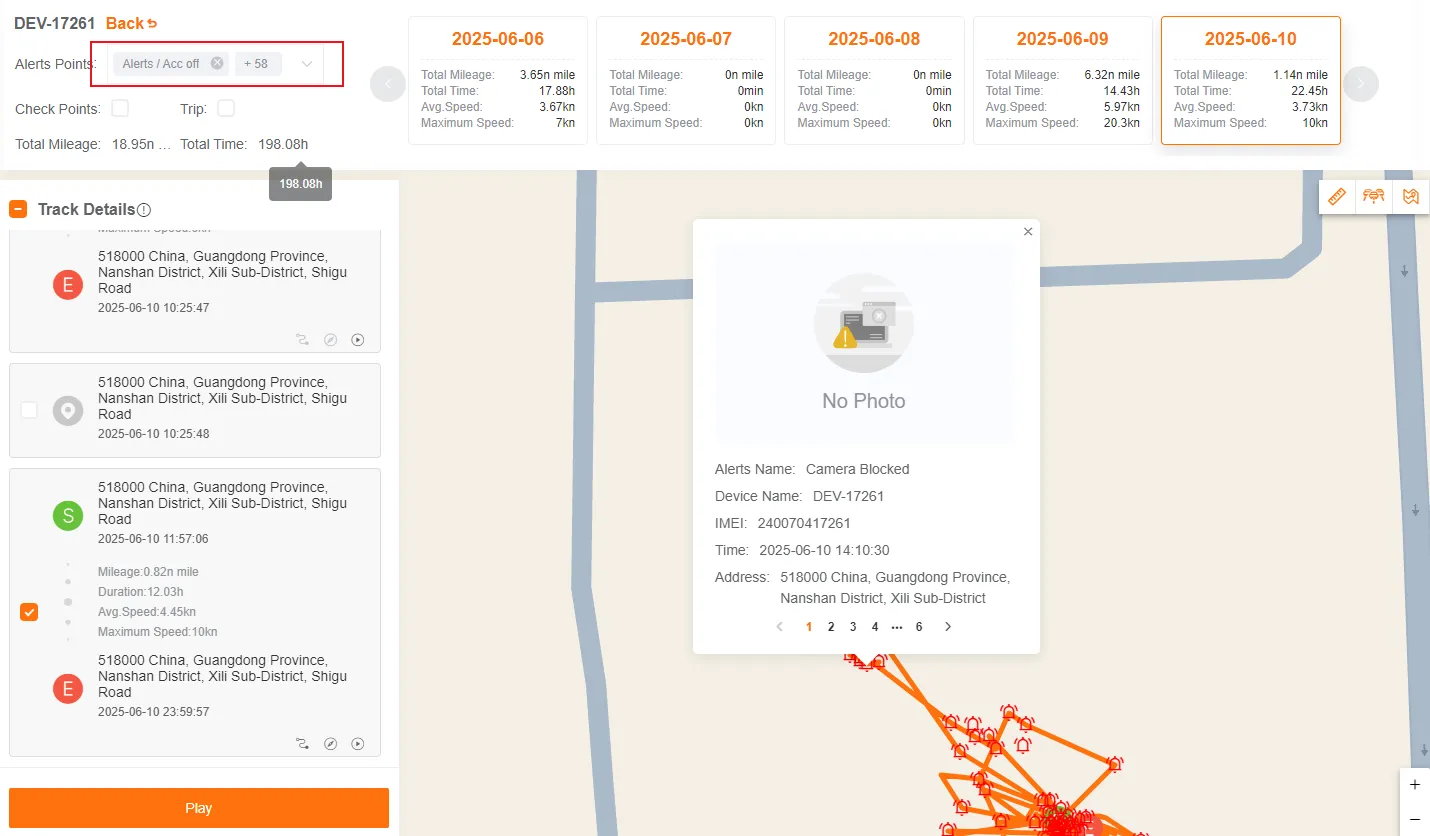
Section titled “Alert Point Analysis”Check Alert Points to display alerts triggered during the track on the map. Click on an alert icon to show the alert name, device name, IMEI, alert time, and address. AI alerts also include alert images and videos.
You can page through to view other alert points at the same location.
Positioning Point Analysis
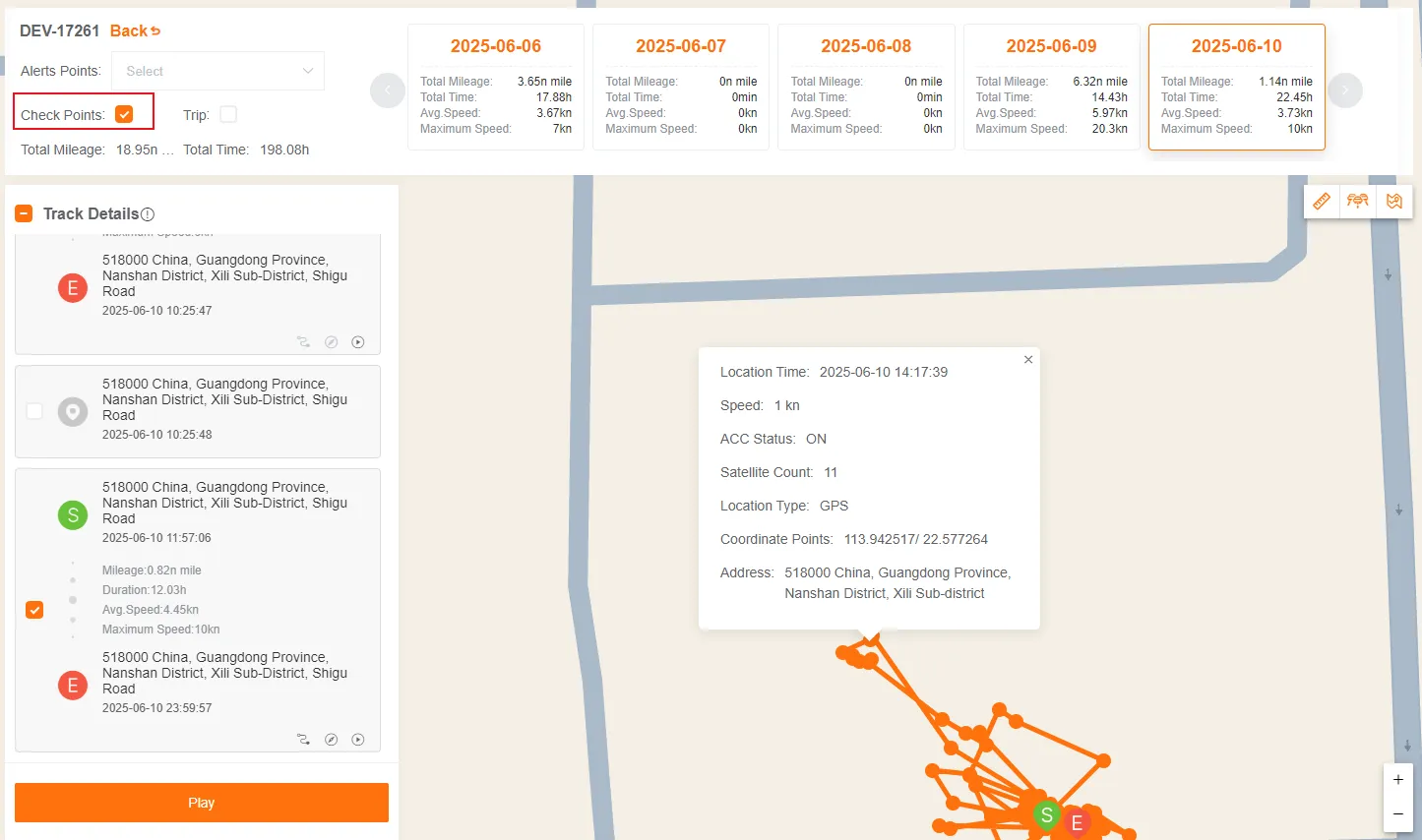
Section titled “Positioning Point Analysis”Check Map Points to display all the positioning points that make up the track on the map. Click on a point to view detailed data for that moment, such as speed, ACC status, number of satellites, positioning type, coordinates, and address.
Track Scattered Point Optimization
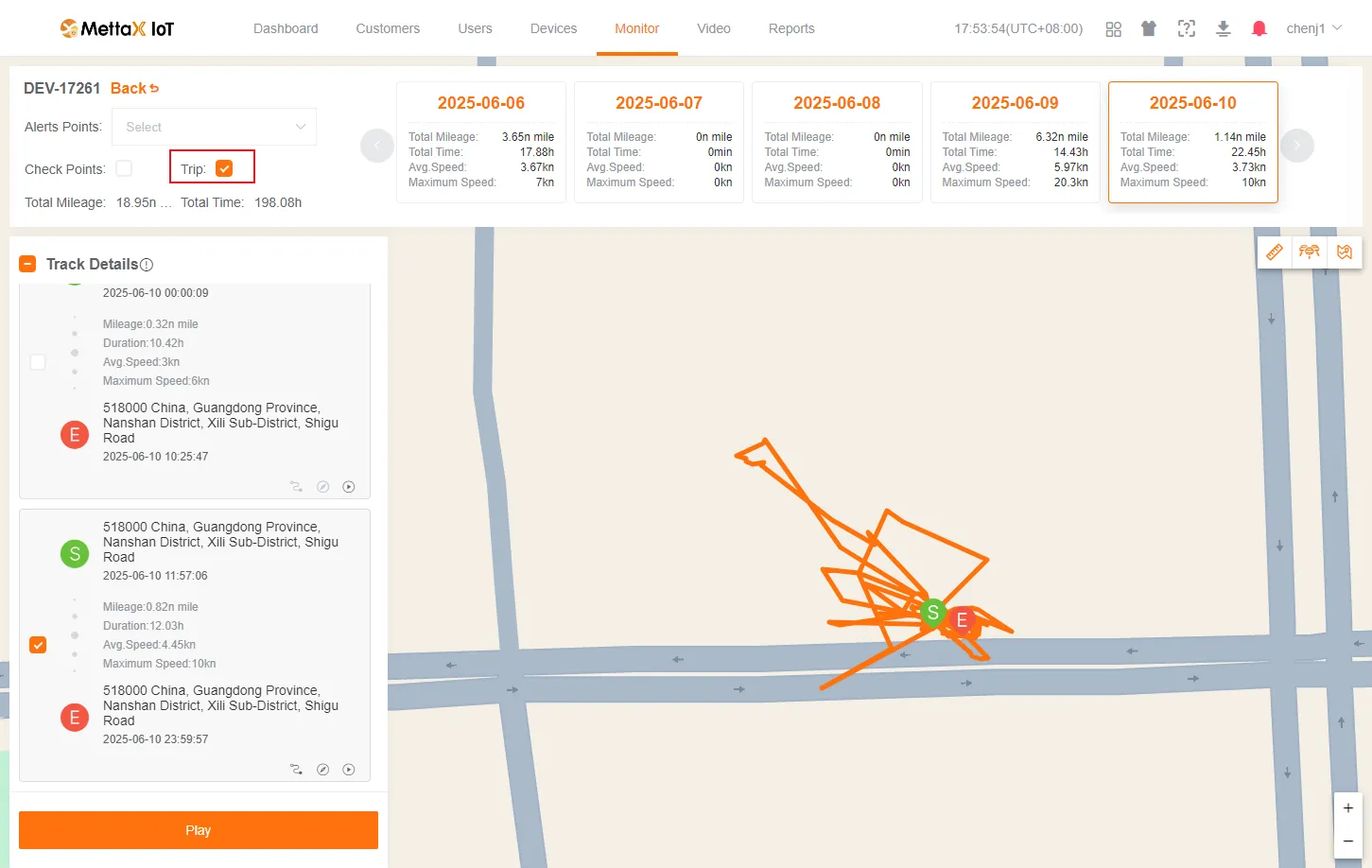
Section titled “Track Scattered Point Optimization”Check Hide Scattered Points to filter out abnormal or isolated positioning points, making the main track route clearer and easier to identify.
Track Speed
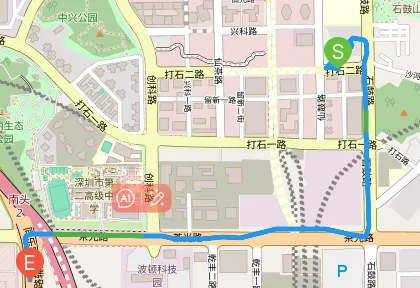
Section titled “Track Speed”Click the track speed coloring button in the bottom right corner of the track card to display the track lines in speed-segmented colors.
Focus on Track
Section titled “Focus on Track”Click the focus on track button in the bottom right corner of the track card to focus the track line within the visible range.
Play Track
Section titled “Play Track”The track playback function dynamically shows the device’s movement.
Universal Track Player
Section titled “Universal Track Player”Click the Play button at the bottom of the track list to play all the tracks you have checked on the map.
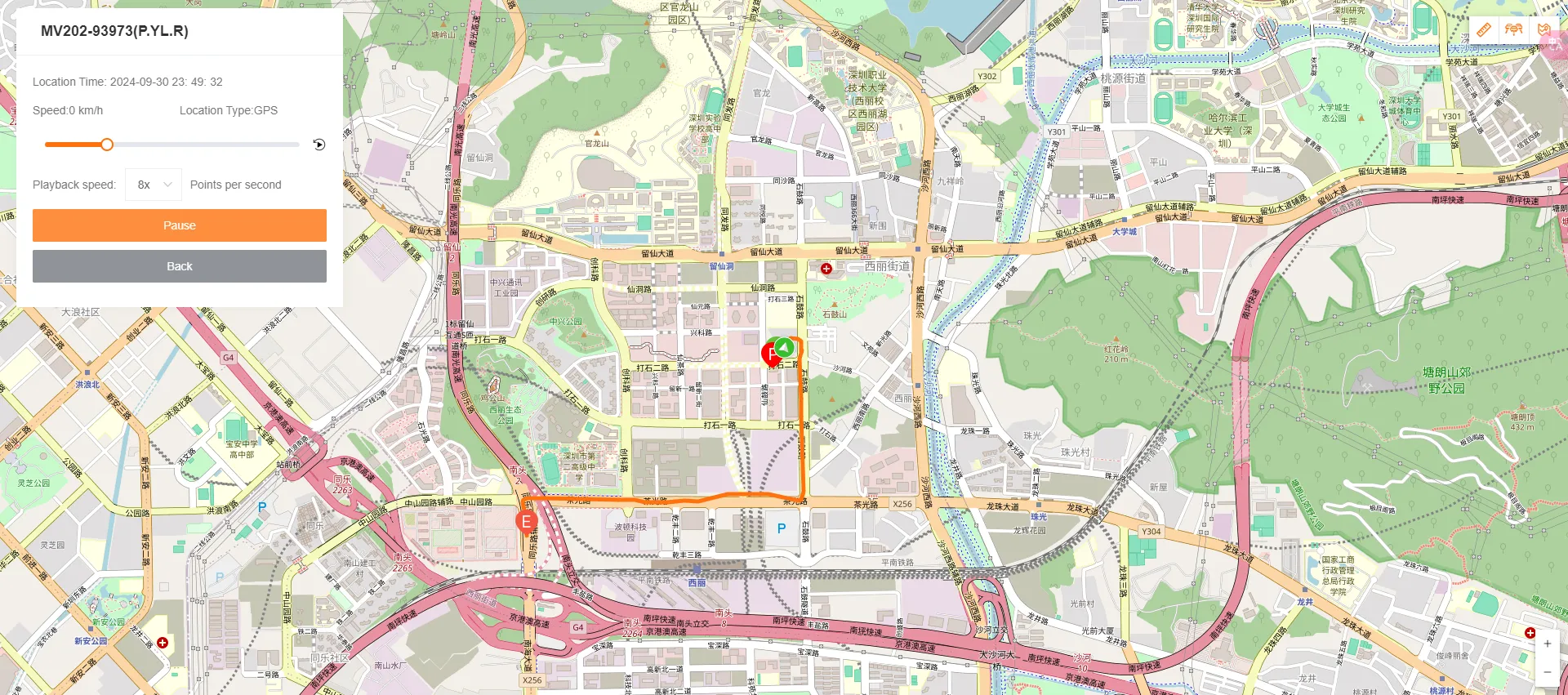
You can use the controller to Pause/Resume, Adjust Playback Speed (up to 16x), and drag the progress bar.
During playback, the device icon moves along the track, and its information window updates data synchronously.
Single Track Player
Section titled “Single Track Player”Click the play button in the bottom right corner of the track card to open the player for a single track. The operation is similar to the Universal Track Player.