More Device Operations
The More Operations menu for a monitored device allows you to perform various actions on it.
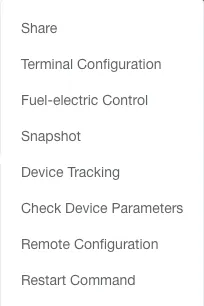
Share Device Location
Section titled “Share Device Location”Generate a link with an expiration date to share the device’s location with others.
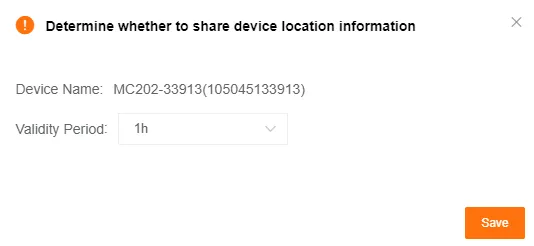
After obtaining the sharing link, click Copy to share it with others.

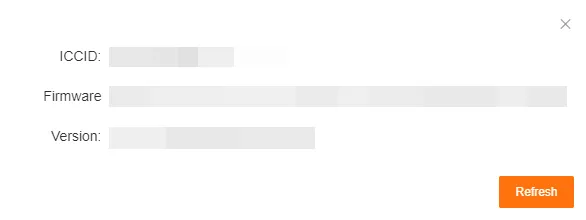
Terminal Attributes
Section titled “Terminal Attributes”View the device’s IMEI, model, and firmware version number.
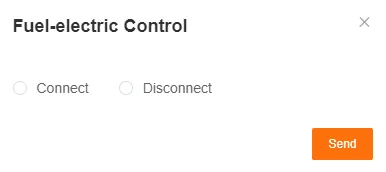
Fuel-electric Control
Section titled “Fuel-electric Control”Remotely disconnect or restore the device’s fuel or power circuit.
Snapshot
Section titled “Snapshot”Command the device to immediately take a photo and upload it to the platform.

Click Send. After the device captures the image, a pop-up will appear on the platform displaying the captured image, device name, channel number, and time.

Device Tracking
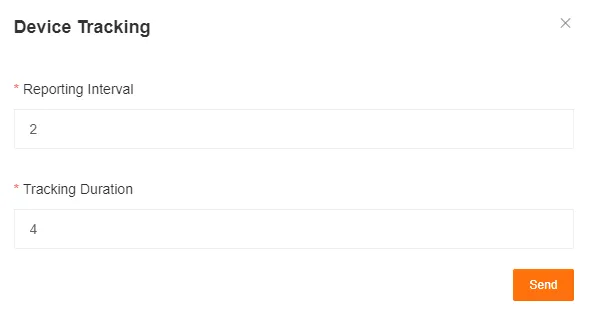
Section titled “Device Tracking”Set a temporary reporting interval and duration to track the device at a higher frequency.
Start Device Tracking
Section titled “Start Device Tracking”Set the reporting interval and tracking duration in seconds, then click Send to enter tracking mode.
Stop Device Tracking
Section titled “Stop Device Tracking”Click Stop Tracking in the menu to end the tracking ahead of schedule.

Device Parameters
Section titled “Device Parameters”View device parameters such as basic parameters, network, audio/video, ADAS, DMS, BSD, and disk status.
You can now edit the heartbeat interval, maximum speed, over-speed duration, continuous driving time, and mileage. Only one variable can be edited at a time.

Remote Control
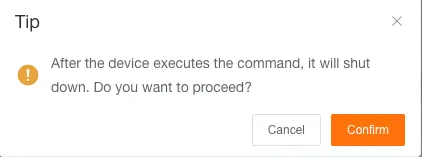
Section titled “Remote Control”Remotely control the device to perform operations such as remote upgrade, restart, or shutdown.
Restart Command
Section titled “Restart Command”Send a restart command to the device, and the device will restart.