Live Streaming and Intercom
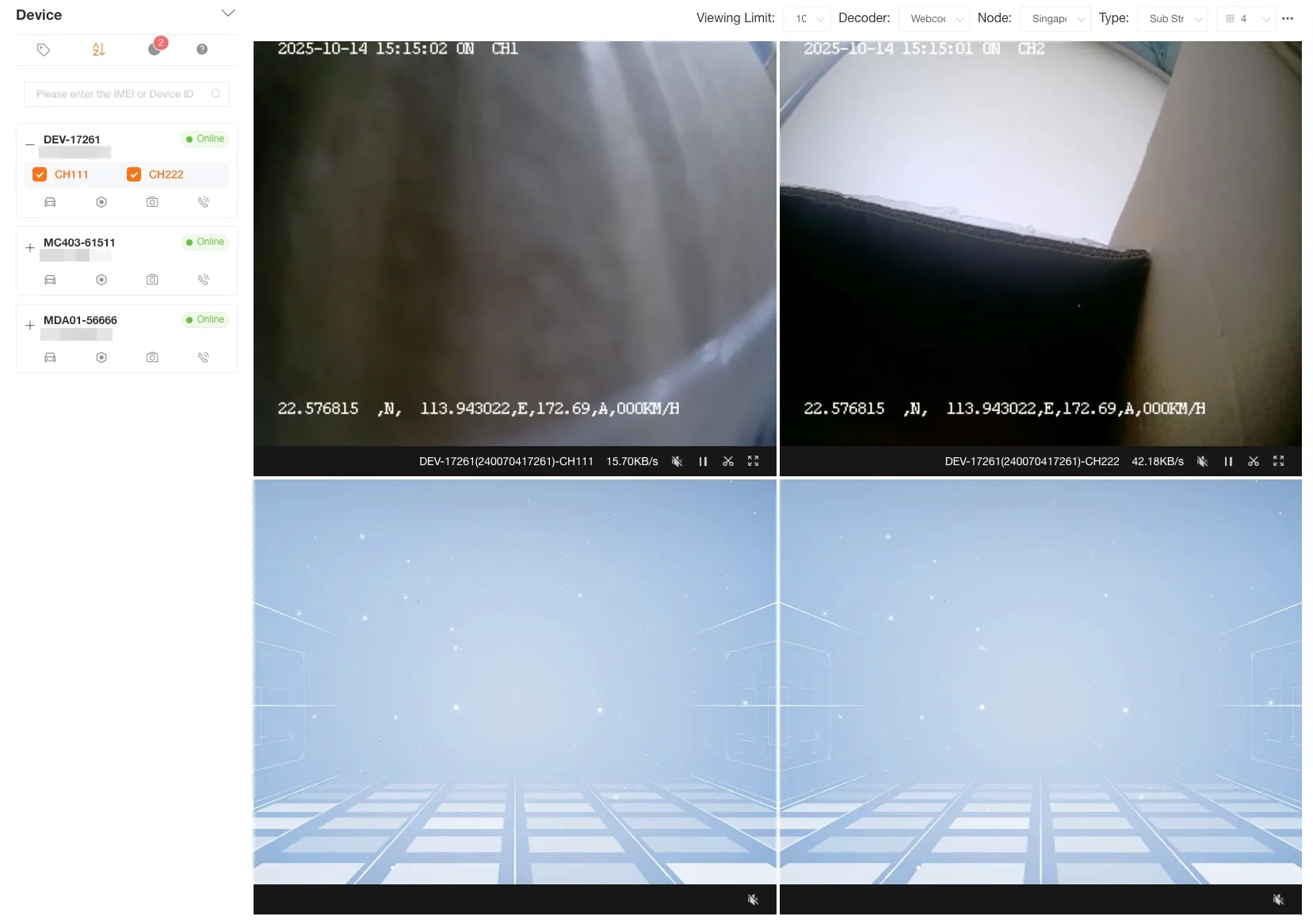
Watch the device’s live stream by selecting the device and choosing a channel. Use the intercom feature to communicate with the driver in real time.
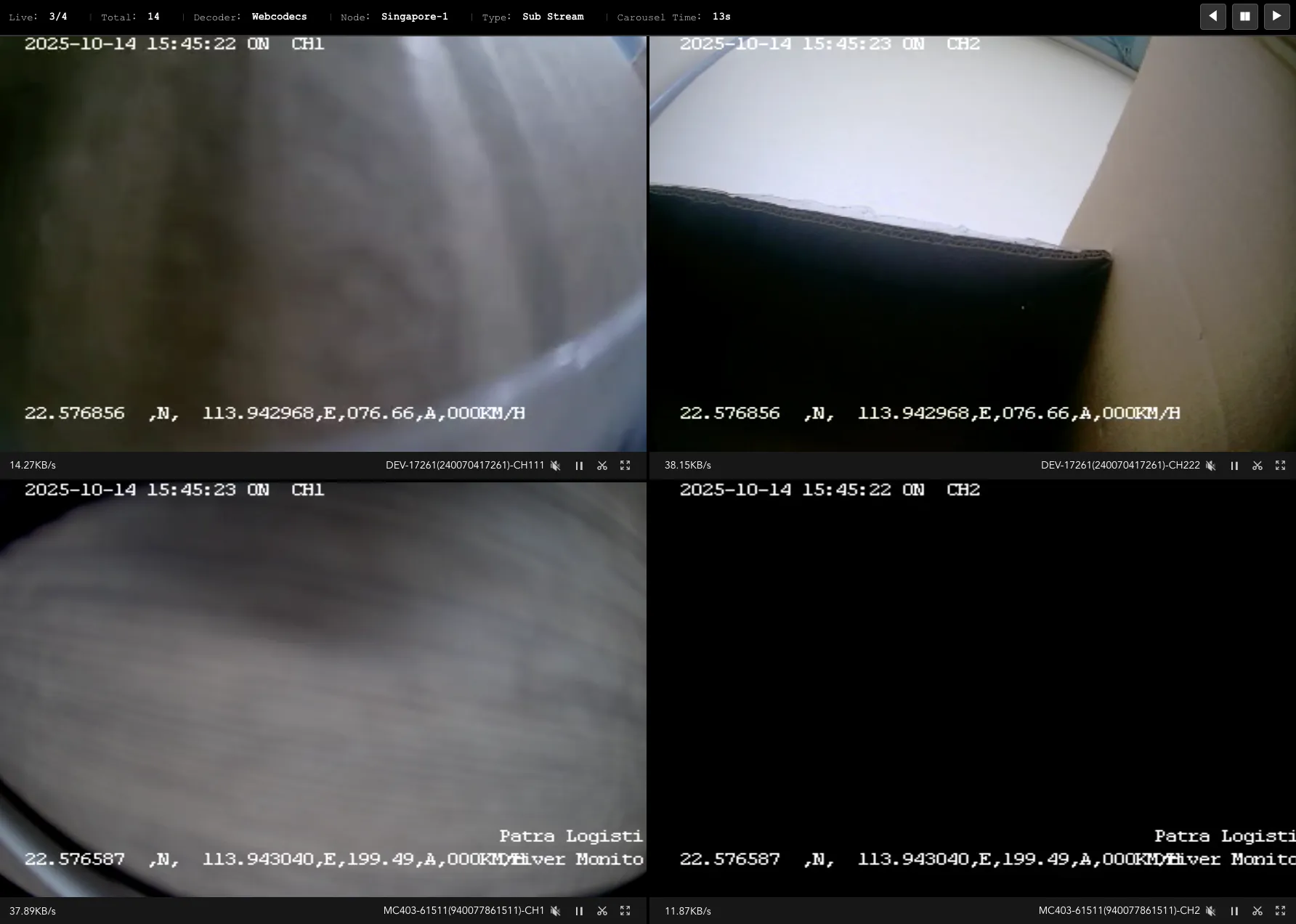
Double-click the device name to watch the live stream of all channels for the specified device with one click; double-click again to uncheck and stop playing with one click.
Click the + to the left of the device name to view all available live channels for the current device. Check the box for a specific channel to watch its live stream as needed.
Live Stream Settings
Section titled “Live Stream Settings”Viewing Time Limit
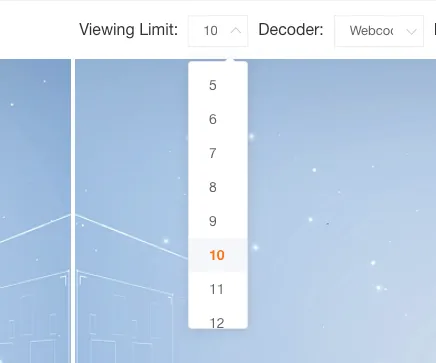
Section titled “Viewing Time Limit”You can set the duration for watching the live stream (5-30 minutes, default is 10 minutes). When the viewing time reaches the set value, the system will pause all live streams and a pop-up will ask if you want to continue.
Video Decoding
Section titled “Video Decoding”For Chrome browser users on Windows, we recommend you choose the decoding method in the following order:
Webcodecs Hard Decode(Default): This is your best choice, offering ideal playback performance and the lowest resource consumption.MediaSource Hard Decode: IfWebcodecsencounters issues, this is a stable and reliable alternative.Wasm Soft Decode: This option consumes more resources and is not recommended unless the above two methods are unavailable.
Apple’s Safari browser only supports Wasm Soft Decode.
- You have no other decoding options.
- Please note that
Wasm Soft Decodeconsumes a significant amount of computer resources. - To avoid browser lag or crashes, it is strongly recommended that you do not play more than 16 video stream channels simultaneously.
The video decoding option is automatically saved locally.
Media Server Node
Section titled “Media Server Node”It is recommended to choose a geographically close node for better playback performance. The node selection will be synchronized to your personal settings.
Main Stream and Sub Stream
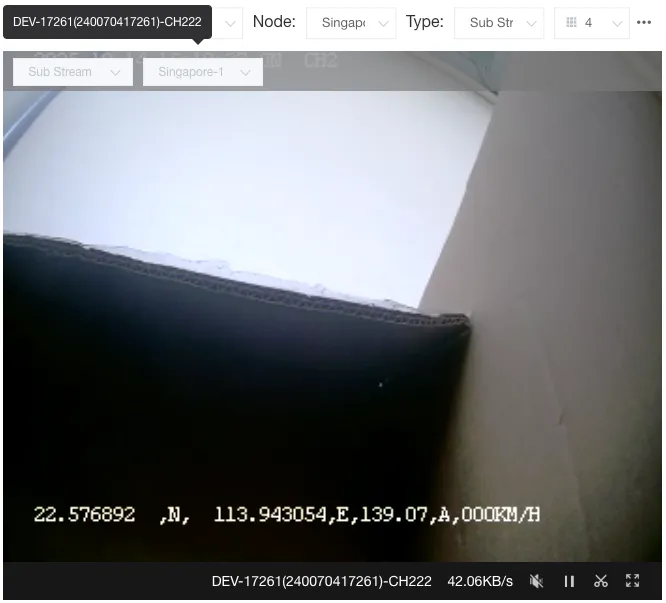
Section titled “Main Stream and Sub Stream”You can switch between the main stream and sub stream at the top of the page. This will be synchronized to your personal settings.
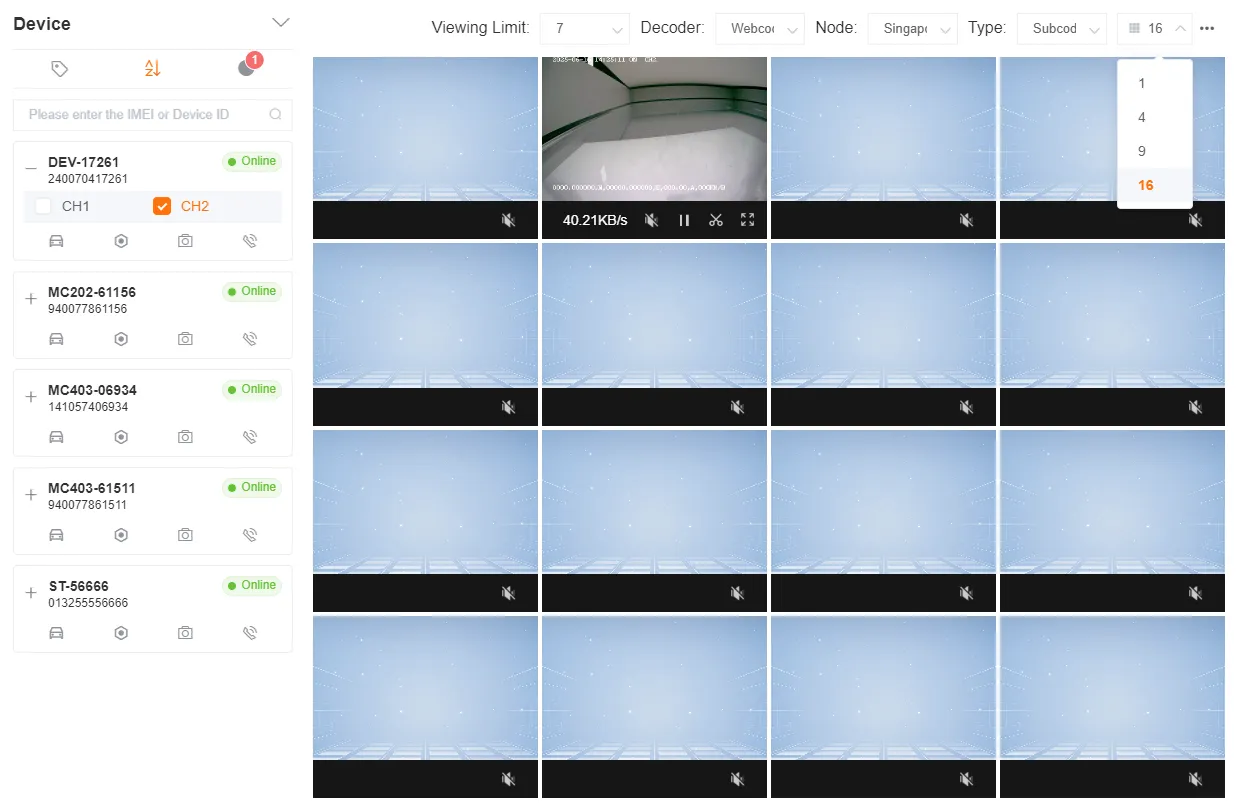
Number of Live Streaming Windows
Section titled “Number of Live Streaming Windows”If you need to watch more device live streams, you can increase the number of windows and select more channels to watch.
One-click Pause/Replay
Section titled “One-click Pause/Replay”You can pause all live streams with one click while watching.
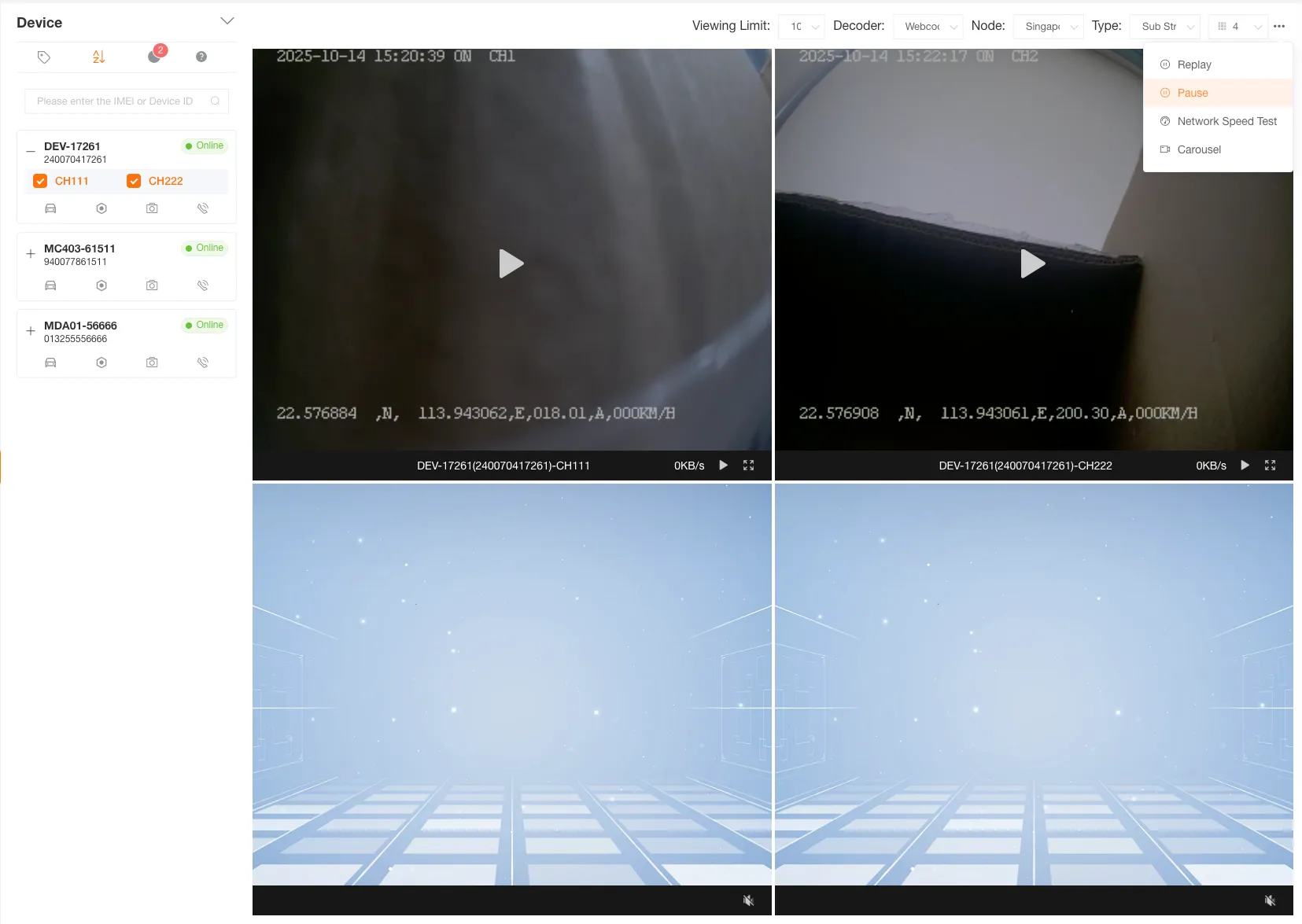
Replay
Section titled “Replay”You can restart all paused live streams within 15 seconds with one click.

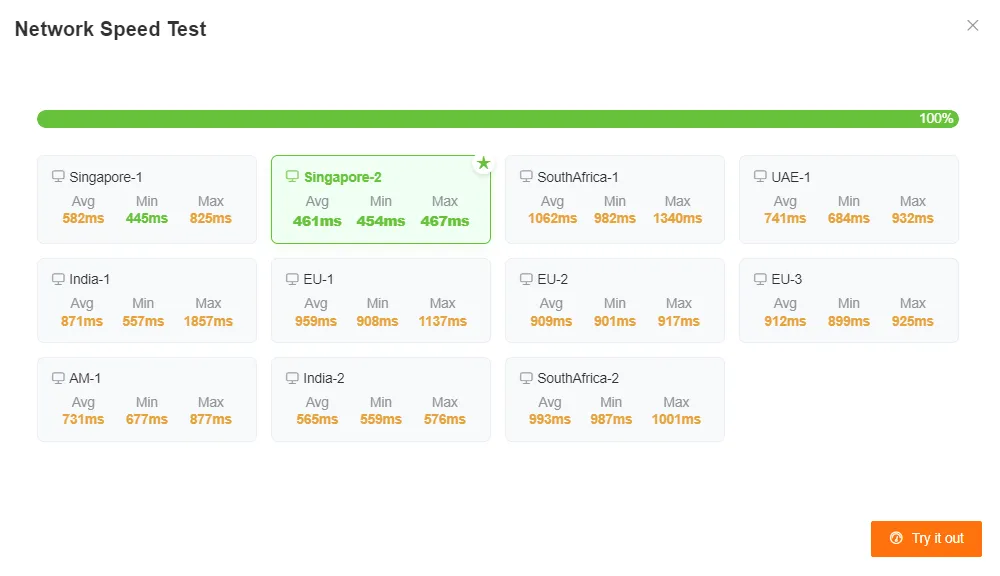
Network Speed Test
Section titled “Network Speed Test”Click the Speed Test button to test the network speed for the current streaming media. You can also choose a node to test to select the best live streaming media node.
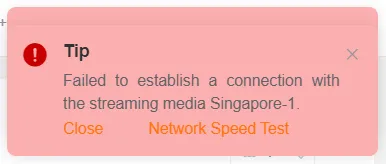
When an attempt to start a live stream fails, the system will prompt you to test the network for the current node.
Live Carousel
Section titled “Live Carousel”You can select the carousel range by customer or device, set the carousel time interval, decoding method, node, stream, window quantity, and other configurations. Click play to jump to the carousel page.

Intercom
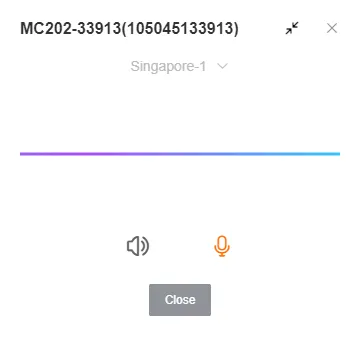
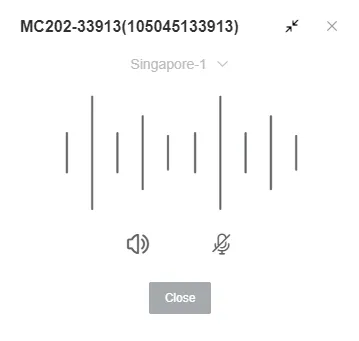
Section titled “Intercom”Use the intercom feature to communicate with the driver in real time.
-
Enable Intercom
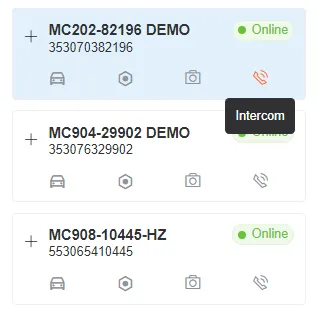
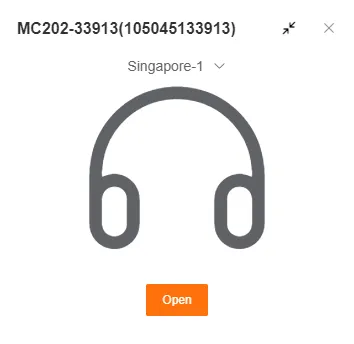
Click the intercom button to open the feature window.
-
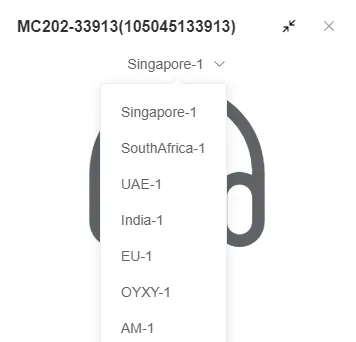
Select Intercom Node
Before starting, you can switch to a suitable intercom node.
-
Establish Connection
Click the start button to establish a intercom connection with the device.
-
Switch Mode
Click the microphone button to switch the intercom mode.