Historical Video Playback
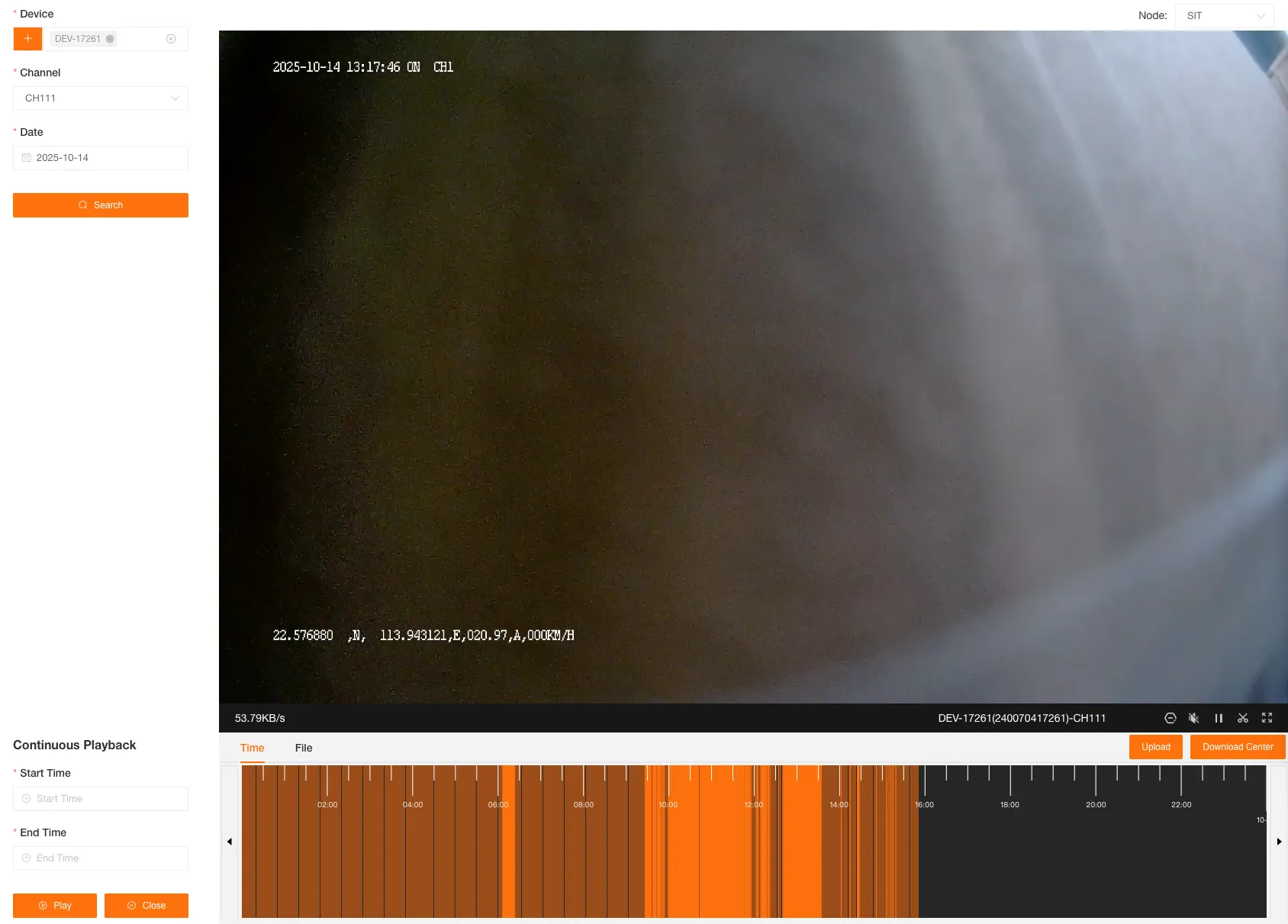
Search for playback by selecting a device, channel, and date. Click on the timeline to watch historical videos stored on the device’s installed TF card.
Playback Settings
Section titled “Playback Settings”Media Server Node
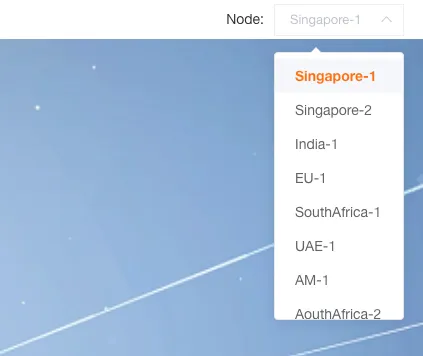
Section titled “Media Server Node”It is recommended to choose a geographically close node for better playback performance. The node selection will be synchronized with your personal settings.
Continuous Playback
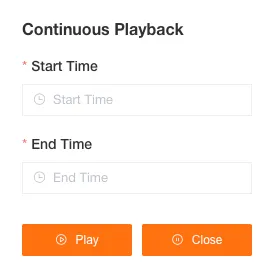
Section titled “Continuous Playback”You can customize the start and end times for playback.
Stop Watching
Section titled “Stop Watching”You can stop watching the current video.

Playback Player
Section titled “Playback Player”Timeline Mode
Section titled “Timeline Mode”Click the light-colored area to play back historical videos from the device.
Click the dark-colored area to play videos that have been uploaded to the cloud.

Video File List Mode
Section titled “Video File List Mode”You can view the device’s historical videos in the video file list.
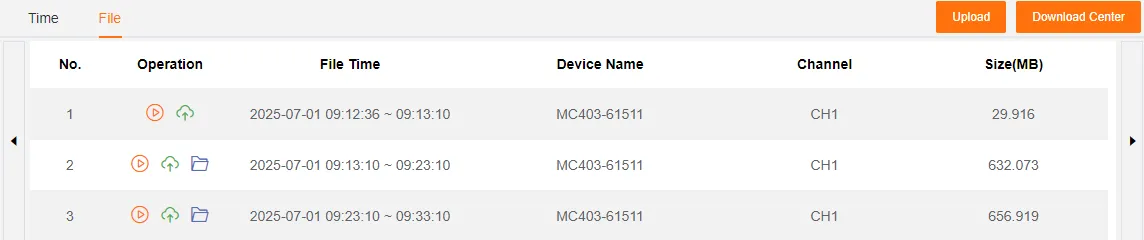
If the video is not uploaded to the cloud, it consumes the device’s data to play the historical video from the device.
If the video has been uploaded, it plays the uploaded video from the cloud without consuming the device’s data, and supports simultaneous multi-channel playback.
Switch Date
Section titled “Switch Date”You can quickly switch to the previous or next day.
Upload
Section titled “Upload”Upload historical videos to the cloud. You can check the progress in the Download Center.
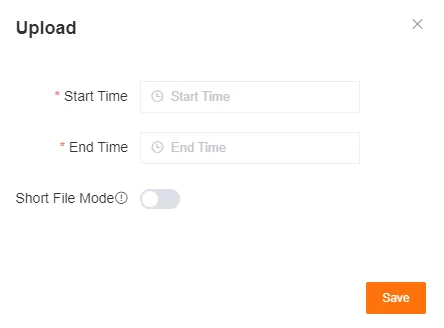
Upload by Time Range
Section titled “Upload by Time Range”Upload historical videos for a specified time range (5 seconds to 10 minutes).
You can select Short File Mode to upload, and the video will be split into segments of up to 1 minute.
Download Center
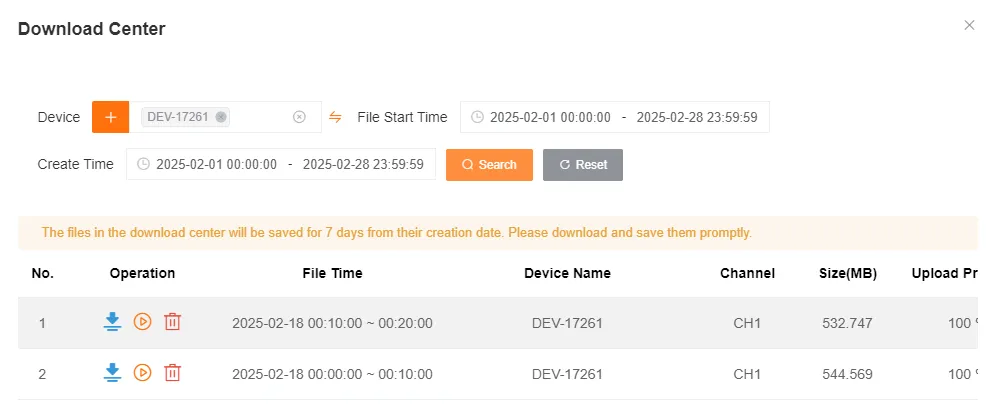
Section titled “Download Center”You can download, play, and delete historical videos uploaded to the cloud, view file time, device name, channel number, size, upload progress, creation time, and upload time.