Alert
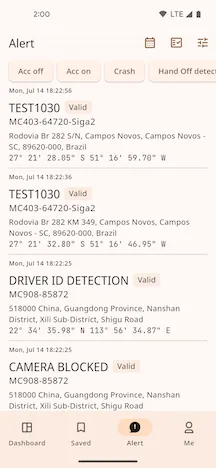
The Alert Center aggregates all alert information reported by devices, allowing for centralized management and processing. You can filter alerts using various criteria and view the detailed information for each alert.
Filtering Alerts
Section titled “Filtering Alerts”You can quickly locate the alerts you are interested in by combining various conditions such as time, device, and alert type. The filter conditions are displayed at the top of the list.
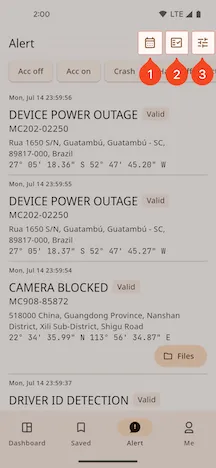
1. Filter by Time
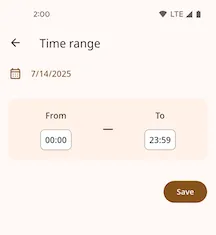
Section titled “1. Filter by Time”Click the time area in the filter bar to enter the time selection page and set the desired time range for the alerts you want to view.
2. Filter by Device
Section titled “2. Filter by Device”Click “Select Device” in the filter bar to filter alerts based on your favorite devices.
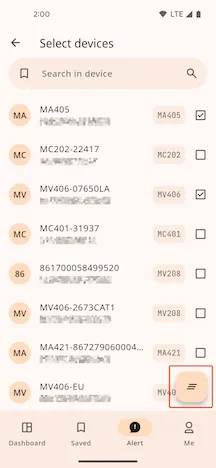
- Filter: After selecting a device, the alert list will automatically refresh to display alerts for that device.
- Clear: After selecting a device, a clear button will appear in the bottom right corner of the screen. Click it to remove the current device filter.
3. Filter by Alert Type
Section titled “3. Filter by Alert Type”Click the filter button on the far right of the filter bar to access the alert type list.
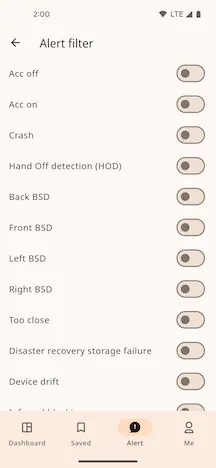
Enable the switch for the alert types you want to follow to add them as filter conditions. After returning, the alert list will be filtered based on your selections.
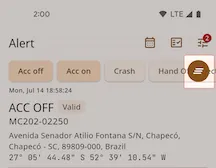
- Click a selected filter condition label (like “Vibration Alert” in the image above) to quickly remove it.
- Click the clear button on the right to clear all filter conditions at once.
Alert List Items
Section titled “Alert List Items”The alert list clearly displays key information for each alert, including:
- Alert Time
- Alert Type
- Validity Status
- Device Name
- Device Location (Place & Coordinates)
Alert Details
Section titled “Alert Details”Click on any alert item to enter the details page for more comprehensive information and actions.
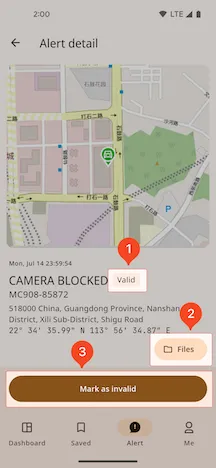
- Valid/Invalid: Quickly determine if the alert has been marked as valid or invalid.
- Files: View the images or video files associated with this alert.
- Mark as invalid: Mark this alert as “Valid” or “Invalid” for future tracking and management.
Alert Files
Section titled “Alert Files”Uploaded Files
Section titled “Uploaded Files”The system automatically lists successfully uploaded alert attachments.
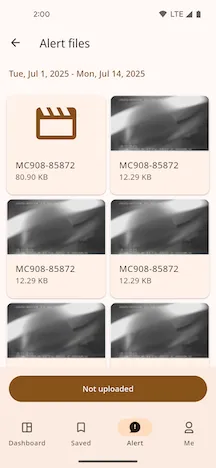
- Time Filter: Click the date at the top of the list to filter attachments by date.
- View File: Click a list item to view the image or video content.
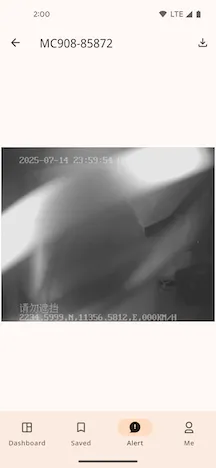
File Download
Section titled “File Download”On the file preview page, you can download the alert attachment to your device:
- Tap the Download Button in the top right corner
- The system will automatically create a download task and display a “Download task created successfully” prompt
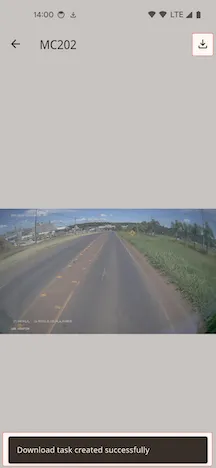
Unuploaded Files
Section titled “Unuploaded Files”Attachments that failed to upload due to network issues or other reasons will be listed here.
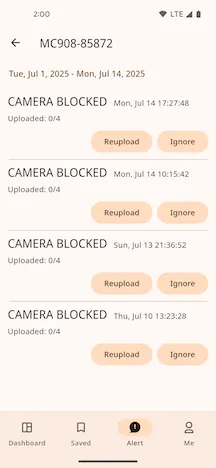
- Time Filter: You can also filter records by date here.
- Actions: For each record, you can choose to
ReuploadorIgnore.