Me
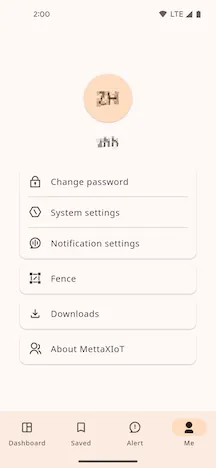
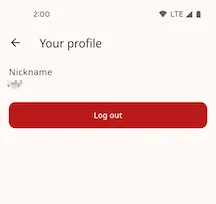
Tap the avatar or nickname to enter the “Edit profile” page. Here, you can change your nickname or log out of the current account.
Change Password
Section titled “Change Password”On this page, you need to enter your Old password, New password, and Confirm password to complete the change.

System Settings
Section titled “System Settings”Customize your application preferences.

-
Units
Set the display
Unitsfor fuel volume,Fuel consumption,Currency,Distance, andTemperature.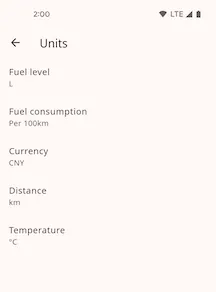
-
Language
Select the language displayed within the app.
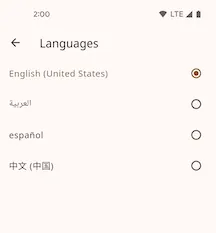
-
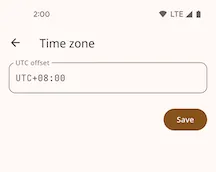
Time Zone
Set the time zone based on your geographical location.
-
Map
Choose the map type to use in the App, such as
Google MapsorOpen Street Map.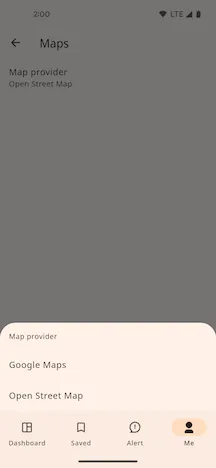
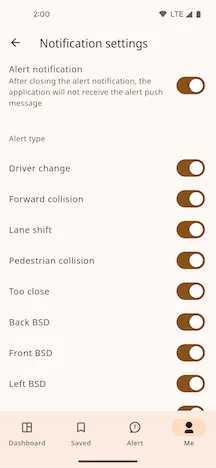
Push Notification Settings
Section titled “Push Notification Settings”Manage the reception of alert notifications. You can enable or disable alert pushes and set specific conditions for triggering alerts.
Fence Management
Section titled “Fence Management”Centrally manage all the geofences you have created.

Tap the menu button on the right side of a list item to perform the following actions on a fence:
-
Delete
-
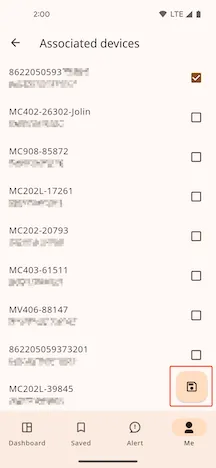
Edit Associated Devices
Select the devices you want to associate with this fence and tap save to complete the binding.
Tap the ”+” button in the bottom right corner of the page to add a new fence.
Download Center
Section titled “Download Center”Manage files downloaded through the app, such as videos or images.
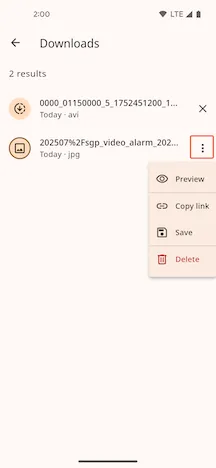
Task items display different information based on their download status:
- Downloading: The task shows a downloading icon on the left and a ”×” button on the right to cancel the download.
- Completed: The task shows a file type icon (e.g., image, video) on the left and a menu button on the right for more actions.
File Details and Actions
Section titled “File Details and Actions”Tap a completed task item to view file details or perform actions.

- File Information: Includes filename, download time, and file type.
- Available Actions:
- Preview: View the file content online.
- Copy Link: Copy the file’s download link.
- Save: Save the file to your phone’s photo album.
- Delete: Remove this file from the download list.
About MettaXIoT
Section titled “About MettaXIoT”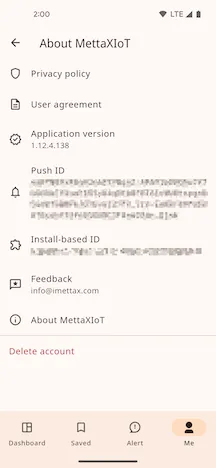
Privacy policy
Section titled “Privacy policy”Tap to view the application’s privacy policy document.
User agreement
Section titled “User agreement”Tap to view the application’s user agreement document.
Application version
Section titled “Application version”Displays the version number of the currently installed application.
Push ID
Section titled “Push ID”The unique device identifier used for receiving push notifications.
Install-based ID
Section titled “Install-based ID”A unique identifier generated after the application is installed.
Feedback
Section titled “Feedback”Send us your valuable opinions or suggestions via email.
About MettaXIoT
Section titled “About MettaXIoT”Tap to view detailed information about the application.

-
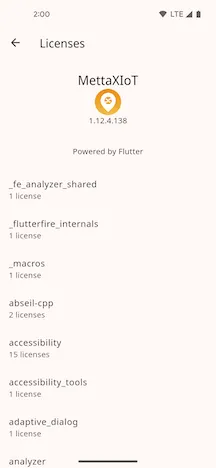
Tap “View licenses” to see the open-source software licenses used by the application.
Delete Account
Section titled “Delete Account”This action will permanently delete your account and all related data. Please proceed with caution.