License Management
Click on the nickname in the upper right corner of the platform and select License Management from the drop-down menu.
A device must have a valid license to function properly. Different license types are applicable to different device models.
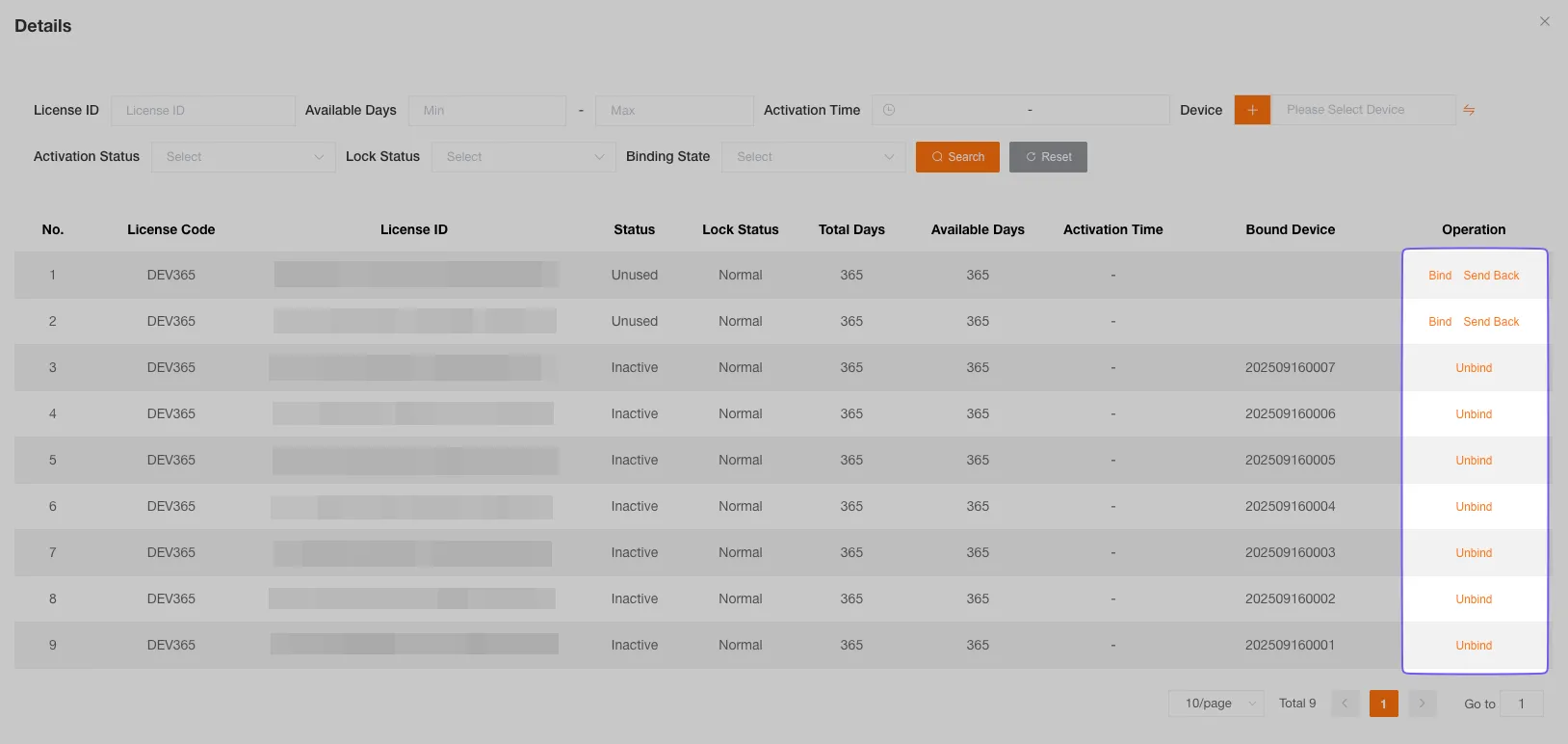
By selecting a customer, you can view the licenses and history of their sub-customers, but you cannot perform operations such as selling, returning, binding, or unbinding.
License Statistics
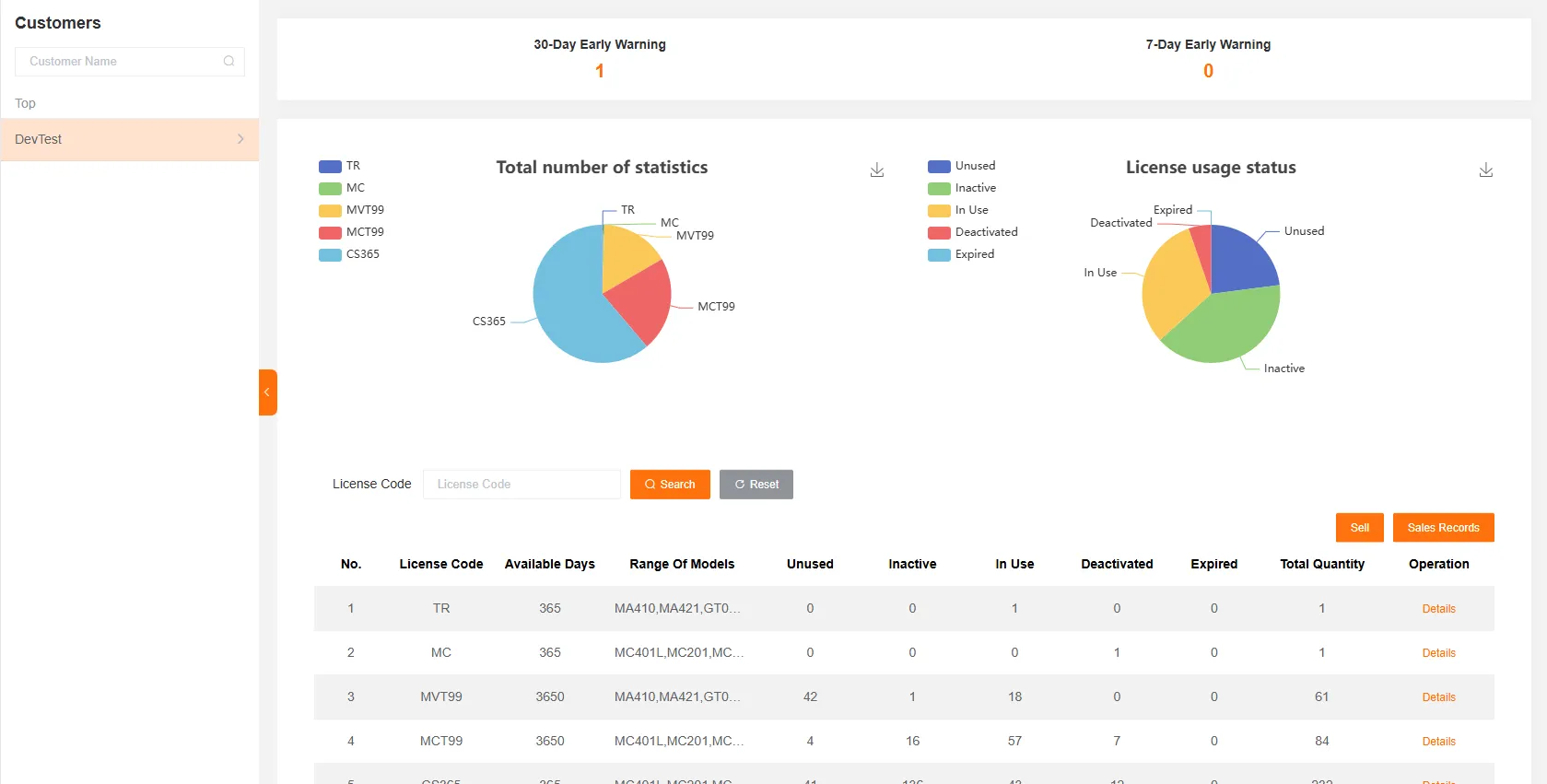
Section titled “License Statistics”You can quickly get an overview of the license situation through statistics and reminders for licenses with insufficient days, total counts by category, and license usage status.
License Available Days Reminder
Section titled “License Available Days Reminder”The management interface will count and prompt the number of licenses with less than 30 days and less than 7 days remaining.
You can click on the number to go to the details page and view specific license information.
License Type Statistics
Section titled “License Type Statistics”You can intuitively view the distribution of license types through a pie chart, clearly understanding the proportion of each type.
License Status Statistics
Section titled “License Status Statistics”You can intuitively view the status of licenses through a pie chart, clearly understanding the proportion of each status.
License List
Section titled “License List”You can filter licenses by license code.
The license list includes available days, applicable model range, unused quantity, inactive quantity, in-use quantity, deactivated quantity, expired quantity, and total quantity.
License Status
Section titled “License Status”Each license contains attributes such as model range, maximum available days, remaining available days, activation time, bound device number, and owning customer number.
| Status | Details | Deduction |
|---|---|---|
| Unused | Not bound to a device, no activation time | No charge |
| Inactive | Bound to a device, no activation time | May incur charges |
| In Use | Bound to a device, has an activation time, and available days > 0 | May incur charges |
| Deactivated | Not bound to a device, has an activation time, and available days > 0 | No charge |
| Expired | Available days is 0 | No charge |
License Deduction Rules
Section titled “License Deduction Rules”Deduction rules are calculated based on the license’s billing.
Insufficient available days on a license will cause deduction failure. You can purchase additional available days; please contact customer service for specific purchase methods.
Automatic Deduction
Section titled “Automatic Deduction”Every 24 hours, a license bound to a device will be charged once. After the deduction is completed, the device will have 24 hours (i.e., one day) of usage time.
Licenses not bound to a device will not be automatically charged.
Check When Reporting Data
Section titled “Check When Reporting Data”When a device reports data, it will check if there is valid usage time. If not, a deduction will be triggered.
If the deduction is successful, the device will be used normally. If the deduction fails, the device will be blacklisted and will not be able to report data again.
License Management
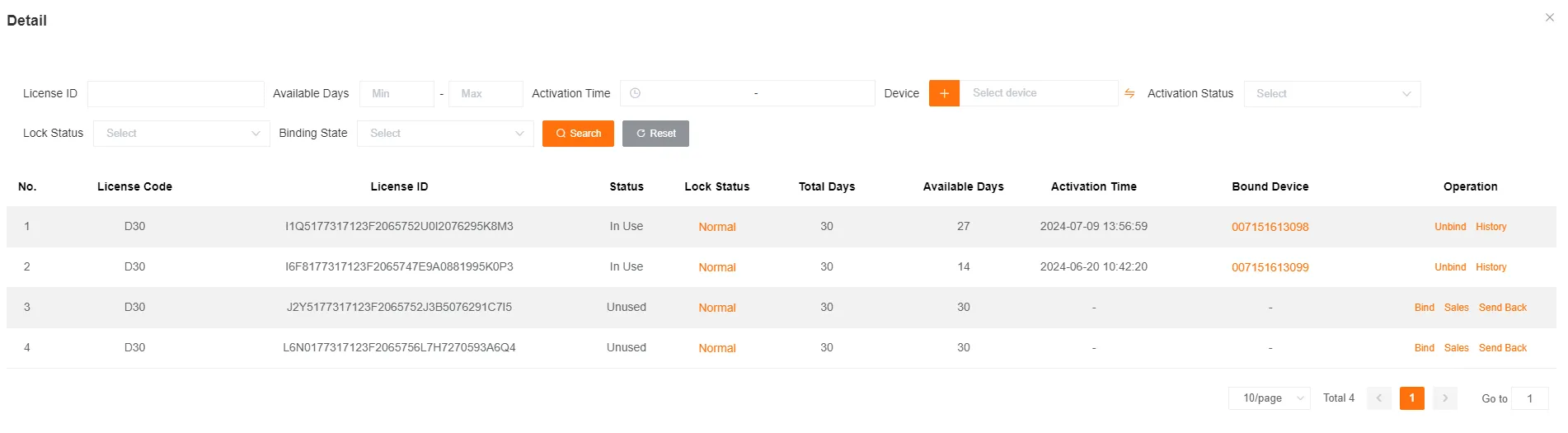
Section titled “License Management”You can perform operations such as locking, binding, unbinding, selling and returning, and viewing deduction records for a license.
License details include Card Number, Status, Lock Status, Total Days, Available Days, Activation Time, and Bound Device.
You can filter licenses by card number, available days, activation time, device, activation status, and lock status.
Lock License
Section titled “Lock License”Unused licenses can be locked. Once locked, the license cannot be sold or bound.

Bind License
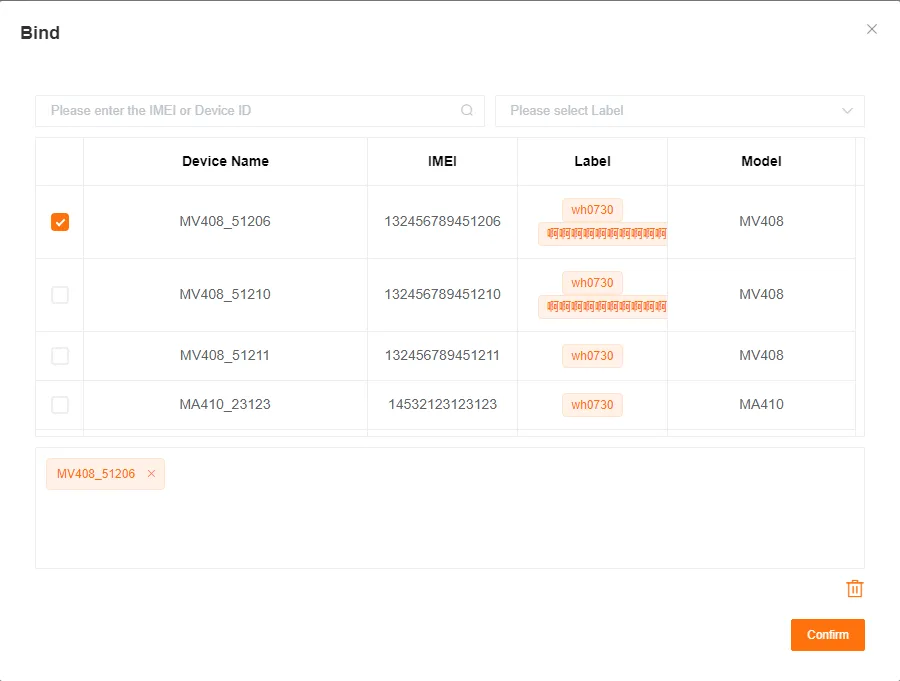
Section titled “Bind License”A license can only be bound to one device at a time. A device can be bound to multiple licenses at the same time.
License Binding Rules
Section titled “License Binding Rules”A license can only be bound to a device that matches its model range.
A license can only be bound to one device at a time. However, it can be used by multiple devices through multiple binding and unbinding operations (for example, after the currently bound device incurs a deduction record, the license can be unbound and then bound to another device).
A device can be bound to multiple licenses at the same time, but the system will only deduct from one of them, prioritizing the license with the earlier activation time.
A superior customer can bind a license to a sub-customer’s device, using the license of the currently logged-in customer. After binding, the corresponding license will be automatically transferred to the sub-customer who owns the device.
Bind to a Device of the Current Customer
Section titled “Bind to a Device of the Current Customer”You can directly bind a valid license.
Bind to a Device of a Sub-customer
Section titled “Bind to a Device of a Sub-customer”Sell the license to the sub-customer, who will then bind it themselves.
Sell the sub-customer’s device back to the current customer, bind the license, and then sell the device along with the license back to the sub-customer.
Sell License
Section titled “Sell License”Licenses can be sold to sub-customers.
-
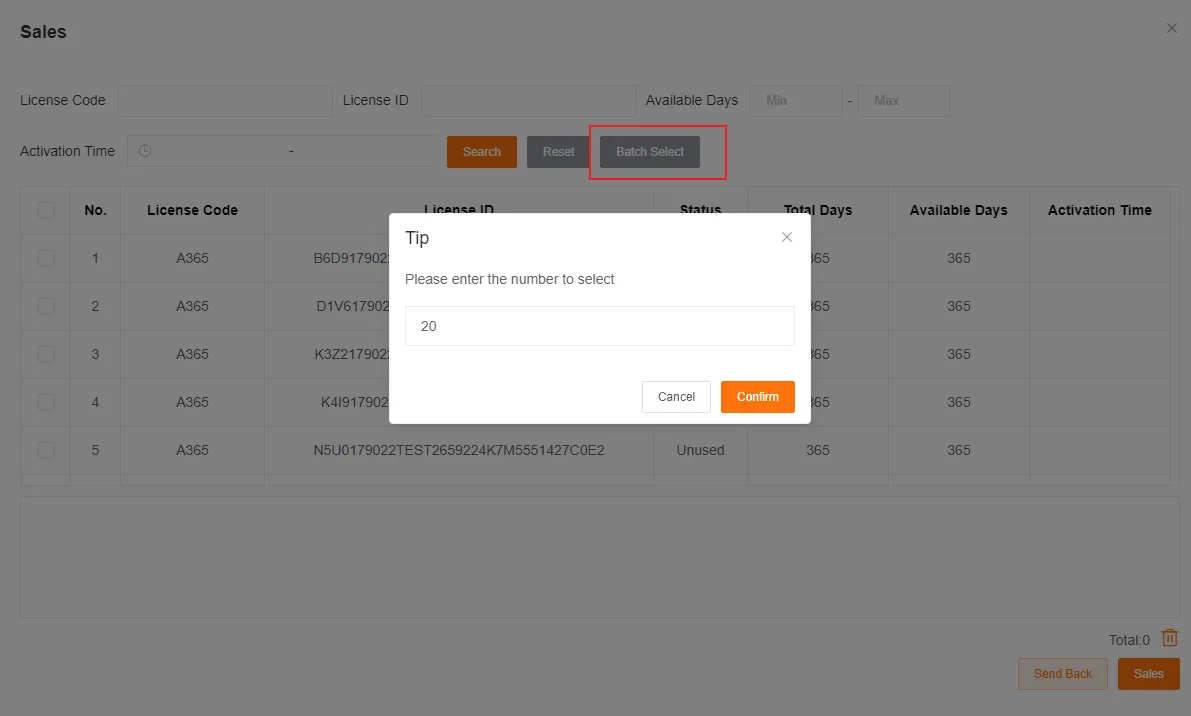
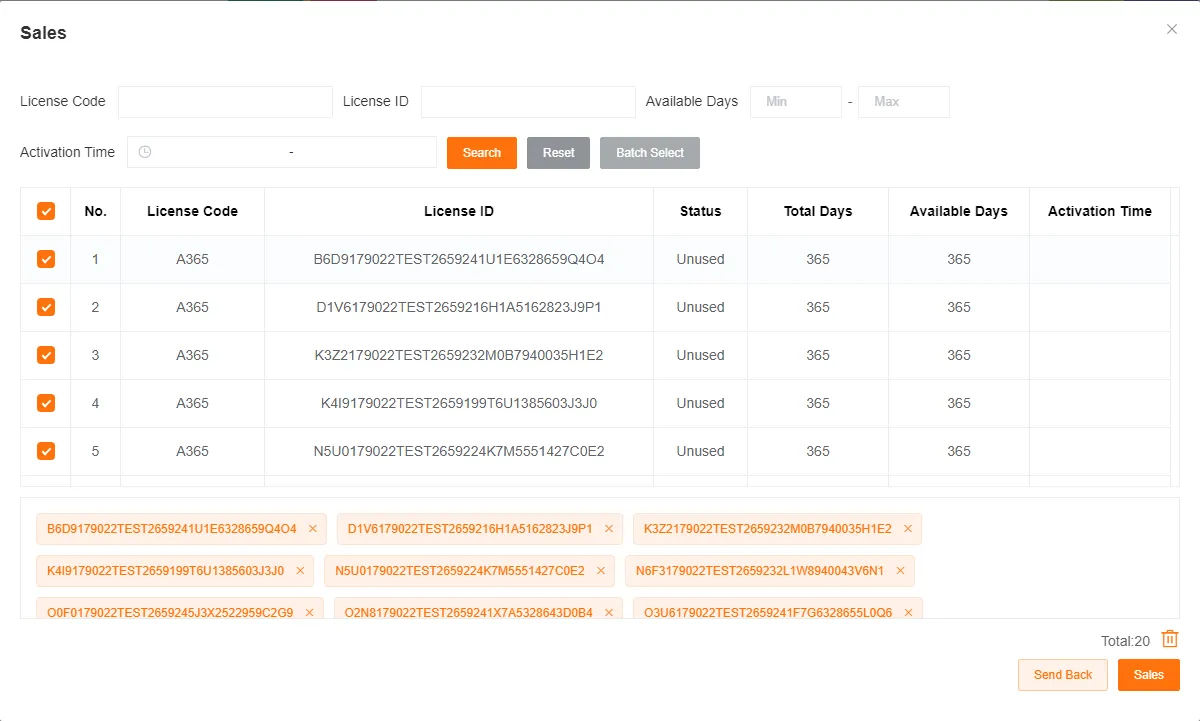
You can check the licenses to be sold or click the Batch Select button.
Enter the quantity to be sold and click OK. The system will automatically check the corresponding number of licenses.
-
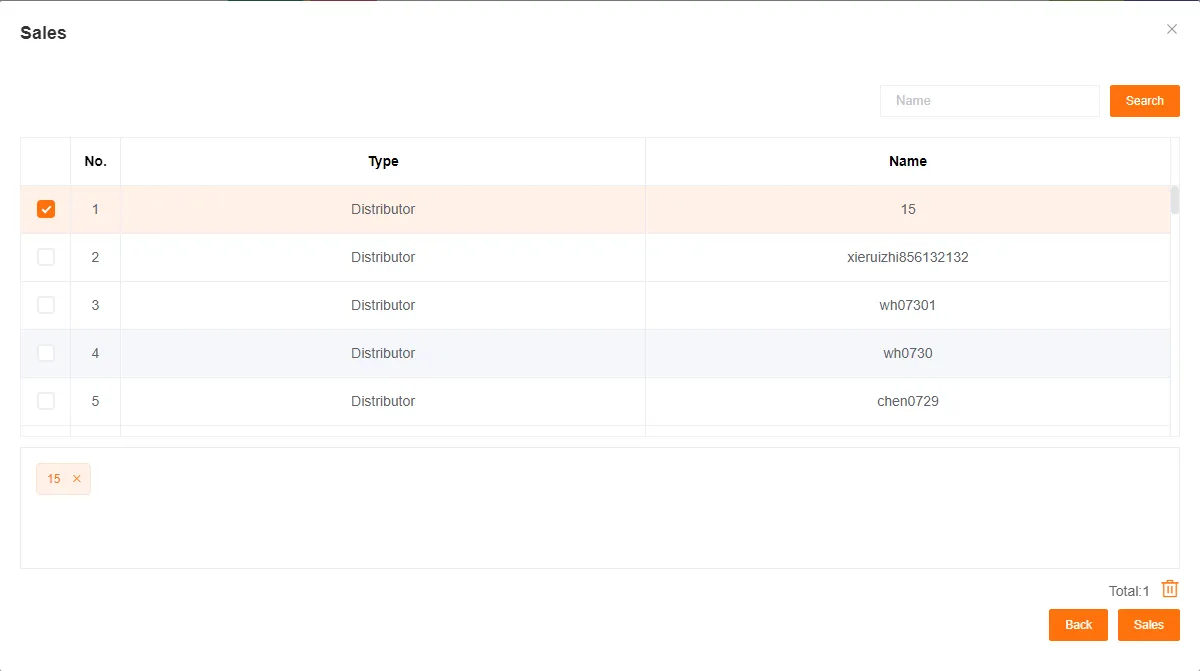
Click Sell, select the sub-customer to sell to, and you can complete the device sale.
Return License
Section titled “Return License”Licenses can be returned from a sub-customer to a superior customer.
-
You can check the licenses to be returned or click the Batch Select button.
Enter the quantity to be returned and click OK. The system will automatically check the corresponding number of licenses.
-
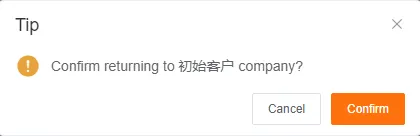
Click Return, and a confirmation prompt will pop up. Click OK to return the license.
License Transfer Record
Section titled “License Transfer Record”Click the Sales Record button to view the record of license transfers.
You can filter license transfer records by date, license code, and sales method.
License Deduction Record
Section titled “License Deduction Record”You can view the deduction history of a license under the current customer.

Manage Sub-customer Licenses
Section titled “Manage Sub-customer Licenses”Allow a Superior Customer to Manage Licenses
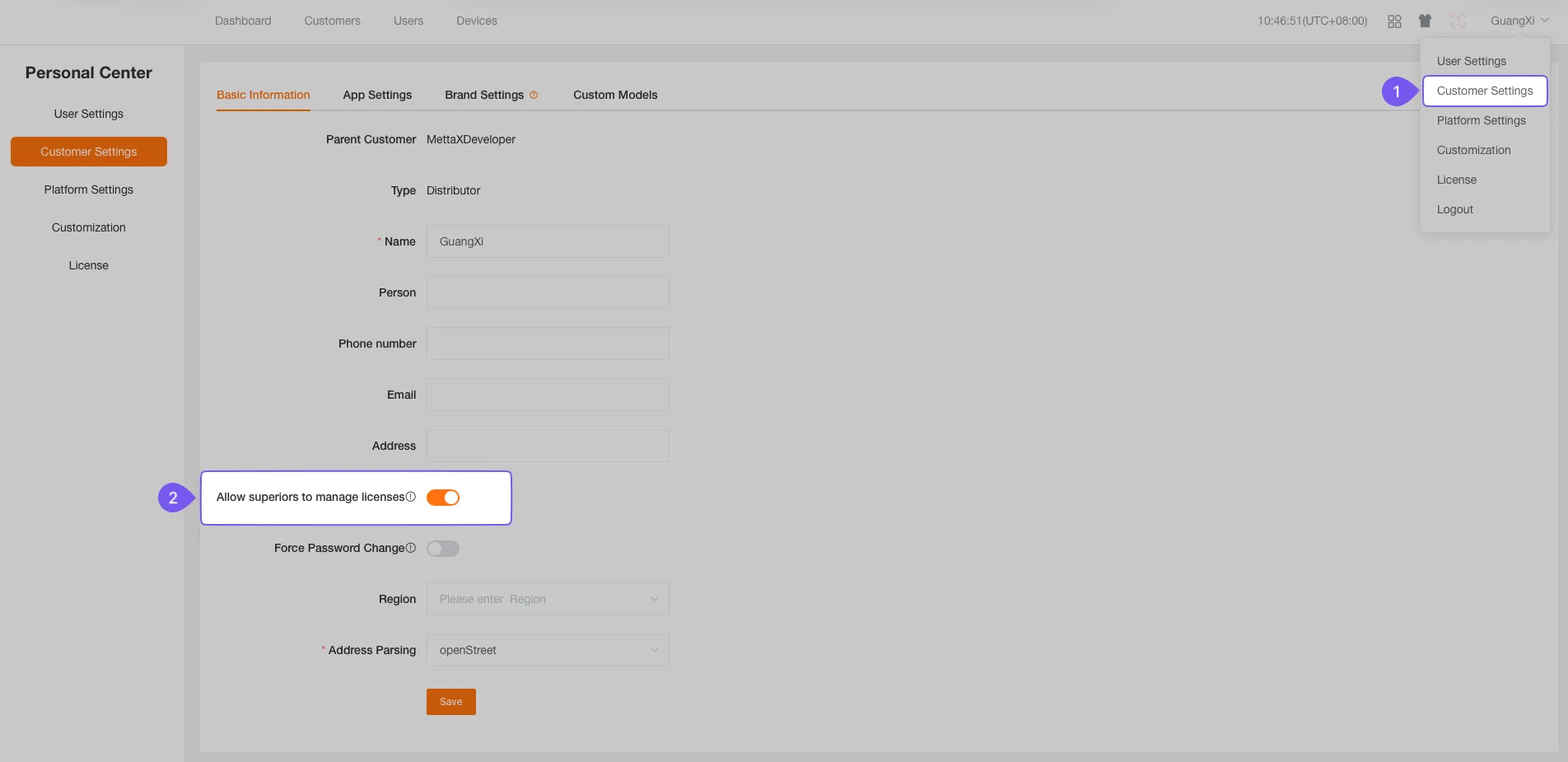
Section titled “Allow a Superior Customer to Manage Licenses”If a sub-customer wants to allow its superior customer to manage its licenses, the sub-customer must log in to the Customer Management System (CMS) and enable the Allow Superior to Manage Licenses permission switch under Customer Settings.
Manage a Sub-customer’s Licenses
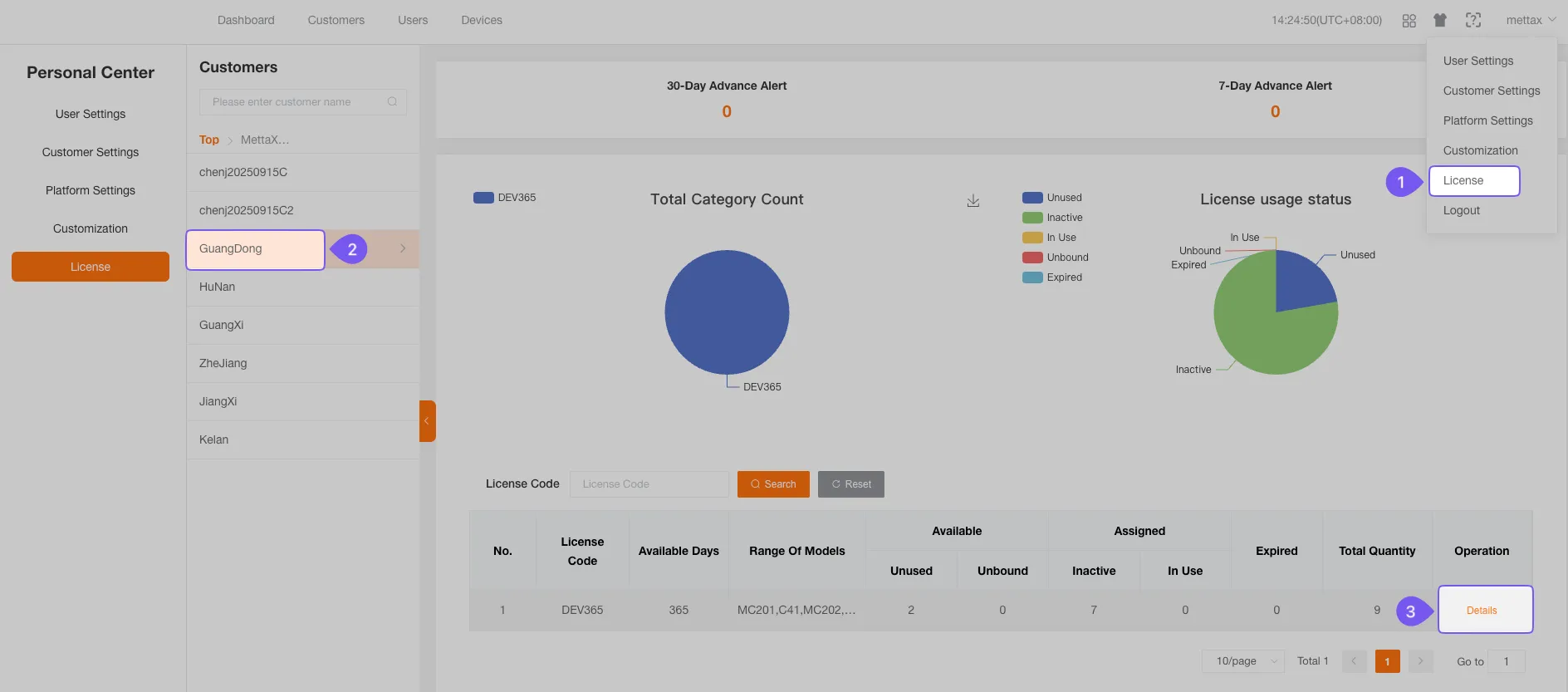
Section titled “Manage a Sub-customer’s Licenses”A superior customer that wants to manage a sub-customer’s licenses must log in to the Customer Management System (CMS) with the Administrator account, go to License Management, select the target sub-customer, then click Details at the end of a license row to enter that sub-customer’s license details page.
Sub-customer License Details
Section titled “Sub-customer License Details”If the sub-customer has not allowed superior management, the superior customer cannot perform any operations on the sub-customer’s own licenses.
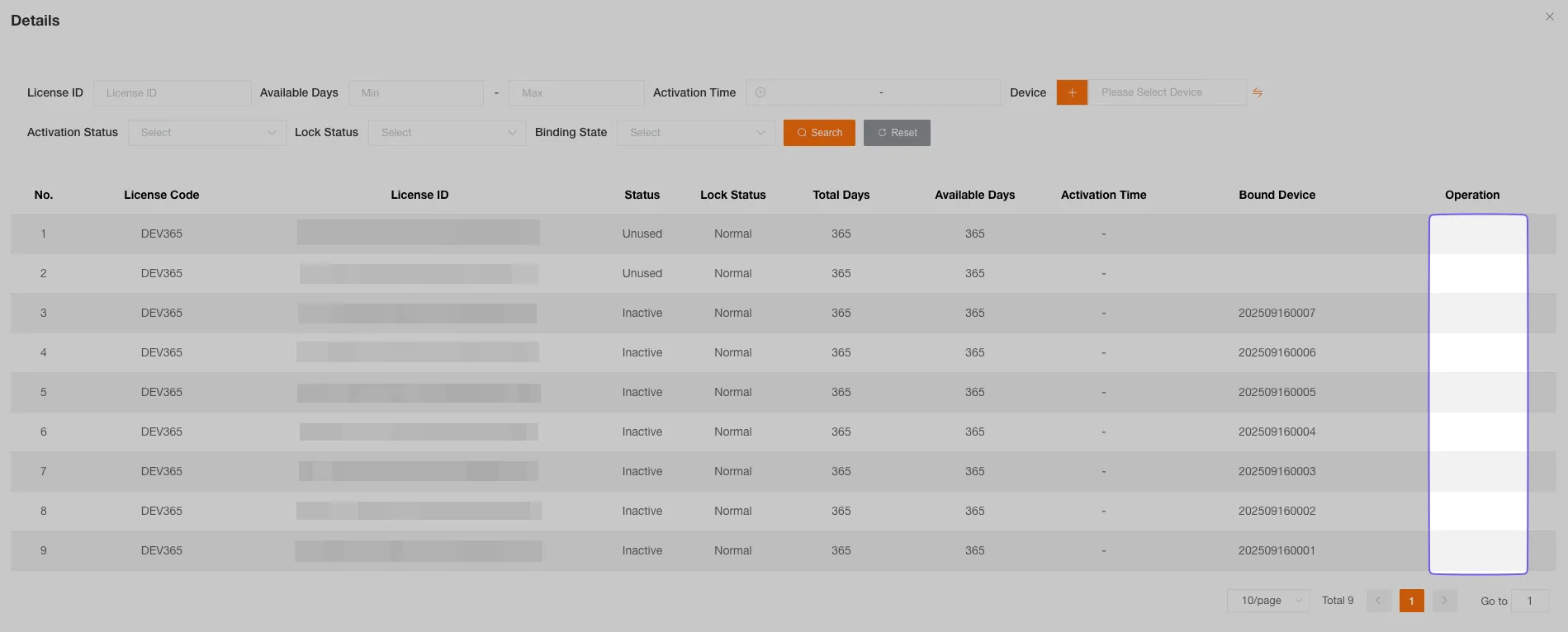
If the sub-customer has allowed superior management, the superior customer can perform operations such as binding, unbinding, and returning on the sub-customer’s own licenses.