Customization
Click on the user nickname in the upper right corner of the platform and select Customization from the drop-down menu to enter the corresponding page.
Customized Alert
Section titled “Customized Alert”Customized alerts are used to add some basic customized alerts on top of existing ones. The trigger rule can be data change or data threshold.
The administrator can create and manage customized alerts here. All users can manage enabled customized alerts in the Alert Settings of the user settings.
You can perform a fuzzy search by alert name to quickly filter alerts.The list will display the alert name, remarks, enabled status, and creation time. Please note that if the alert has already generated corresponding customized alert records, deletion is not allowed.

Optional Conditions
Section titled “Optional Conditions”Speed, temperature, humidity, load, fuel, acceleration, I/O port, etc.
Data Change
Section titled “Data Change”The absolute value of the change reported by the device >= the comparison value. If the condition is met, it will be triggered. The comparison type is fixed to >= and cannot be modified.
Data Threshold
Section titled “Data Threshold”The latest value reported by the device is compared with the comparison value. If the condition is met, it will be triggered. The comparison type can be selected from >, <, >=, <=.
Scenario Examples
Section titled “Scenario Examples”Scenario A: Additional Overspeed Alert
Section titled “Scenario A: Additional Overspeed Alert”Requirement
Section titled “Requirement”In addition to the default high-speed warning (60km/h) and high-speed alert (80km/h), add a 100km/h overspeed alert for specific vehicles.
Settings
Section titled “Settings”- Condition: Speed
- Trigger Rule: Data Threshold
- Comparison Type:
>= - Comparison Value: 100
Scenario B: Cargo Loss Monitoring
Section titled “Scenario B: Cargo Loss Monitoring”Requirement
Section titled “Requirement”The vehicle is connected to a load sensor. When the load change exceeds 100kg, cargo loss may occur, and an alert needs to be triggered.
Settings
Section titled “Settings”- Condition: Load
- Trigger Rule: Data Change
- Comparison Type:
>= - Comparison Value: 100
Scenario C: Temperature Anomaly Alert
Section titled “Scenario C: Temperature Anomaly Alert”Requirement
Section titled “Requirement”A cold chain transport vehicle is connected to a temperature sensor. An alert is triggered when the compartment temperature is higher than 0°C.
Settings
Section titled “Settings”- Condition: Temperature
- Trigger Rule: Data Threshold
- Comparison Type:
>= - Comparison Value: 0
Create Customized Alert
Section titled “Create Customized Alert”Users can create customized alert rules. When the data reported by the device meets the set conditions, the system will pop up a prompt according to the settings.
-
Basic Information
Fill in the alert name, turn on the switch, and fill in the remarks.
-
Complete the alert trigger rules and set the trigger conditions.
You can choose to trigger the rule by data change or data threshold.
-
By Data Change
When the absolute value of change of the reported value from the device is greater than or equal to the set value, an alert is triggered.
Rule conditions can be Speed, Temperature, Humidity, Load, Fuel, Acceleration, I/O Port, etc.
Fix the comparison type and fill in the set value.

-
By Data Threshold
Compare the latest value reported by the device with the set value. When the condition is met, an alert is triggered.
Rule conditions can be Speed, Temperature, Humidity, Load, Fuel, Acceleration, etc.
Select the comparison type and fill in the set value.

-
-
Creation Complete
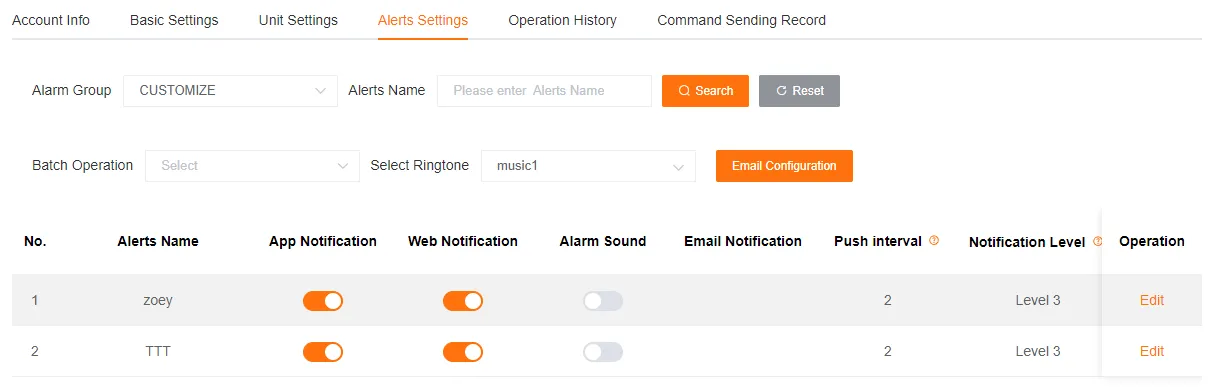
Enabled customized alerts will be displayed in Alert Settings, under the Custom group.
Edit Customized Alert
Section titled “Edit Customized Alert”Click the Edit button in the customized alert list to modify a created customized alert.
Delete Customized Alert
Section titled “Delete Customized Alert”Click the Delete button in the customized alert list to delete a created customized alert.
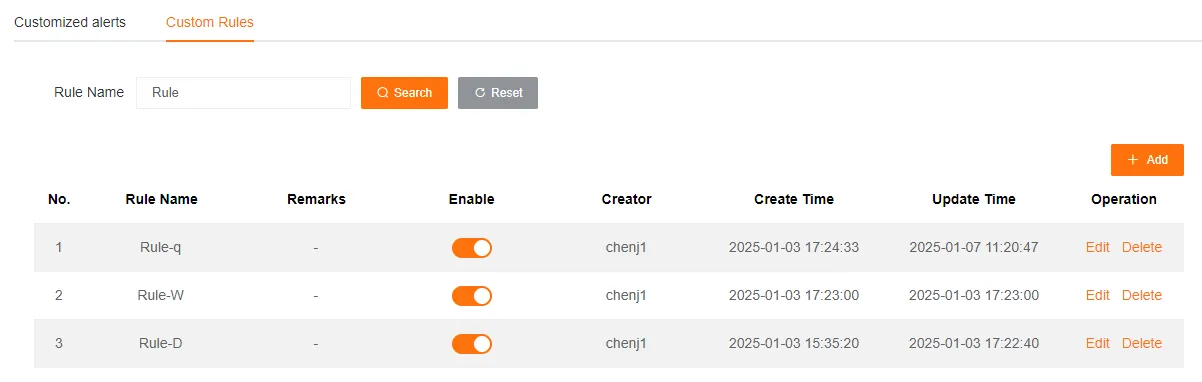
Customized Rule
Section titled “Customized Rule”A customized rule is a complex set of rules that combines alerts, geofences, and time limits. It is not simply judging based on the raw data reported by the device.
Device Scope
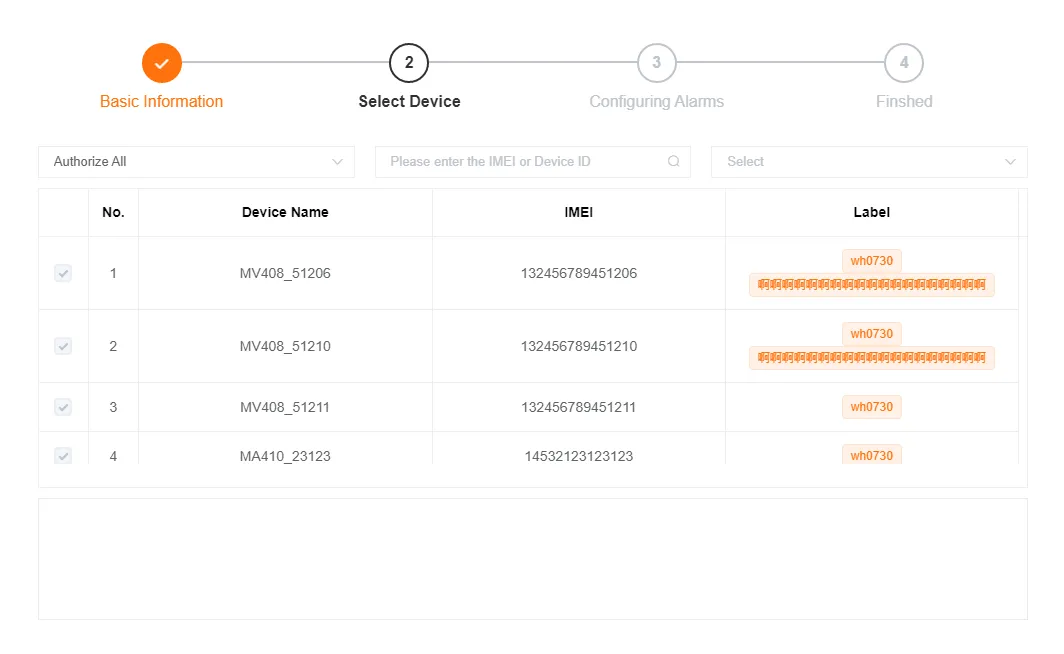
Section titled “Device Scope”Customized rules can be applied to specific devices or all devices.
Alert Type
Section titled “Alert Type”Customized rules must be triggered by one or more alerts.
Trigger Rule
Section titled “Trigger Rule”When the data reported by the device meets the set rule for 1 minute, a rule trigger prompt will pop up according to the configuration. A customized rule trigger record will be generated, which can be viewed in the rule report.
Multiple Triggers
Section titled “Multiple Triggers”In the case of multiple alert types, each corresponding alert will trigger the customized rule. When multiple customized rules for the same device are triggered simultaneously, they will be executed in the order of their trigger time.
Alert Video
Section titled “Alert Video”Customized rules can upload corresponding alert videos through the history video function. These videos can be viewed in the rule report.
Scenario Examples
Section titled “Scenario Examples”Scenario A: Monitor Vehicle Use During Non-working Hours
Section titled “Scenario A: Monitor Vehicle Use During Non-working Hours”Requirement
Section titled “Requirement”Monitor whether company vehicles are used for private purposes during non-working hours.
Settings
Section titled “Settings”- Alert Type: ACC On
- Execution Time: Set to non-working hours
Scenario B: Monitor Loading and Unloading in Unauthorized Areas
Section titled “Scenario B: Monitor Loading and Unloading in Unauthorized Areas”Requirement
Section titled “Requirement”Monitor whether transport vehicles are loading or unloading outside the designated Loading/Unloading Point geofence.
Settings
Section titled “Settings”- Create a Load Change customized alert.
- Create a Loading/Unloading Point geofence.
- Alert Type: Load Change
- Geofence: Loading/Unloading Point
- Geofence Judgment: Outside Geofence
Scenario C: Monitor Speeding in Key Areas
Section titled “Scenario C: Monitor Speeding in Key Areas”Requirement
Section titled “Requirement”Monitor whether buses are speeding (above 40km/h) in the School Zone during peak hours.
Settings
Section titled “Settings”- Create an Overspeed Alert customized alert with a threshold of 40km/h.
- Create a School Zone geofence.
- Alert Type: Overspeed Alert
- Geofence: School Zone
- Geofence Judgment: Inside Geofence
- Execution Time: Set to peak hours (e.g., 08:00-19:00)
Scenario D: Monitor Dangerous Driving Behavior at Night
Section titled “Scenario D: Monitor Dangerous Driving Behavior at Night”Requirement
Section titled “Requirement”Monitor taxis for extremely dangerous behaviors at night, such as fatigue driving, severe speeding (≥120km/h), and collisions.
Settings
Section titled “Settings”- Monitored Devices: Select the taxis to be monitored.
- Main Alert:
- Alert Type: Collision
- Execution Time: Night (e.g., 20:00 - 07:00)
- Speed Condition:
>=120 km/h
- Associated Alert:
- Alert Type: Fatigue Driving
- Time Range: Within
20minutes before the collision occurred
Create Customized Rule
Section titled “Create Customized Rule”-
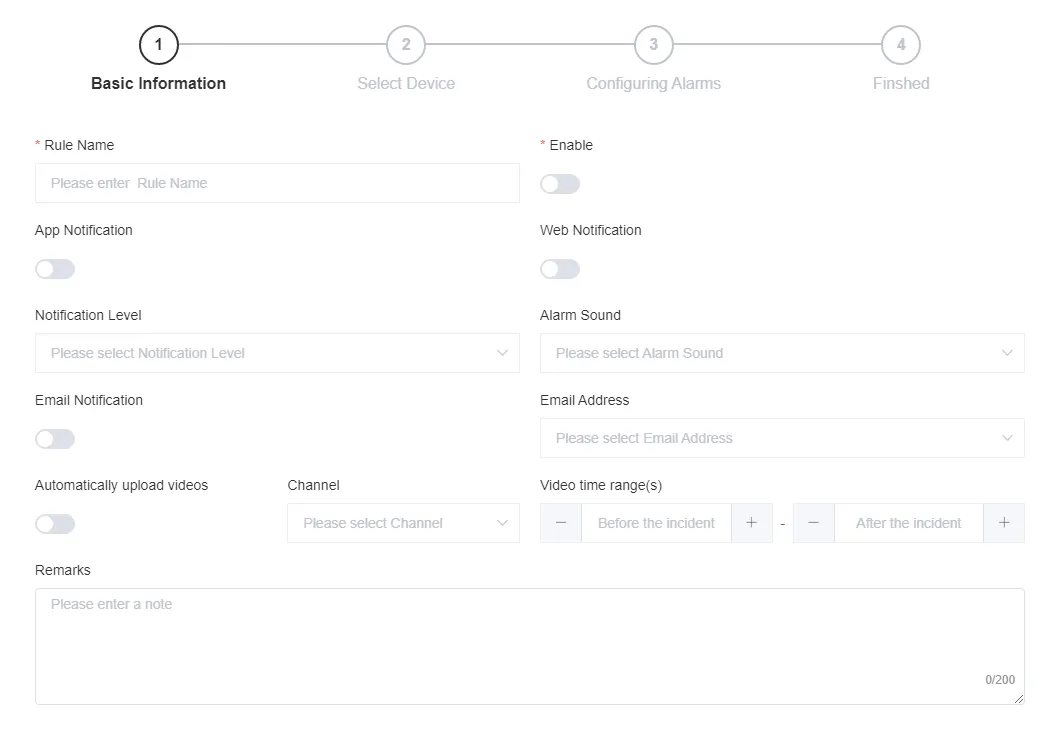
Basic Information
Fill in the customized rule name, turn on the switch, and specify the actions to be executed when the customized rule is triggered.
You can enable Mobile App Notification, PC Web Notification, or Email Notification as needed.
Enabling PC Web Notification requires setting the notification level and alert ringtone. When the rule is triggered, the platform will receive an alert prompt.
Enabling Email Notification requires selecting the recipient’s email address. When the rule is triggered, the system will send an email notification.
Upload Video requires filling in the channel number and video time range (in seconds). The video will be uploaded to the cloud. You can select a video from 2-60 seconds before and after the event. The uploaded video can be viewed in the Rule Report.
-
Select Devices
-
Set Alerts
Parameter Name Description Value Range/Remarks Alert Type Required, multiple selections allowed (OR relationship). Check the alert types from the left list and click the >button to add them to the selected list.Geofence Name Optional, multiple selections allowed (OR relationship). If selected, you must specify Inside Geofence or Outside Geofence. Execution Time If not enabled, the rule is effective all day. If enabled, it is executed only within the selected time range. Speed Judged based on the instantaneous speed when the alert is triggered. Comparison Type Comparison method >=,>,==,<=,<Comparison Value (km/h) Speed threshold 0-999 Associated Alert When judging an alert, the system will check if there is at least one associated alert within the last N minutes. Alert Type Multiple selections of regular and customized alerts are allowed. Before Event (minutes) Time range before the event occurred 1-30 
Edit Customized Rule
Section titled “Edit Customized Rule”Click the Edit button in the customized rule list to modify a created customized rule.
The administrator cannot edit the rules created by their sub-users.
Delete Customized Rule
Section titled “Delete Customized Rule”Click the Delete button in the customized rule list to delete a created customized rule.
The administrator can delete the rules created by their sub-users.
Alert Ringtones
Section titled “Alert Ringtones”The platform provides three built-in default alert ringtones. You can upload a custom audio file to replace any one of them or all of them.
