User Settings
Click on the nickname in the upper right corner of the platform to enter the user settings from the opened menu.

Account Information
Section titled “Account Information”- Account: Your login account, cannot be modified.
- Nickname: Used for display on the platform and can also be used as a query filter in some tables.
- Email: Currently for display only.
- Allow Concurrent Login: If this function is disabled, only one user can be logged into an account at a time. A subsequent login will force the previously logged-in user to be logged out.
- Change Password: Enter the old and new passwords to change the login password for the current account. The password must be 6 to 30 characters long and contain at least two of the following combinations: numbers, letters, special characters (
!@#$%^_-.).

Basic Settings
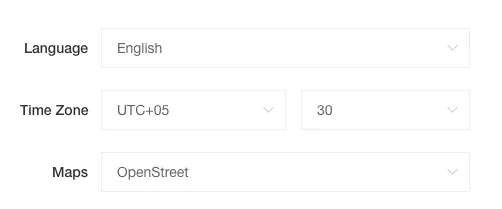
Section titled “Basic Settings”- Language: The display language of the platform will switch according to your settings and will be synchronized to the maps within the platform (only effective for Google Maps).
- Time Zone: The user’s current time zone.
- Map: The default configuration for the map mode, applied to the console and all map display modules on the platform.
Unit Settings
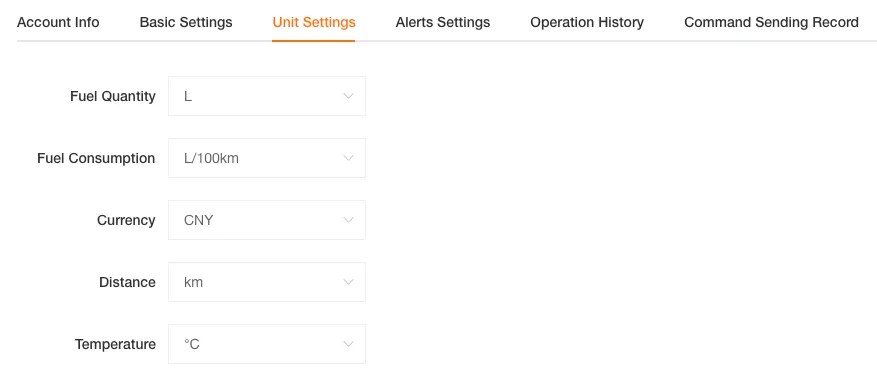
Section titled “Unit Settings”The unit settings here will affect the display of all related data on the platform, such as device sensor readings, report data, and console device information.
- Fuel Unit: L, UK gallon, US gallon
- Fuel Consumption Unit: per km, per 100 km
- Currency: CNY, USD, EUR, HKD, JPY, GBP, AUD, CAD, CHF, BEF, DEM, INR, RUB, FRF, NLG
- Speed Unit: km, mile, n mile
- Temperature Unit: ℃, ℉
Alert Settings
Section titled “Alert Settings”Used to configure the alert notification methods, time intervals, etc., for device alerts on the platform.
You can filter alert types by alert group or alert name.
Alert types include alert name, Mobile App notification, PC Web notification, alert ringtone, email notification, notification interval (the adjusted notification interval will take effect at the next alert, in minutes), alert level, and alert group.
Single Alert Settings
Section titled “Single Alert Settings”Through the Edit operation, you can individually adjust the notification method, notification interval, and alert level for each alert.

Batch Alert Settings
Section titled “Batch Alert Settings”- Mobile App Notification Switch: When turned off, the App will not receive alert notifications.
- PC Web Notification Switch: When turned off, the PC Web will not receive alert notifications.
- Alert Ringtone: When turned off, the PC Web will not play a sound when an alert message is received.
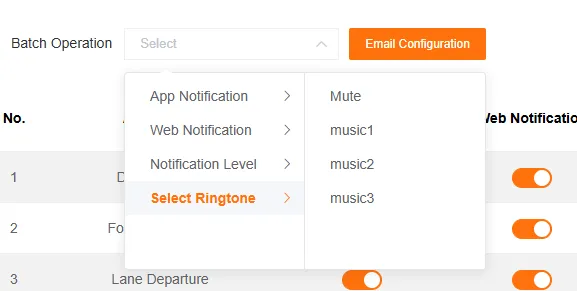
- Alert Level: Batch modify the level of alerts.
- Select Ringtone: Batch modify the ringtone for all alerts.
Email Alert Notification
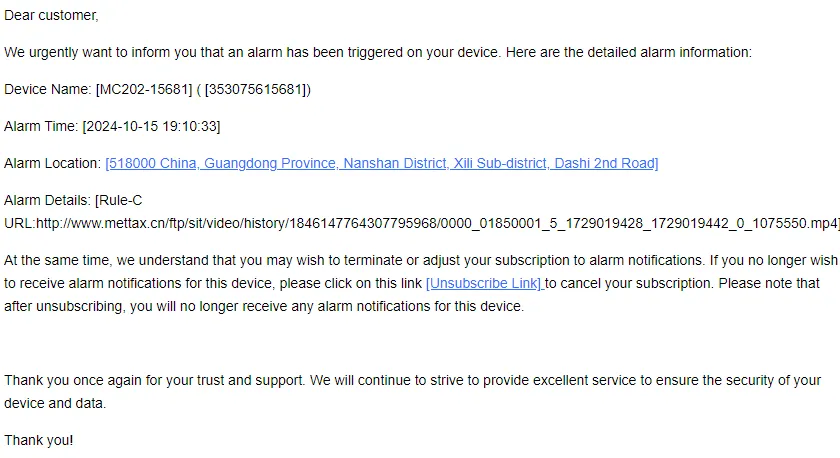
Section titled “Email Alert Notification”When the notification method for an alert is set to email, the system will send the alert information to the specified email address.
PC Web Alert Notification
Section titled “PC Web Alert Notification”See Other Features - Alert Bell for details.
Alert Email Settings
Section titled “Alert Email Settings”Configure the email addresses used to receive alert emails.
-
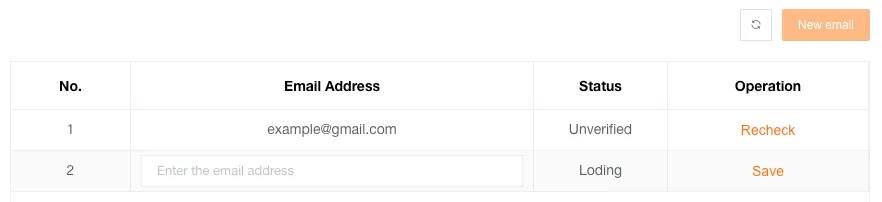
Click Create, and a new row will be added to the table. Enter the email address and click Save.
-
After saving successfully, the Re-verify button will appear in the actions column. Click this button, and the platform will send a verification email to that address.
Please note that the email can only be used to receive alert emails after it has been successfully verified.

Account Operation History
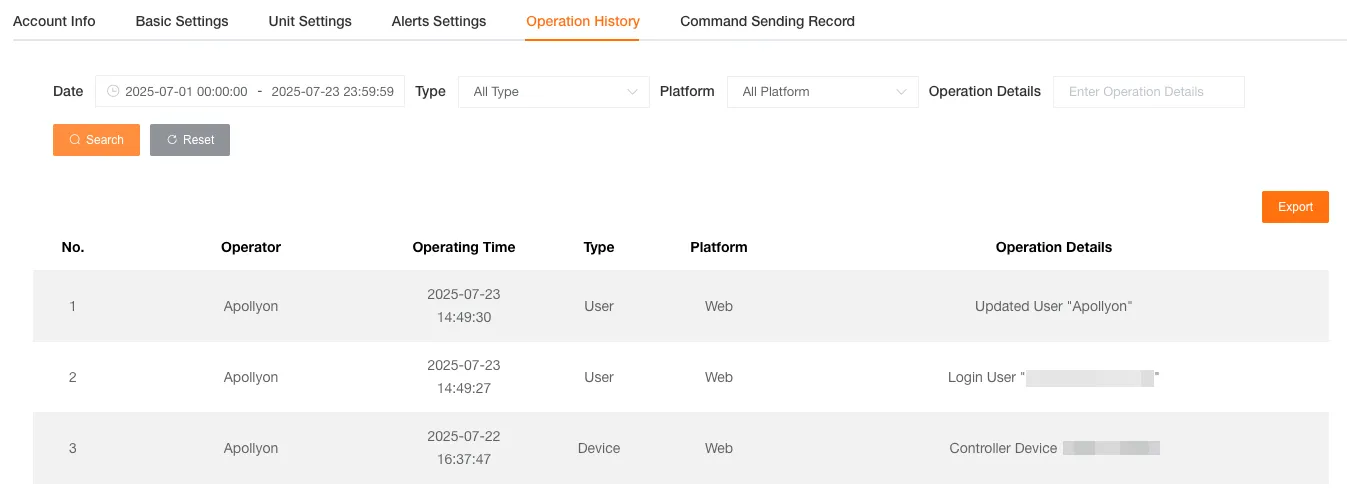
Section titled “Account Operation History”Used to query the operation records of the current account. The administrator of a customer can view the operation records of all users under that customer.
You can filter records by operation time, type, operating platform, and operation content (exact match).
The list will display the operator, operation time, type, operating platform, and operation content.
Command Sending History
Section titled “Command Sending History”Used to view the history of commands sent to devices. The administrator of a customer can view the command sending records of all users under that customer.
You can filter records by operation time, sending status (e.g., waiting for reply, success, failure), and device name or unique code.
The list will display the setting type, device unique code, status, operation time, setting content, reply time, and reply content.
You can export files, and after the operation is successful, please go to the Download Center to download the files.
