Other Features
Time Zone Settings
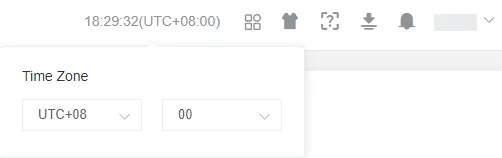
Section titled “Time Zone Settings”Click on the time in the upper right corner of the page to modify the current account’s time zone.
Application Center
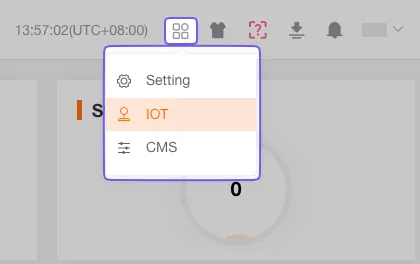
Section titled “Application Center”Click the Application Center icon to quickly access functional modules such as Internet of Things (IoT) or Customer Management System (CMS).
Settings
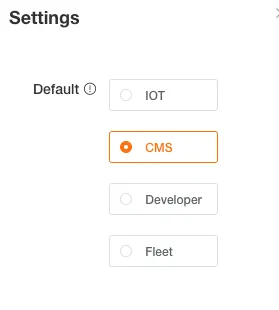
Section titled “Settings”Open the settings popup to configure which system the platform redirects to after login (e.g., IoT, CMS, Fleet, Developer). This lets you jump directly to your most frequently used module.
System Style
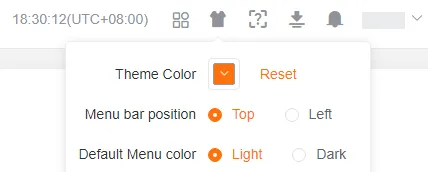
Section titled “System Style”You can customize the platform’s theme color and menu layout according to your personal preferences.
Theme Color
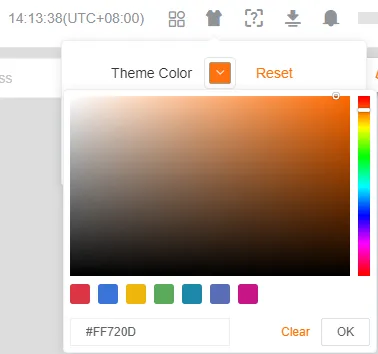
Section titled “Theme Color”Select the system’s theme color. You can choose from preset schemes or customize the color.
Menu Layout
Section titled “Menu Layout”Set the display mode of the system menu. You can choose a left or top layout.
Menu Color
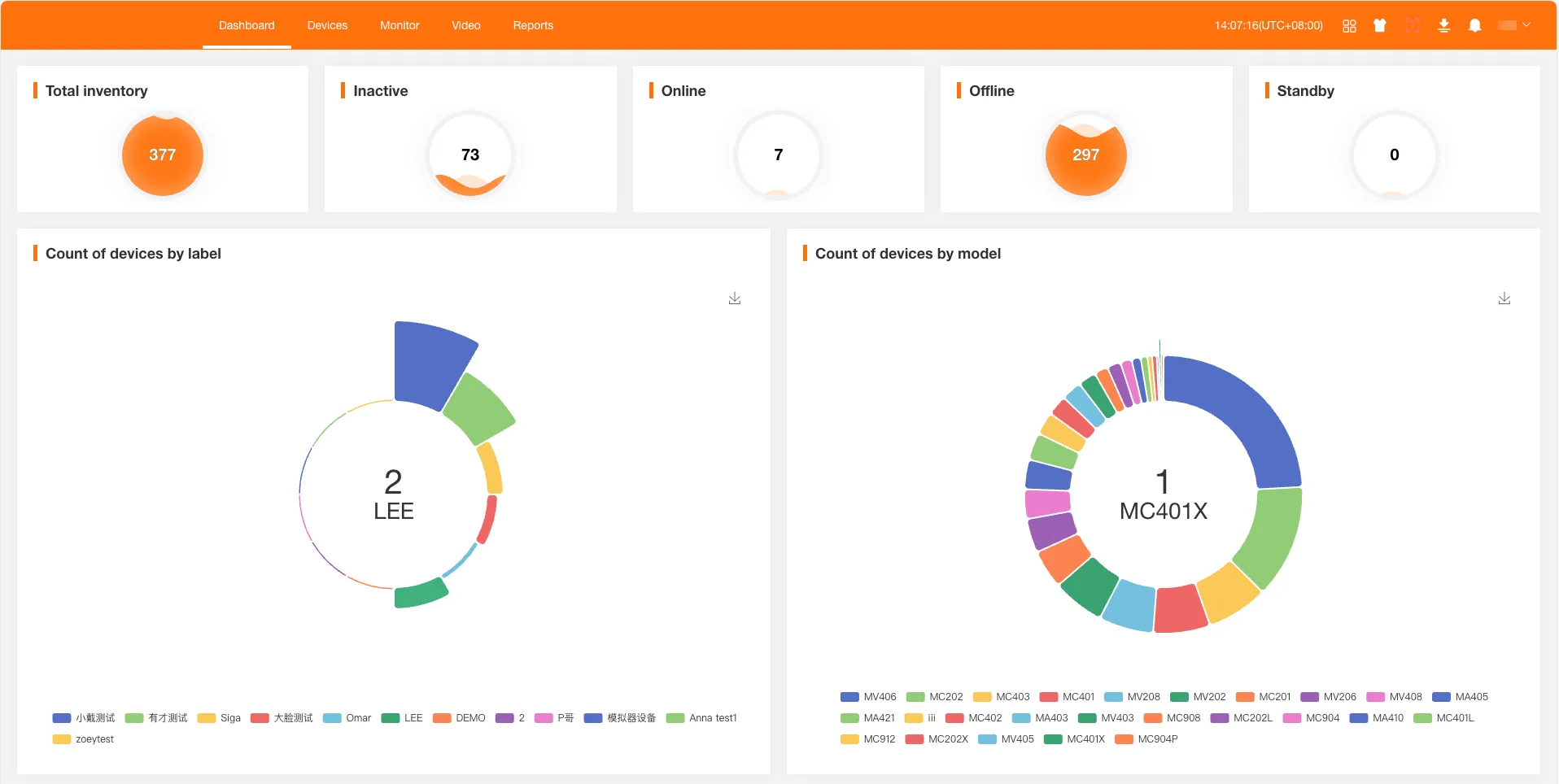
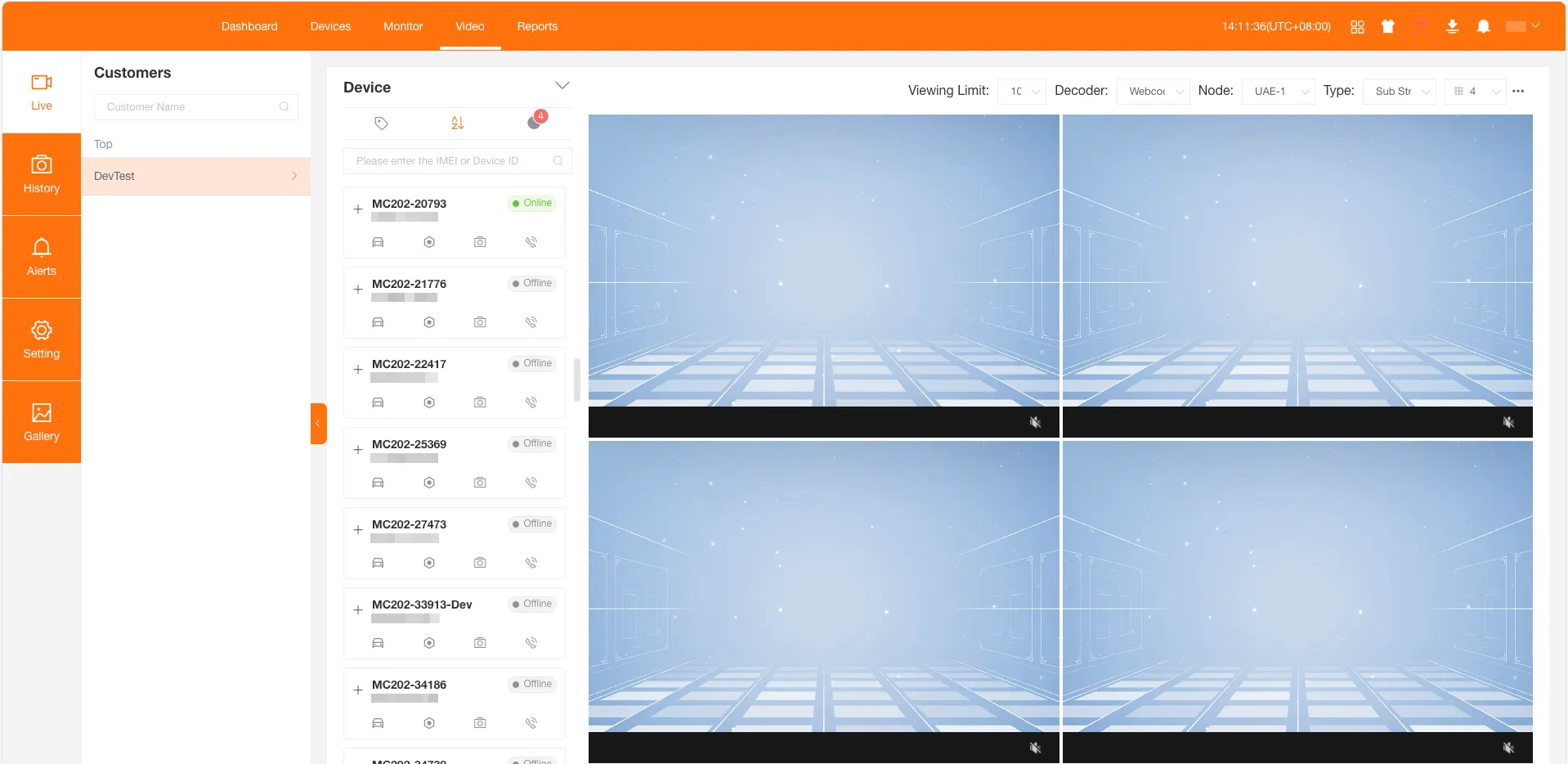
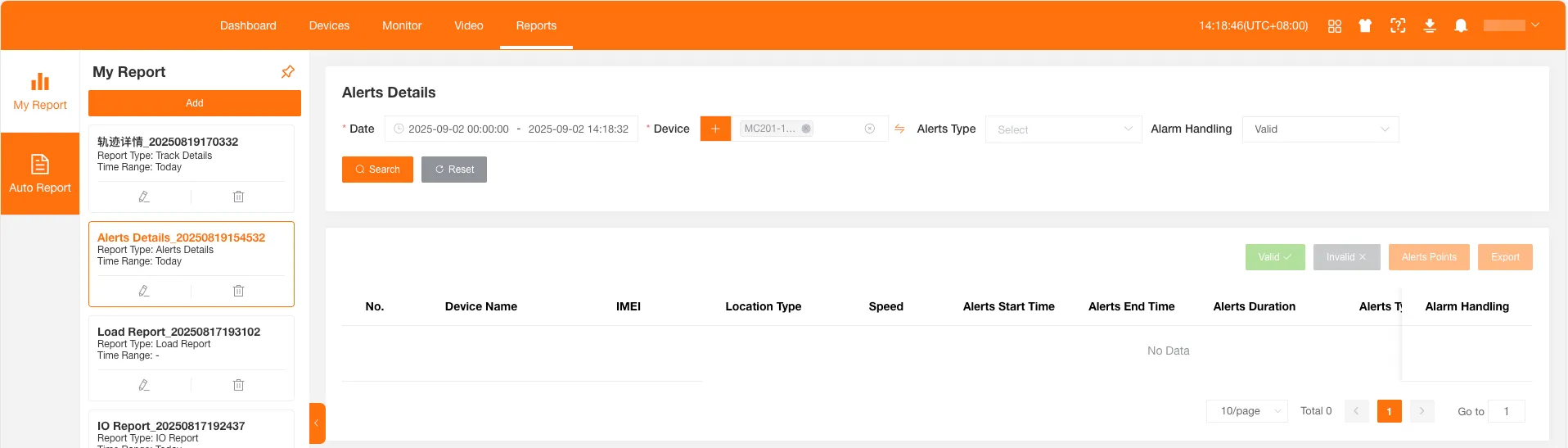
Section titled “Menu Color”Set the color scheme for the platform menu. You can choose a light or dark theme. The default is light; the dark effect is as follows:
Help Center
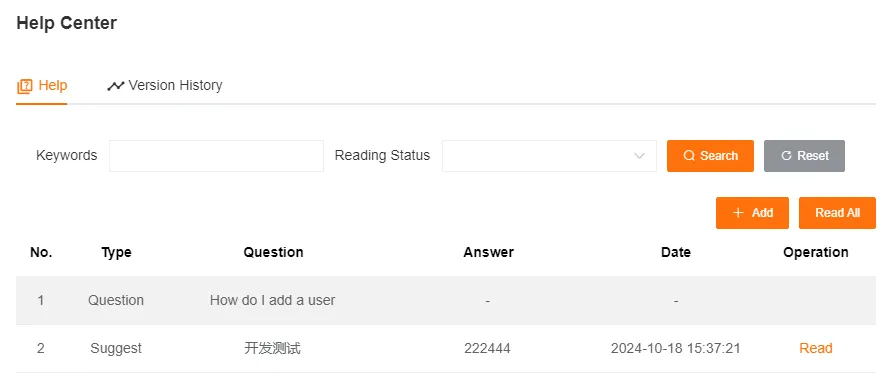
Section titled “Help Center”In the Help Center, you can ask us questions or make suggestions, and view the platform’s version update history. When you receive a reply or there is a new version update, the Help Center icon will show a prompt.

Create questions, suggestions, or other types of feedback here. After reading a new reply, the icon prompt will be automatically cleared.
Version History
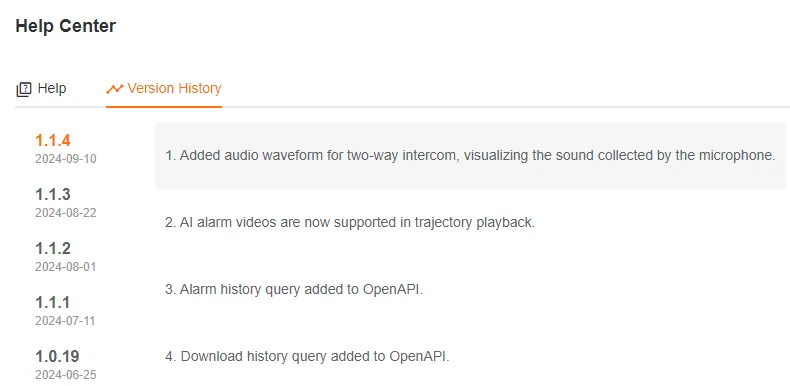
Section titled “Version History”View detailed version change records.
Download Tasks
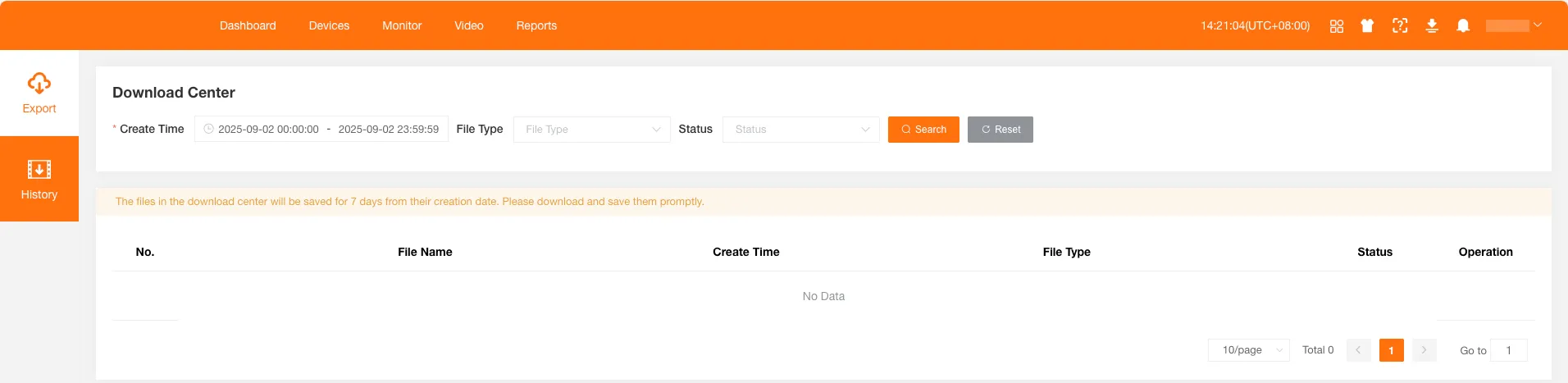
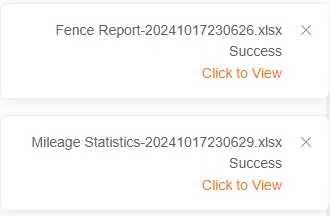
Section titled “Download Tasks”View exported files and historical videos uploaded from devices here. When a task is completed, the download task icon will show a prompt, and a success message will also pop up in the upper right corner of the page. You can click it for quick access to the download center.

Exported Files
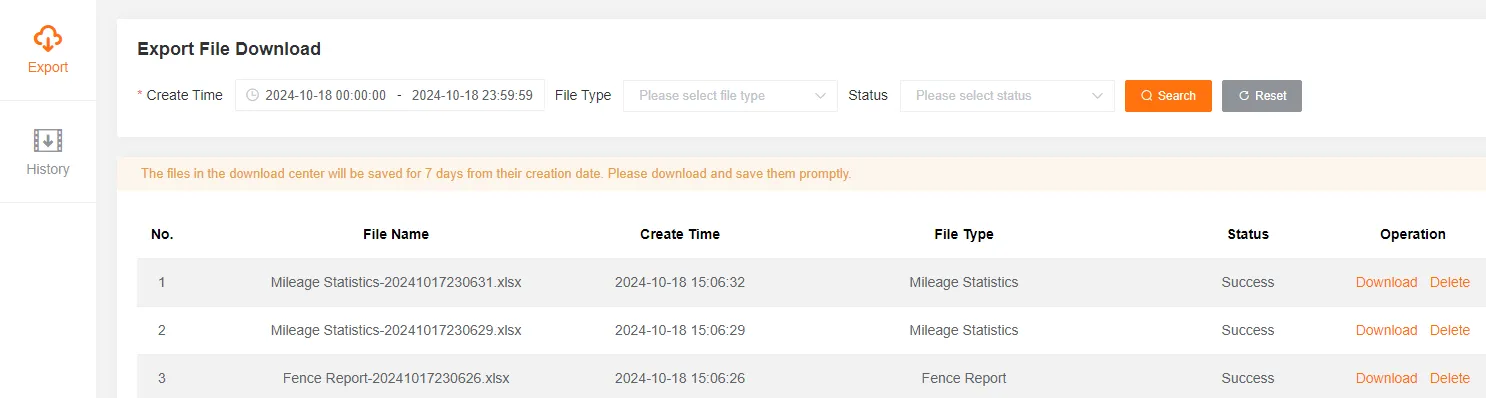
Section titled “Exported Files”View records of various files you have exported, such as device lists, reports, or logs.
You can filter files by creation time, file type, and status.
The file list includes information such as file name, creation time, file type, and status.
Historical Videos
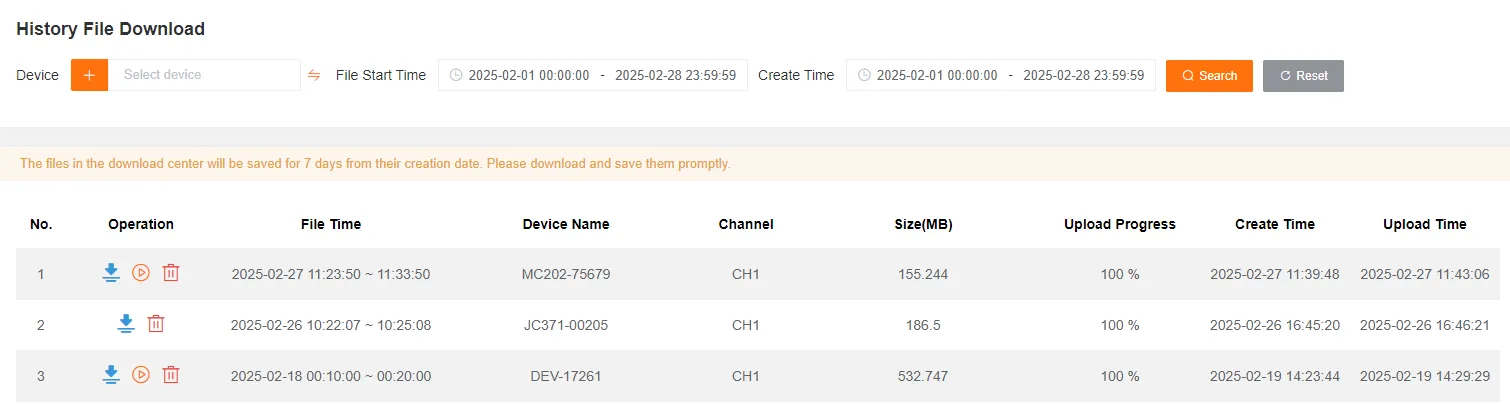
Section titled “Historical Videos”Preview or download historical videos that have been uploaded to cloud storage.
You can filter historical videos by device, file start time, and creation time.
The historical video list includes information such as file time, device name, channel number, size, upload progress, creation time, and upload time.
Download Historical Video
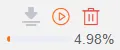
Section titled “Download Historical Video”When downloading a video, please stay on the current page until the progress is complete to ensure the file is successfully saved to your local machine.
Preview Historical Video
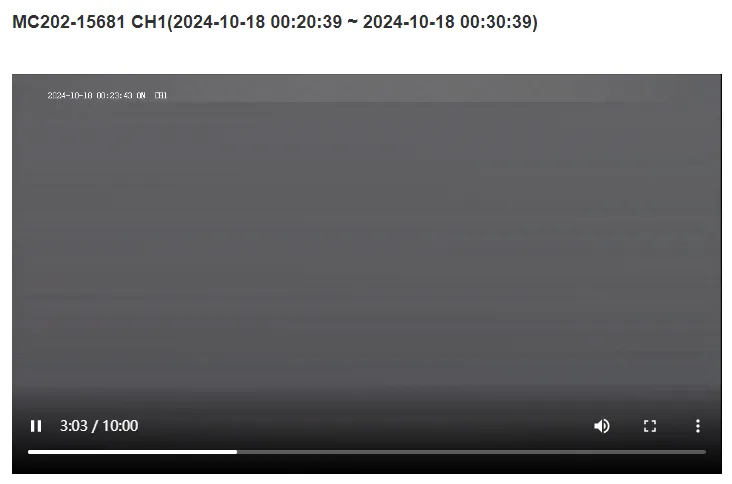
Section titled “Preview Historical Video”Watch historical videos from the cloud online.
Alert Bell
Section titled “Alert Bell”When the notification method in User Settings – Alert Settings, Customization – Customized Alert, or Customization – Customized Rule is set to PC Web Notification, the system prompts alerts on the web page in different ways based on the alert level.
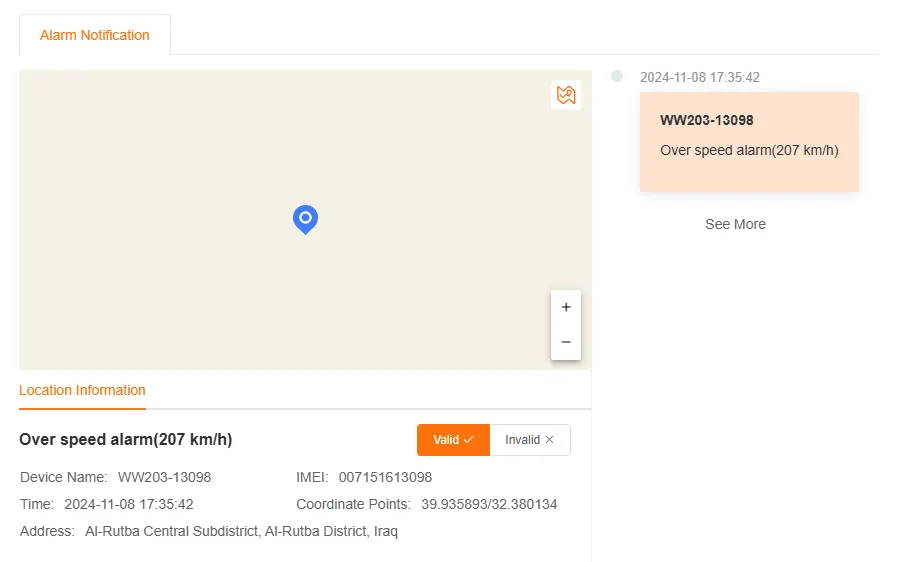
You can mark an alert as Valid or Invalid.
Level 1: Emergency Alert
Section titled “Level 1: Emergency Alert”The platform pops up a window on the current page, centrally displaying all emergency alerts.
Click the button in the upper right corner of the pop-up to minimize it.
Level 2: Important Alert
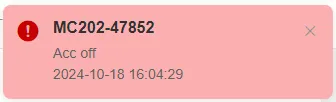
Section titled “Level 2: Important Alert”Important alerts appear as a notification in the upper right corner of the platform and automatically disappear after a few seconds. Click the notification to view details.
Level 3: General Alert
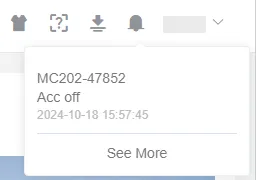
Section titled “Level 3: General Alert”The small bell icon at the top of the page flashes. Click the icon to view the alert information.