MettaXIoT for Desktop
MettaXIoT for Desktop supports multi-channel live monitoring, video replay and video privacy masking for IoT devices.
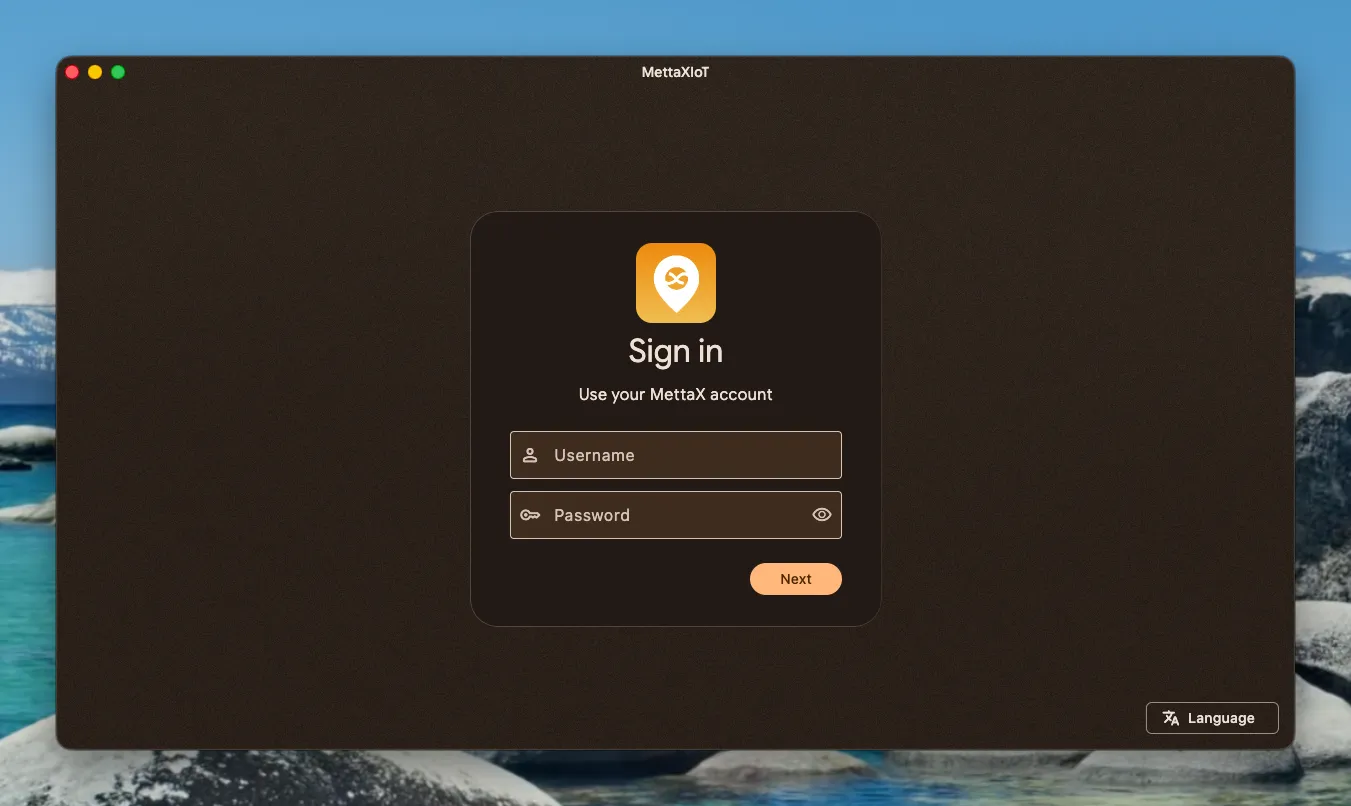
Enter your account credentials to log in. You can switch languages at the bottom.
Main Navigation
Section titled “Main Navigation”After logging in, there are five navigation entries on the left side:
| Module | Description |
|---|---|
| Customer Management | View customer hierarchy and select a specific customer |
| Monitor | View device distribution and status on a map |
| Multi-Channel Live Streaming | Customizable multi-channel live streaming grid |
| Video Replay | Watch historical segments, upload and download |
| Download Manager | Background download task management |
The device list for the current customer is always visible on the right side of the navigation bar, with support for keyword search and filtering by device status.
Customer Management
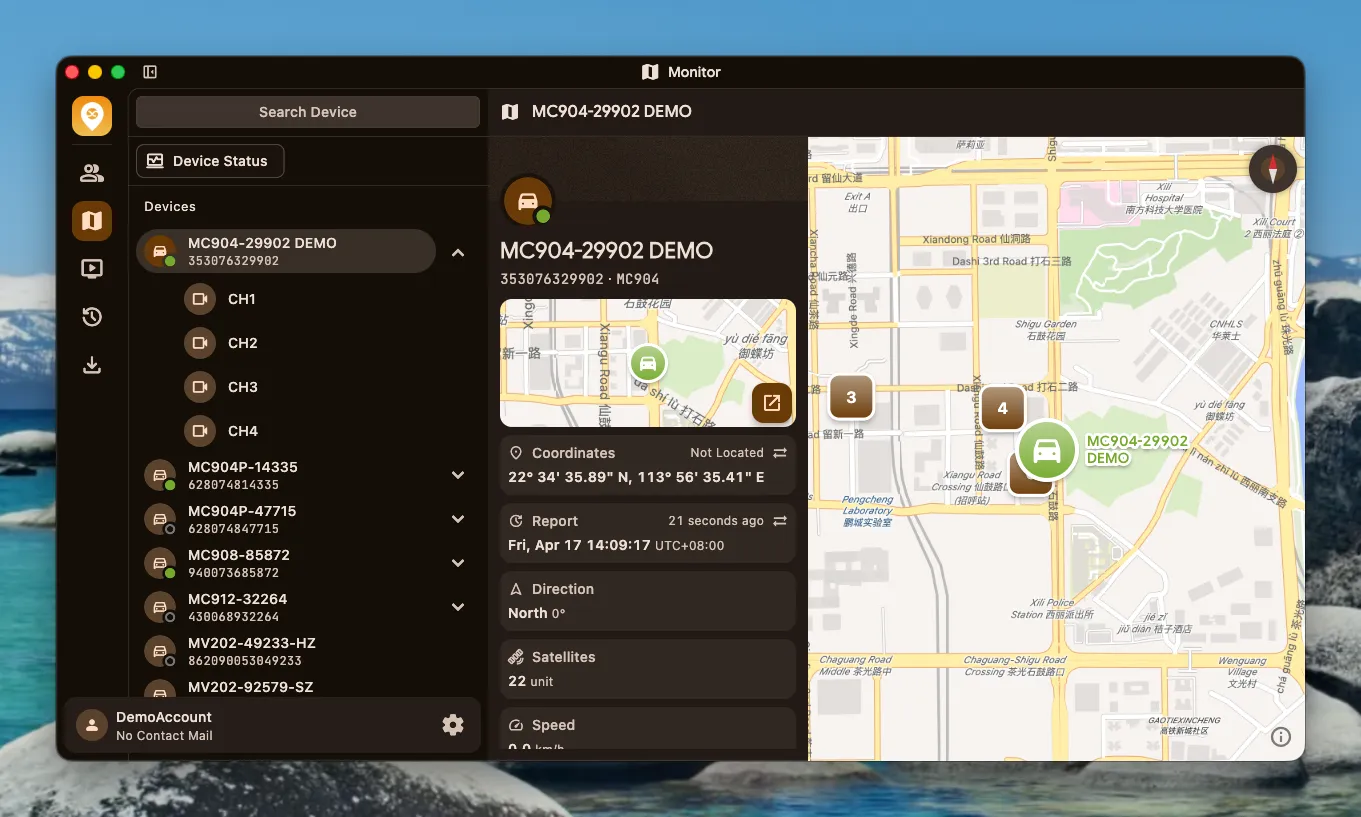
Section titled “Customer Management”A tree structure displays the customer hierarchy. After selecting a customer, the device list updates automatically.
Monitor
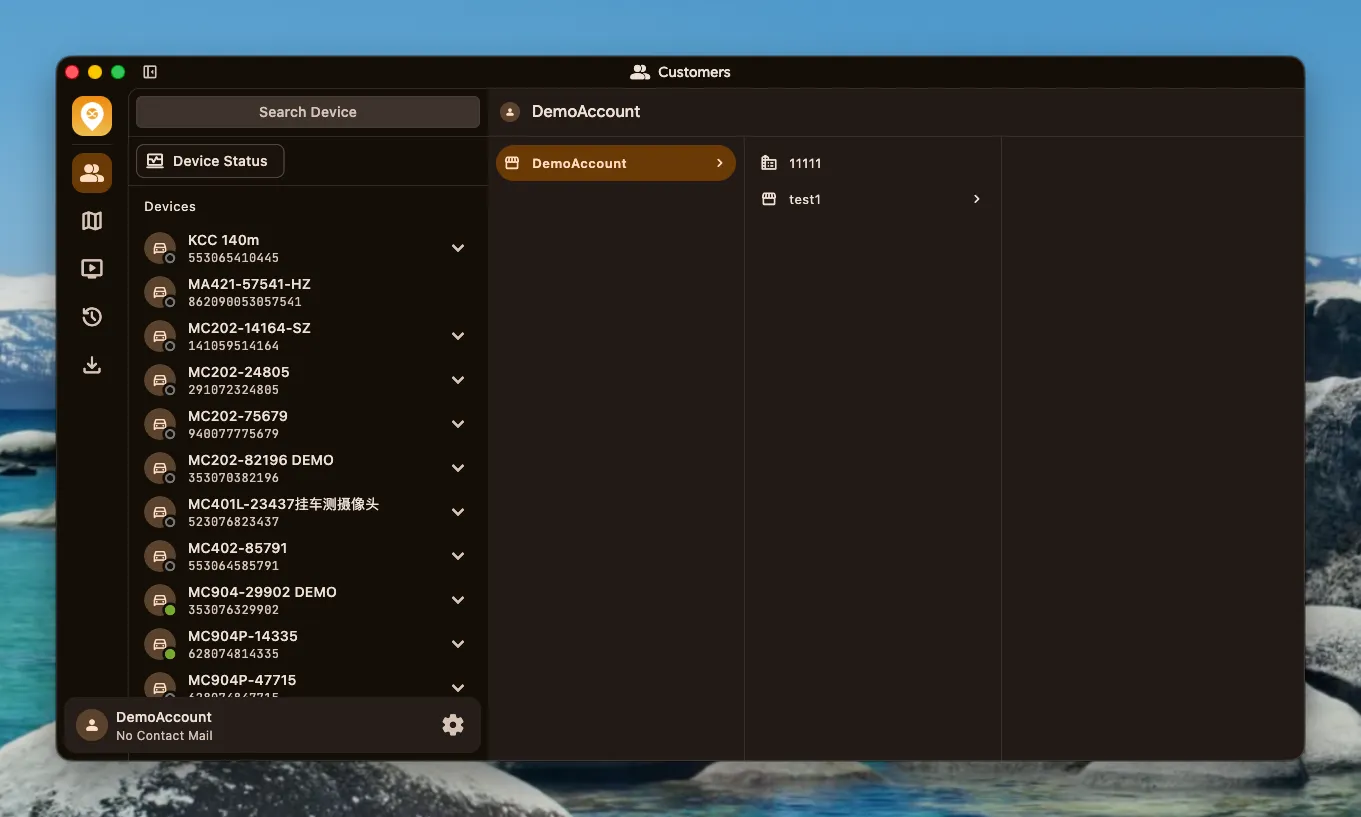
Section titled “Monitor”Numbered markers on the map indicate how many devices are in that area. Click a cluster marker or zoom in to see individual device locations. Click a device marker to view its real-time status.
Multi-Channel Live Streaming
Section titled “Multi-Channel Live Streaming”Optimized for simultaneous multi-channel live streaming, maintaining smooth performance even under high load.
Multi-Channel Grid Streaming
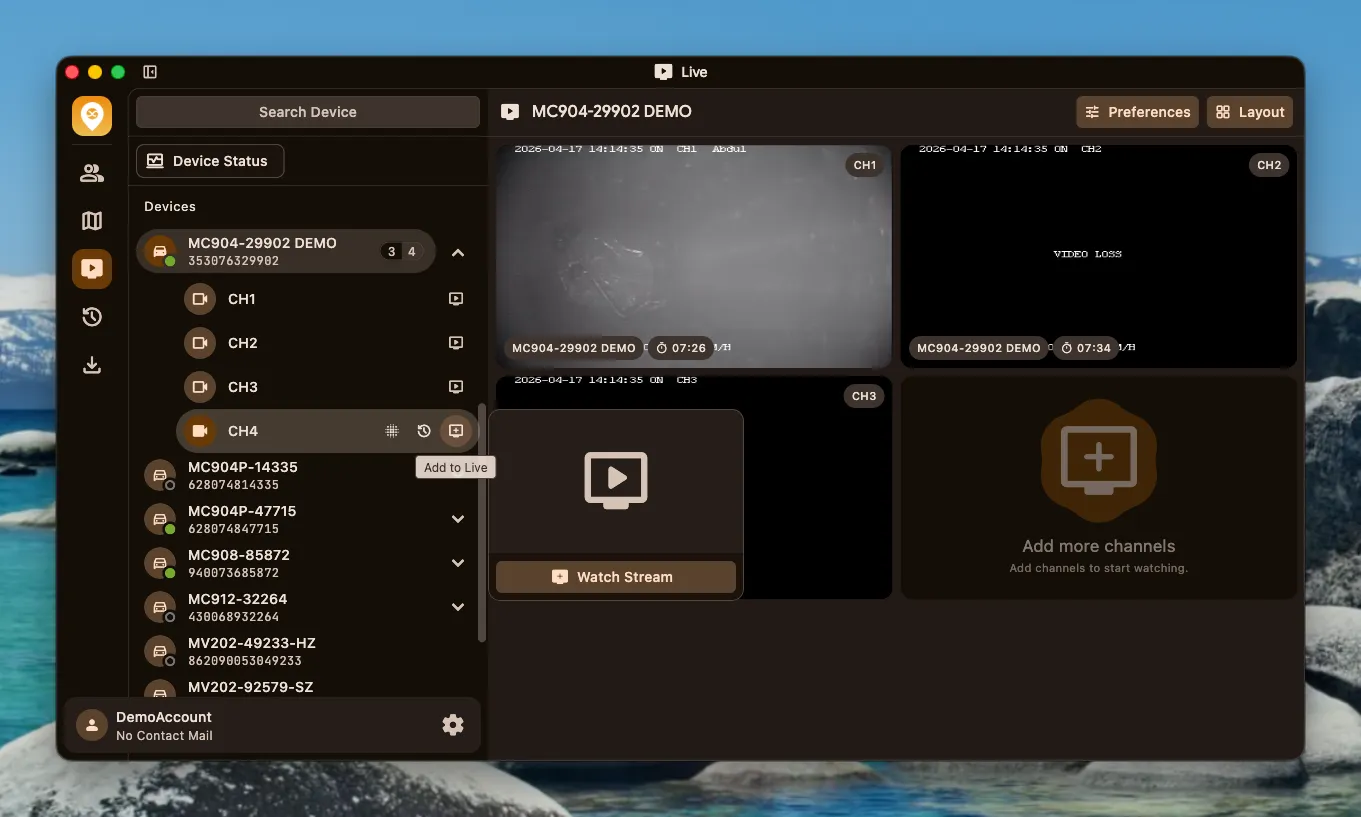
Section titled “Multi-Channel Grid Streaming”Live channels from multiple devices are arranged in a grid. Click the add button to add a channel to the grid, or click the remove button to remove a channel from the grid.
Custom Grid Layout
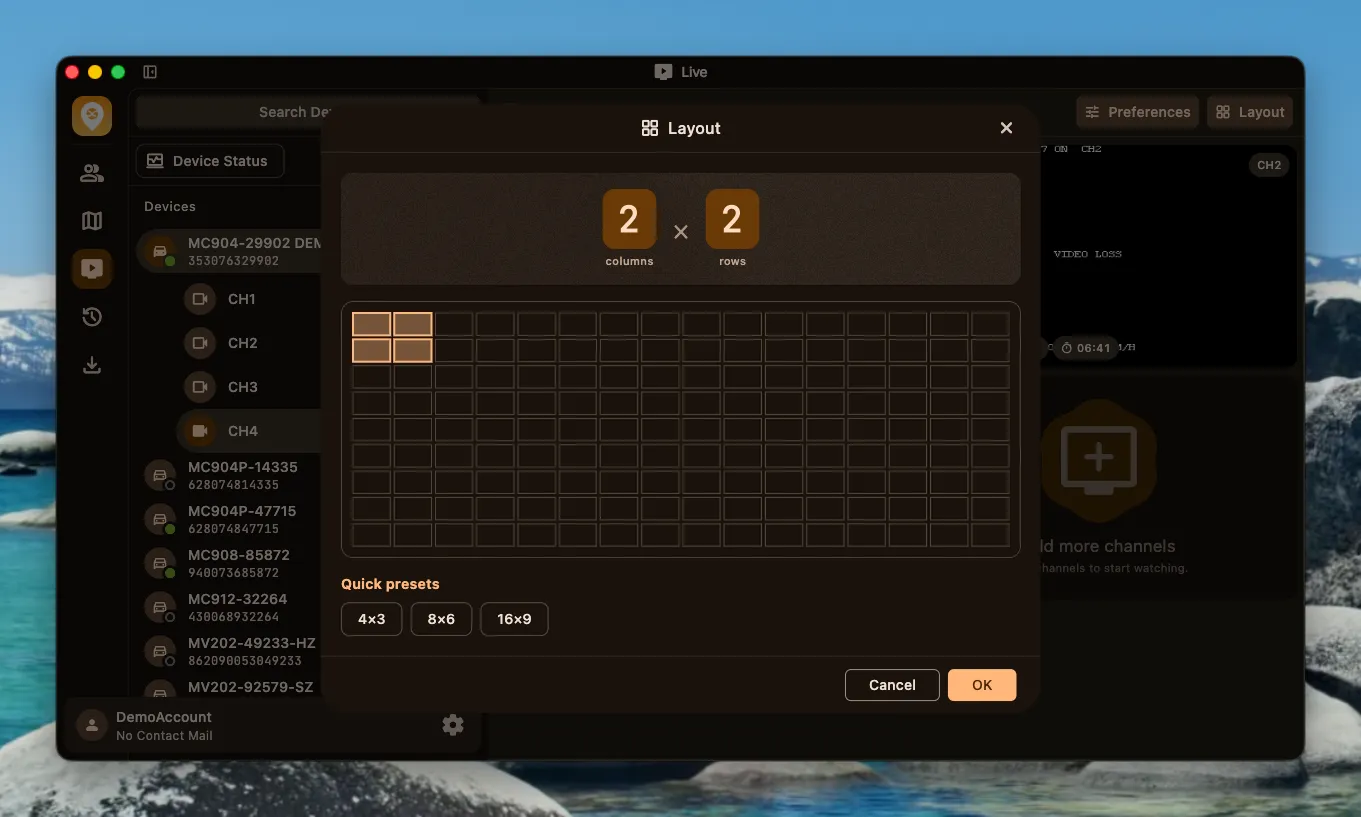
Section titled “Custom Grid Layout”Click the preference settings at the top to adjust the grid layout to suit different viewing experiences.
Watch Timer
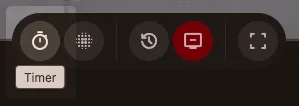
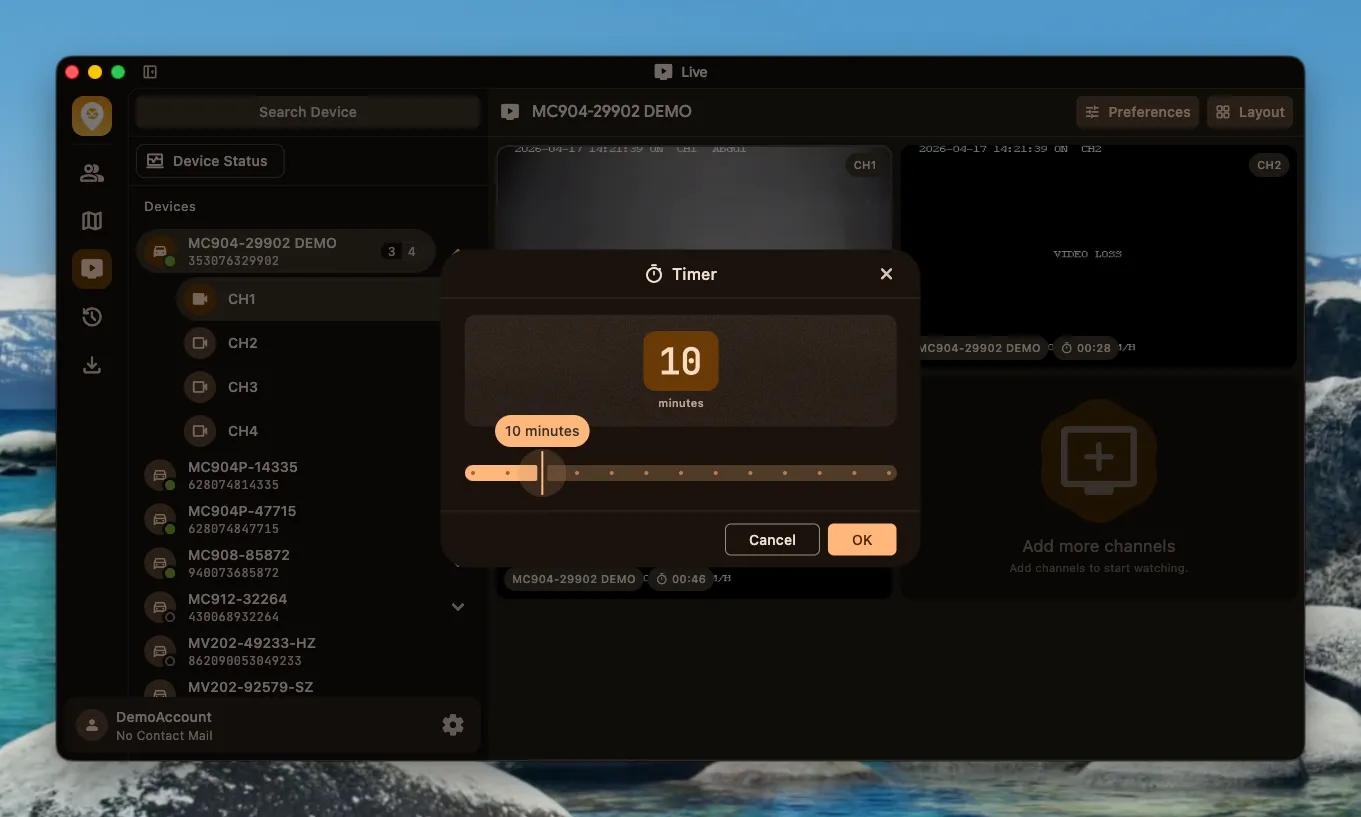
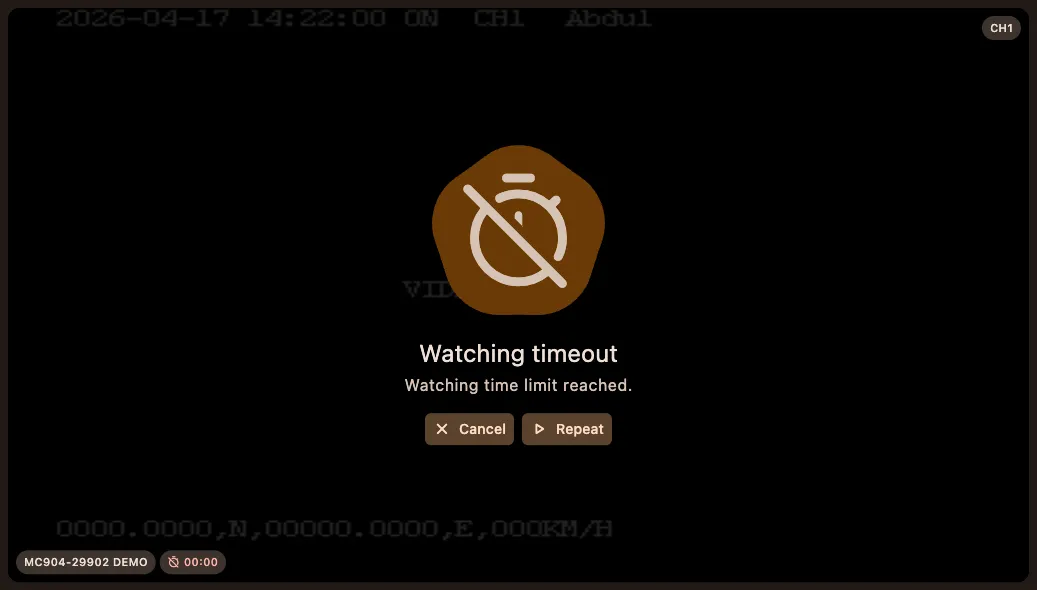
Section titled “Watch Timer”A countdown is displayed at the bottom of the screen showing the remaining watch time. The duration can be set from 5 to 60 minutes. When it expires, you can cancel or restart.
-
Click the watch timer.
-
Set the watch duration in the dialog and click start countdown.
-
When the watch timer expires, a prompt appears. Choose to cancel or repeat the watch timer.
Live Streaming Preferences
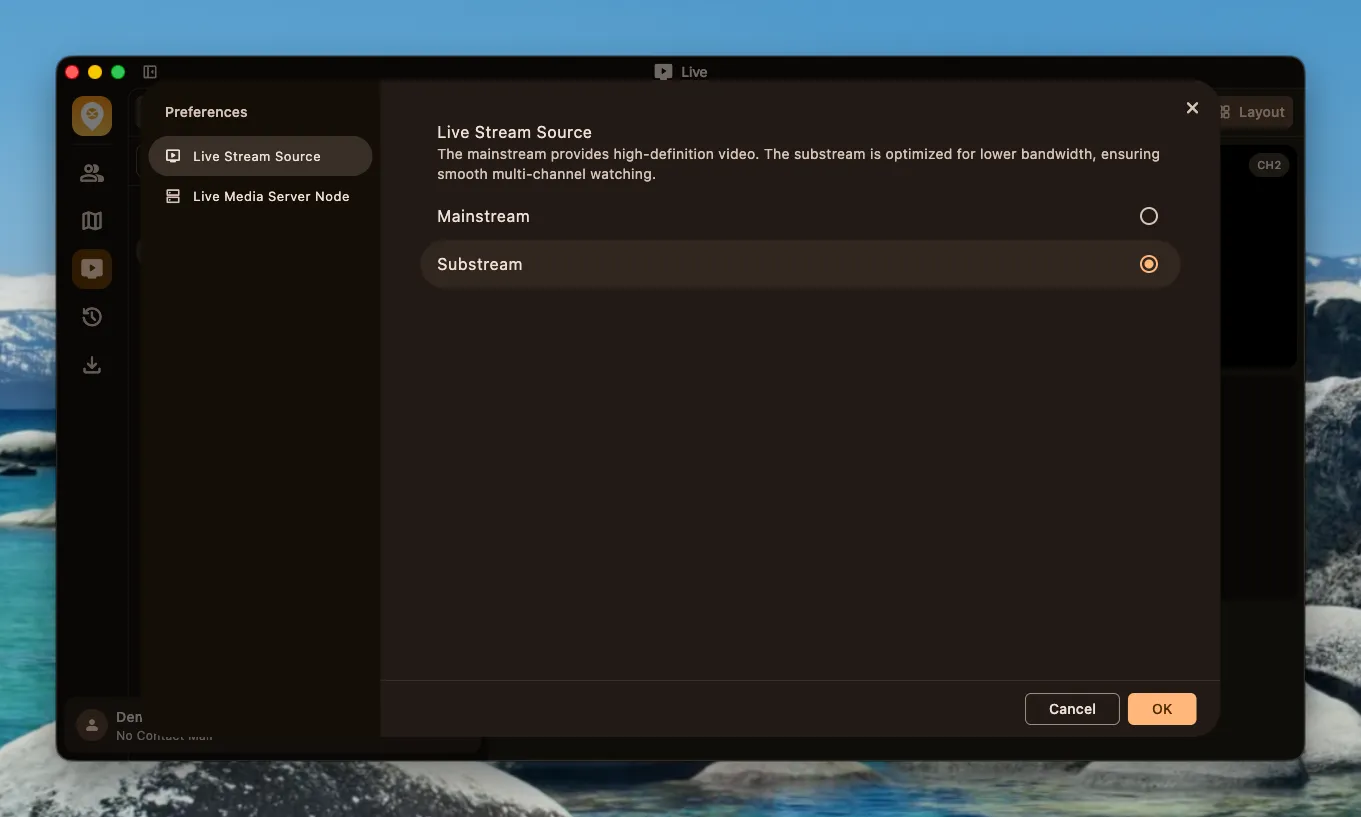
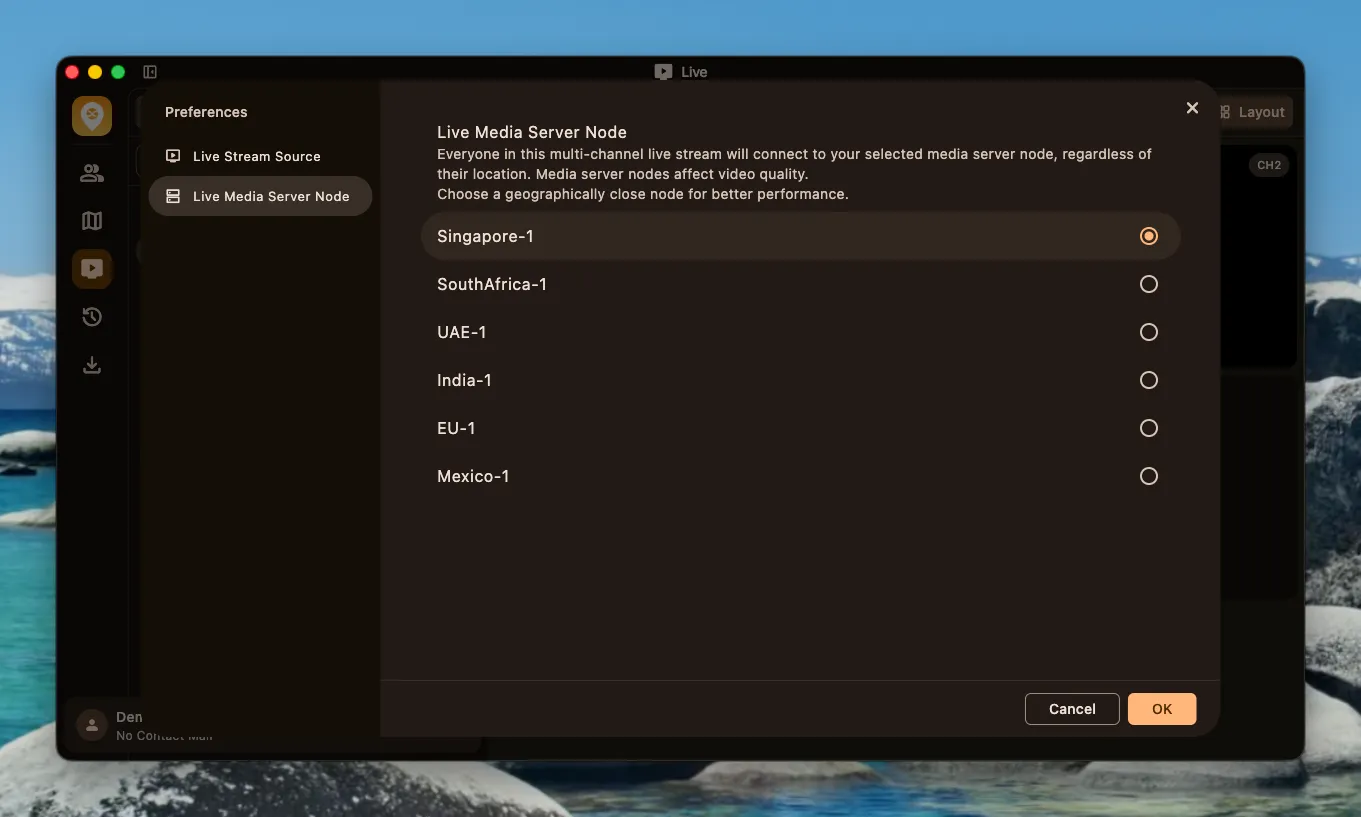
Section titled “Live Streaming Preferences”You can switch between different stream sources and select the nearest live media server node to optimize the connection.
Stream Source
Section titled “Stream Source”The main stream provides high-definition video. The sub stream is optimized for lower bandwidth, ensuring smooth multi-channel viewing.
Live Media Server Node
Section titled “Live Media Server Node”In multi-channel live streaming, all devices connect to the media server node you select. The media server node affects video quality. For better performance, choose a geographically closer node.
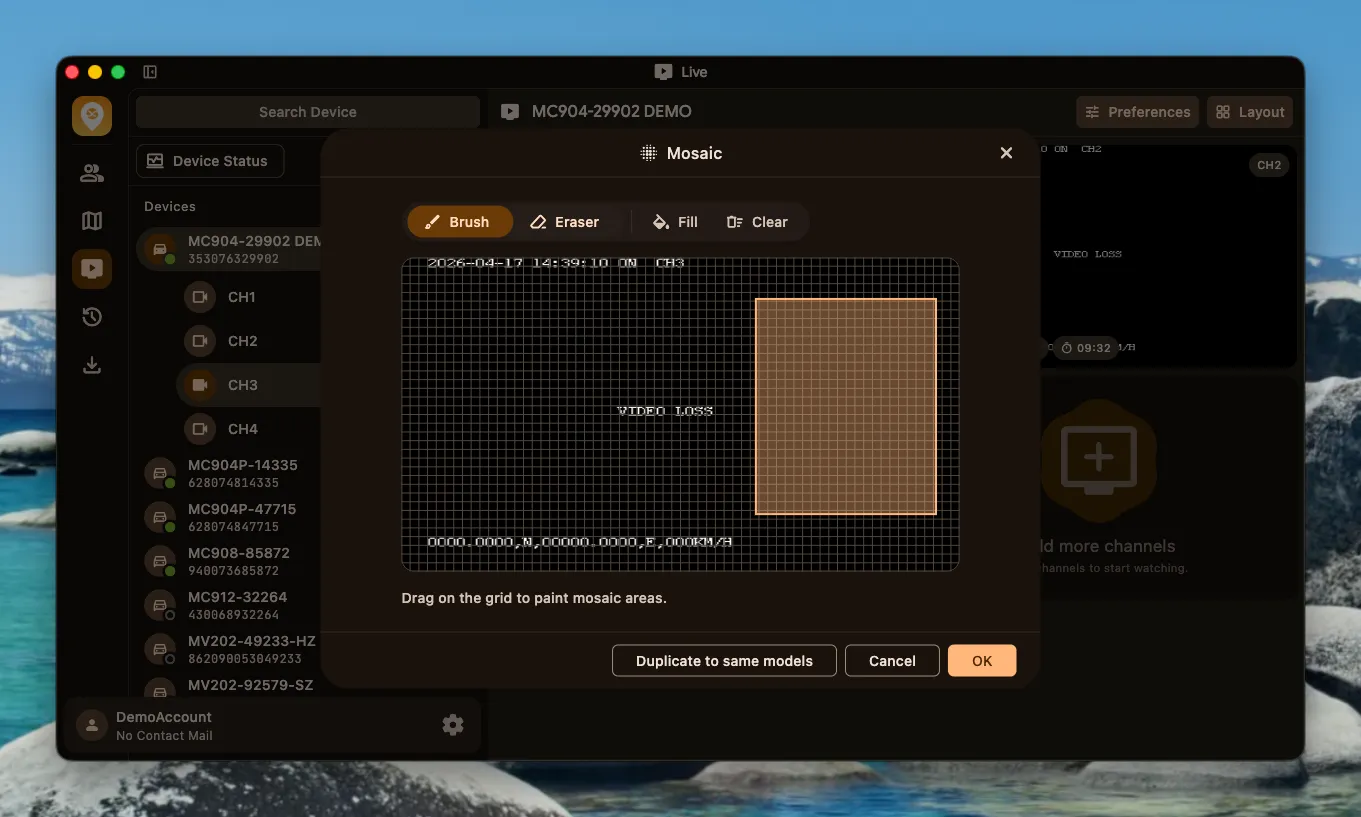
Live Privacy Masking
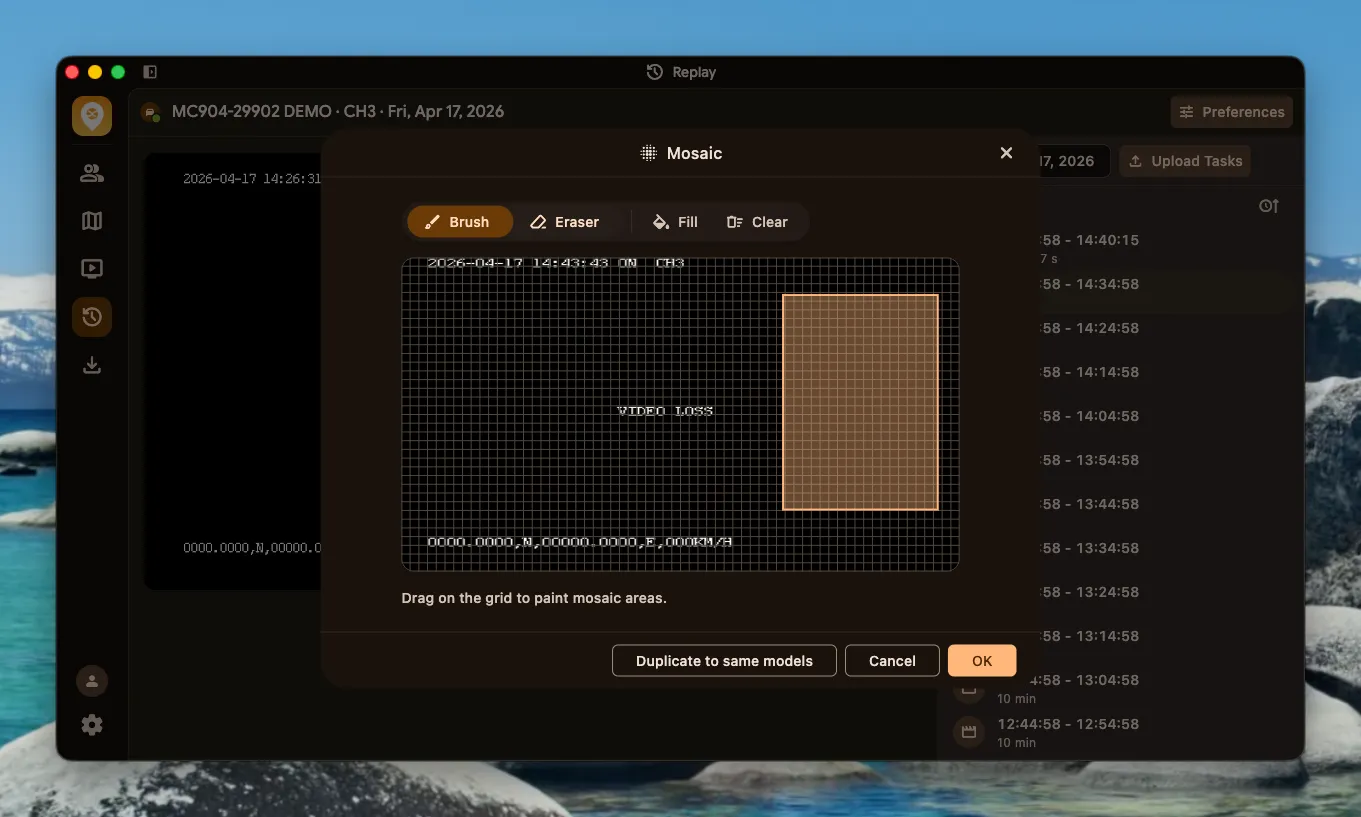
Section titled “Live Privacy Masking”Click the mosaic button to enter masking settings and draw areas on the screen that need to be covered. An eraser is available to remove masked areas. The masking configuration can be synced to other devices of the same model.
Video Replay
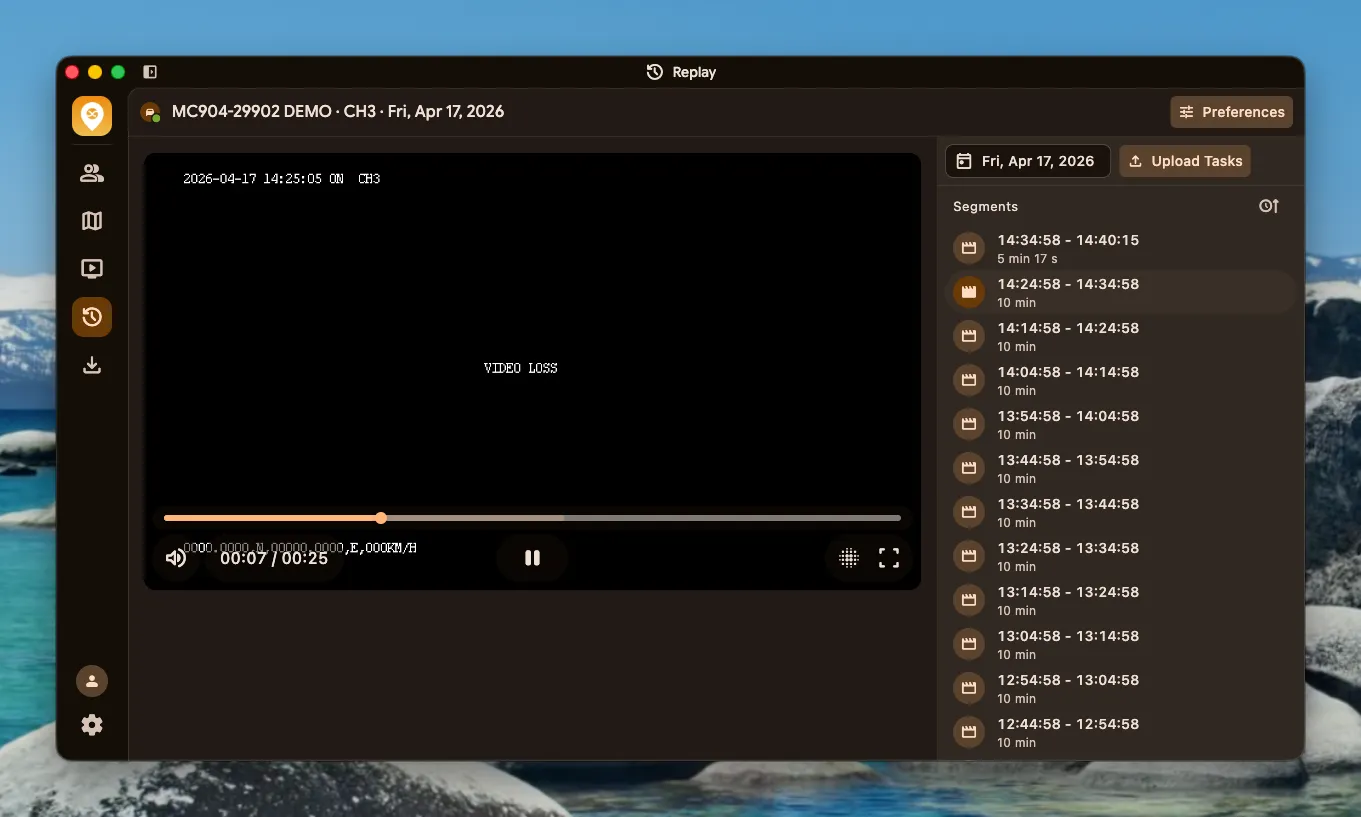
Section titled “Video Replay”The replay player is based on the HLS protocol using the M3U8 format for more stable and smoother delivery.
Watch Replay Segments
Section titled “Watch Replay Segments”After selecting a device and channel, use the date picker to navigate to a specific day. All replay segments for that day are listed on the right.
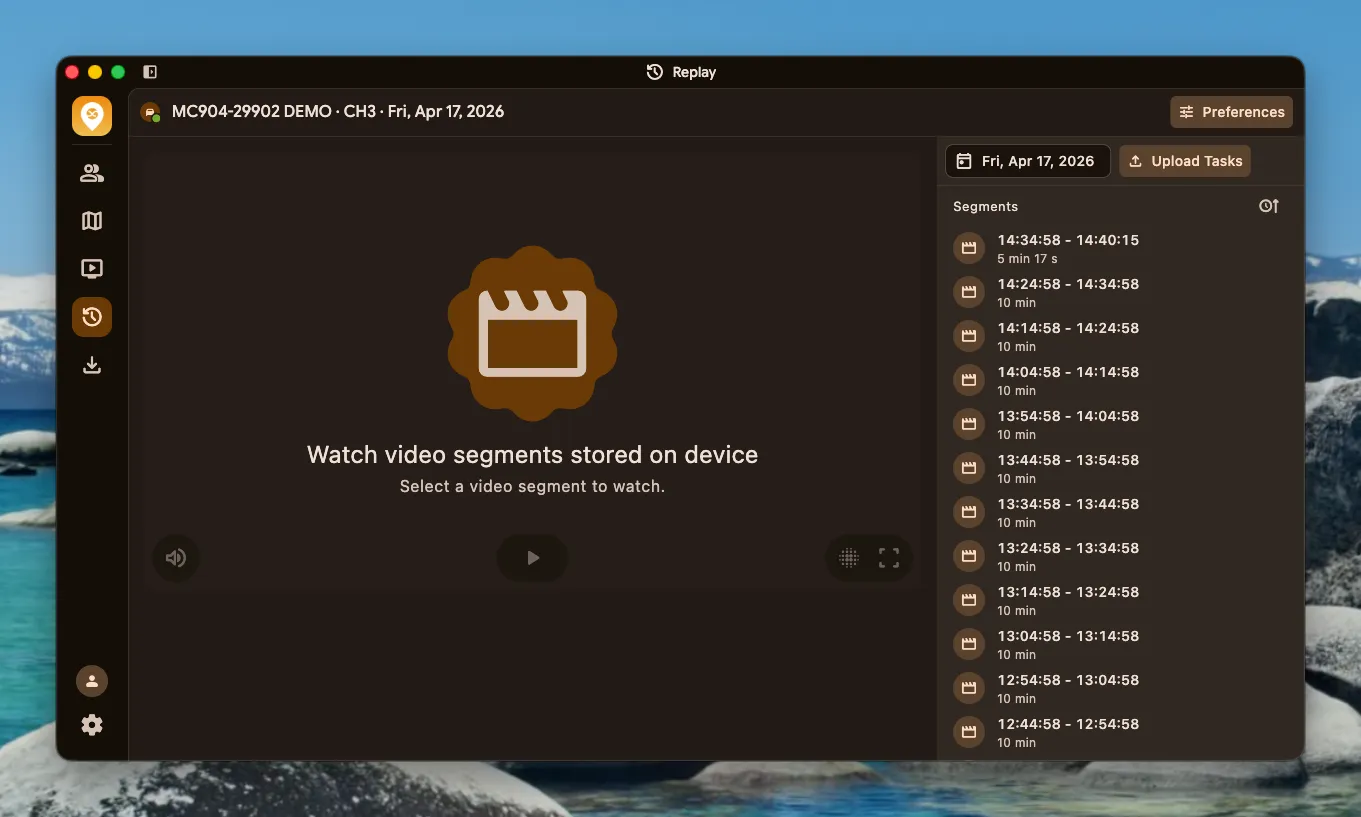
Replay Player
Section titled “Replay Player”Supports play, pause, volume control, progress scrubbing and fullscreen viewing.
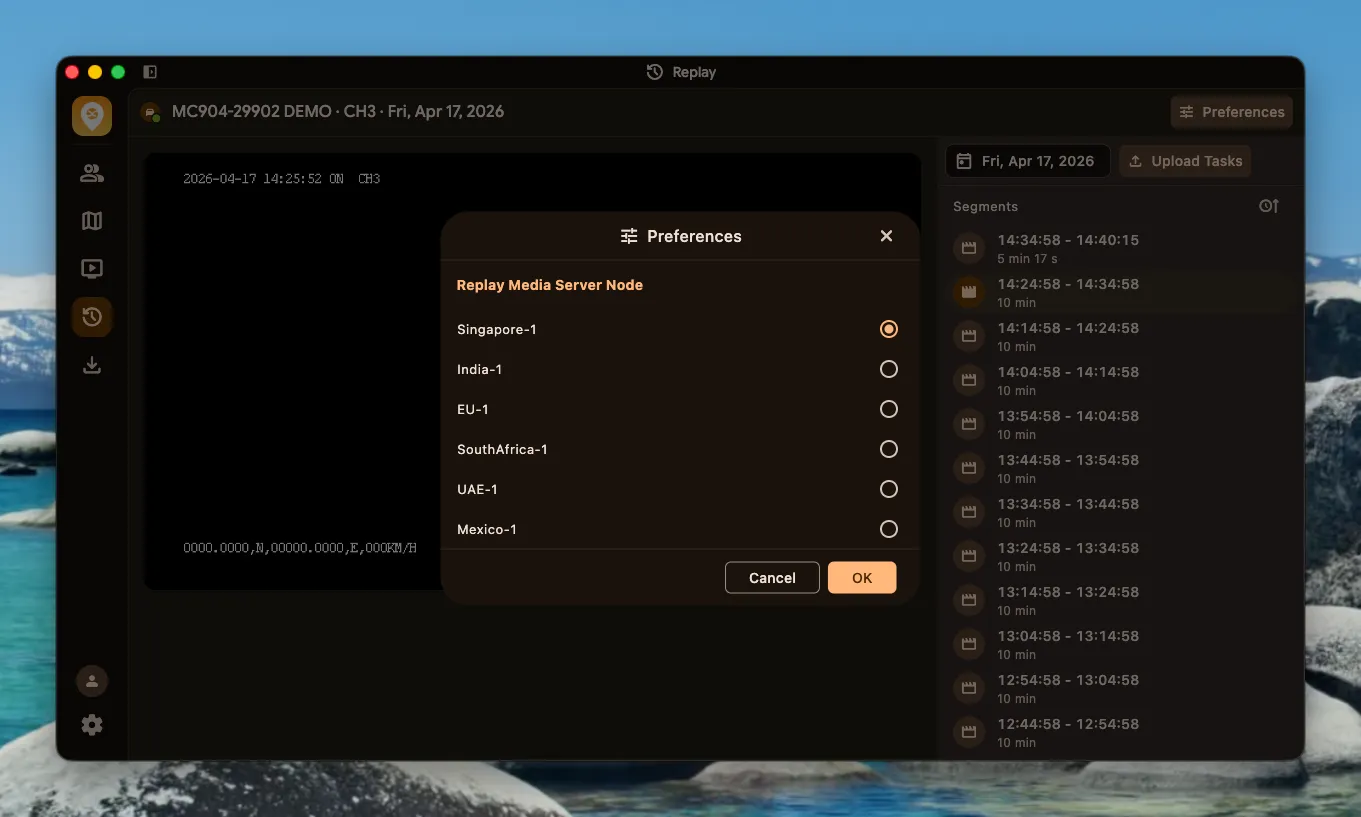
Replay Preferences
Section titled “Replay Preferences”You can select the media server node used for replay.
Replay Privacy Masking
Section titled “Replay Privacy Masking”Replay also supports masking, with the same operation as live privacy masking.
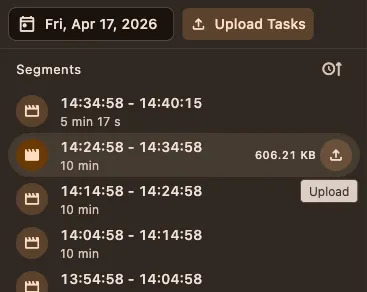
Cloud Upload for Replay
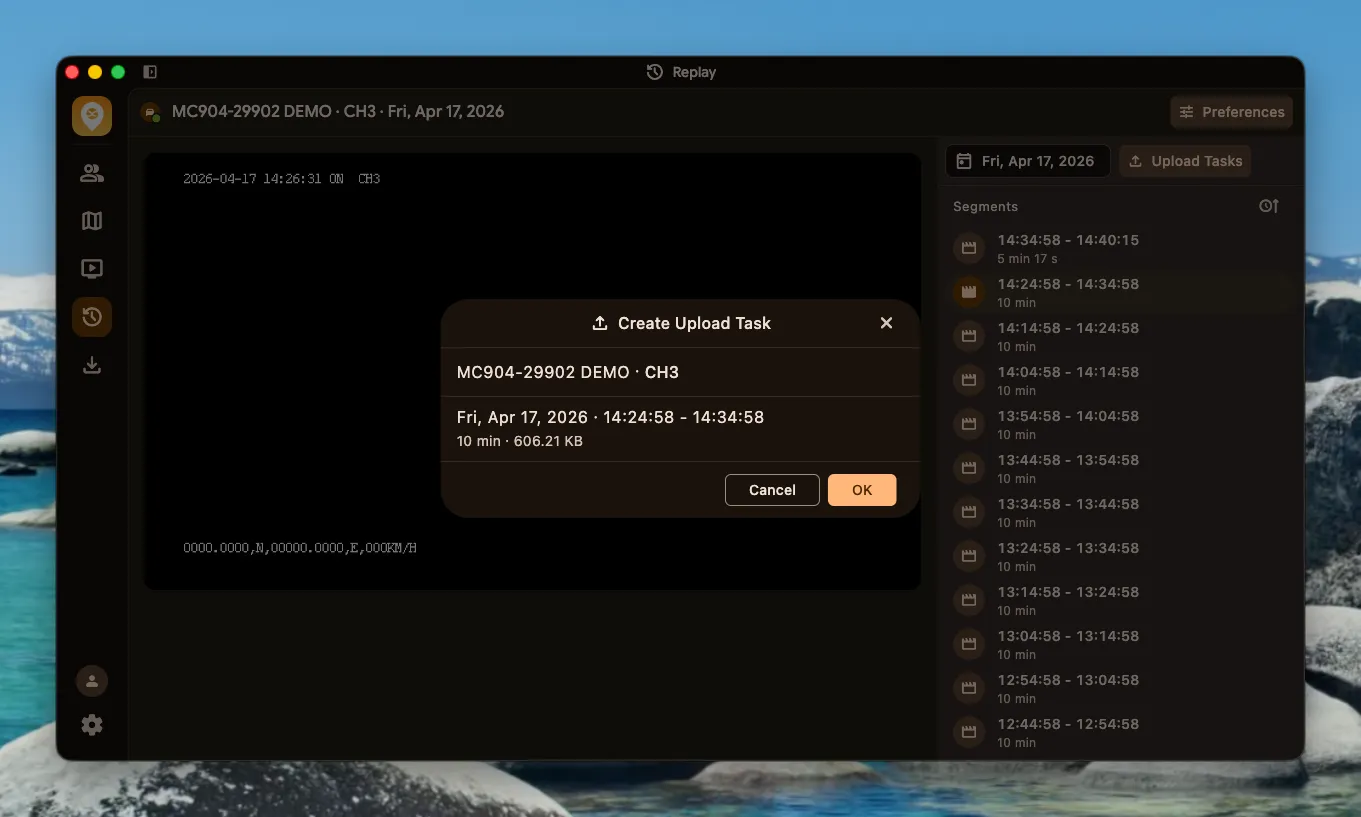
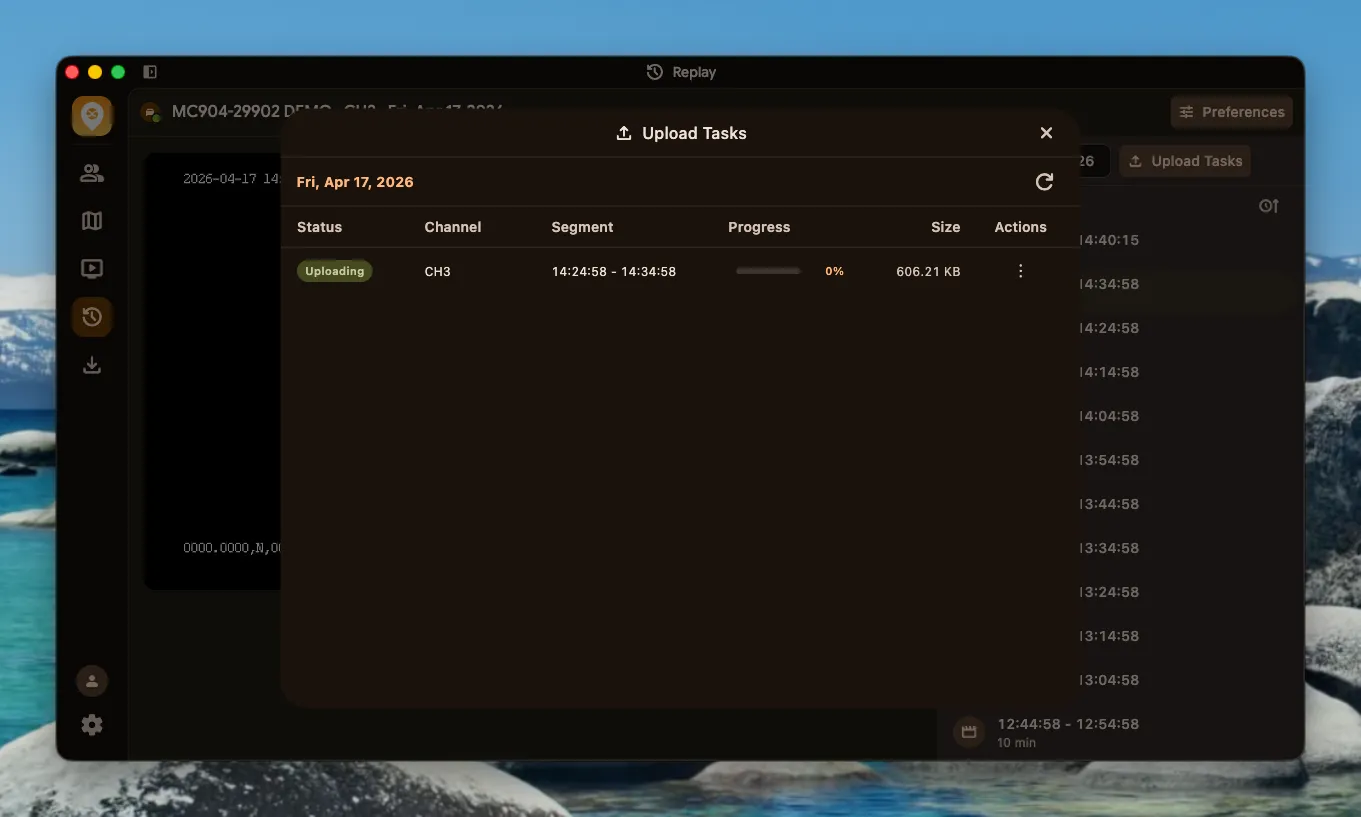
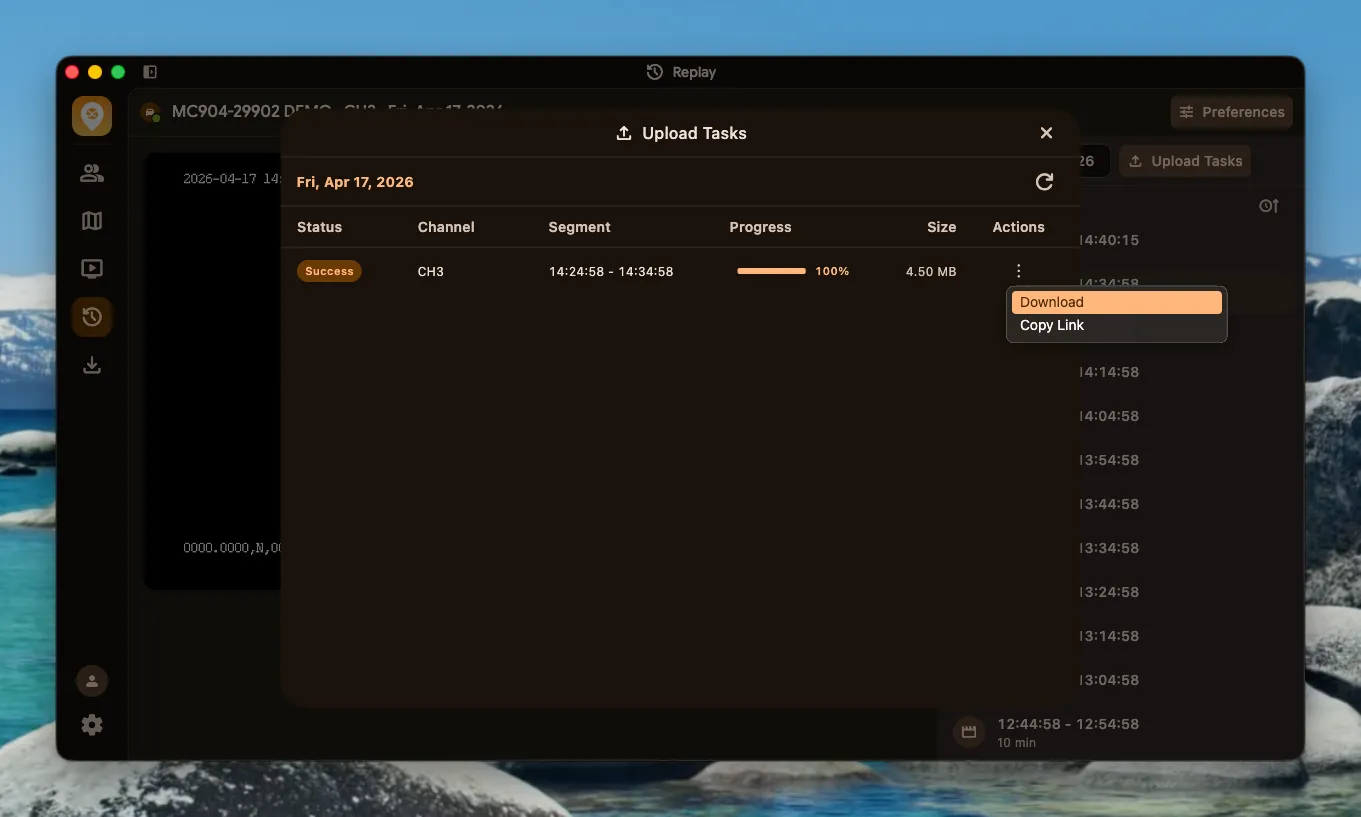
Section titled “Cloud Upload for Replay”You can upload a replay segment to the cloud. Upload progress can be viewed in the task manager. Once complete, you can download the replay locally.
-
Click the upload button next to the replay segment.
-
Create an upload task.
-
After the upload task is created, it appears in the upload task list where you can view the upload progress and status.
Download Manager
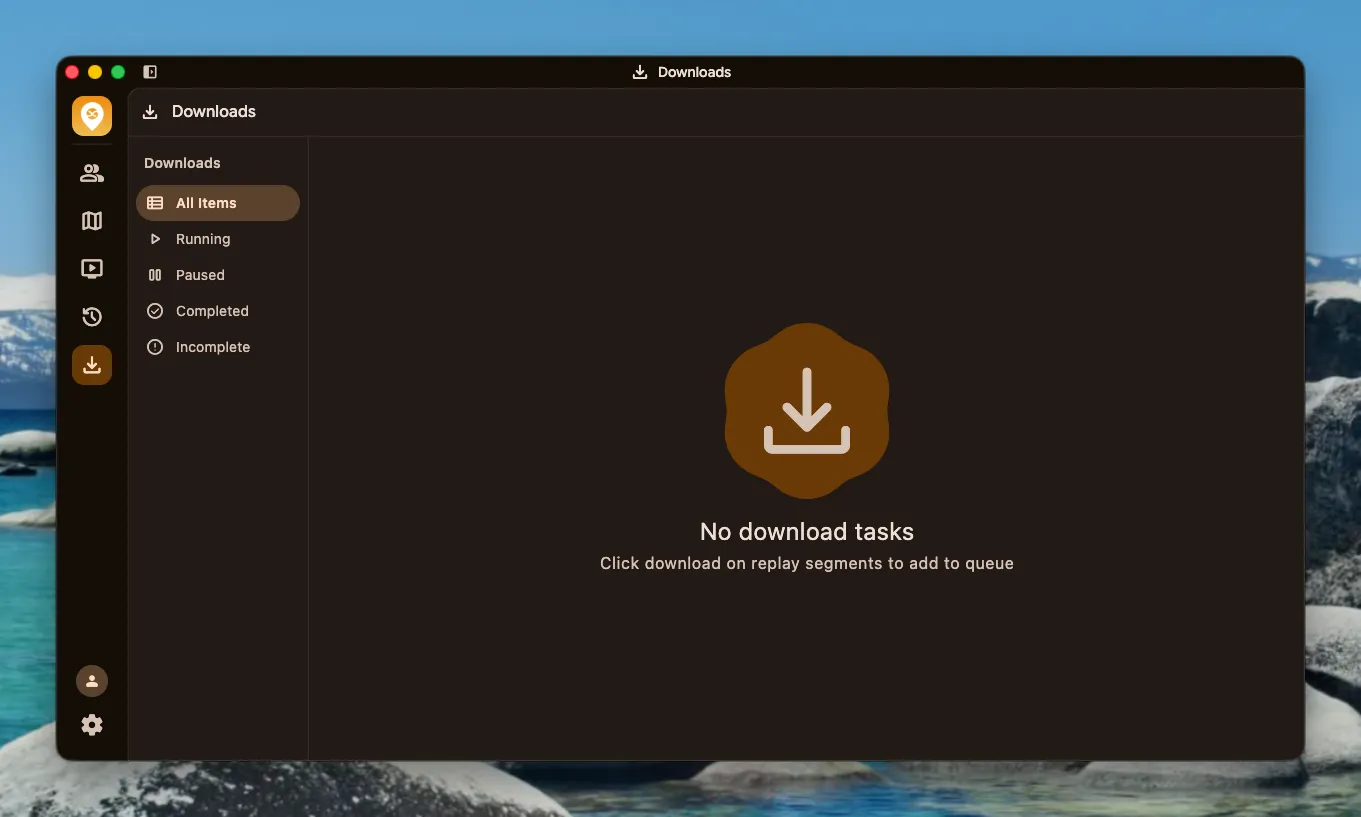
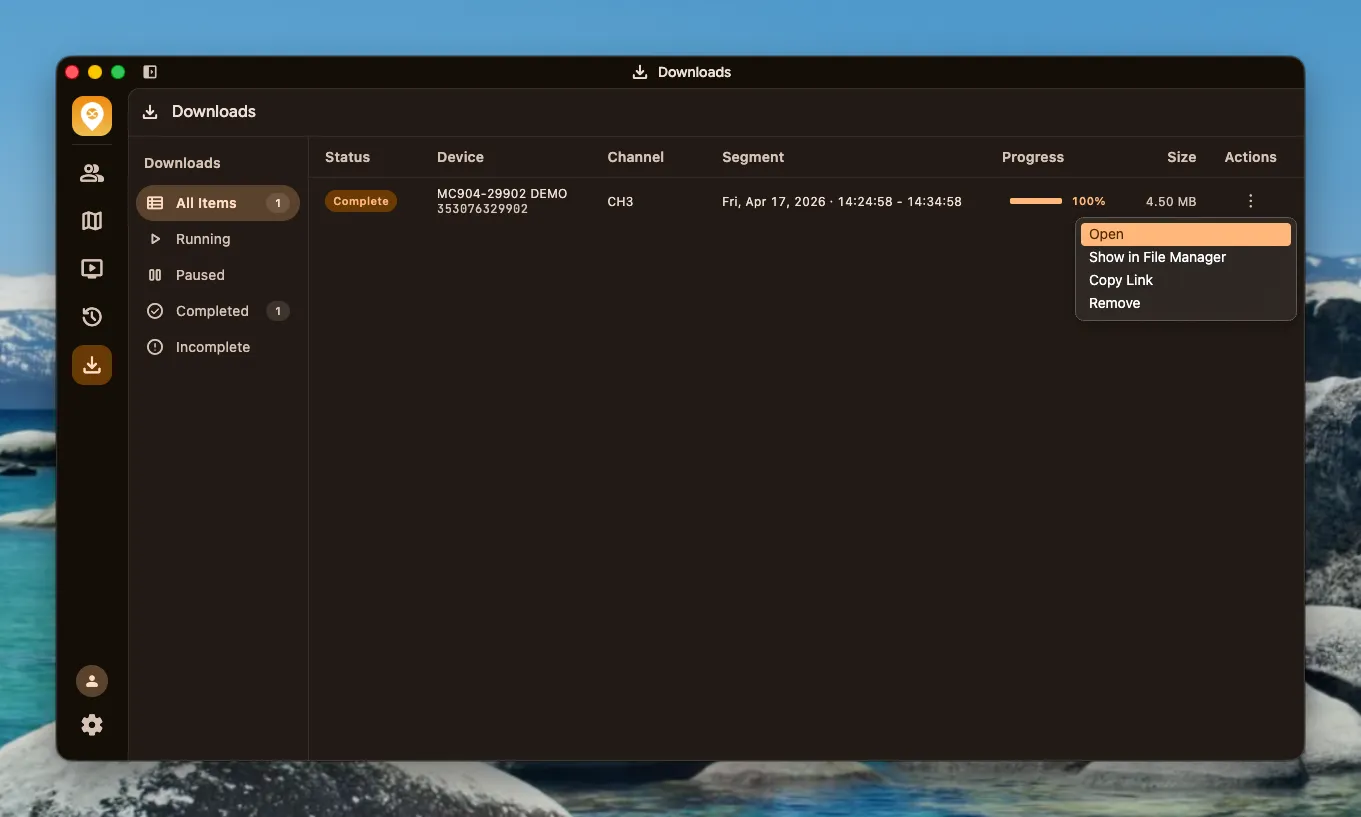
Section titled “Download Manager”A built-in background download manager with persistent task states.
Replay Segment Download
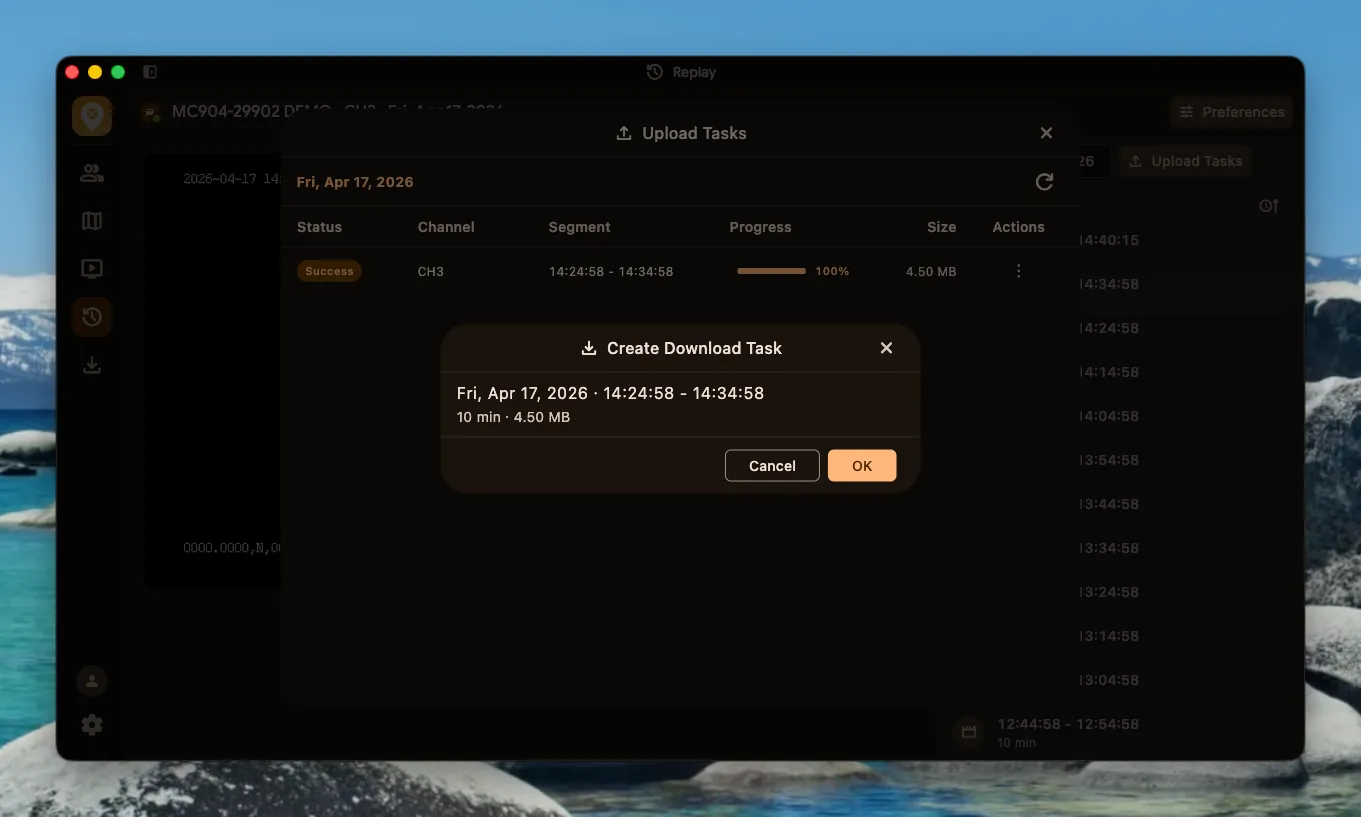
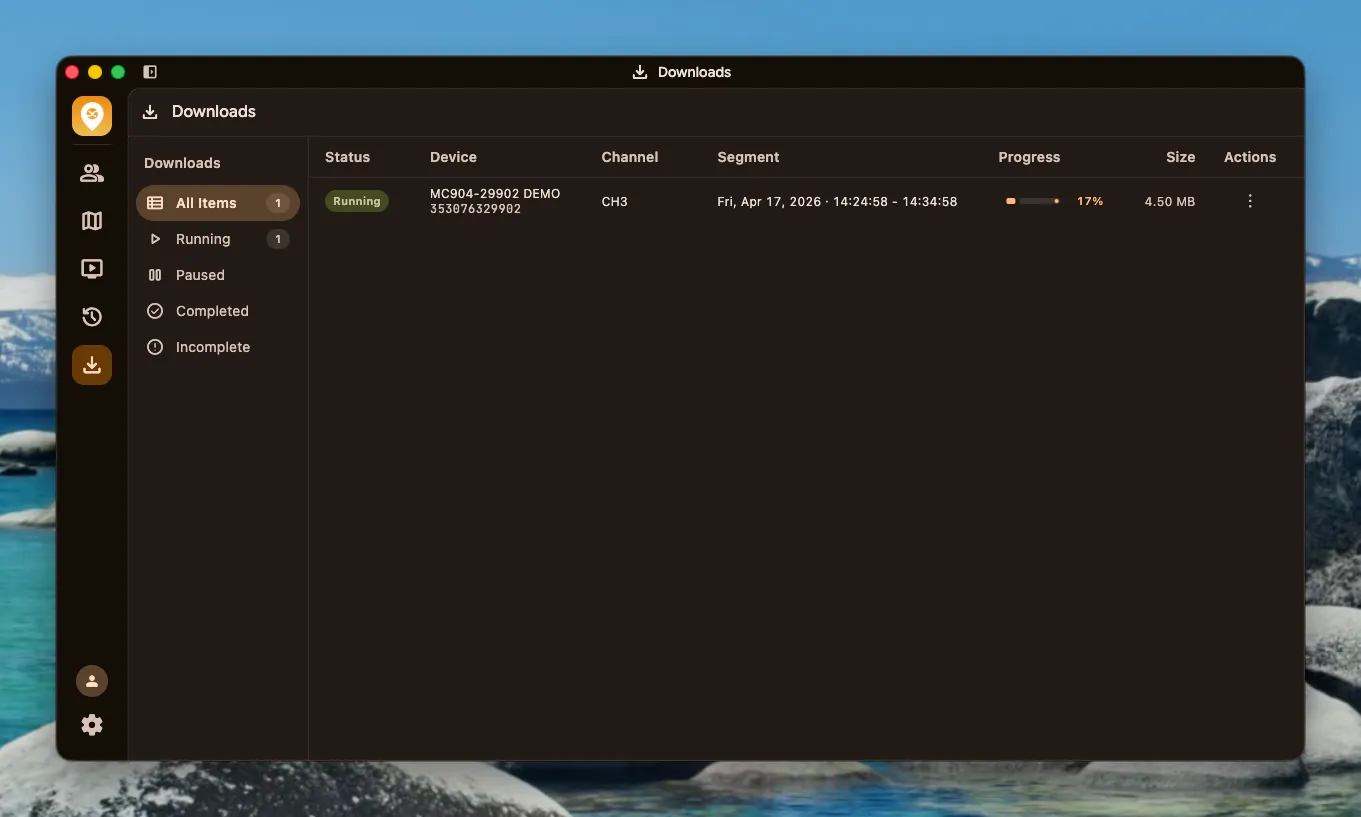
Section titled “Replay Segment Download”Create download tasks from the replay list, and files are saved locally. Downloads run in the background without affecting other operations.
-
Click the download button next to an uploaded replay segment in the replay list.
-
Create a download task.
-
After the download task is created, it appears in the download task list where you can view the download progress and status.
Download Task Management
Section titled “Download Task Management”The download task list displays progress and status, where you can manage download tasks.
Download Privacy Masking
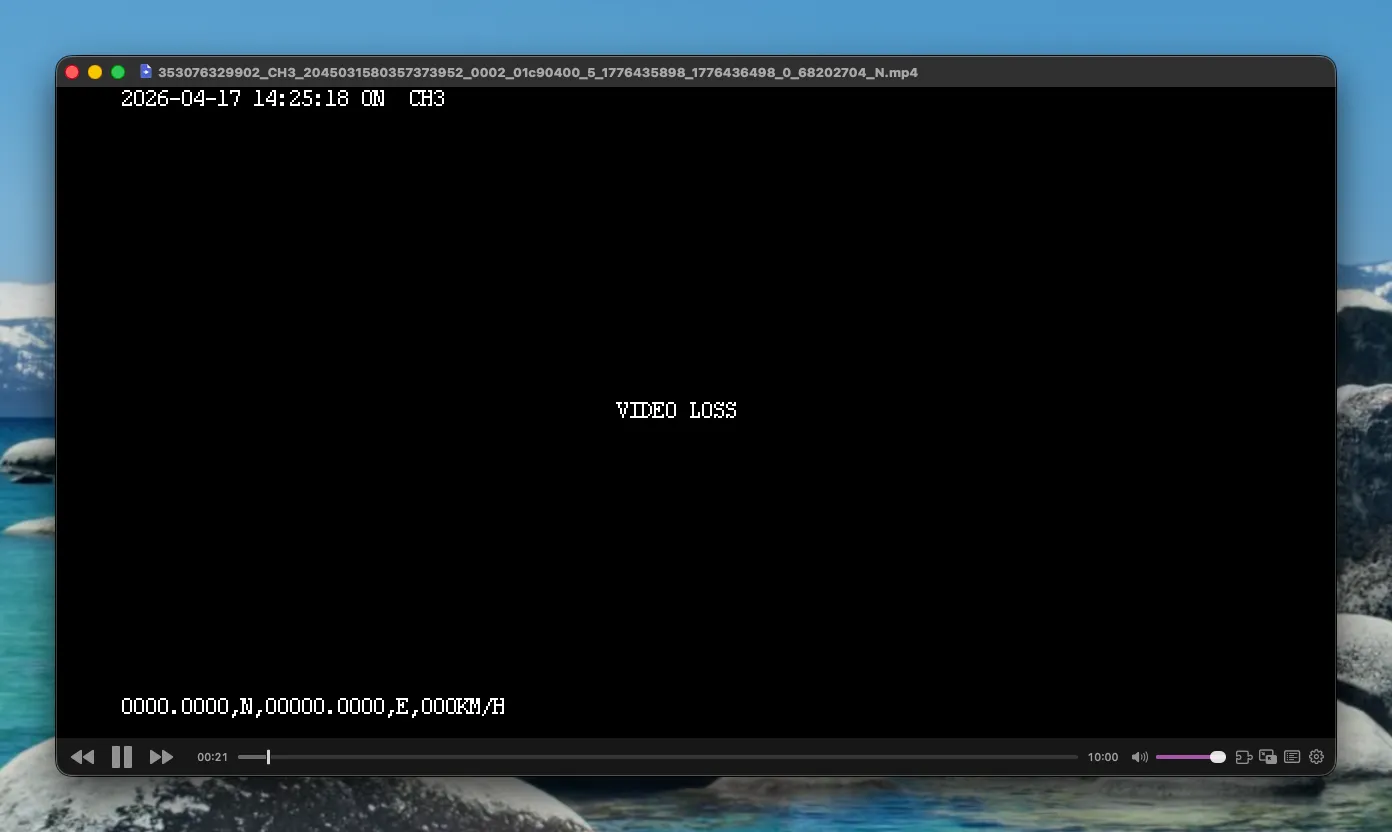
Section titled “Download Privacy Masking”After a download is complete, if the device channel has mosaic configured, the video is automatically masked.
User Settings
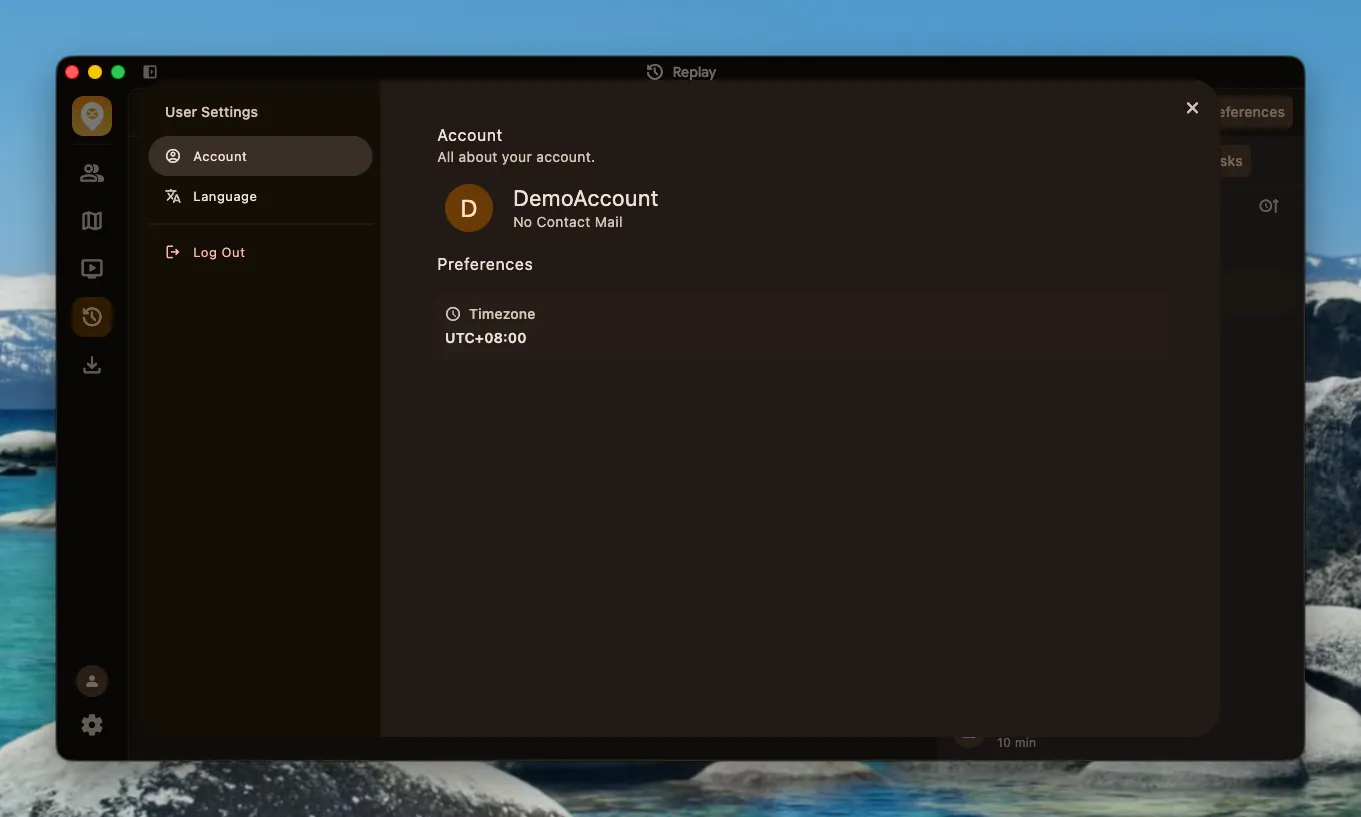
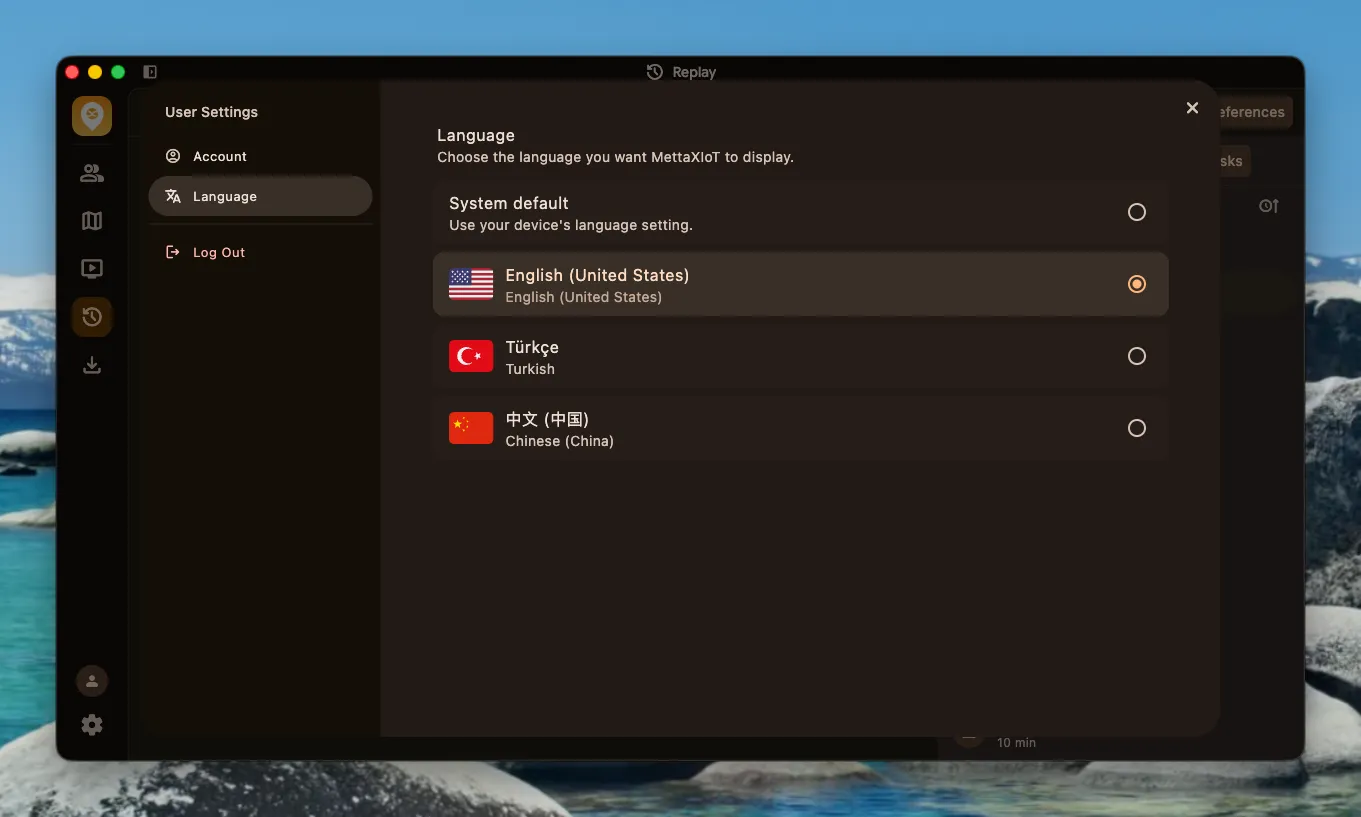
Section titled “User Settings”Click user settings at the bottom to view account information, switch languages or log out.
Account Information
Section titled “Account Information”Account information includes basic details such as username, contact email and platform time zone.
Switch Language
Section titled “Switch Language”The client supports multiple languages. The interface updates automatically after switching. Currently, English, Turkish and Chinese are supported.
System Tray
Section titled “System Tray”Supports window management and stays in the system tray.
Version Update
Section titled “Version Update”Built-in version checking prompts you when a new version is available.
Multi-Language
Section titled “Multi-Language”Supports multiple languages. Currently, English, Turkish and Chinese are supported.