Video Alert Settings
This page is used to set and manage alert functions for video devices, including alert switches, file upload quantities, alert synchronization, etc.
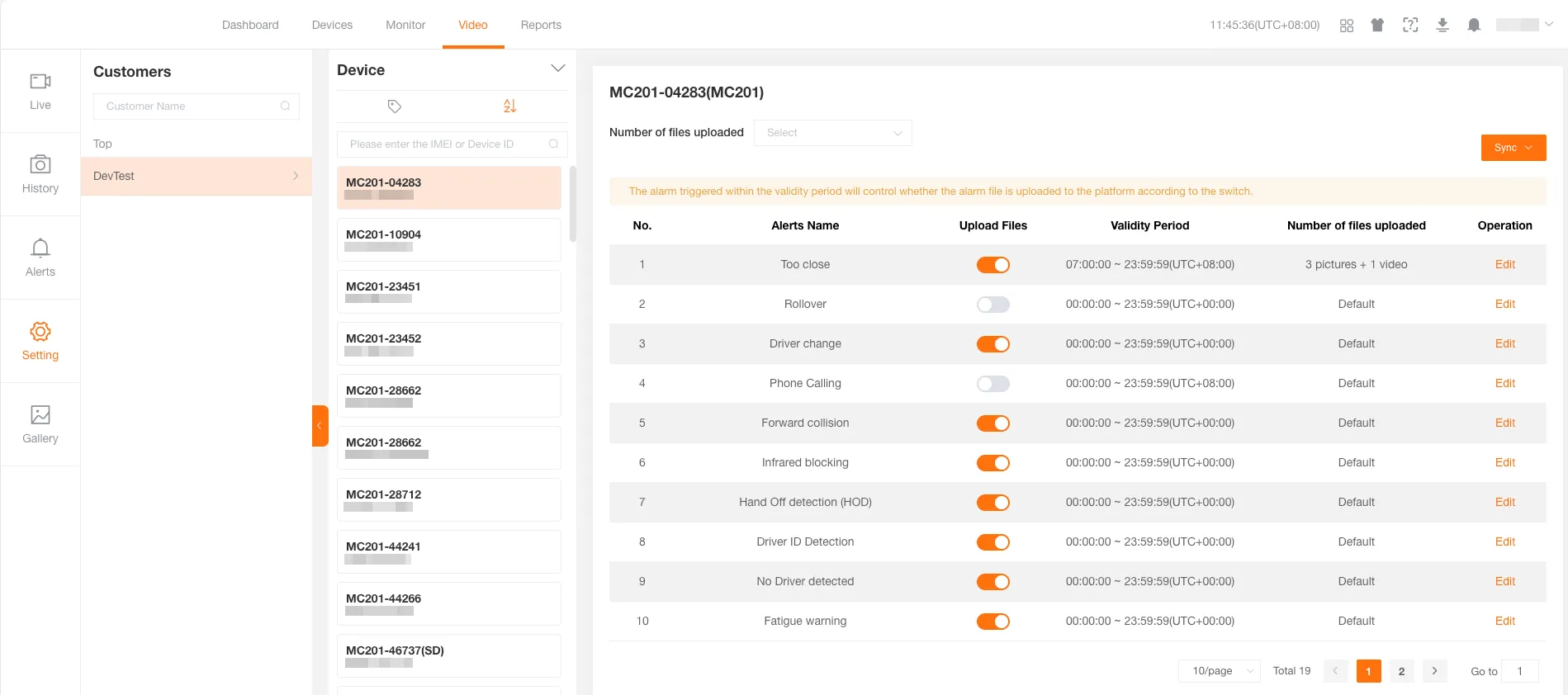
Select Device
Section titled “Select Device”Customer Selection
Section titled “Customer Selection”If you are an agent customer, first select a customer, then select a specific device. If you are a regular customer, directly select a device from the device list.
Device Selection
Section titled “Device Selection”Click on the device you want to set in the device list, and the right side will display the alert settings list for that device.
Alert Settings
Section titled “Alert Settings”Alert List
Section titled “Alert List”After selecting a device, the right side will display all alert settings for that device, including alert type, switch, validity period, file upload quantity, etc.
Enable/Disable Alert
Section titled “Enable/Disable Alert”Find the alert type you want to set in the alert list, and click the switch button on the right. The switch turns green to indicate enabled, and gray to indicate disabled.
Edit Alert
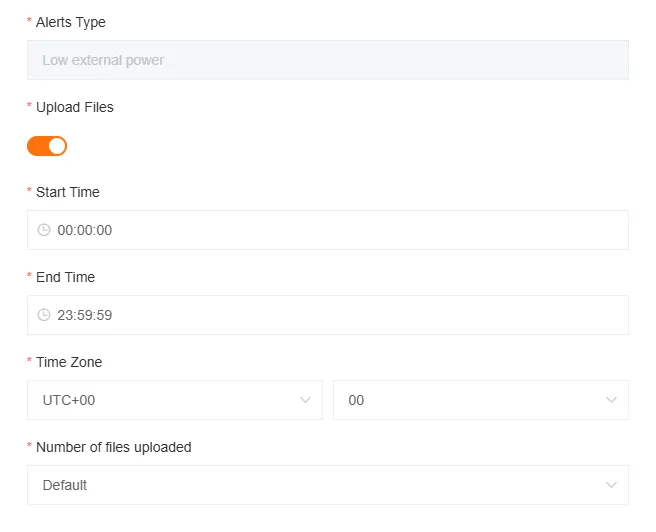
Section titled “Edit Alert”Find the alert you want to edit in the alert list, click the edit button on the right, modify the alert parameters in the pop-up window, and click OK to save.
Batch Settings
Section titled “Batch Settings”Batch Set File Upload Quantity
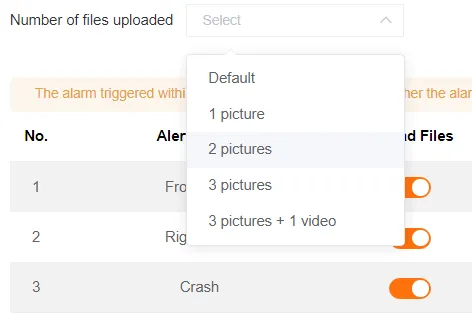
Section titled “Batch Set File Upload Quantity”Use this when you want all alerts to upload the same number of files. Find the “File Upload Quantity” dropdown at the top of the page, select the quantity you need, the system will pop up a confirmation prompt, click OK, and the file upload quantity for all alerts will be uniformly set.
Batch Enable/Disable File Upload
Section titled “Batch Enable/Disable File Upload”Quickly enable or disable file upload for all alerts. Find the “Upload File” dropdown at the top of the page, select “Enable” or “Disable”, the system will pop up a confirmation prompt, click OK, and the file upload status for all alerts will be uniformly set.
Sync Settings
Section titled “Sync Settings”Use this when you have multiple devices of the same model and want them to use the same alert settings.
Sync by Model
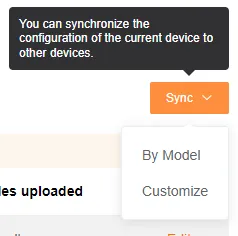
Section titled “Sync by Model”Select a device with configured alerts, click the sync button in the upper right corner of the page, select “Sync by Model”, the system will pop up a confirmation prompt, click OK, and all devices of the same model will sync the alert settings of that device.
Custom Sync
Section titled “Custom Sync”Select a device with configured alerts, click the sync button in the upper right corner of the page, select “Custom”, select the target devices you want to sync in the pop-up window, click OK, and the selected devices will sync the alert settings of that device.