Fleet Reports
Operational Template
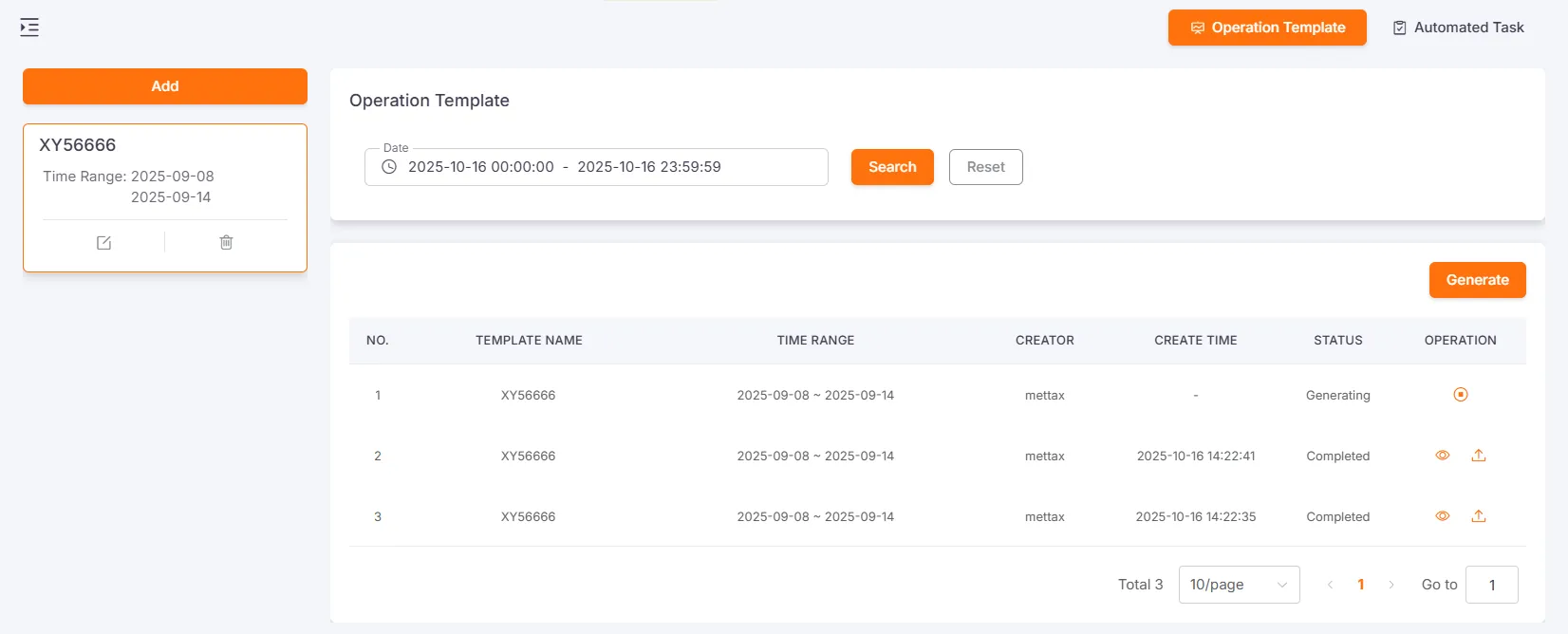
Section titled “Operational Template”Users can save frequently used report generation conditions as templates to avoid repetitive settings.
The template list will display the template name and time interval, and supports editing and deleting operations.
Click on any template to view the list of vehicle summary reports generated based on that template.
Click the Generate button to create a new vehicle summary report.
Click the Stop button to terminate a report that is being generated.
Click the Export button to generate the report as an Excel file, which can be retrieved from the download center after generation.
Create Operational Template
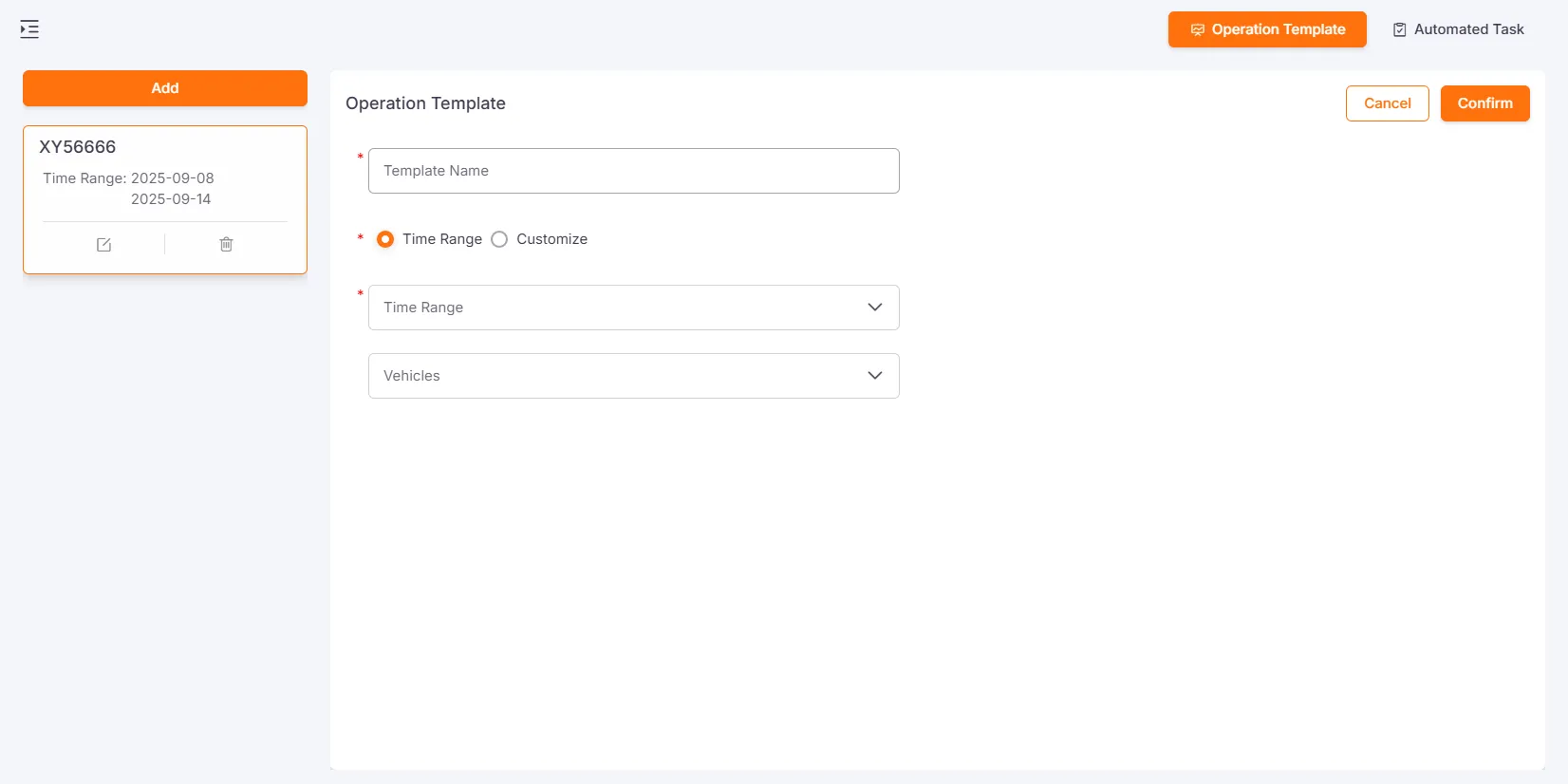
Section titled “Create Operational Template”Click the Create or Edit button, enter the template name, select the time interval and vehicles, and then save.
View Operational Template
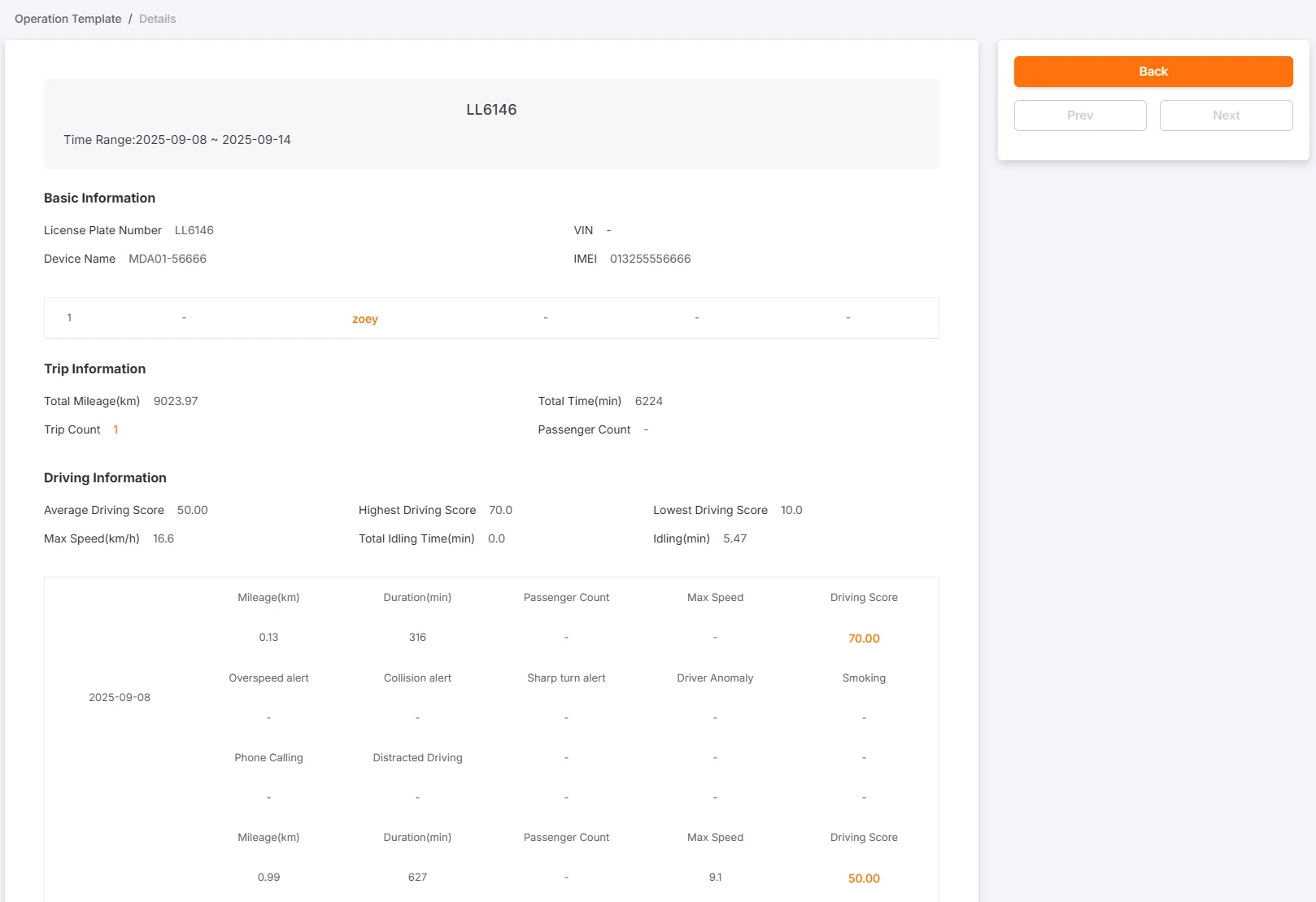
Section titled “View Operational Template”Select any generated report to view detailed vehicle driving data.
Basic Information: License Plate Number, VIN, Device Name, Unique ID, Driver Photo, Driver Name, ID Card Number, Phone Number, Daily Driving Duration
Trip Information: Total Mileage, Total Duration, Number of Trips, Number of Passengers
Driving Information: Average Driving Score, Highest Driving Score, Lowest Driving Score, Maximum Speed, Total Idling Duration, Idling Duration, Mileage, Duration, Number of Passengers, Maximum Speed, Driving Score, Number of Speeding Incidents, Number of Collision Alerts, Number of Sharp Turns, Number of Driver Anomalies, Number of Smoking Alerts, Number of Phone Call Alerts, Number of Distracted Driving Incidents
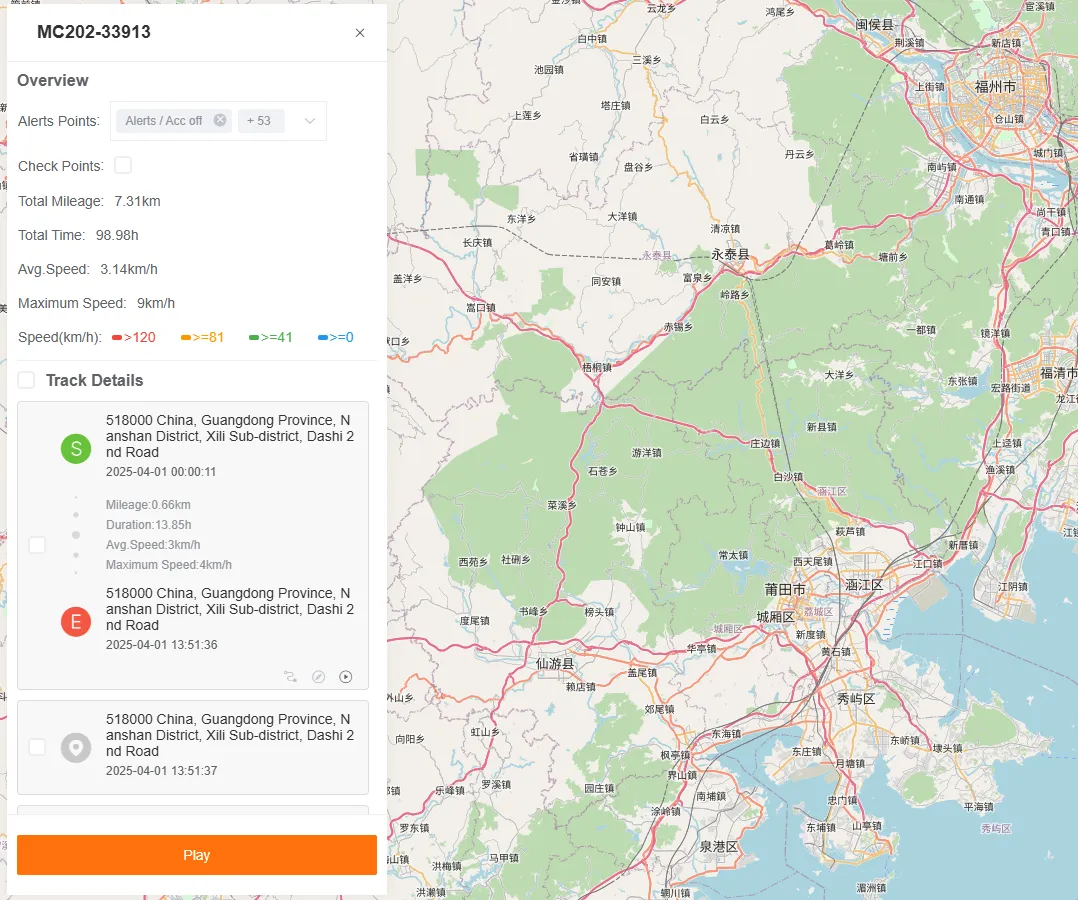
Number of Trips: Click to view the details of the corresponding number of trips. This function is consistent with the track playback of the monitoring console.
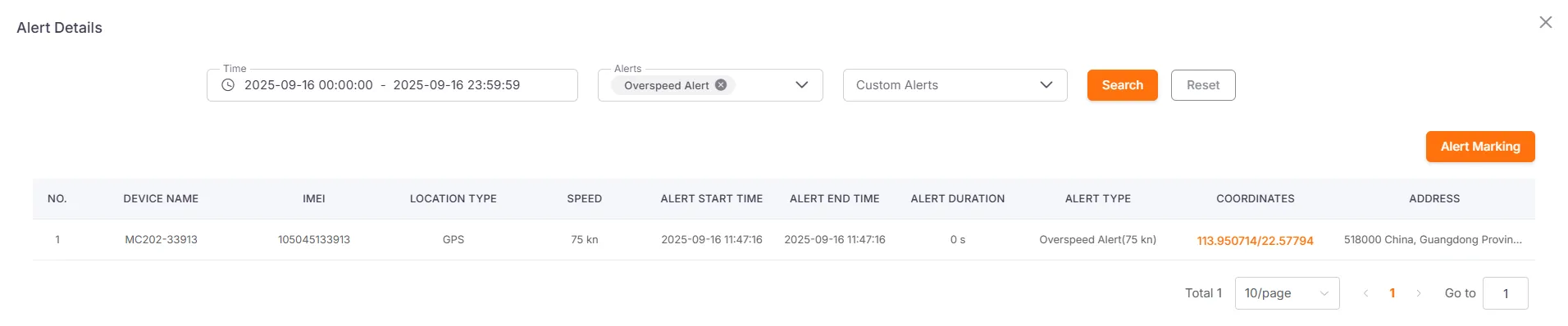
Alert-related fields (e.g., Number of Speeding Incidents, Number of Collision Alerts, etc.): Click to view the details of the corresponding type of alert. Click Alert Points to view the location where the alert occurred on the map.
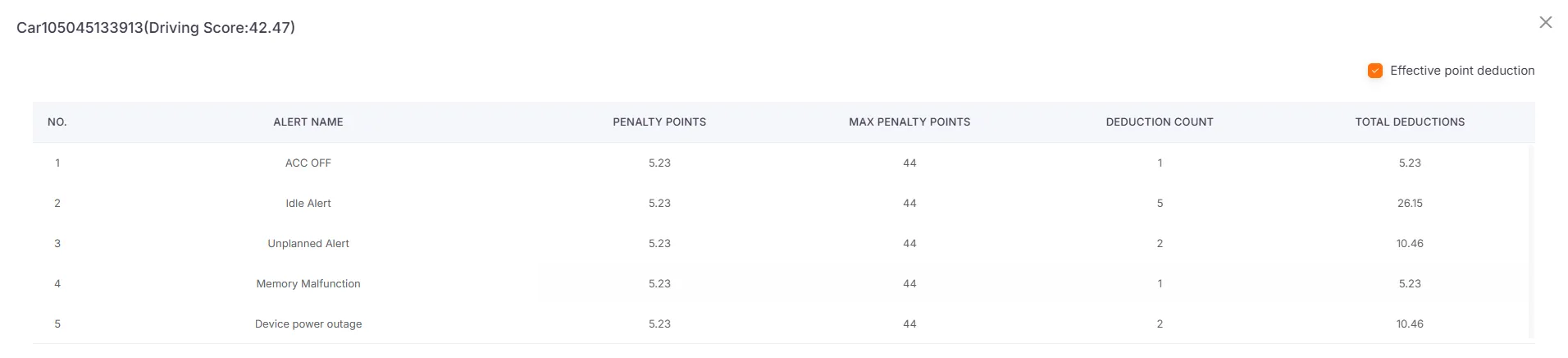
Driving Score
Click the hyperlink of the driving score to view the detailed deduction records for that driver on the specified date.
Valid Deductions: After checking this item, the system will filter out records with a cumulative deduction of 0. The state of this option will be saved in the browser cache and will be maintained on the next visit.
Automated Task
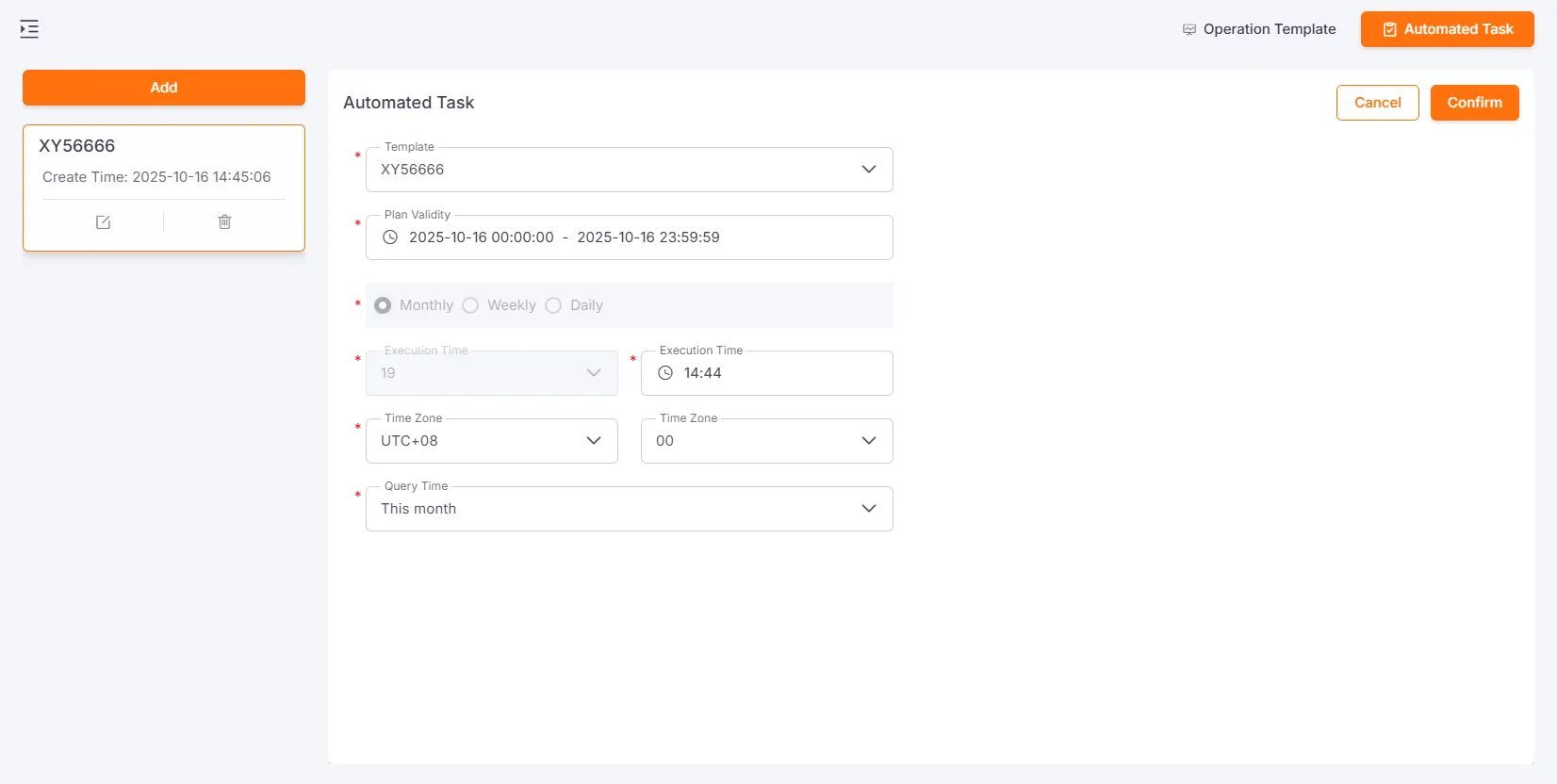
Section titled “Automated Task”Users can set up automated tasks to generate operational reports on a regular basis.
The task list will display the created automated tasks, including the corresponding operational template name and creation time, and supports deletion.
The regularly generated operational reports can be viewed in the list of the corresponding operational template.

Create Automated Operational Report Task
Section titled “Create Automated Operational Report Task”Click the Create or Edit button, select an operational template, set the frequency, scheduled time, execution time, time zone, and query time, and save. The system will then regularly generate operational reports according to the schedule.
Face Recognition Report
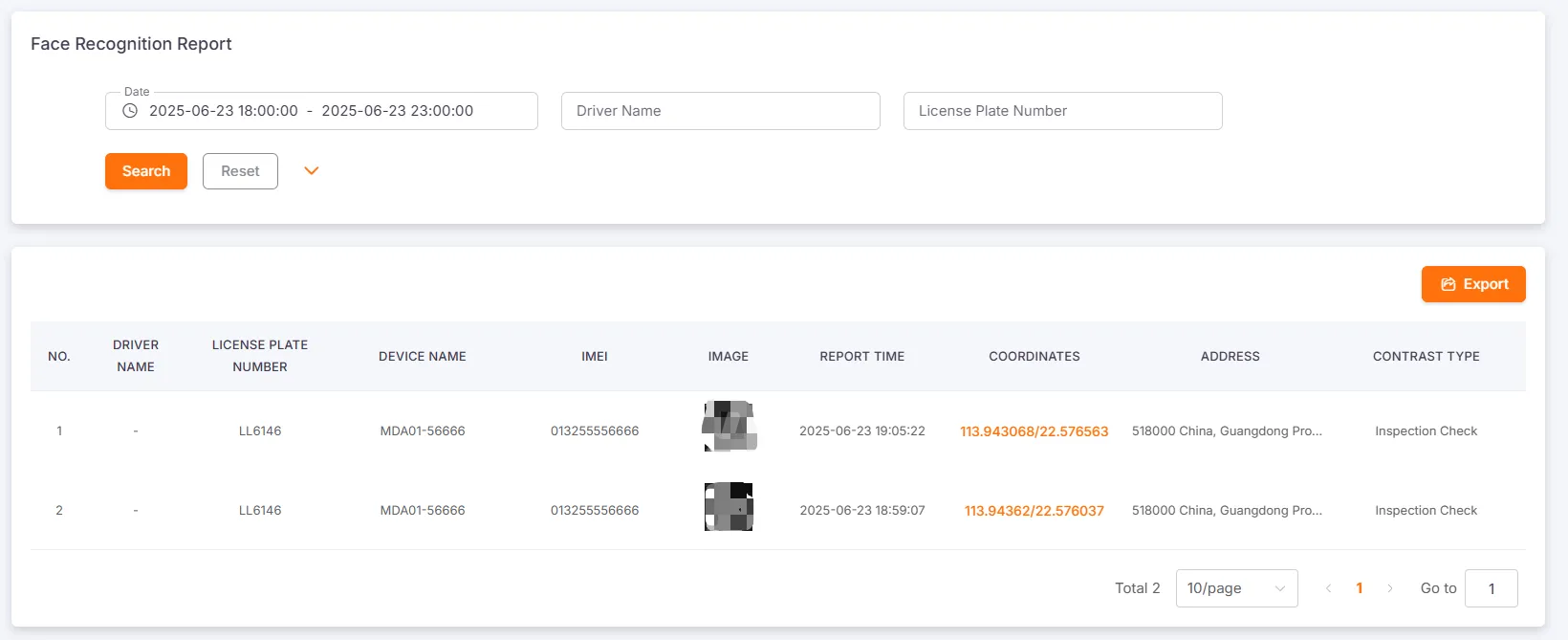
Section titled “Face Recognition Report”Query Conditions: Driver Name, Vehicle, Date, Recognition Type, Recognition Status
This report is used to query the face recognition records of vehicles, including Driver Name, License Plate Number, Device Name, Unique ID, Face Recognition Image, Report Time, Coordinates, Address, Recognition Type, and Recognition Status. The data can be exported.
RFID Report
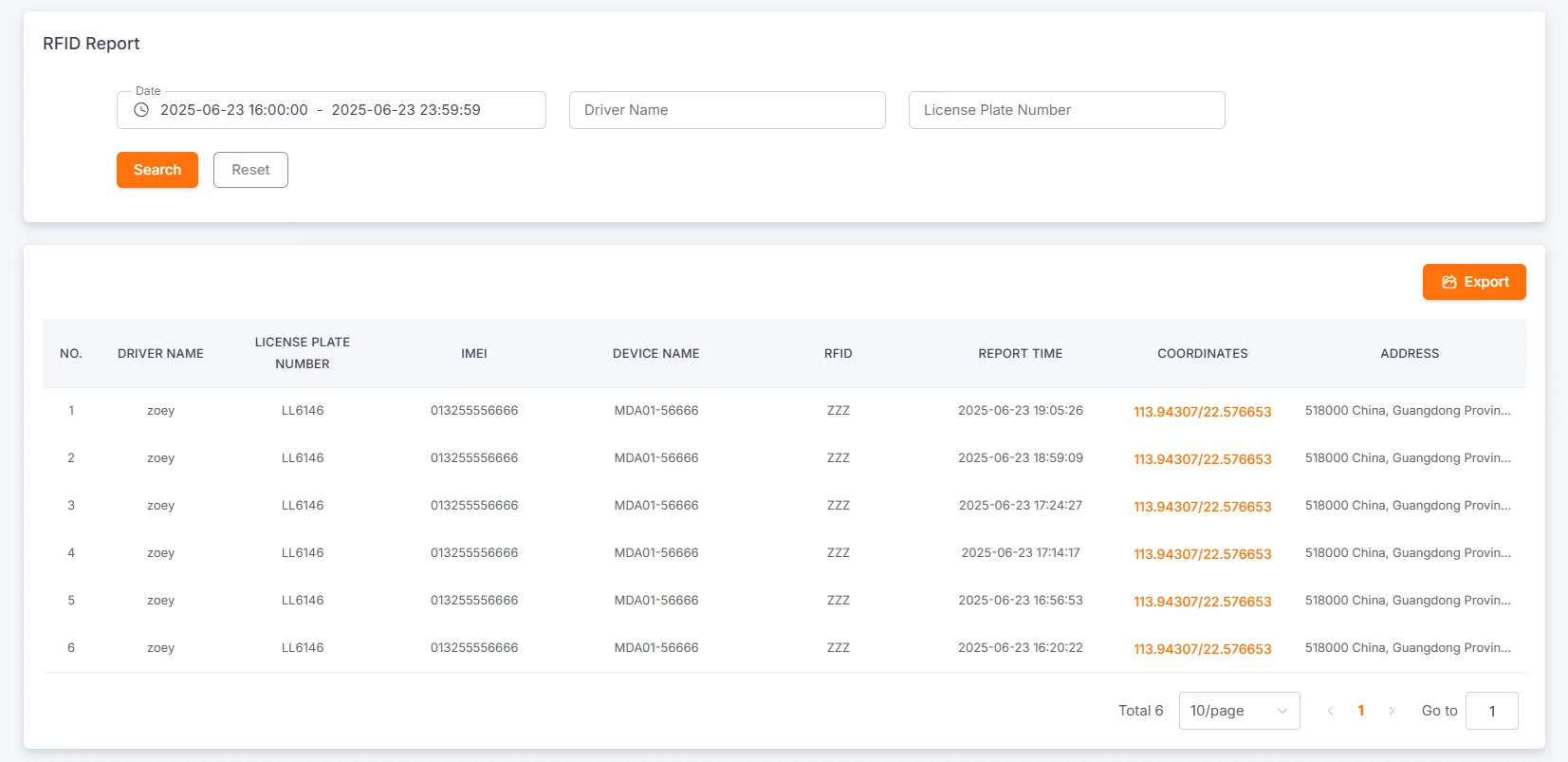
Section titled “RFID Report”Query Conditions: Driver Name, Vehicle, Date
This report is used to query the RFID clock-in records of vehicles, including Driver Name, License Plate Number, Device Name, Unique ID, RFID, Report Time, Coordinates, and Address. The data can be exported.
Driver Attendance Report
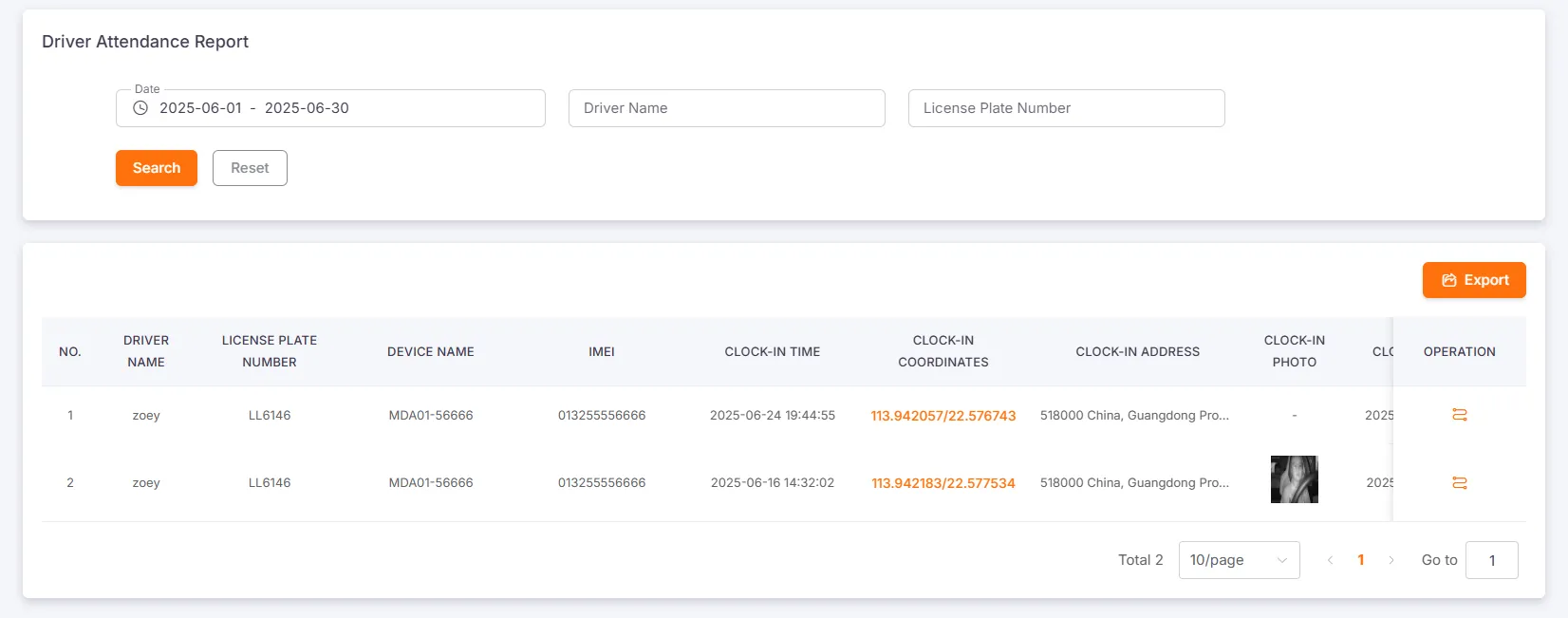
Section titled “Driver Attendance Report”Query Conditions: Driver Name, Vehicle, Date
This report is used to query the attendance records of drivers, including Driver Name, Vehicle, Device Name, Unique ID, Clock-in Time, Coordinates, Address, Image, Clock-out Time, Coordinates, Address, Number of Normal Inspections, and Number of Faulty Inspections. The records can be exported.
After the device is turned on and successfully recognizes a face, it will automatically record the attendance information.
After the device is turned off, the current attendance record will be concluded.
Bus Passenger Summary Report
Section titled “Bus Passenger Summary Report”Query Conditions: Vehicle, Date
This report is used to query the bus passenger summary records of vehicles, including License Plate Number, Device Name, Unique ID, Number of Passengers On, and Number of Passengers Off. The records can be exported.
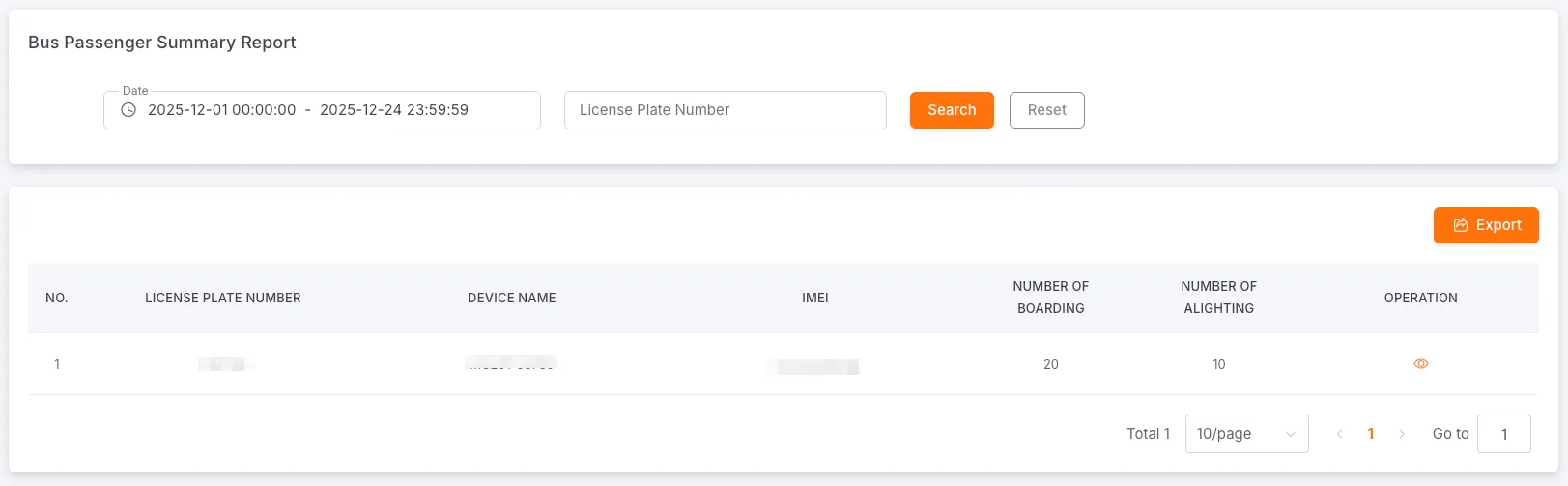
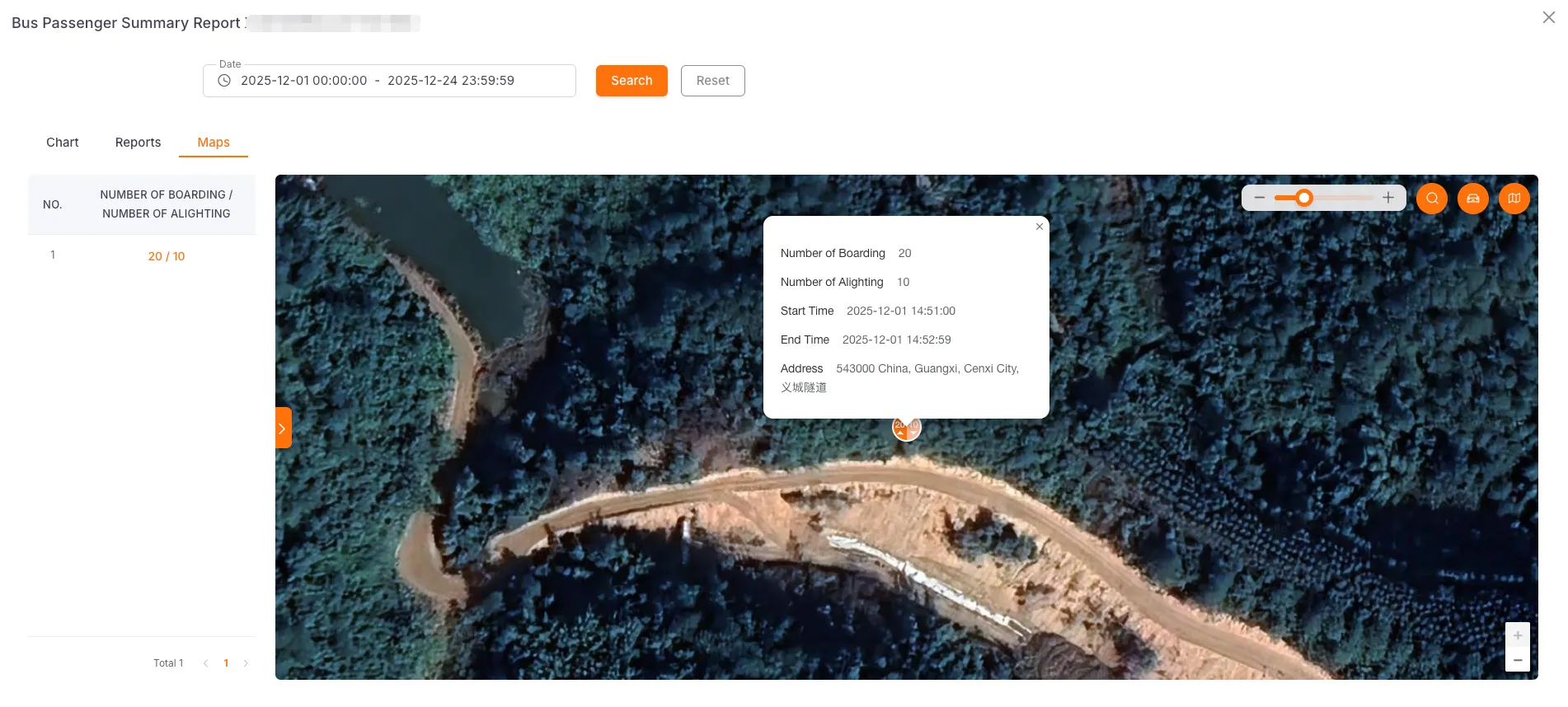
Click History to view the bar chart of the number of passengers getting on and off the currently selected vehicle, a detailed report, and its location on the map.
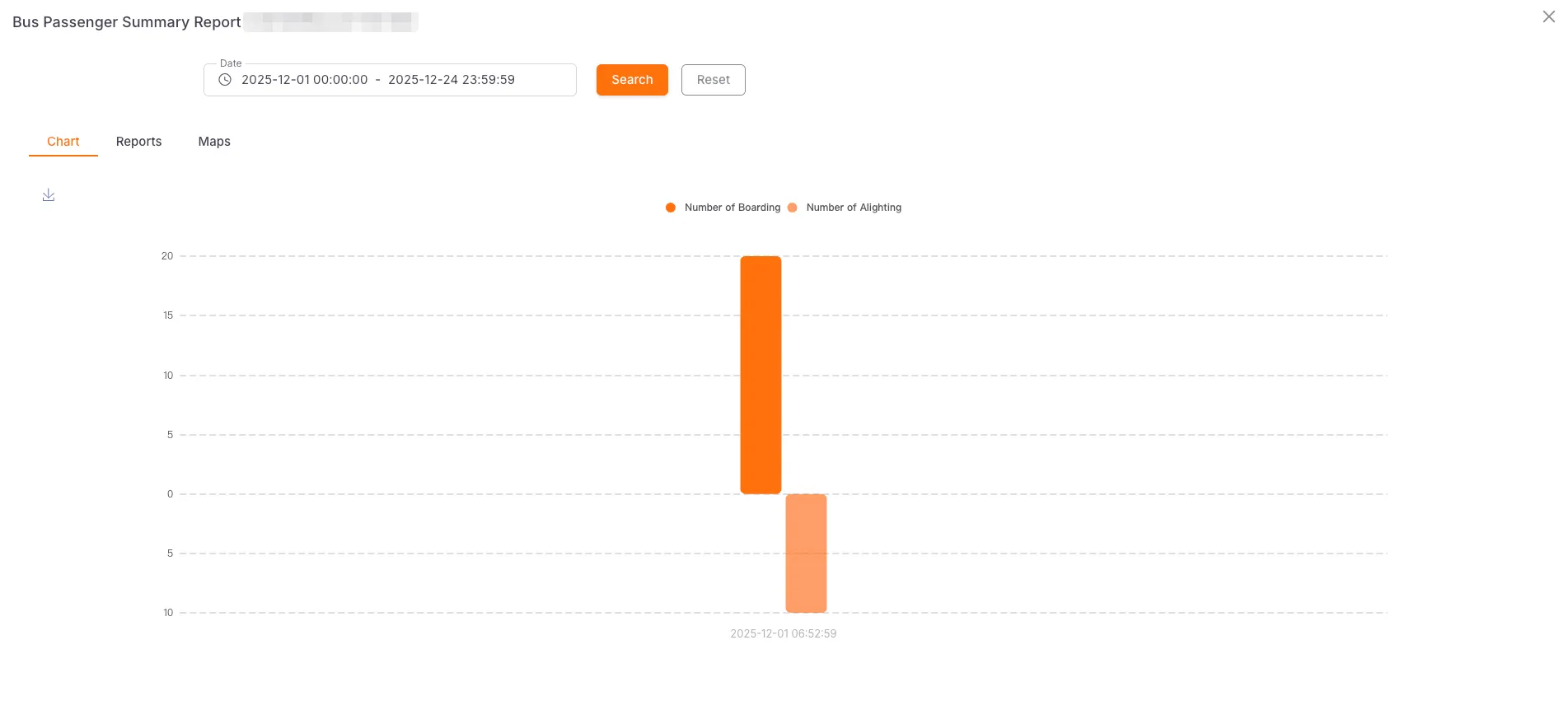
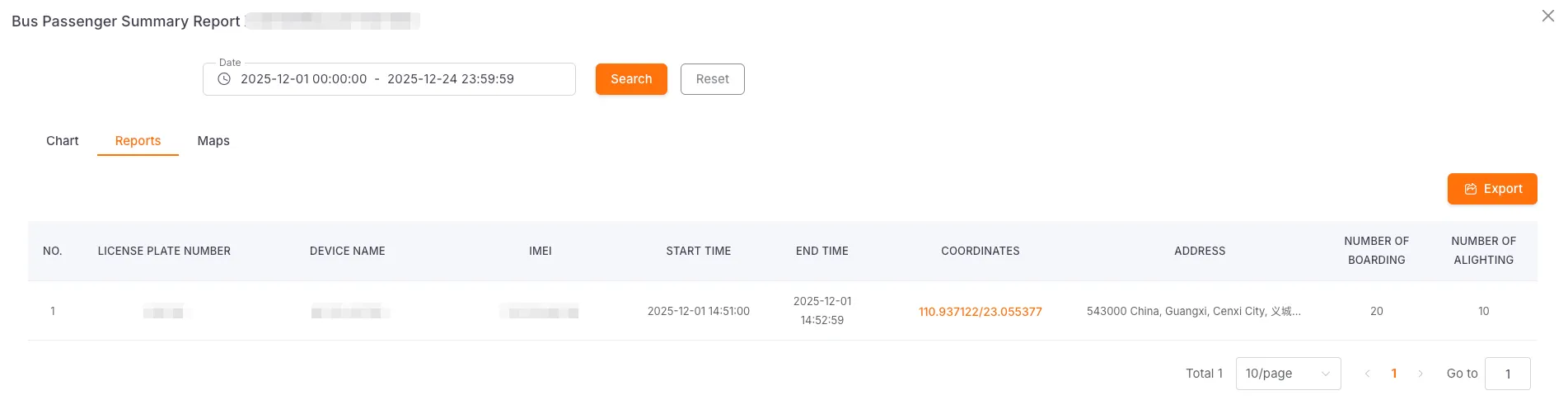
Click on the overlay on the map or the passenger count hyperlink in the left-side list to view detailed information for a single location (for details, please refer to Advanced Features).
Taxi Passenger Summary Report
Section titled “Taxi Passenger Summary Report”Query Conditions: Vehicle, Date
This report is used to query the taxi passenger summary records of vehicles, including License Plate Number, Unique ID, Start Time, End Time, Number of Trips, Valid Trips, Invalid Trips, Overload Incidents, Total Passengers, Total Mileage, Total Transport Time. The records can be exported.
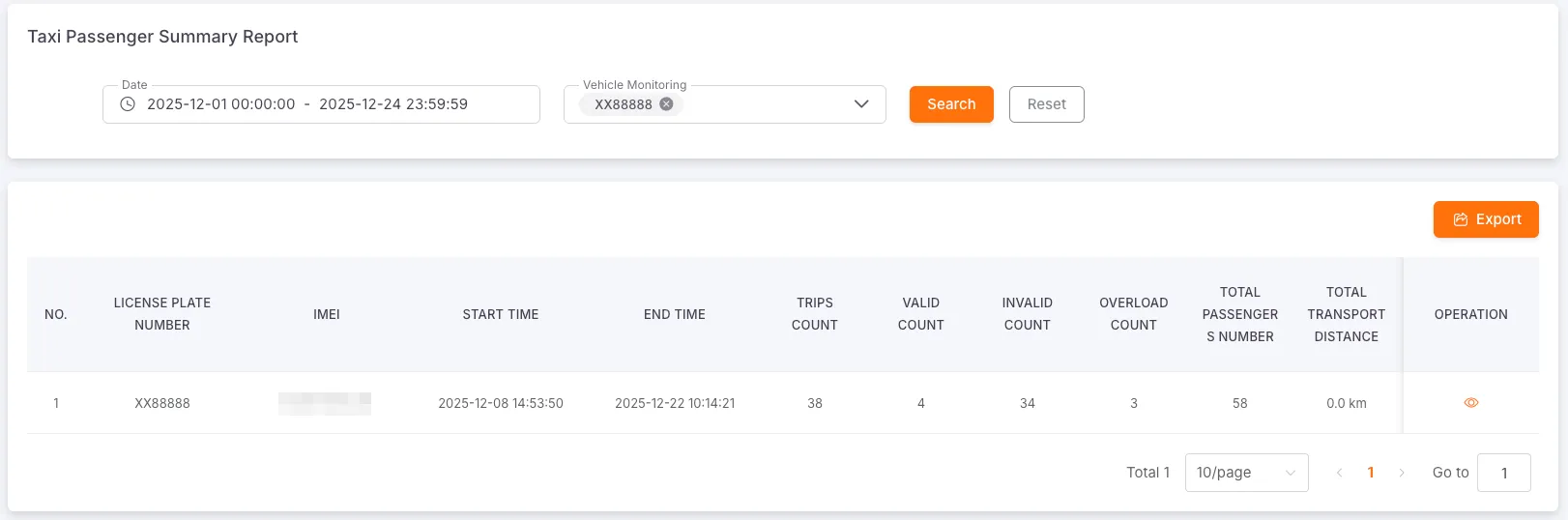
Click Details to view the taxi passenger detail report, including License Plate Number, Start Coordinates, Start Address, End Coordinates, End Address, Number of Passengers, Overload Status, Maximum Speed, Average Speed, Transport Time, Transport Mileage, Category, Remarks. The records can be exported.
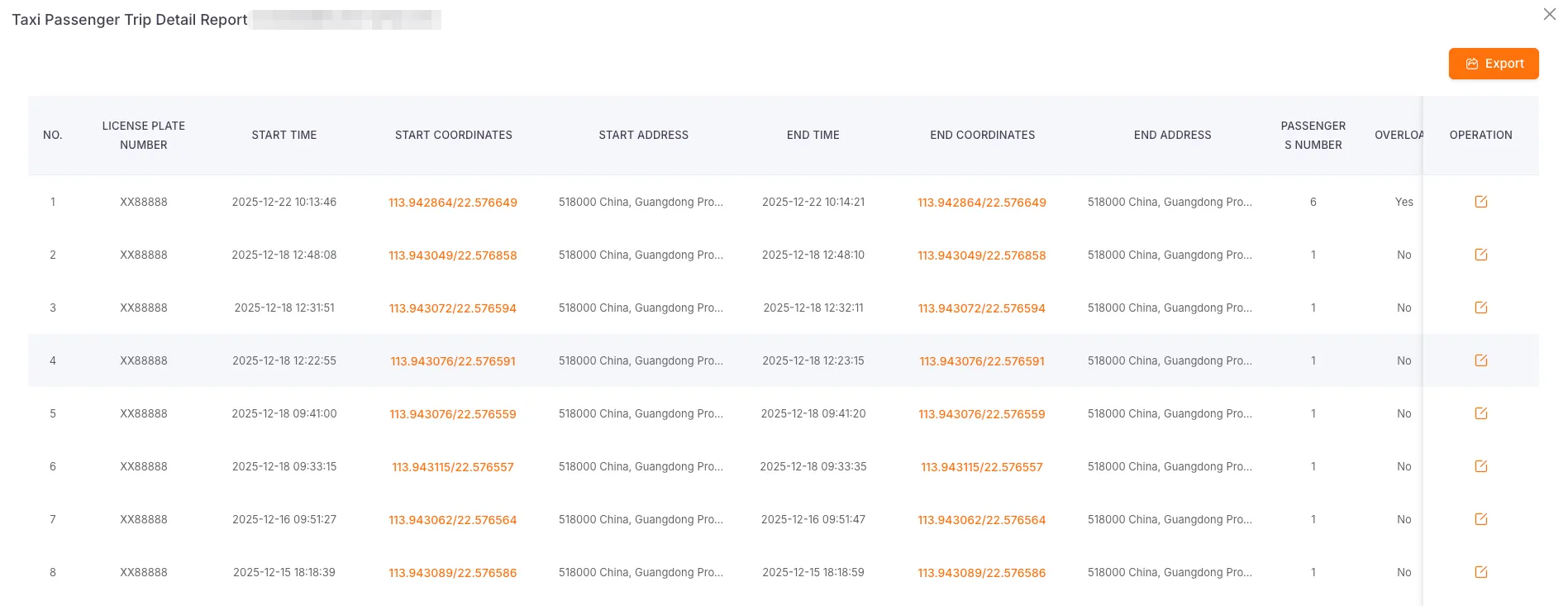
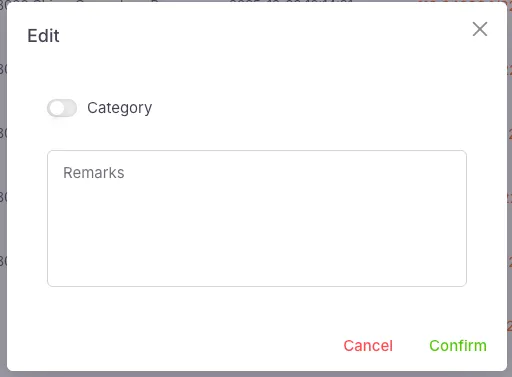
Click Edit to modify the Category and Remarks.
Work Report
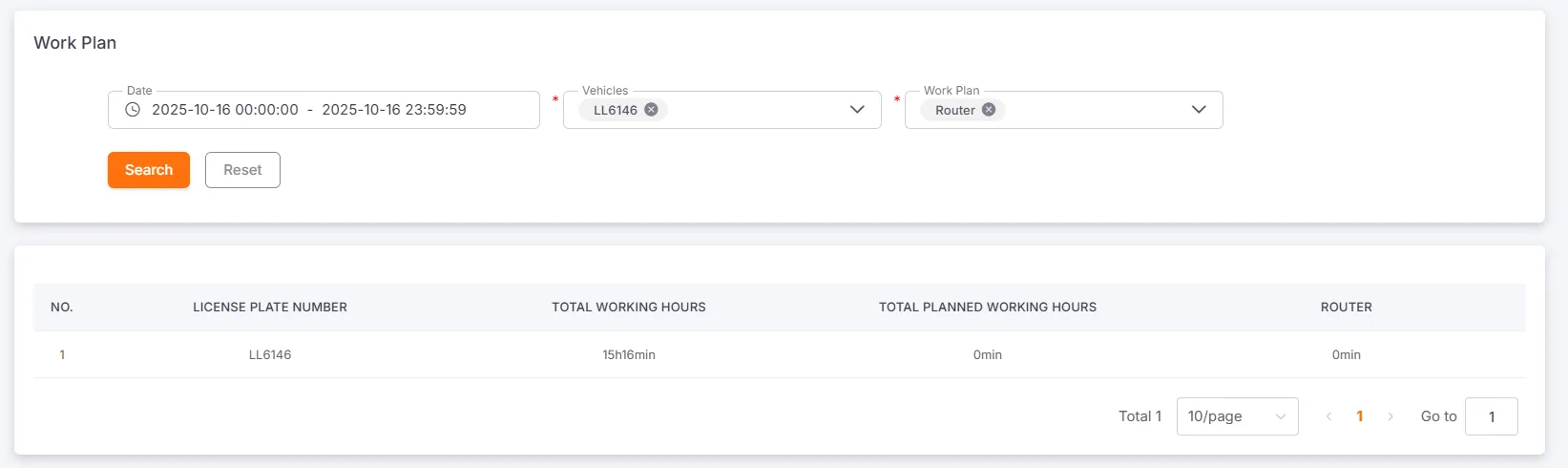
Section titled “Work Report”Query Conditions: Date, Vehicle, Work Schedule (select up to three, only enabled work schedules are displayed)
- Single Vehicle: The time range is up to 31 days
- Multiple Vehicles: The time range is up to 24 hours
This report is used to query the execution status of vehicle work schedules, including License Plate Number, Total Work Duration, Total Planned Duration, and the names of up to three work schedules.
Expense Report
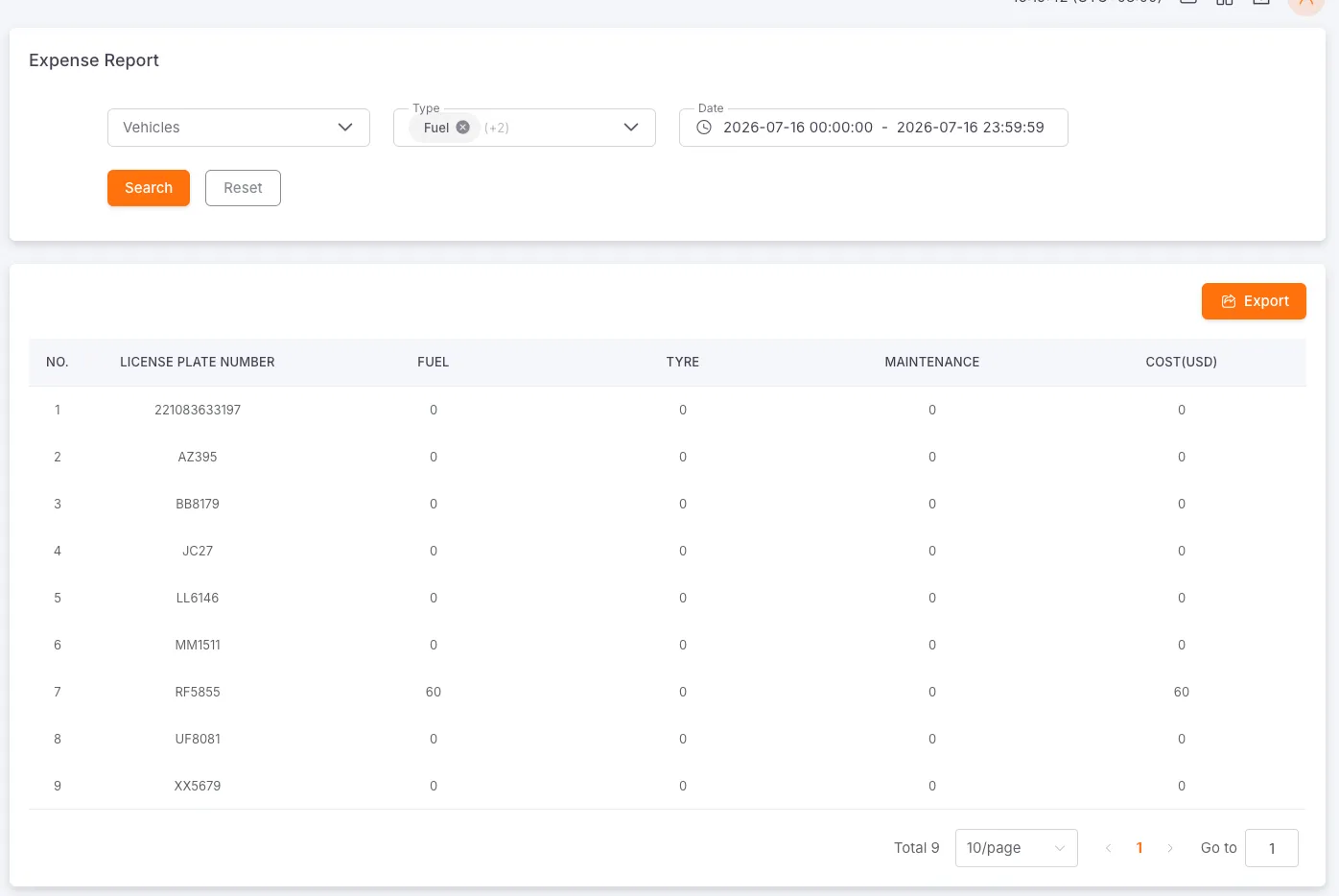
Section titled “Expense Report”Search Criteria: Vehicle, expense type (supports multiple selections, such as fuel, tires, maintenance, insurance, consumables, accidents, etc.), and date range.
This report provides an overview of vehicle expenses, displaying the license plate number, various expense categories (e.g., Fuel, Tires, Maintenance), total costs, and more.
If no specific type is selected, expense data for all categories is displayed by default; once one or more types are selected, the table shows expenditure statistics only for the chosen categories.