Alert Video
Location of Alert Videos
Section titled “Location of Alert Videos”Available storage space on the TF card:
-
ADAS: Video files in the folder named
64Code Event Description Code Event Description 01 Forward Collision 03 Tailgating 02 Lane Departure 04 Pedestrian Collision -
DMS/DMSX: Video files in the folder named
65Code Event Description Code Event Description 0a Device Obstruction 04 Distracted Driving 0d Using Phone (DMSX) 05 Driver Abnormality 01 Fatigued Driving 06 Seatbelt (DMSX) 02 Making a Phone Call 07 Infrared Blockage 03 Smoking 08 Steering Wheel (DMSX) -
BSD: Video files in the folder named
67Code Event Description Code Event Description 01 Rear Blind Spot 03 Right Blind Spot 02 Left Blind Spot 04 Front Blind Spot -
Three Sudden Actions and One Collision: Video files in the folder named
70Code Event Description Code Event Description 01 Sudden Acceleration (No OSD) 03 Sudden Turn (No OSD) 02 Sudden Deceleration (No OSD)
Alarm Parameters
Section titled “Alarm Parameters”| Parameter Name | Parameter Description |
|---|---|
| Enable | Alarm enable switch; determines whether the alarm can be triggered |
| Delay(s) | Delay time: The value represents how long after an alarm event occurs the device will delay before issuing an alarm and uploading the alarm notification |
| Wait(s) | Anti-jitter time: The value represents how long the alarm event must persist before the device confirms it has triggered an alarm |
| Record | Recording toggle: Controls whether recording is triggered upon alarm; checking “Record without lock” prevents saving to the TF/SD card, while checking “Record with lock” ensures local storage |
| Preview Mode | Preview mode, switches the video preview format |
| Record Lock Chn | Record Lock Channel: Checking this ensures that alarm recordings for the corresponding channel are stored locally and not overwritten |
| Video Upload channel | Video Upload Channel: Checking this enables automatic upload of alarm videos to the platform |
| Alarm Output | Alarm Output: Indicates whether to trigger an action; checking this activates external audio-visual or vibration devices during an alarm |
| Snapshot upload channel | Snapshot upload channel; check this channel to automatically upload alarm snapshots to the platform |
| Preview Chn | Preview channel; set the channel for real-time preview in the alarm pop-up window |
| Classification | Alarm levels are categorized as follows: Alarms triggered by speed exceeding the specified threshold are classified as Level 1, while those triggered by speeds meeting the thresholds for tiered alarms are classified as Level 2. (Most platform software does not distinguish between alarm levels. They can be set to the same value.) |
| Sensitivity | Sensitivity varies by alarm type; the lower the value, the higher the sensitivity. |
| DMS | Higher sensitivity in facial recognition results in more accurate recognition and matching. For other types of sensitivity, a higher value refers to the duration of AI detection and recognition; the longer the duration, the harder it is to trigger an alarm. For example, in a distracted driving alert, sensitivity refers to the length of time the device detects the driver’s head deviating from a straight-ahead position. If sensitivity is set to 3, this means the alarm will be triggered when the driver’s head remains deviated from a straight-ahead position for more than 3 seconds. |
| ADAS | Lane departure sensitivity refers to the distance between the wheels and the lane line at which an alert is triggered. A negative value represents the distance after crossing the lane line, while a positive value represents the distance before crossing the lane line. Generally, the higher the sensitivity, the shorter the distance required to trigger an alert. For example, for a “too close to preceding vehicle” alert, if the sensitivity is set to 5, the device detects the speeds of the vehicle in front and the one behind. If an alert is triggered, it means a collision may occur within 5 seconds, and a pre-alert will remind the driver to maintain a safe following distance. |
| BSD | The higher the sensitivity, the longer the detection time. For example, with a sensitivity value of 4, an alert will be triggered when an object is detected in the channel where BSD alerts are enabled for more than 4 seconds. |
-
AI Alerts
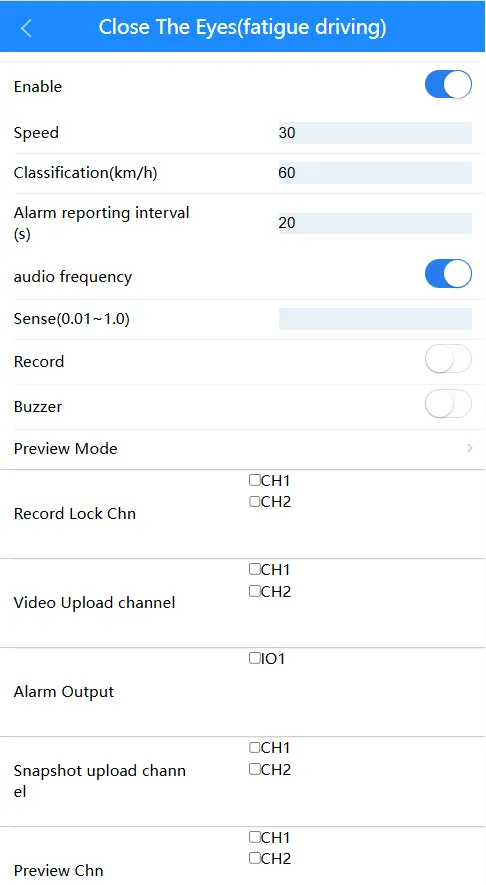
Section titled “AI Alerts”Enable AI alerts in DMS, configure the relevant parameters and recording settings; once an alert is triggered, you will receive the corresponding alert notification on the platform.
-
FTP (AI) Alert Integration
Section titled “FTP (AI) Alert Integration”Required Settings:
-
Refer to AI Alerts to configure the required alert parameters. Ensure that
alarm outputis checked so that the alert video is uploaded to the FTP server. -
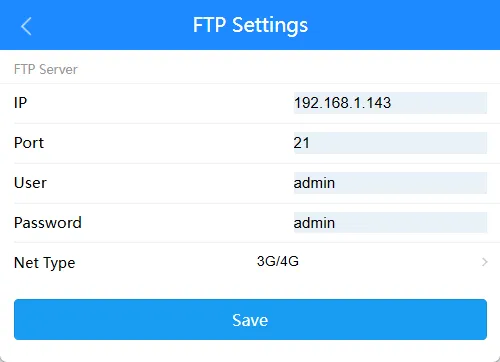
Configure the
FTP Server, including the destination server address, port, username, and password for uploading alert recordings.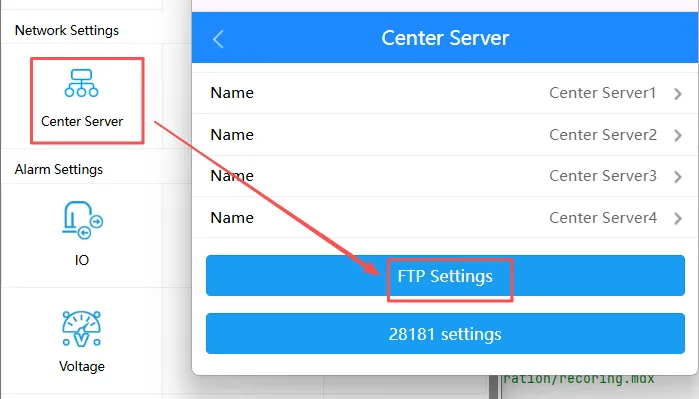
-
Go to
Storageand set the alarm video duration and file retention period. For the upload method of alarm files, you must select FTP.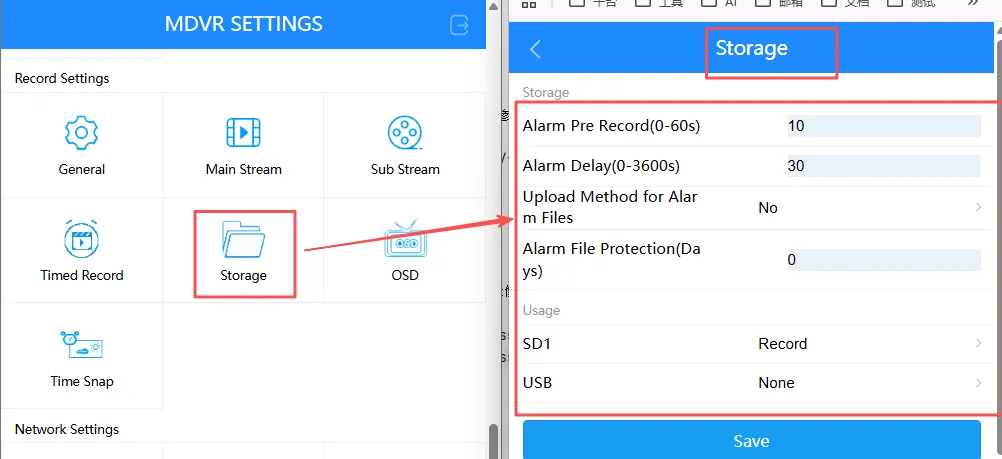
-
When an alarm is triggered, you will receive an alarm video file with the custom duration.
-
-
IO Alarms
Section titled “IO Alarms”In
IO, enable IO triggering, configure the relevant parameters, and set up recording; once an alarm is triggered, you will receive the corresponding alarm notification on the platform.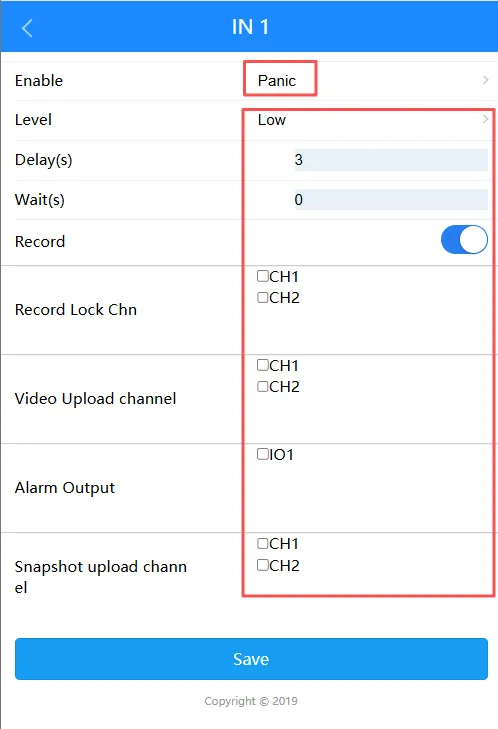
-
FTP (IO) Integrated Alarms
Section titled “FTP (IO) Integrated Alarms”Required Settings:
-
Refer to IO Alarms to configure the required alarm parameters. Ensure that
alarm outputis checked so that the alarm video is uploaded to the FTP server. -
Configure the
FTP Serverby setting the destination server address, port, username, password, and other details for uploading alarm recordings. -
Go to
Storageto set the alarm video duration and the file retention period. For the upload method of alarm files, you must select FTP. -
When an alarm is triggered, you will receive an alarm video file with the custom duration.
-
Speed Alarms
Section titled “Speed Alarms”-
Alarm Types
Ot-Park Low Speed Warning Low Speed Alarm High-Speed Warning High-Speed Alarm -
Other Parameters
Type Description Limit(s/km/h) Trigger Threshold OSD Speed Unit Speed unit displayed in the watermark
Location Alerts
Section titled “Location Alerts”Alert Type | Alert Description |
|---|---|
| IN&OUT Route | Alert triggered when the vehicle enters or exits a preset route |
| IN&OUT Area | Alert triggered when the vehicle enters or exits a geofence area |
| Off-Route | Triggered when a vehicle deviates from a preset route |
| Fatigue Warning | Short-term fatigue driving reminder |
| Fatigue Alert | Fatigue alert triggered by continuous driving duration (i.e., triggered by prolonged driving based on time) |
| Overtime Driving | Alert triggered when continuous driving duration exceeds the limit |
| Resting Time | After the device generates a fatigue warning or alert, the warning/alert will end once the vehicle has been parked for the set duration; restarting the vehicle at this point will reset the current continuous driving time to 0 |
Vehicle Attitude Alerts
Section titled “Vehicle Attitude Alerts”-
Alert Types
Sensitivity to rapid acceleration, rapid deceleration, sharp turns, and collisions is expressed in terms of acceleration, with units in m/s²; sensitivity to rollovers is expressed as an angle value, with a line parallel to the ground as the reference.
Alarm Sensitivity-High Sensitivity-Medium Sensitivity-Low Sudden acceleration 2.5 3.5 4.5 sudden deceleration 2.5 3.5 4.5 Sharp Turn 3 4 5 Crash 10 15 20 Rollover 30 45 60 -
Other Parameters
Parameter Name Parameter Description Install Direction Installation direction; it is recommended to use the default automatic direction Vehicle Type Vehicle type Three Urgent Alerts Three urgent alerts; determines whether the device will play a voice alert when an event occurs -
Detection Type
Type Description GPS-based Emergency Detection No need to click “Adjust” to learn; triggers three-level emergency and single-impact alerts G-Sensor-based Emergency Detection Requires clicking “Adjust” to learn; immediately triggers three-level emergency and single-impact alerts -
G-Sensor Algorithm Learning Process
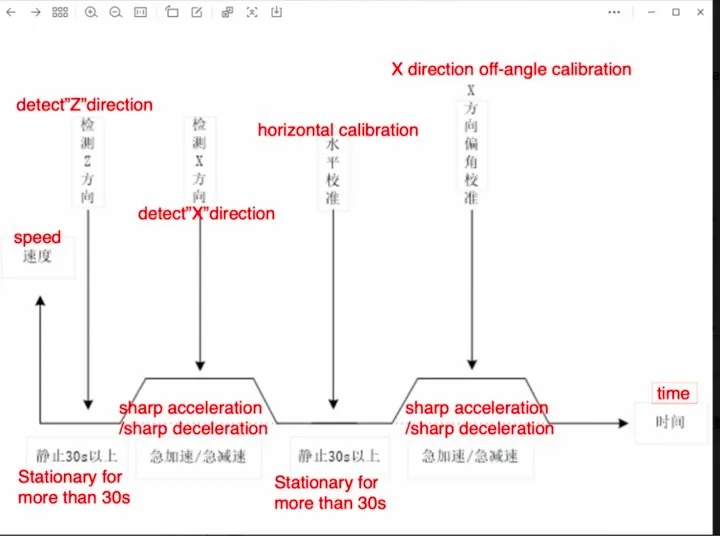
After clicking “G-Sensor Calibration,” allow the vehicle to remain stationary for at least 30 seconds, then perform a sudden acceleration or deceleration, and finally allow the vehicle to remain stationary for at least 30 seconds again
Alarm Triggered: Viewing Alarm Information on the Platform
Section titled “Alarm Triggered: Viewing Alarm Information on the Platform”-
AI alarm successfully triggered
-
View alert information on the platform
-
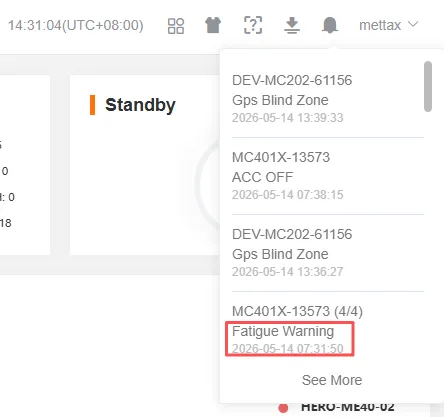
Bell notification
-
Alert Reports: In the IoT system, click
Reports, then create a newAlert Detailsreport underMy Reports. Here, you can filter by device model, customer, alert type, time, etc.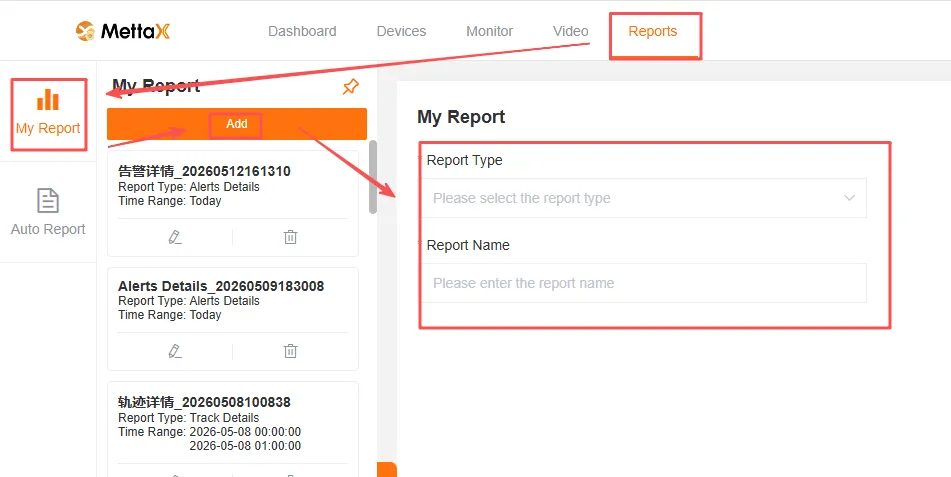

-
-
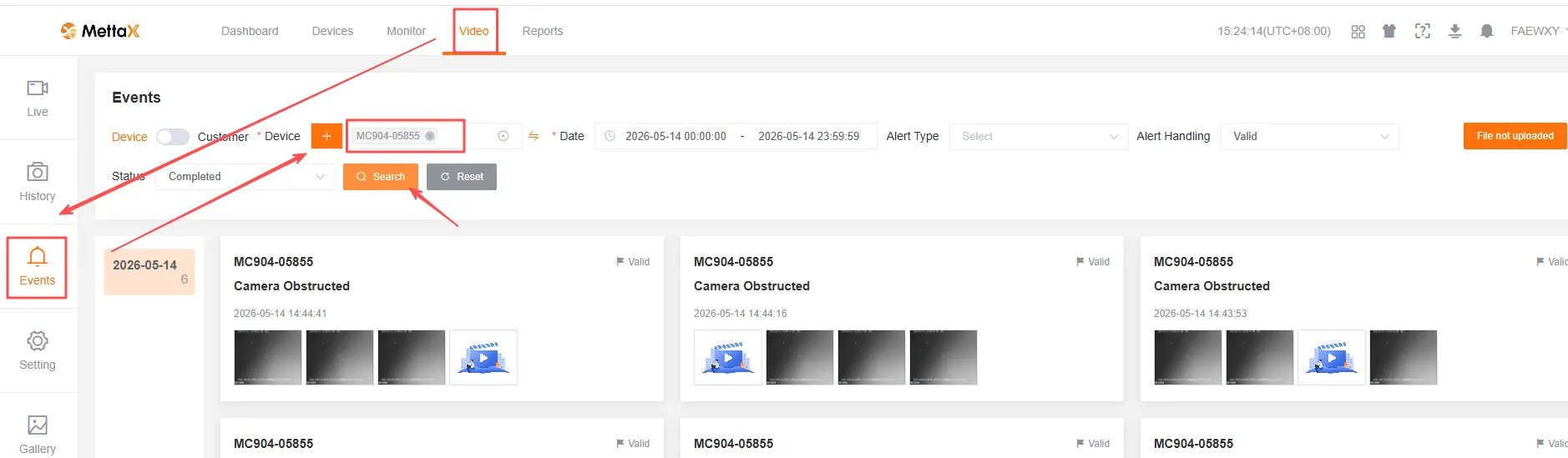
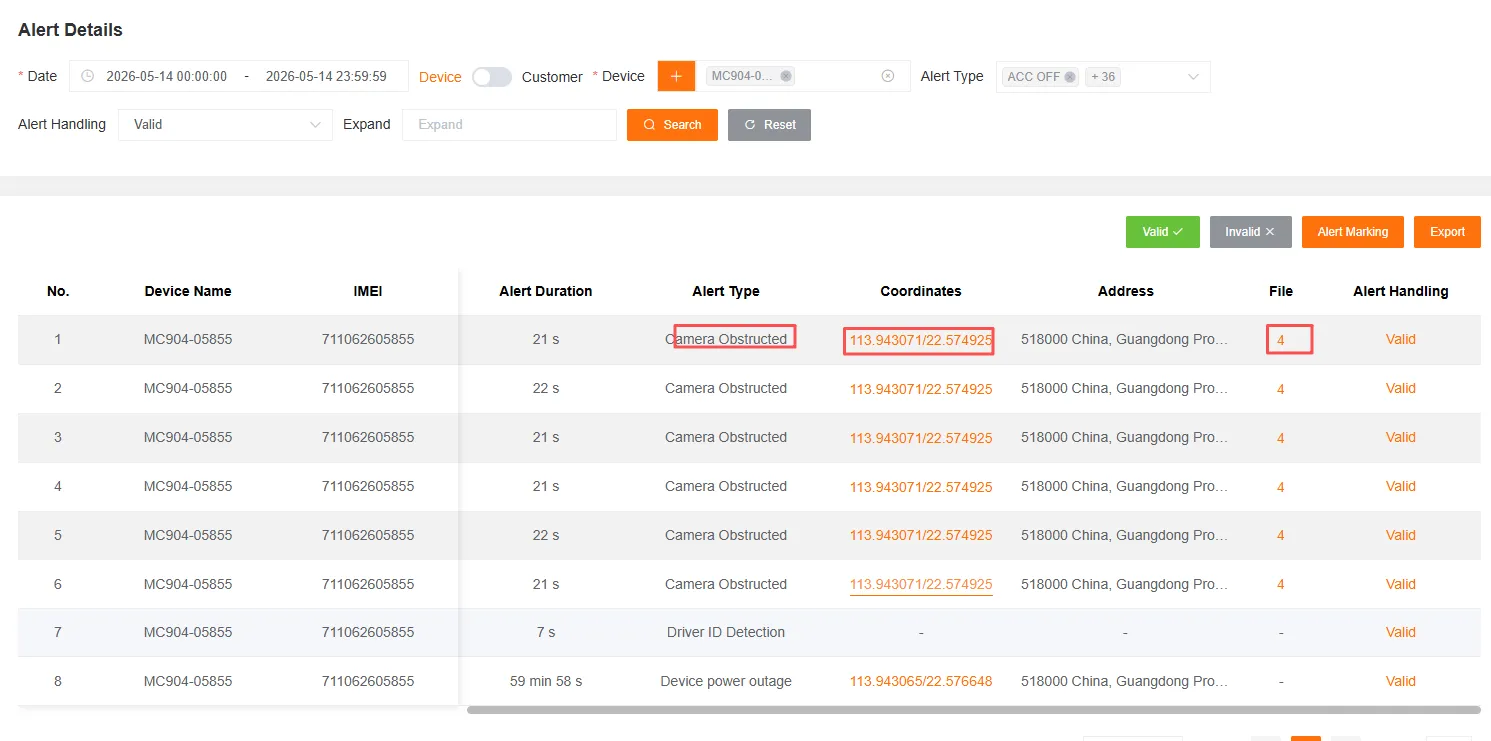
After completing the above steps, you will see the relevant AI alert records. Click the marked area to view the evidence attached to the alert.
-
Viewing alert evidence: In addition to Step 3, you can also view it under
Eventsin theVideosection