Device Management
Manage devices for the currently logged-in account, including searching, creating, selling, exporting, sending commands, updating device information, binding licenses, managing labels, and deleting unactivated devices.
By default, the page displays the device list for the current customer. You can also choose to view the devices of subordinate customers. The total number of devices for the current customer and the total number including subordinate customers are displayed next to the customer name.
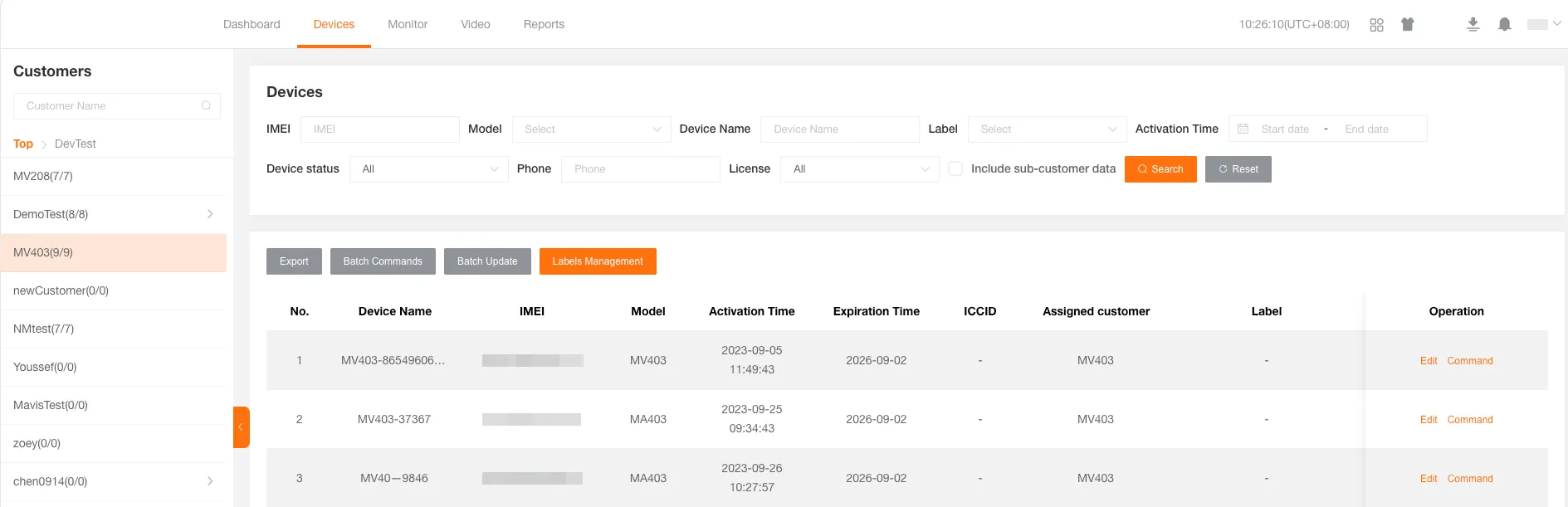
Tracker Device
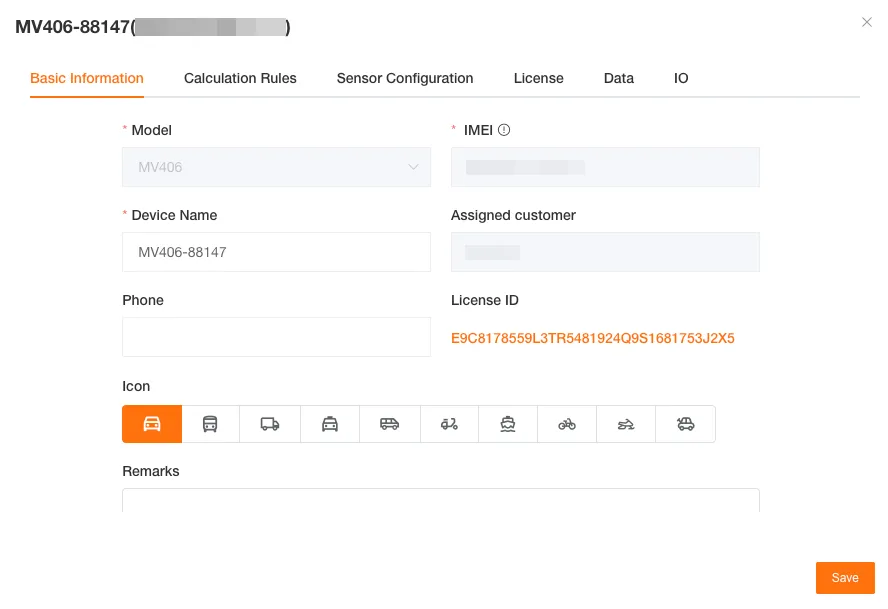
Section titled “Tracker Device”The model, 15-digit IMEI, and device name are required.
The phone number, bound license, remarks, labels, and device icon are optional. The owning customer defaults to the selected customer.
DashCam Device
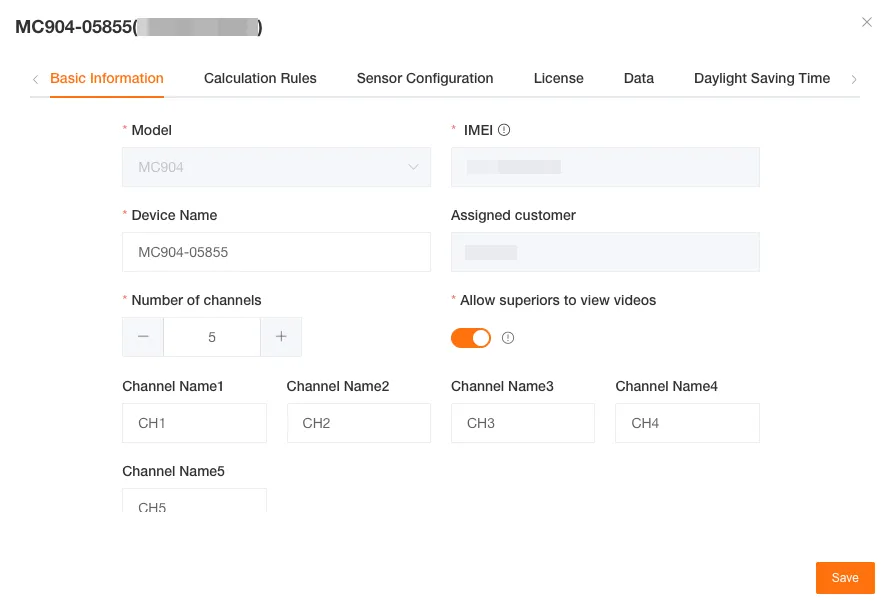
Section titled “DashCam Device”The model, 12-digit IMEI, device name, number of channels, superior’s permission to view video (allowed by default), and time zone are required.
The channel names, phone number, bound license, remarks, labels, and device icon are optional. The owning customer defaults to the selected customer.
Edit Device Information
Section titled “Edit Device Information”Basic Information
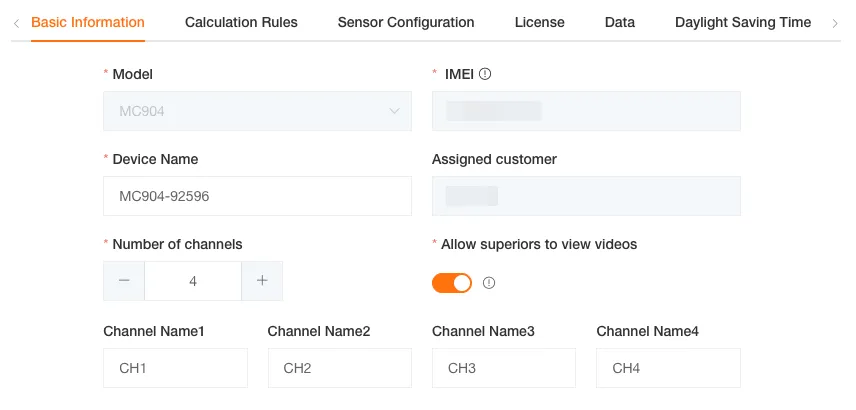
Section titled “Basic Information”You can edit the basic information of a device. The functionality is similar to creating a device.
Device Time Zone
Section titled “Device Time Zone”Get Device Time Zone
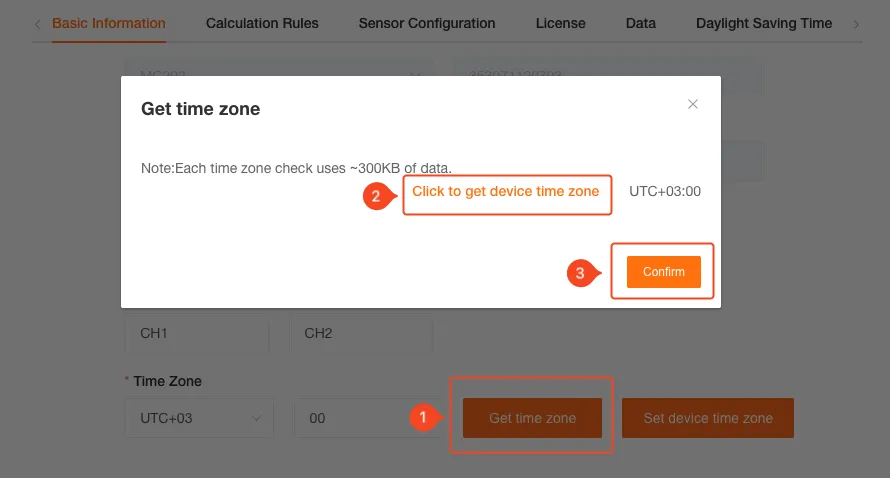
Section titled “Get Device Time Zone”You can retrieve the device’s time zone and synchronize it with the platform.
Set Device Time Zone
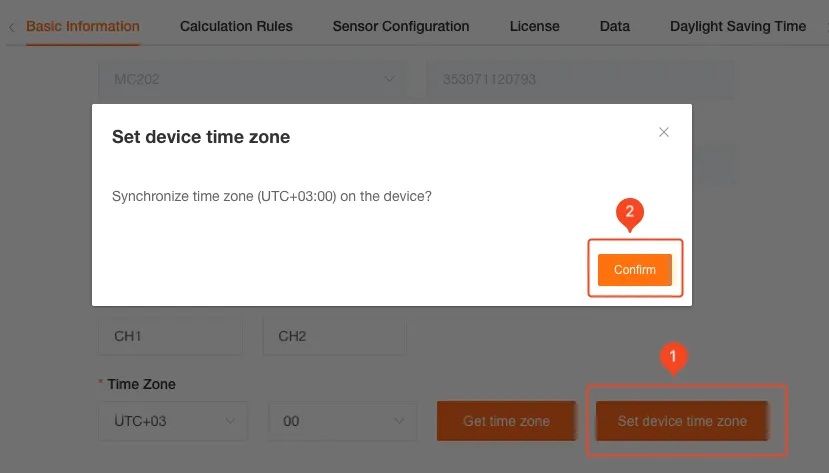
Section titled “Set Device Time Zone”You can set the device’s time zone, synchronizing the platform’s time zone to the device.
Trip Calculation Rules
Section titled “Trip Calculation Rules”You can choose trip calculation rules based on Speed or ACC Status according to your needs.
Speed-Based Trip Calculation
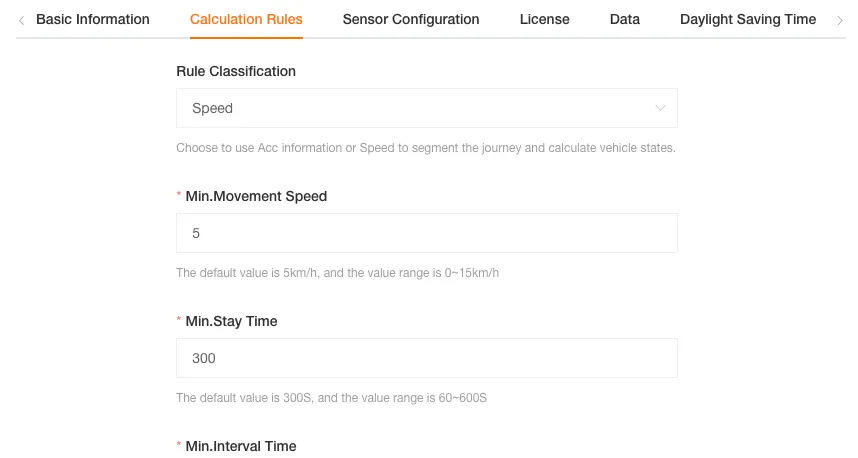
Section titled “Speed-Based Trip Calculation”This rule determines the start, progress, and end of a trip based on the device’s speed and stopping time.
Parameter Definitions
Section titled “Parameter Definitions”| Parameter | Default Value | Purpose |
|---|---|---|
| Minimum Moving Speed | 5 km/h | The minimum speed threshold to distinguish if the device is moving or stationary. |
| Minimum Stop Duration | 300s | The minimum duration to determine if the device is in a stopped state. |
| Minimum Interval | 60s | The time interval for evaluating consecutive GPS points. |
| Number of GPS Points | 3 | The number of consecutive GPS points used to calculate the trip status. |
Trip Status Determination
Section titled “Trip Status Determination”| Status | Logic |
|---|---|
| Start | The speed of Number of GPS Points consecutive points within the Minimum Interval is greater than or equal to the Minimum Moving Speed. |
| Idling | The device speed is less than the Minimum Moving Speed, and this state lasts longer than the Minimum Stop Duration. |
| End | The speed of Number of GPS Points consecutive points within the Minimum Interval is less than the Minimum Moving Speed. |
ACC-Based Trip Calculation
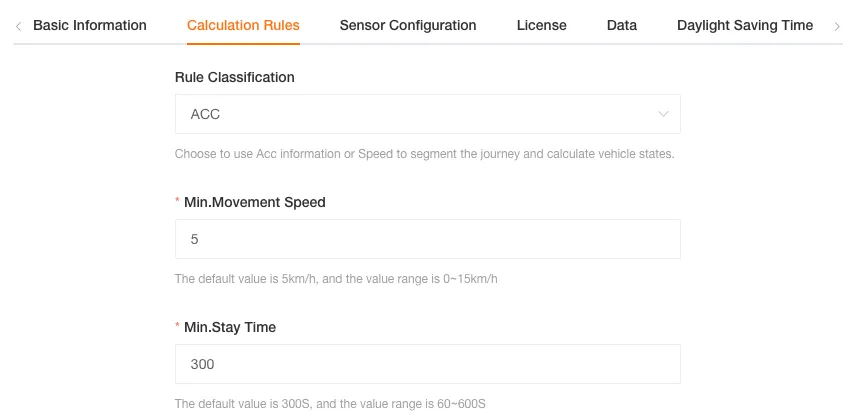
Section titled “ACC-Based Trip Calculation”This rule primarily determines the trip based on the vehicle’s ACC ignition and flameout status.
Parameter Definitions
Section titled “Parameter Definitions”| Parameter | Default Value | Purpose |
|---|---|---|
| Minimum Moving Speed | 5 km/h | Used to distinguish between moving and idling when the ACC is on. |
| Minimum Stop Duration | 300s | The minimum duration to determine if the vehicle is stopped while the ACC is on. |
Trip Status Determination
Section titled “Trip Status Determination”| Status | Logic |
|---|---|
| Start | ACC status is ON (ignition). |
| Idling | ACC status is ON, but the device speed is less than the Minimum Moving Speed, and this state lasts longer than the Minimum Stop Duration. |
| End | ACC status is OFF (flameout). |
Different device models support different sensors (temperature/humidity sensors, door magnetic sensors, alcohol tester sensors, tire pressure sensors, CAN bus sensors, standard liquid level fuel sensors, ADC voltage fuel sensors, etc.). You can configure the device’s sensors.
License
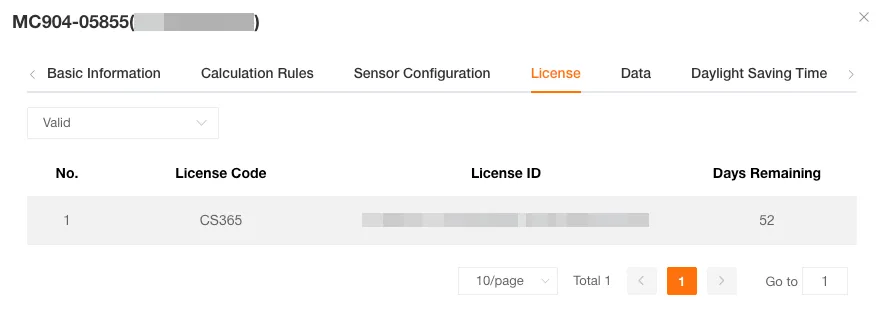
Section titled “License”You can view usage details and filter licenses by status (valid or invalid).
Data Traffic
Section titled “Data Traffic”Traffic Control
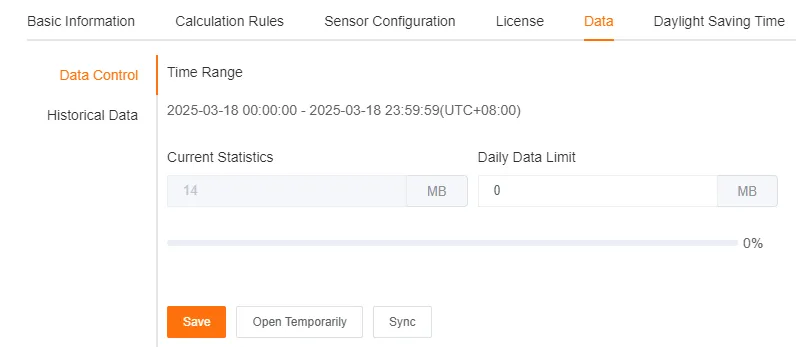
Section titled “Traffic Control”You can set a daily data traffic limit for the device. Once exceeded, high-traffic operations like live streaming, video uploads, and intercom will be disabled.
You can temporarily ignore the traffic limit for 1 hour.
This setting can be synchronized to other devices.
Historical Traffic
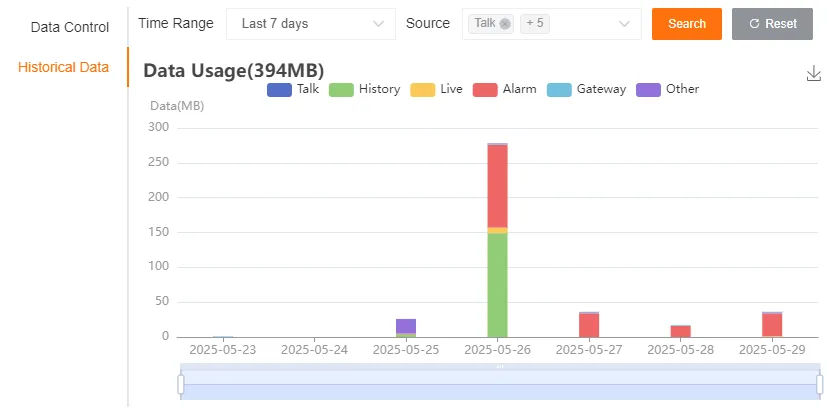
Section titled “Historical Traffic”You can view traffic usage over a period by selecting the last seven days, the last 30 days, or a specific date range.
You can also filter traffic usage by type: intercom, historical files, live streaming, alert files, business files, and others (scheduled tasks, manual snapshots, face recognition).
Daylight Saving Time
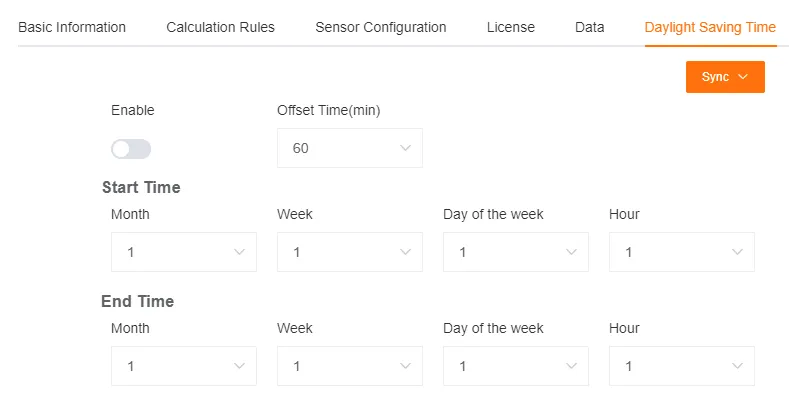
Section titled “Daylight Saving Time”You can set the daylight saving time for the device.
This setting can be synchronized to specified devices or devices of the same model.
I/O Ports
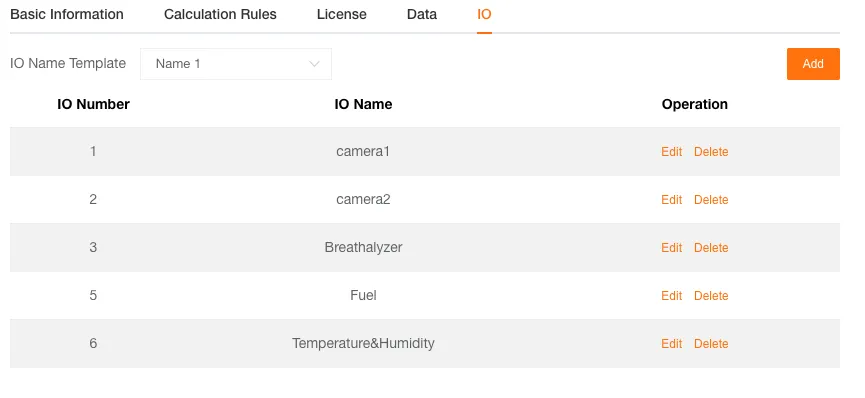
Section titled “I/O Ports”You can customize the names of the device’s I/O ports. A device can have up to 8 I/O ports.
Bulk Edit Device Information
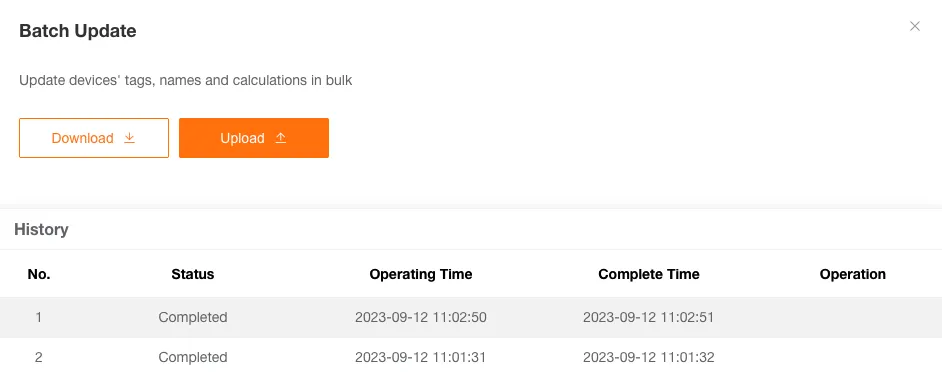
Section titled “Bulk Edit Device Information”This feature allows you to update information for multiple devices at once by uploading a completed Excel configuration file, simplifying the management process.
-
Download Template
Click the Download Template button to get the Excel file for bulk updates.
-
Edit Information
Fill in the necessary information, such as
IMEI, and any other information you need to change.For Trip Calculation Rules, if you need to make changes, select either Speed-Based or
ACC-Based and fill in the corresponding threshold values; otherwise, leave them blank. -
Upload File
Upload the edited template file to the platform.
-
View Results
After the upload is complete, the system will process the update request and display the operation records and results of the bulk update in the table below.
Delete Device
Section titled “Delete Device”Only unactivated devices can be deleted.
When a device is deleted, any bound licenses are automatically unbound.
Deleted devices can be re-imported into the system.
Sell Device
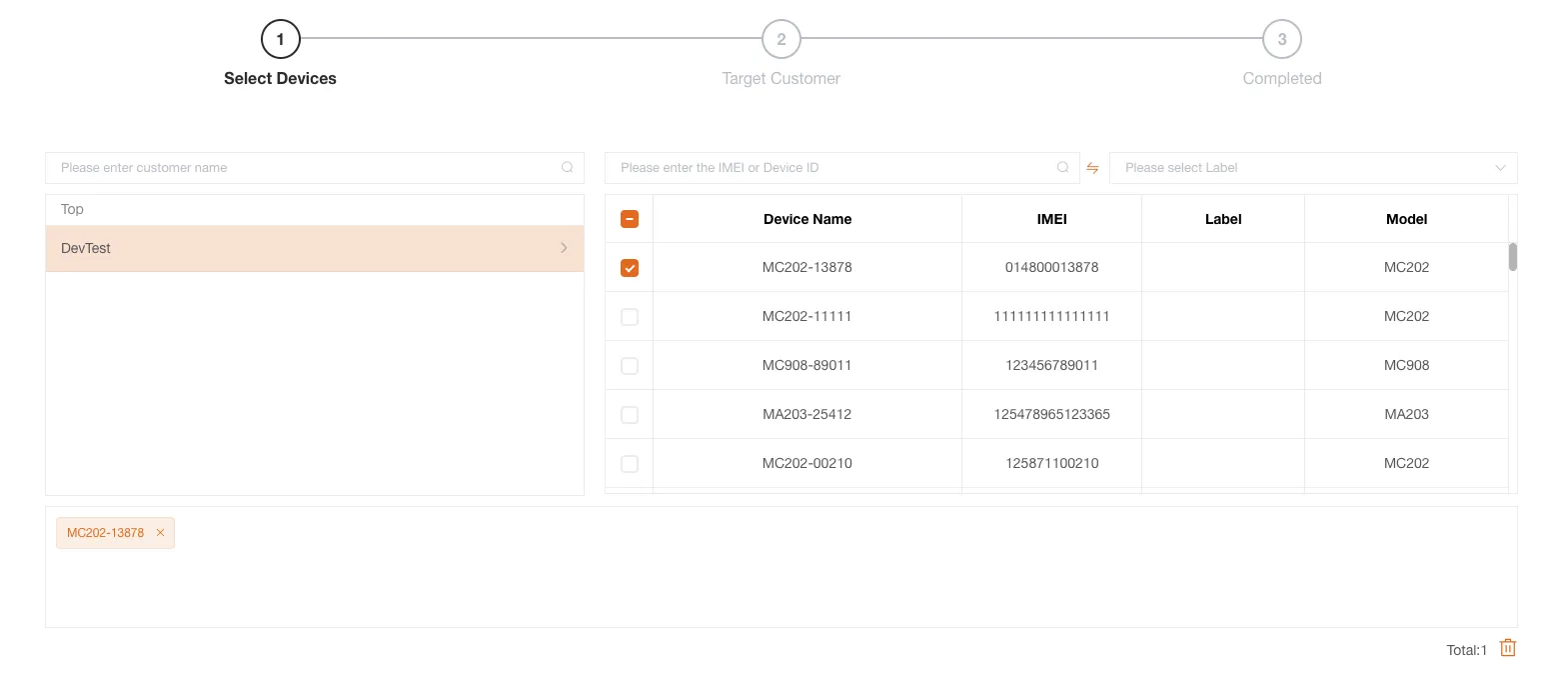
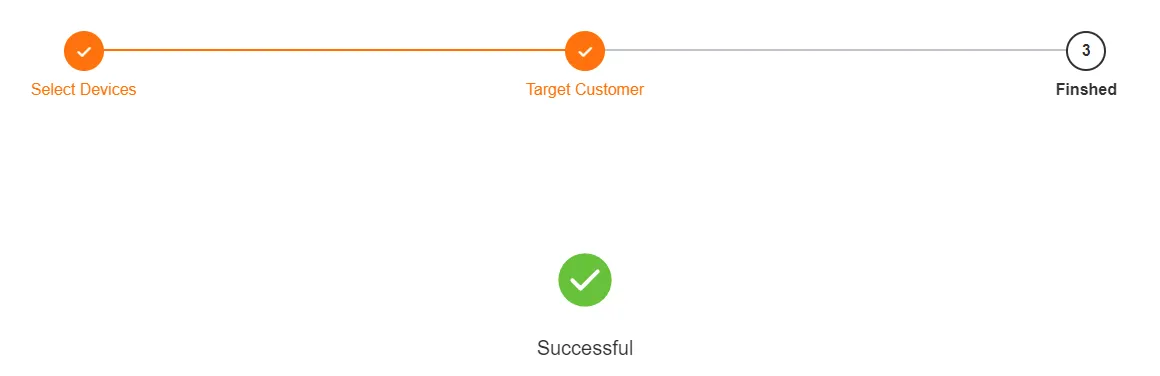
Section titled “Sell Device”You can sell devices from the current customer or subordinate customers to other customers.
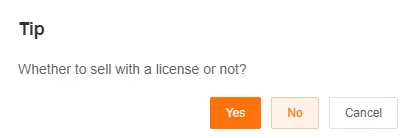
If a device has a license bound to it, the system will notify you during the sale, and you can choose whether to sell the license along with it.
-
Select Devices to Sell
-
Select the Target Customer
-
Confirm the Sale
Export Device Information
Section titled “Export Device Information”You can export device information. After the export is complete, you can download the device information report from the Download Center.
Device License Binding
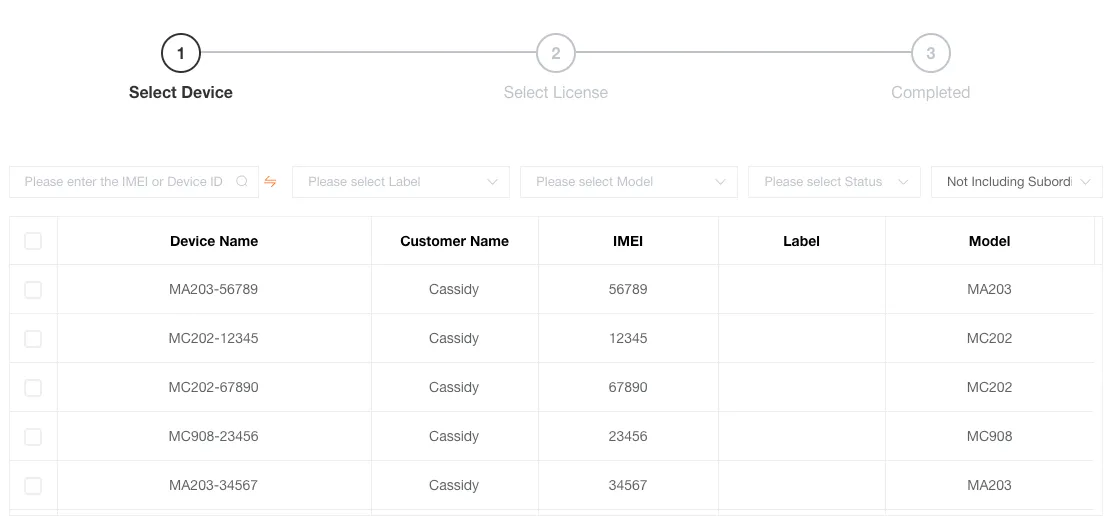
Section titled “Device License Binding”This feature allows you to bind licenses to multiple devices in bulk.
-
Select Devices to Bind
After starting the bulk binding process, the system will list all devices that are not bound to a license.
-
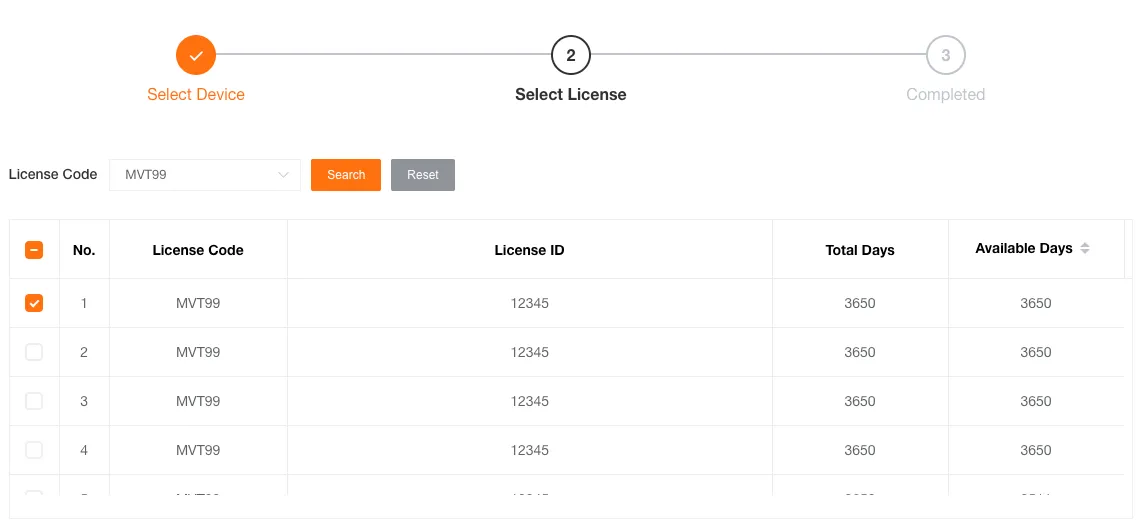
Select Licenses for Binding
-
Search for Suitable
LicensesAfter selecting the
Licensetype, click Search. -
Auto-select
LicensesThe system will automatically check the corresponding number of
Licensesfrom the list based on the number of devices you selected, eliminating the need for manual selection.
-
-
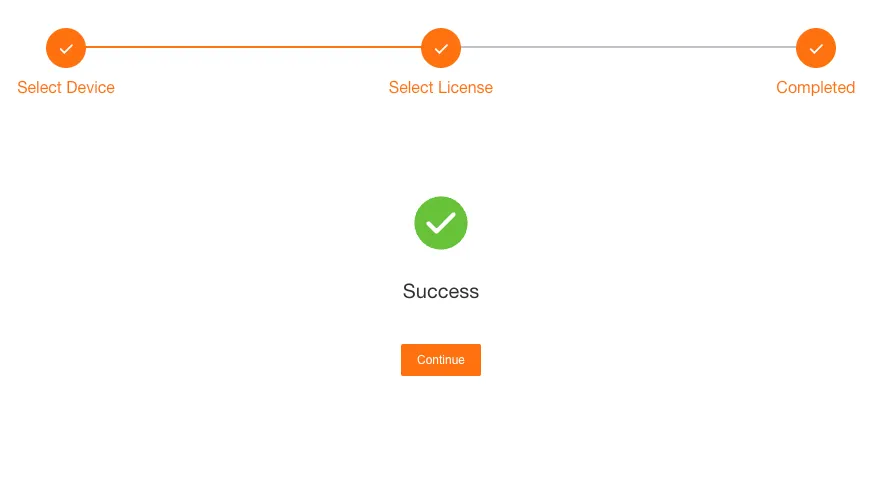
View Binding Results
After completing the binding operation, the system will display the results.
If any bindings fail, the system will clearly list the failed devices and the reasons. You can click the Continue button to return to the first step and re-select devices.
Label Management
Section titled “Label Management”Labels are an effective tool for managing and organizing a large number of devices. You can create labels, group devices, and grant bulk permissions to sub-users based on labels.
Create a New Label
Section titled “Create a New Label”-
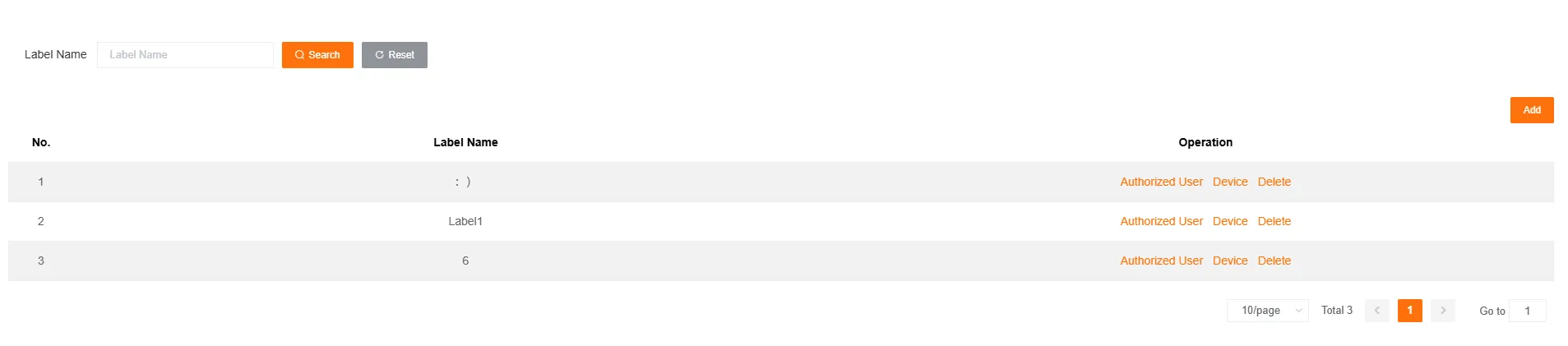
Create a New Label
In the label management interface, click the Add button to create a new device label. You can create separate labels for different types or groups of devices based on your business needs.
-
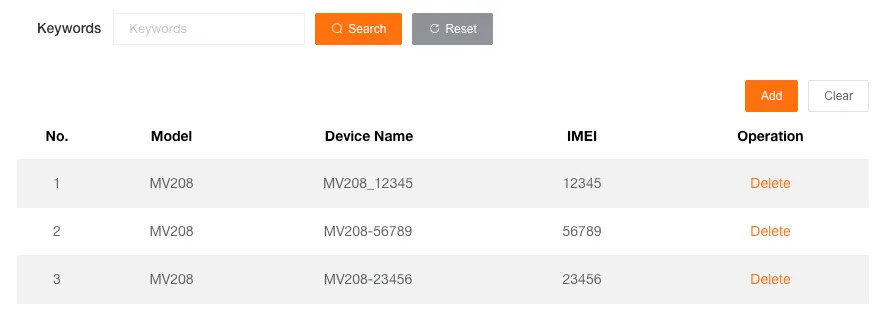
Associate Devices with a Label
After creating a label, you can associate devices with it for group management.
-
Select a label and click the Devices button.
-
In the pop-up window, click Add to associate new devices, or delete/clear existing associations.
-
-
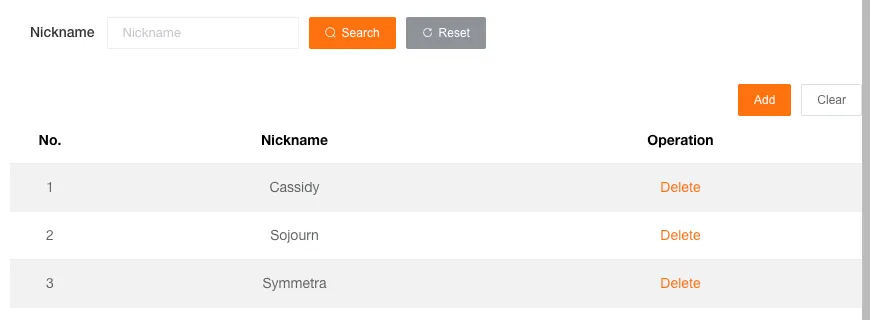
Authorize Users for a Label
You can authorize sub-users for a label, allowing them to access and manage all devices under that label.
-
Select a label and click the Authorize Users button.
-
In the pop-up window, click Add to authorize new sub-users for the label, or delete/clear existing authorizations.
-
Delete Label
Section titled “Delete Label”Deleting a label will unbind all associated devices and all authorized users.